00197184-01_IM_Celsius_W510_Windows7_EN.pdf - 第28页
Celsius W510 with Win dows 7 10/2011 Edition The following window ap pears. Figure 4-8: Install Now ► Click the Install now button. The following window ap pears. Figure 4-9: License Agreement ► After reading the license…
Celsius W510 with Windows 7 10/2011 Edition
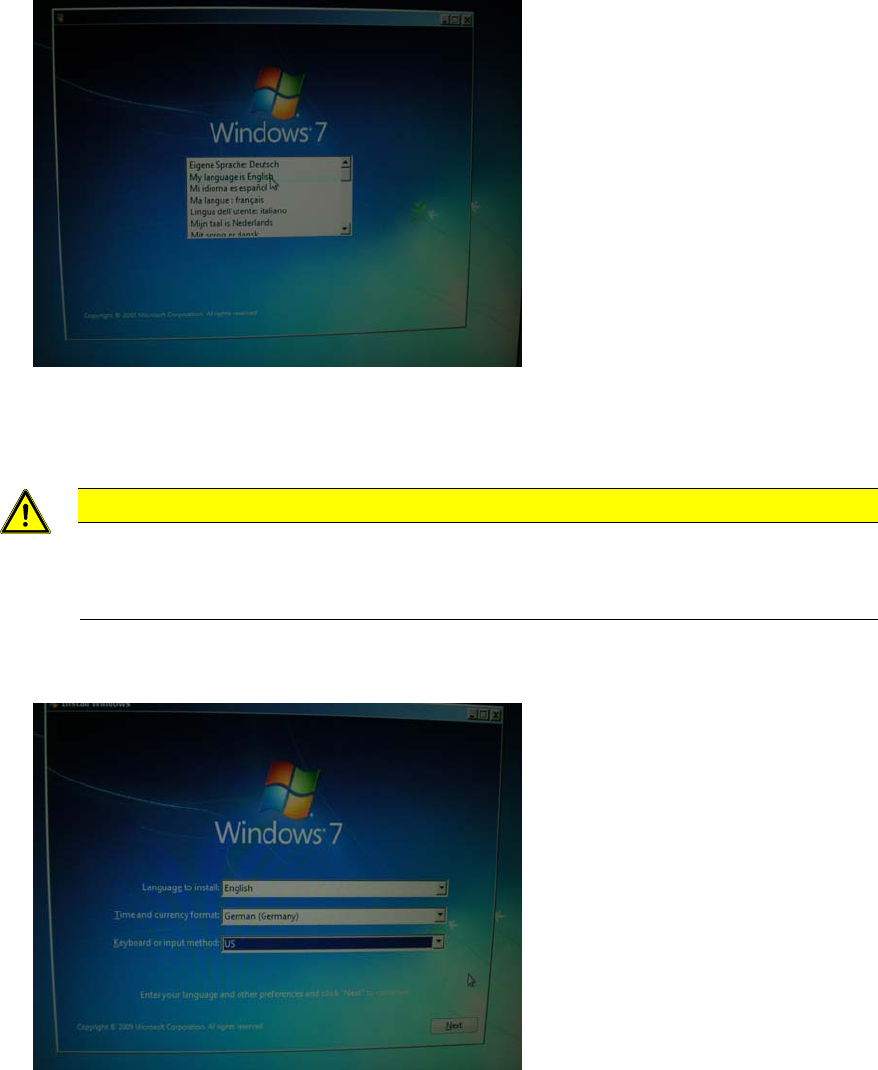
After a while, the following dialog will appear.
Figure 4-6: Language selection
► Select the My language is English entry.
CAUTION
Click carefully
After clicking at one entry in this step, you can’t go back! If you clicked at the wrong
entry, you have to power off the computer and restart the whole procedure again!
The following window appears.
Figure 4-7: Regional settings
► Select English besides Language to install.
► Select the appropriate time and currency format.
► Select the appropriate keyboard layout. For SIPLACE Line Computers, the default is US.
► Click the Next button to continue.
27
Celsius W510 with Windows 7 10/2011 Edition
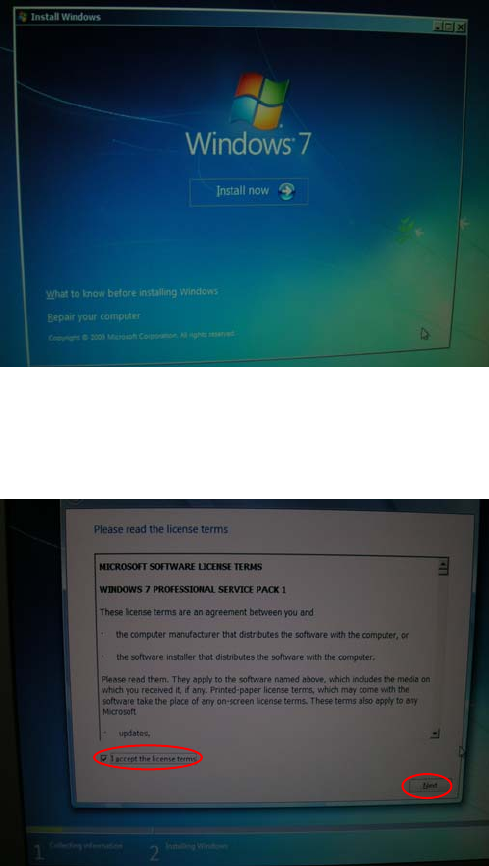
The following window appears.
Figure 4-8: Install Now
► Click the Install now button.
The following window appears.
Figure 4-9: License Agreement
► After reading the license agreement, check the checkbox besides I accept the license terms to
accept the license.
► Click the Next button to continue.
28
Celsius W510 with Windows 7 10/2011 Edition
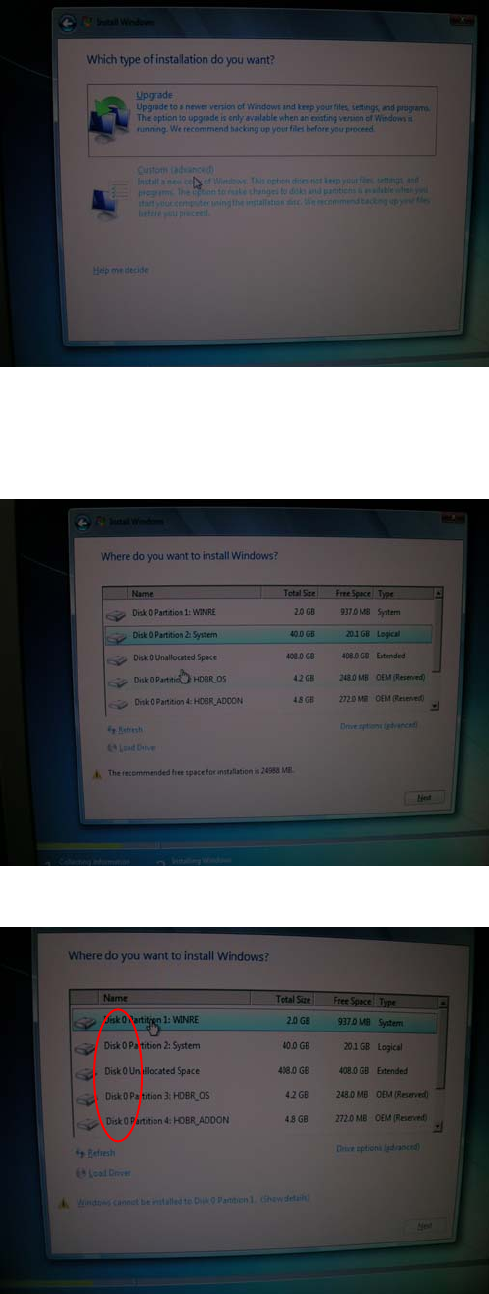
The next window appears.
Figure 4-10: Installation Type
► Click the installation type Custom (advanced).
The following window appears.
Figure 4-11: Partitioning screen
Only consider
Partitions of “Disk 0” !
Figure 4-12: Selecting first partition on Disk 0
► Click on the first partition on Disk 0 as shown in the picture above.
29