00197184-01_IM_Celsius_W510_Windows7_EN.pdf - 第36页
Celsius W510 with Win dows 7 10/2011 Edition The next window appears. Figure 4-26: Network Location Setting ► Click on Work network . After that, Windows will finalize the settings. Figure 4-27: Windows finali zing the s…
Celsius W510 with Windows 7 10/2011 Edition
The next window appears.
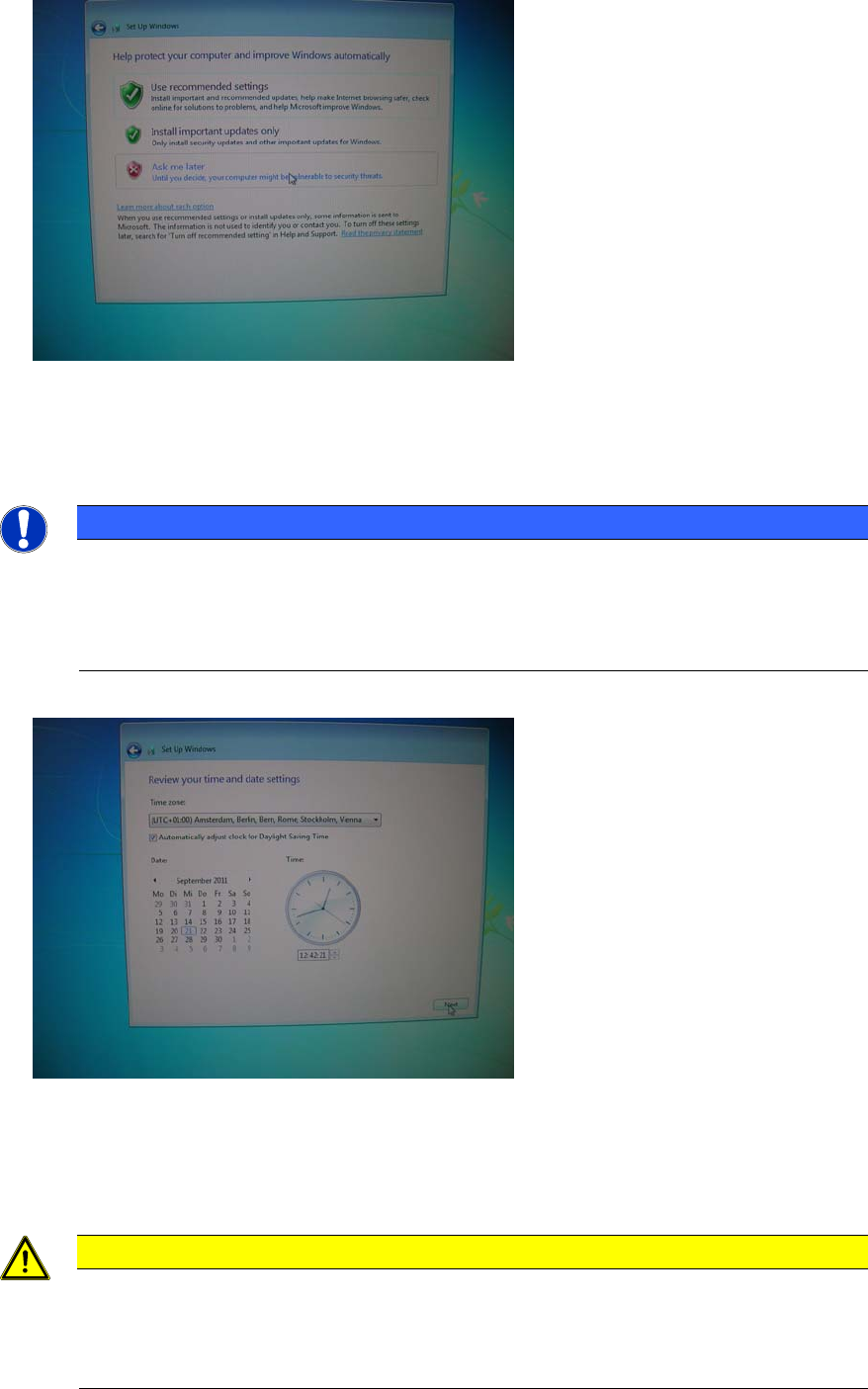
Figure 4-24: Windows Update Settings
► Since we don’t use the automatic update feature in our SIPLACE workgroup environment, click
the Ask me later option.
NOTICE
SIPLACE Software and Microsoft Updates
In general, SIPLACE software is only tested with a specific set of Microsoft updates.
Therefore - as long as not explicitly required in your environment – you shouldn’t activate
automatic updates.
The next window appears.
Figure 4-25: Date and Time settings
► Choose the appropriate time zone.
► Ensure the date and time are correct.
► Click the Next button to continue.
CAUTION
Server and Client must be uniform
For proper Windows authentication, date and time of all involved computers must not
differ too much! Additionally, some SIPLACE Products like OIS require the time zone to
be identical on all computers!
35
Celsius W510 with Windows 7 10/2011 Edition
The next window appears.
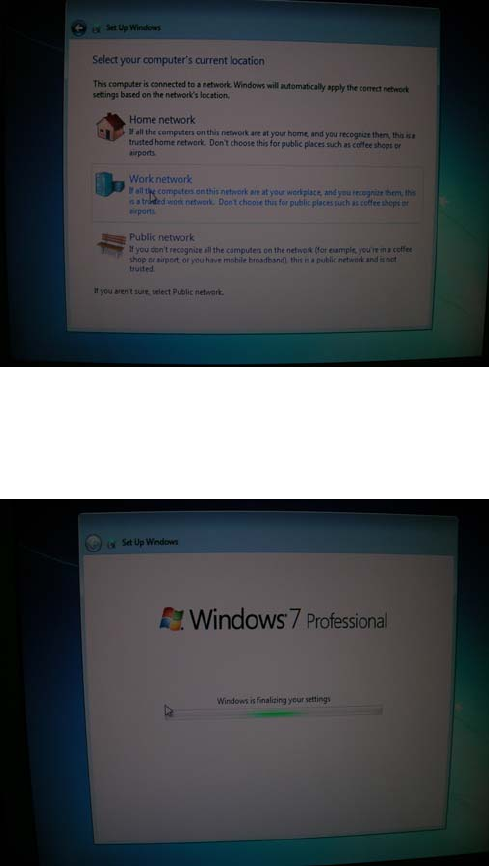
Figure 4-26: Network Location Setting
► Click on Work network.
After that, Windows will finalize the settings.
Figure 4-27: Windows finalizing the settings
36
Celsius W510 with Windows 7 10/2011 Edition
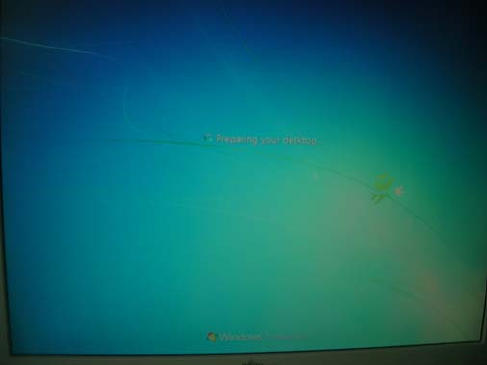
After finalization, Windows will log you on automatically.
Figure 4-28: Computer logging in automatically
► Please continue with the next chapter.
37