00197184-01_IM_Celsius_W510_Windows7_EN.pdf - 第39页
Celsius W510 with Win dows 7 10/2011 Edition Figure 4-31: Opening the Windows Explorer ► Open the Windows Explorer by clicking on the appropriate icon in th e task bar. Figure 4-32: Selecting DVD drive ► If your DVD driv…
Celsius W510 with Windows 7 10/2011 Edition
4.2 Installing Drivers for the Computer
This chapter describes the installation of all required drivers.
► Ensure that you are logged in with an account with administrative permissions (if you followed
this guide step by step, this is the case).
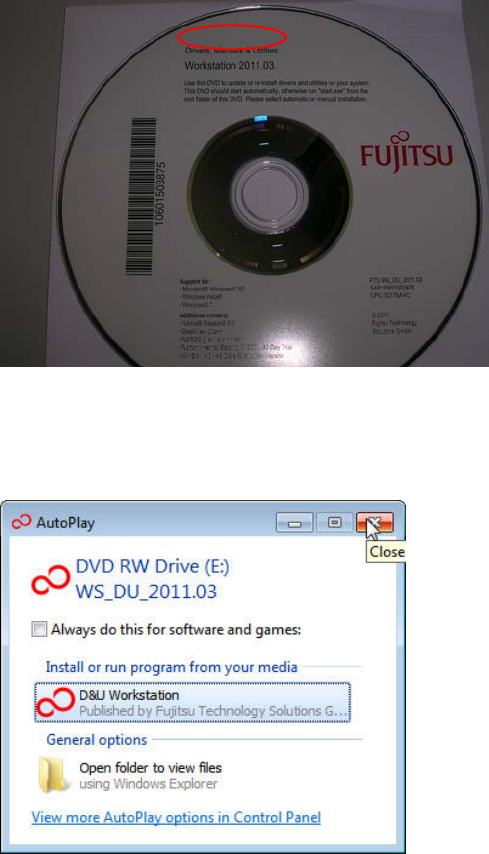
Figure 4-29: Drivers DVD
► Insert the “Drivers, Manuals & Utilities” DVD into the DVD drive.
The auto play window may appear.
Figure 4-30: Closing the AutoPlay window
► Close the AutoPlay window by clicking on the X.
38
Celsius W510 with Windows 7 10/2011 Edition
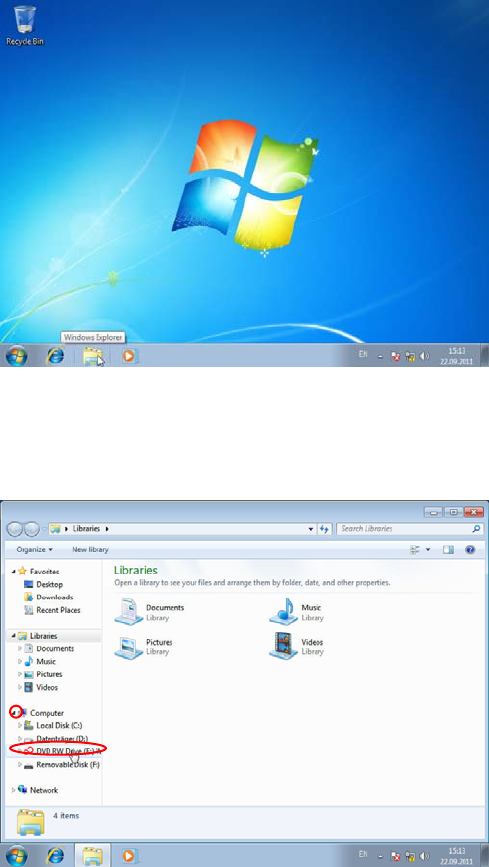
Figure 4-31: Opening the Windows Explorer
► Open the Windows Explorer by clicking on the appropriate icon in the task bar.
Figure 4-32: Selecting DVD drive
► If your DVD drive isn’t visible in the tree view, expand it by clicking on the arrow besides
Computer.
► Right-click on the DVD drive.
39
Celsius W510 with Windows 7 10/2011 Edition
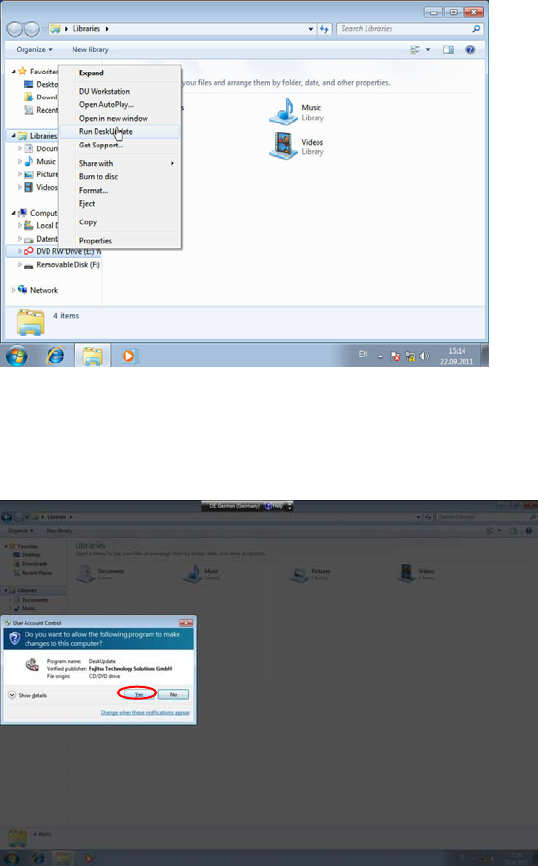
Figure 4-33: Selecting “Run DeskUpdate” from the context menu
► Select the Run DeskUpdate entry from the context menu.
The User Account Control (UAC) confirmation dialog appears.
Figure 4-34: User Account Control confirmation prompt
► Click the Yes button to confirm the DeskUpdate application being executed with administrative
permissions.
40