00197184-01_IM_Celsius_W510_Windows7_EN.pdf - 第7页
Celsius W510 with Win dows 7 10/2011 Edition Figure 2-2: Back of Celsius W510 computer Legend: 5 4 3 1) Connector to graphics card (use the deli ver ed 2* DVI splitter cable; for monitors with VGA you only have to use a …
Celsius W510 with Windows 7 10/2011 Edition
2 Preparation
Before installing the computer, some preparation tasks have to be performed.
2.1 Interfaces Overview
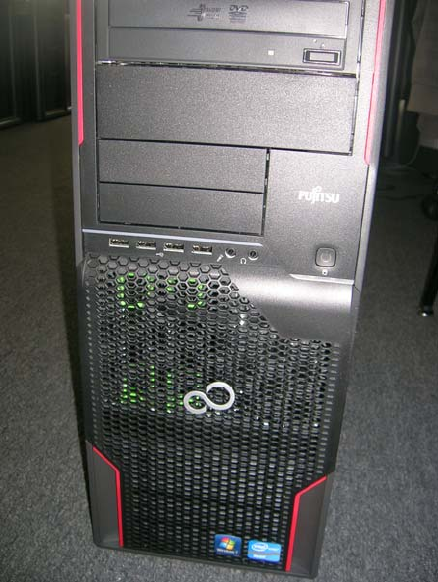
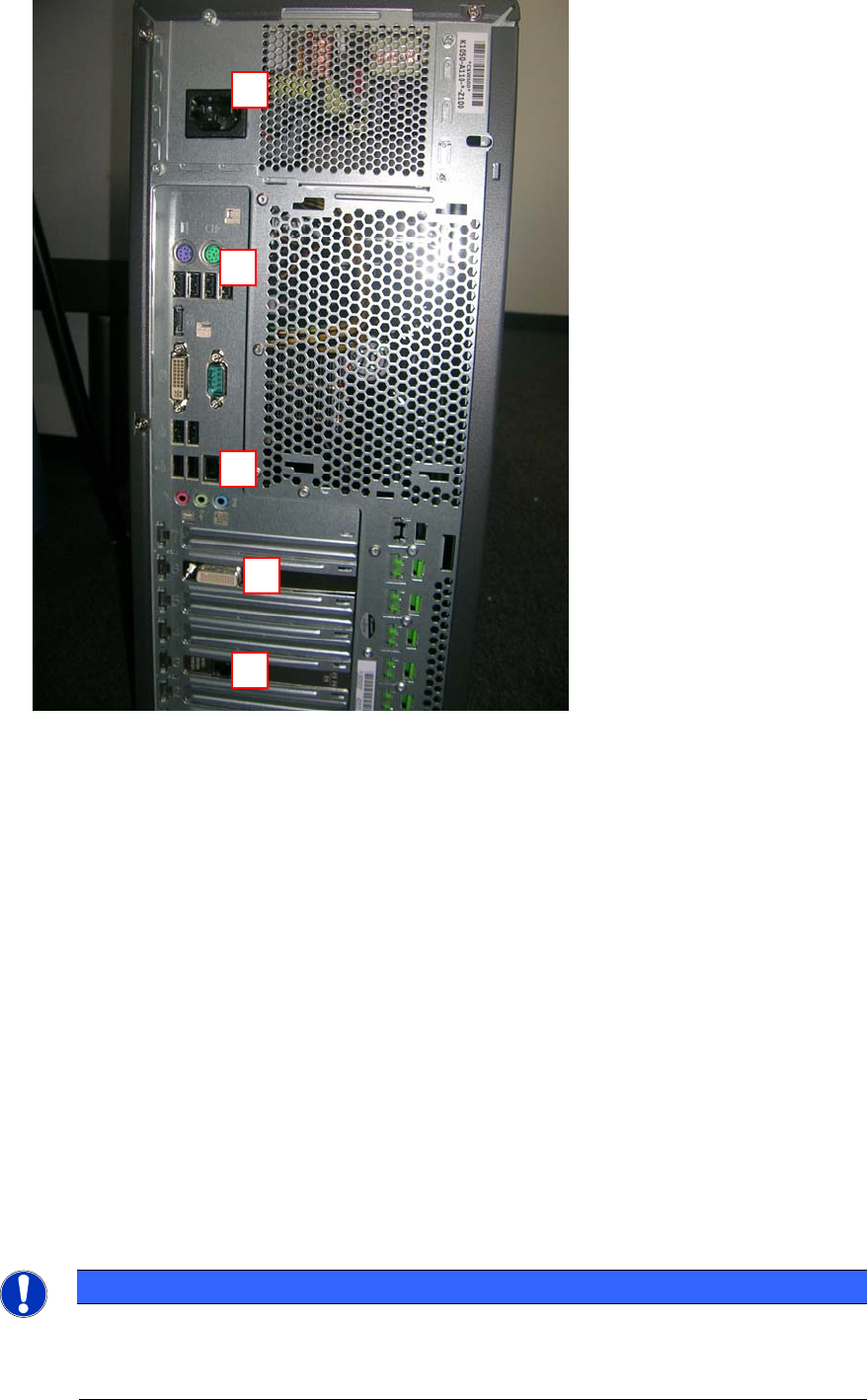
The following pictures show an overview of your computer hardware.
Figure 2-1: Front of Celsius W510 computer
6
Celsius W510 with Windows 7 10/2011 Edition
Figure 2-2: Back of Celsius W510 computer
Legend:
5
4
3
1) Connector to graphics card (use the delivered 2* DVI splitter cable; for monitors with VGA
you only have to use a DVI to VGA adapter additionally)
2) SIPLACE LAN Network connection
3) Additional onboard LAN connection (not used)
4) PS/2 and USB Ports for keyboard, mouse and other peripherals
5) Power connector
2.2 Used network connections
► Before you begin, please ensure that you have connected the SIPLACE LAN network cable
(usually IP range 172.22.x.x) to the external network adapter at the bottom and removed all
other network cable connections.
NOTICE
Network Adapter Identification
For simple identification of the appropriate SIPLACE LAN network adapter later after
installation, it is strongly recommended to disconnect all other adapters.
2
1
7

Celsius W510 with Windows 7 10/2011 Edition
2.3 BIOS Settings
For this computer, you don’t have to modify BIOS settings for proper installation.
2.4 Choose Operating System Architecture
Before you begin with installation, you should decide which architecture of the Operating System
should be used.
In this installation package, you have the choice between the 32 bit (x86) and the 64 bit (x64)
version of Windows 7 Professional. The 64 bit version of Windows 7 is pre-installed.
If you don’t plan to use software or hardware which explicitly needs a 32 bit Operating System, we
recommend using the 64 bit version.
NOTICE
64 Bit Windows requires 64 Bit Hardware Drivers
If you don’t have 64 bit drivers for you hardware, you can’t use it with the 64 bit version
of Windows.
8