00197184-01_IM_Celsius_W510_Windows7_EN.pdf - 第9页
Celsius W510 with Win dows 7 10/2011 Edition 3 Finishing the pre-installed Windows 7 (64 Bit) Installation The following chapter describe s the completion of the pre-installed Wind ows 7 Professional 64 Bit installation …

Celsius W510 with Windows 7 10/2011 Edition
2.3 BIOS Settings
For this computer, you don’t have to modify BIOS settings for proper installation.
2.4 Choose Operating System Architecture
Before you begin with installation, you should decide which architecture of the Operating System
should be used.
In this installation package, you have the choice between the 32 bit (x86) and the 64 bit (x64)
version of Windows 7 Professional. The 64 bit version of Windows 7 is pre-installed.
If you don’t plan to use software or hardware which explicitly needs a 32 bit Operating System, we
recommend using the 64 bit version.
NOTICE
64 Bit Windows requires 64 Bit Hardware Drivers
If you don’t have 64 bit drivers for you hardware, you can’t use it with the 64 bit version
of Windows.
8
Celsius W510 with Windows 7 10/2011 Edition
3 Finishing the pre-installed Windows 7 (64 Bit)
Installation
The following chapter describes the completion of the pre-installed Windows 7 Professional 64 Bit
installation as delivered by Fujitsu.
If you need to reinstall the computer completely (deleting all previously stored data), please refer to
the chapter Performing a new Installation of Windows 7 on page 24.
NOTICE
Pre-installed Windows is 64 Bit only
If you have software or hardware that requires you to use the 32 bit version of Windows
instead of the pre-installed 64 bit bersion, you will have to perform a complete
reinstallation of Windows as described later in this document.
► To begin, ensure you’ve connected all necessary cables to the computer, except the power
cord.
► Connect the power cord.
► If the computer doesn’t start automatically, press the Power button on your computer.
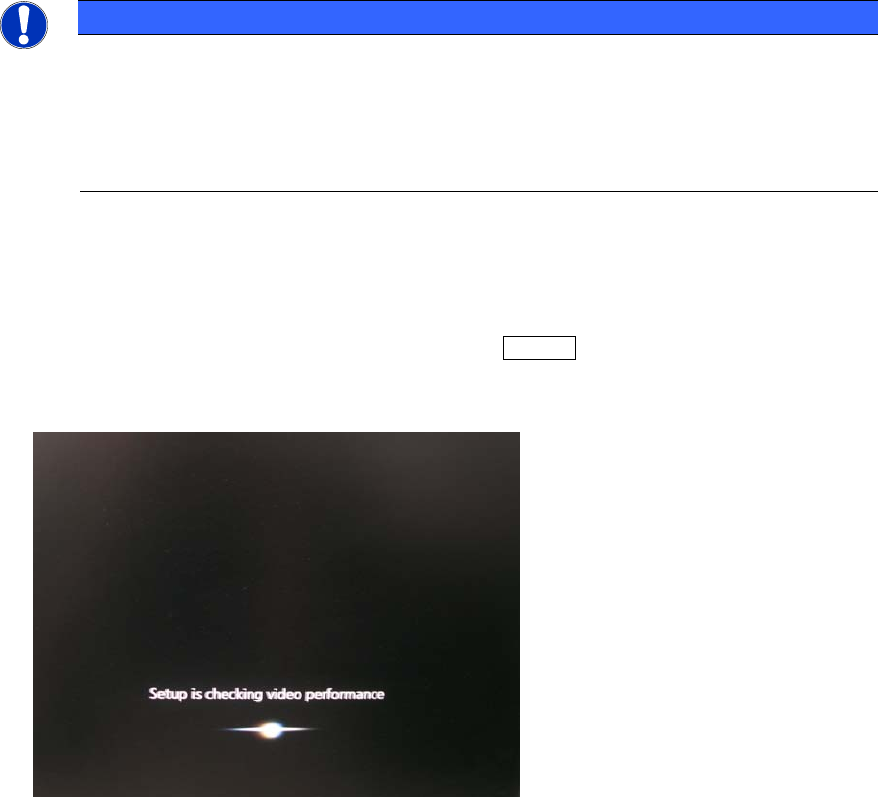
When booting up, the windows logo will appear a couple of seconds. After that, windows will
perform some initialization steps as shown in the following picture.
Figure 3-1: Windows performing initialization steps
9
Celsius W510 with Windows 7 10/2011 Edition
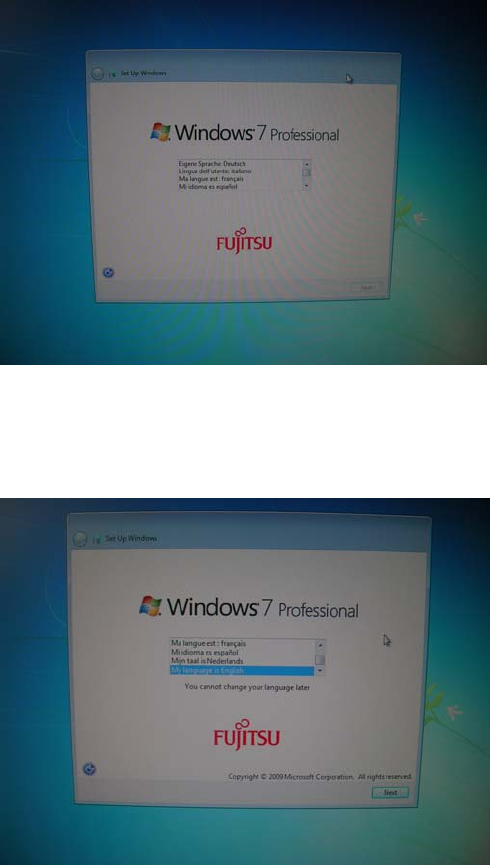
After some minutes, the first dialog appears.
Figure 3-2: Language selection dialog
► Select the appropriate language.
In this documentation, we select English.
Figure 3-3: Selecting English language
► Click the Next button to continue.
10