00195447-02_Installation_604_01_SP1_EN_DE - 第27页
Installation Manual, Station Software Version 604.01 SP1 Issue 12/2007 Fig. 5-6: TouchWare Properties – Multiple Monitors tab (example for Monitor 2) → Click the number of the monitor you wish to calibrate. → Open the Ca…
Installation Manual, Station Software Version 604.01 SP1 Issue 12/2007
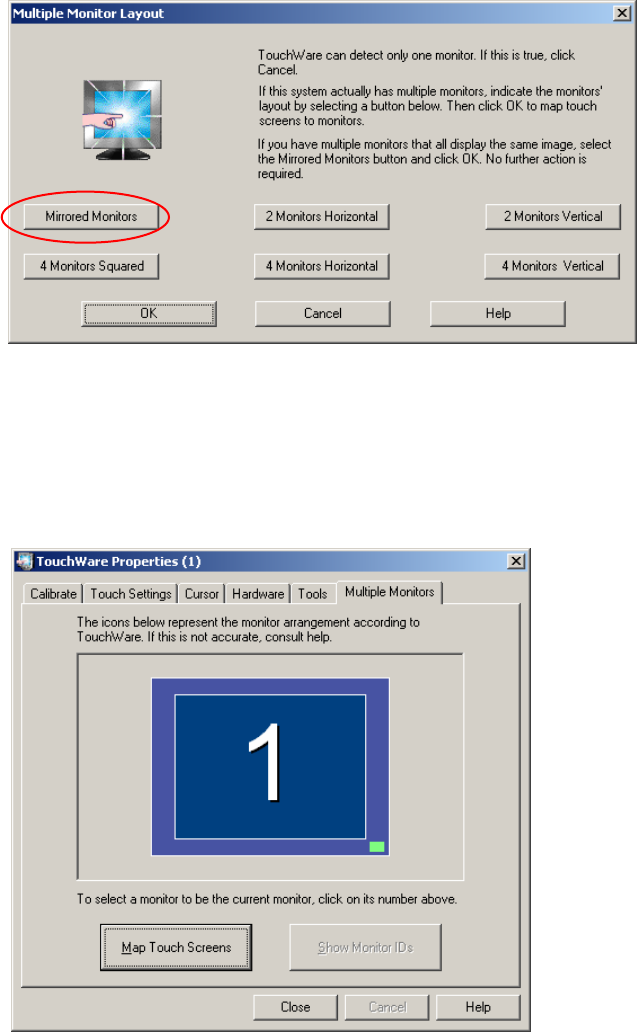
Fig. 5-4: "Multiple Monitor Layout" dialog box
→ Click the Mirrored Monitors button.
→ Confirm your entry with OK.
The touchscreens are now mapped and the "Multiple Monitors" tab is displayed again.
Fig. 5-5: TouchWare Properties – Multiple Monitors tab (example for Monitor 1)
26 of 47
Installation Manual, Station Software Version 604.01 SP1 Issue 12/2007
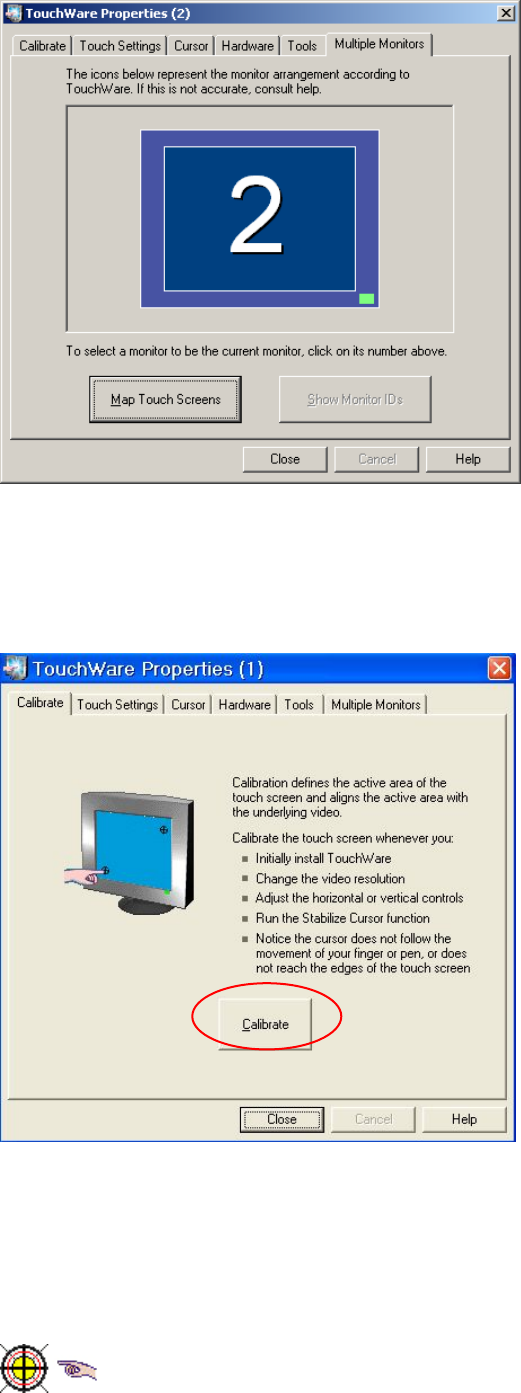
Fig. 5-6: TouchWare Properties – Multiple Monitors tab (example for Monitor 2)
→ Click the number of the monitor you wish to calibrate.
→ Open the Calibrate tab.
Fig. 5-7: TouchWare Properties – Calibrate tab (example for Monitor 1)
→ Click the Calibrate button. An icon representing the calibration is shown on screen. An icon
representing a hand guides you through the calibration steps by pointing to the calibration icon you
must touch.
Fig. 5-8: Calibration marks
27 of 47

Installation Manual, Station Software Version 604.01 SP1 Issue 12/2007
Notes:
Touch the calibration icon within 20 seconds, otherwise calibration is automatically
canceled.
Make sure that you are standing directly in front of the monitor.
Carry out calibration in the position (standing or seated) you normally adopt when working
at this screen.
Touch the calibration icon firmly and accurately with your fingertip.
Make sure that you to not inadvertently touch the screen with any other finger.
→ Touch the calibration icon with your finger and make sure that the yellow area is completely covered
by your finger. The message "Hold" appears around the hand icon.
→ Keep your finger on the calibration icon until the "Touch Enabled" message appears. A second
calibration icon now appears.
→ Repeat the steps described above for the second calibration icon.
A dialog box then appears asking you to test the calibration. You can carry out the calibration again if
you are not sure that you have carried it out correctly the first time.
→ Carry out the procedure described above for the second screen as well.
→ Click the Close button to close the program.
28 of 47