00195447-02_Installation_604_01_SP1_EN_DE - 第34页
Installation Manual, Station Software Version 604.01 SP1 Issue 12/2007 5.5.4 Welcome screen Fig. 5-18 Welcome screen 34 of 47 → Click the Next button. 5.5.5 Selecting the machine type Fig. 5-19 Selecting the machine type…
Installation Manual, Station Software Version 604.01 SP1 Issue 12/2007
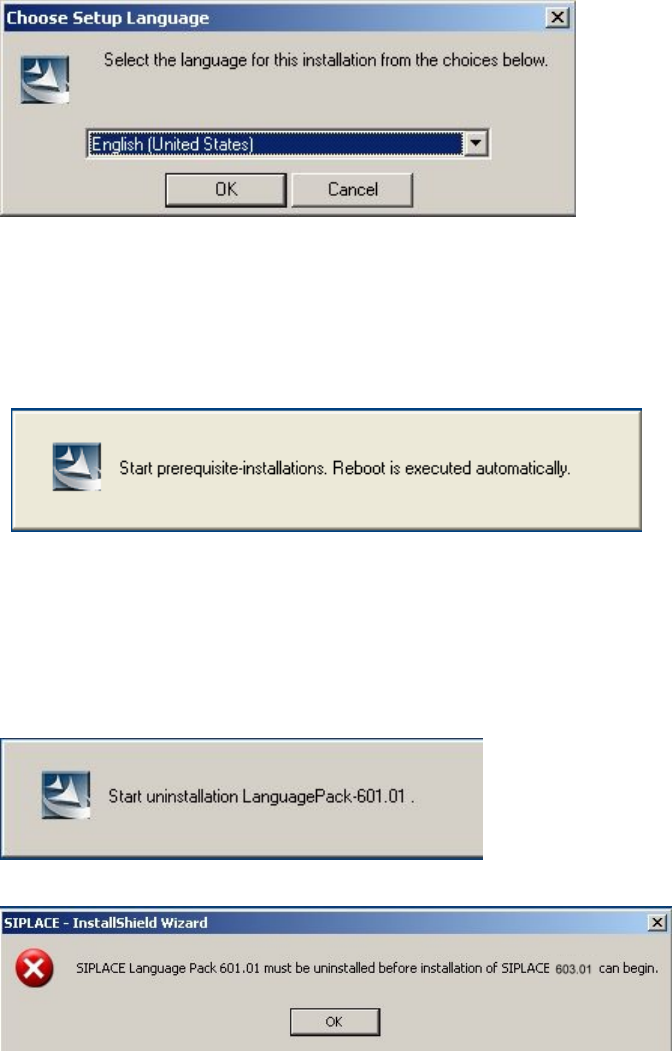
5.5.1 Language selection
→ Select the language to be used during installation.
You can choose between German (Germany) and English (United States).
Fig. 5-17: Language selection
→ Click the OK button.
5.5.2 Installing the system files
The necessary system files are installed if they are not already on the station computer. The station
computer is rebooted automatically after installation. You are automatically logged in as administrator.
5.5.3 Uninstalling Language Pack 601.01 (if installed)
If Language Pack 601.01 is still installed on the computer, uninstallation is started automatically.
If uninstallation of the Language Pack is cancelled, the following error message appears:
→ Click the OK button. Installation of the station software is cancelled and must be restarted.
Installation of the station software continues with the welcome screen.
33 of 47
Installation Manual, Station Software Version 604.01 SP1 Issue 12/2007
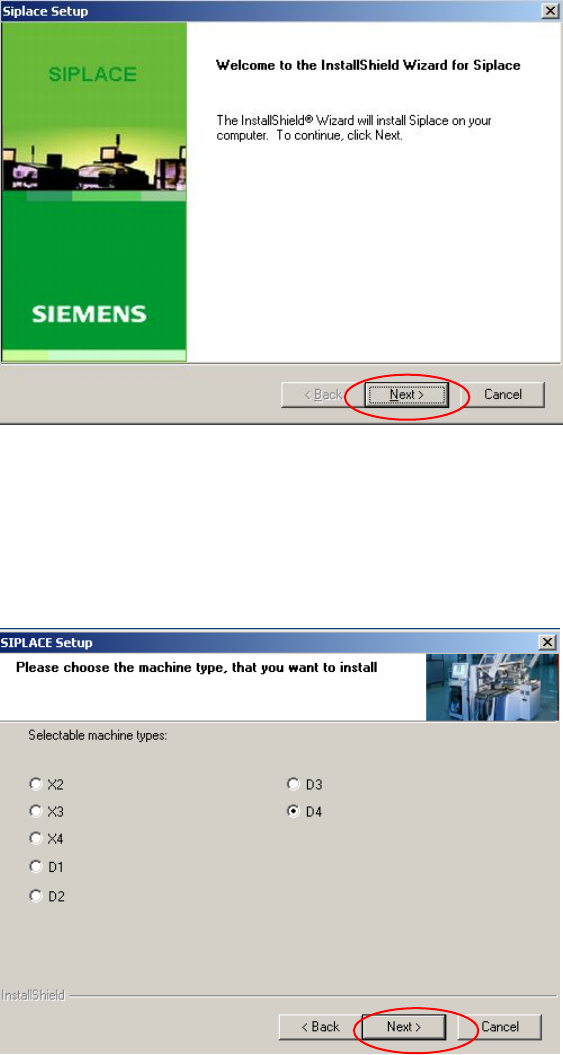
5.5.4 Welcome screen
Fig. 5-18 Welcome screen
34 of 47
→ Click the Next button.
5.5.5 Selecting the machine type
Fig. 5-19 Selecting the machine type
→ Select the option for the machine type for which the software is to be configured.
→ Click the Next button.
Installation Manual, Station Software Version 604.01 SP1 Issue 12/2007
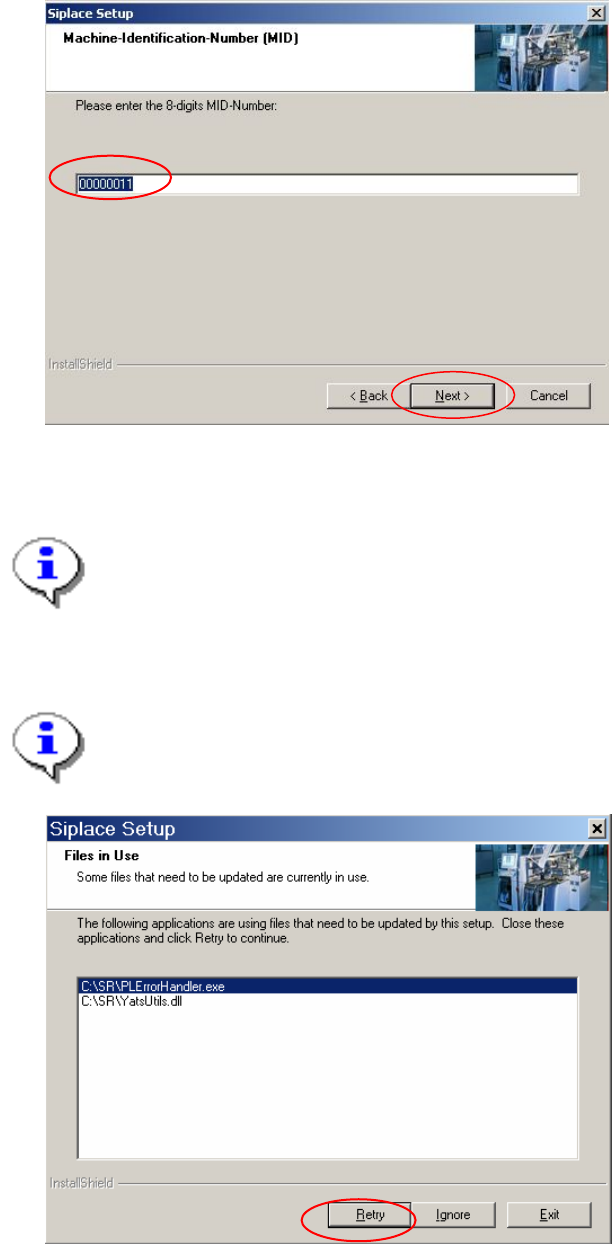
5.5.6 Entering the Machine Identification Number (MID)
Fig. 5-20: Entering the Machine Identification Number (MID)
→ In the text box, enter the 8-digit machine identification number.
Note:
You will find the MID on an adhesive label on the side of the protective covers directly below
the label for the number of the relevant location. The number following the dash after the MI
D
specifies the location and is not entered here (e.g. 00000001-2 stands for location 2).
→ Click the Next button.
Note:
The following screen only appears if applications are open which use files which must be updat
e
during installation of SIPLACE.
Fig. 5-21: Open applications
→ Close the applications listed here and then click the Retry button.
35 of 47