00198228-02_IM-MaterialSetupAssistant_DE_EN - 第58页
Introduction Installation Notes 58 SIPLACE Material Setup Assistant 2.2 SIPLACE Material Setup Assistant 2 .2

Introduction
Installation Notes
SIPLACE Material Setup Assistant 2.2 SIPLACE Material Setup Assistant 2.2 57
Software
▪ You need to have a local SQL database on the server on which you want to install the Order Man
-
ager.
▪ The server and the relevant client computer on which you want to install the Order Manager need to
be prepared with the help of the current Support Media DVD for the ASM Material Setup Assistant.
NOTICE
System requirements
The Support Media DVD checks the necessary system requirements for your system and then
installs these automatically. These include, amongst others Microsoft .NET Framework, ASM
Studio, the License Manager and the Error Reporting tool.
The use of the Support Media version 2.4 is mandatory.
The system requirements (supported operating system and database variants) and an over
-
view of the interoperable products can be found in the Support Media installation manual, item
no. [00197214-xx].
Introduction
Installation Notes
58 SIPLACE Material Setup Assistant 2.2 SIPLACE Material Setup Assistant 2.2
Installing the SIPLACE Order Manager
Starting the Installation - First Steps
SIPLACE Material Setup Assistant 2.2 SIPLACE Material Setup Assistant 2.2 59
2
2 Installing the SIPLACE Order Manager
Installing the SIPLACE Order Manager
Installation of the SIPLACE Order Manager includes the following packages:
Order Manager Client Components
▪ Module: Production Order Manager
▪ Module: Monitoring
Order Manager Server Components
▪ OIB connections
– OIB core computer
– OIB TCP port
– OIB Callback port
▪ SIPLACE Order Manager Service
▪ Database (if not already present)
2.1
2.1 Starting the Installation - First Steps
Starting the Installation - First Steps
► Insert the installation CD in the CD drive of the com
-
puter on which you want to install the SIPLACE Order
Manager components.
⇨ The installation will start automatically.
NOTICE!
If you were not yet registered as administrator, perform
the action as administrator.
► If the Windows autostart function is disabled, start the
installation with a double click on the SiplaceOrder
-
ManagerBundle.exe file in the root directory of the
CD.
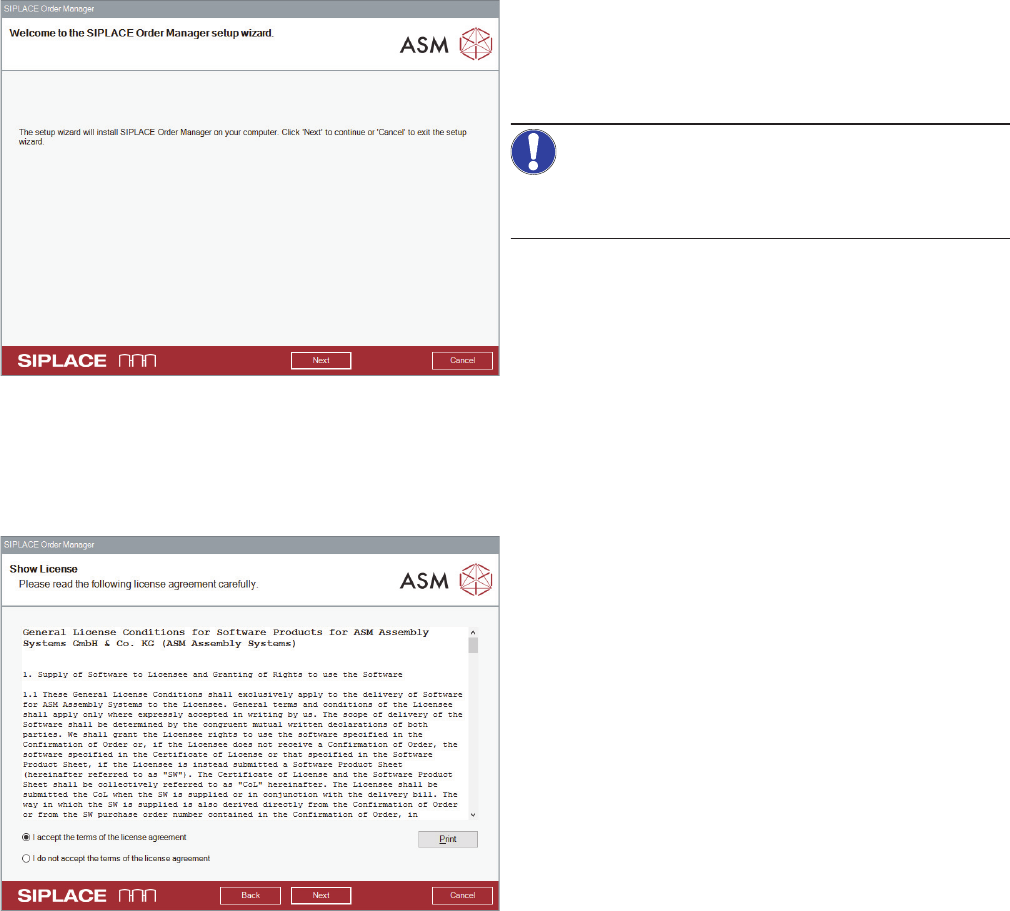
⇨ The start screen of the installation program will be
displayed.
► Click on Next.
⇨ The End-User License Agreement dialog box will be
shown.
► Read the license agreement and enable the option I
accept the terms in the License Agreement, to con
-
firm that you agree with the license conditions.
► Click on Next.
⇨ The Packages and Feature dialog box opens.