00198228-02_IM-MaterialSetupAssistant_DE_EN - 第67页
Installing the SIPLACE Order Manager Complete Installation SIPLACE Material Setup Assistant 2.2 SIPLACE Material Set up Ass istant 2.2 67 2.3.1 2 . 3 . 1 S u c c e s s f u lly I n s t a lle d S I P L A C E O r d e r M a …
Installing the SIPLACE Order Manager
Order Manager Client Installation
66 SIPLACE Material Setup Assistant 2.2 SIPLACE Material Setup Assistant 2.2
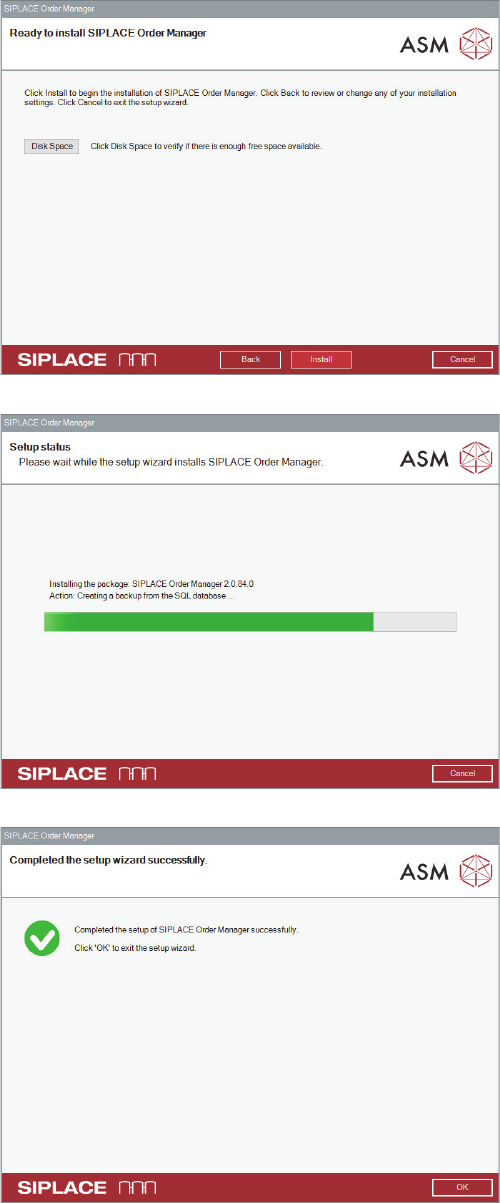
► Click on Install.
⇨ The Setup Status dialog box is displayed.
The client installation will be installed according to your
specifications.
During the installation, a progress bar displays the cur
-
rent installation status.
After the SIPLACE Order Manager client has been suc
-
cessfully installed, the dialog box for finishing the installa
-
tion program will be shown.
► Click on Finish to terminate the installation program.
Installing the SIPLACE Order Manager
Complete Installation
SIPLACE Material Setup Assistant 2.2 SIPLACE Material Setup Assistant 2.2 67
2.3.1
2.3.1 Successfully Installed SIPLACE Order Manager Client
Successfully Installed SIPLACE Order Manager Client
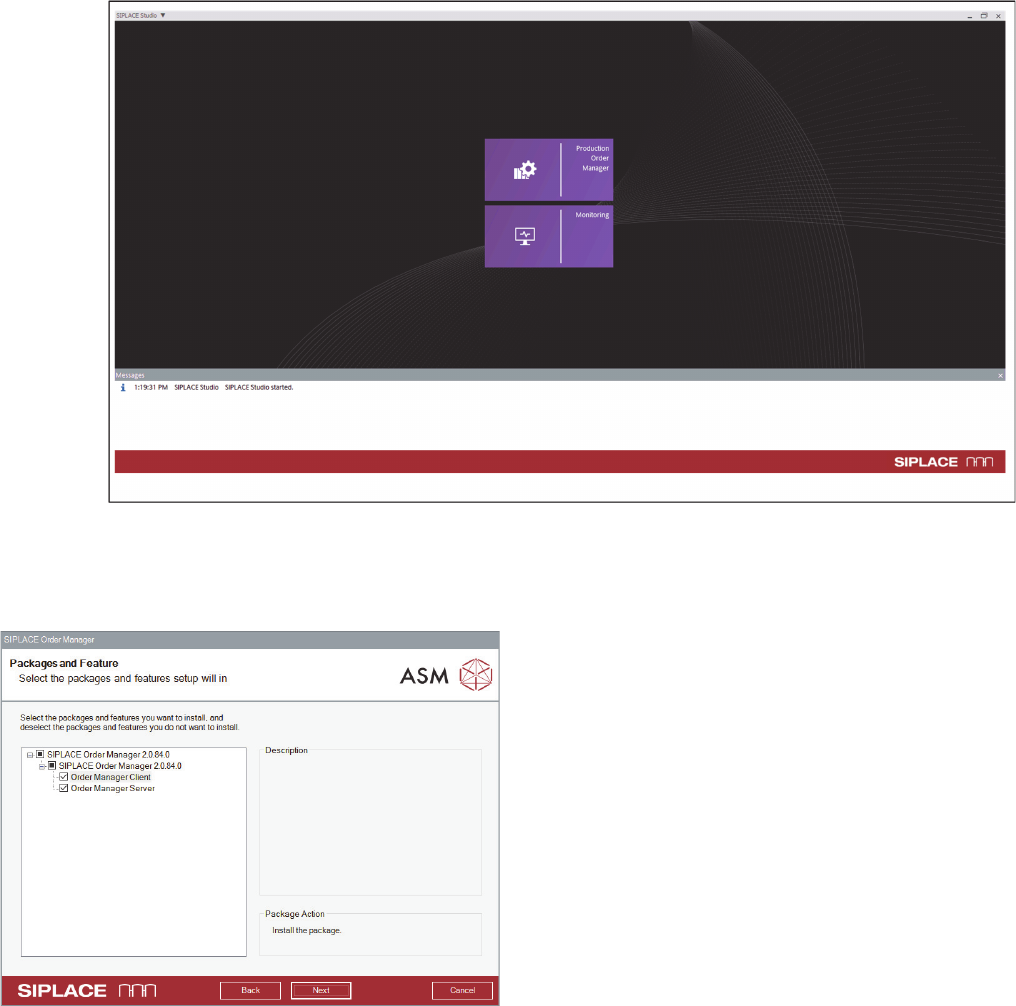
After successful installation, the Production Order Manager and Monitoring modules will be available in
the SIPLACE Studio.
Order Manager in SIPLACE Studio
2.4
2.4 Complete Installation
Complete Installation
Installs the client and server components for the
SIPLACE Order Manager on one computer.
► Perform the steps at "2.1 Starting the Installation -
First Steps" [ ➙ 59].
► Select Order Manager Client and Order Manager
Server.
► Click on Next.
► Follow the installation steps in the sections:
► "2.1 Starting the Installation - First Steps" [ ➙ 59]
► "2.2 Order Manager Server Installation" [ ➙ 60]
► "2.3 Order Manager Client Installation" [ ➙ 65]
Installing the SIPLACE Order Manager
Complete Installation
68 SIPLACE Material Setup Assistant 2.2 SIPLACE Material Setup Assistant 2.2