Micron Technical Reference V9 Volume 1.pdf - 第281页
PROFLOW MODULE ADJUSTMENTS AND SETTINGS Chapter Issue 2, Aug 14 Technical Reference Manual 11.7 Height Adjustment T o set the ProFlow stencil suppor t to the correct height carry out the following: 1. Loosen the 7mm hexa…

PROFLOW MODULE
ADJUSTMENTS AND SETTINGS
11.6 Technical Reference Manual Chapter Issue 2, Aug 14
ADJUSTMENTS AND SETTINGS
ProFlow Paste
Level Sensor
There is no adjustment and setting for this sensor.
ProFlow Stencil
Support
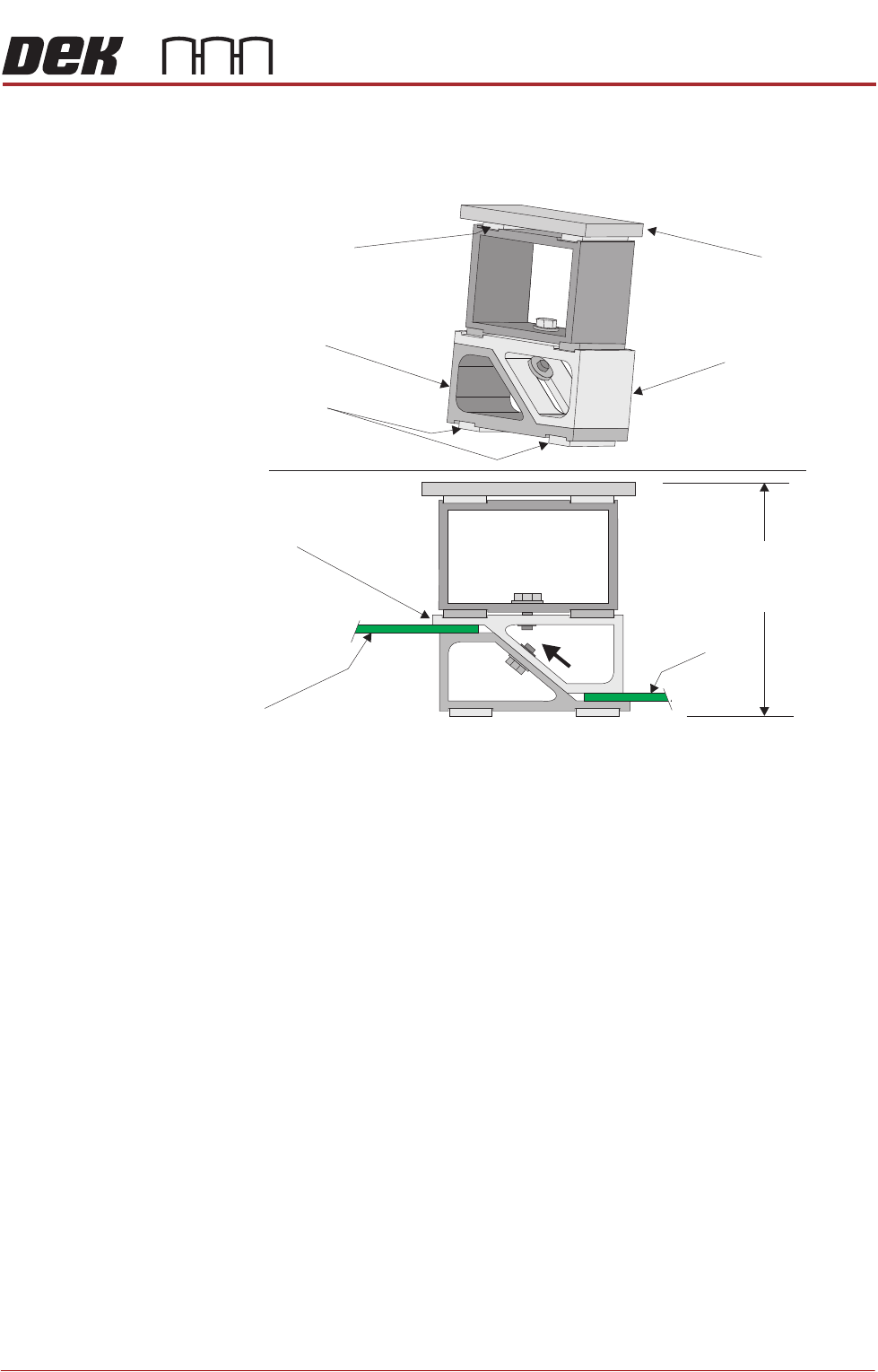
The ProFlow stencil support option provides stencil support when printing
boards that are narrower than the ProFlow transfer head, thus avoiding poten-
tial paste smearing onto the top of the stencil and stabilising the pressure within
the transfer head.
The standard height when the adjustable tooling top is in the closed position is
81mm. The support comprises the following items:
• Changeable Gauge Plate
• Tooling Bottom
• Adjustable Tooling Top
NOTE
Refer to Board Support Tooling chapter of this manual for further information.
PROFLOW MODULE
ADJUSTMENTS AND SETTINGS
Chapter Issue 2, Aug 14 Technical Reference Manual 11.7
Height Adjustment To set the ProFlow stencil support to the correct height carry out the following:
1. Loosen the 7mm hexagonal nut securing the adjustable tooling top and the
tooling bottom.
2. Slide the adjustable tooling top upwards to open up the tooling top and
bottom faces.
3. Position two printed circuit boards to be printed between the adjustable
tooling top and tooling bottom opening faces.
4. Tighten the bolt locking the adjustable tooling top to the tooling bottom.
5. Remove both printed circuit boards.
The support is now set to the correct stencil height, ie 81mm + thickness of
board.
Changeable
Gauge Plate
Tooling Bottom
Magnetic Feet
Magnetic Support
(2 positions)
Adjustable Tooling
Top
Board
Adjustable
Tooling Top
Board
Stencil Support
Height (81mm +
PCB Thickness)
PROFLOW MODULE
REPLACEMENT PROCEDURES
11.8 Technical Reference Manual Chapter Issue 2, Aug 14
REPLACEMENT PROCEDURES
Squeegees to
ProFlow
Instances may occur when the machine is required to print using the ProFlow
module configuration. The following procedure details how to revert the
machine from squeegee use to the ProFlow configuration:
Removing
Squeegee
Mechanism
1. Select Open Cover Commands.
2. Select Carriage To Front.
3. Select Back.
4. Select Shut Down.
5. Select Continue.
6. Switch the mains isolator to OFF.
7. Remove the squeegees, if fitted.
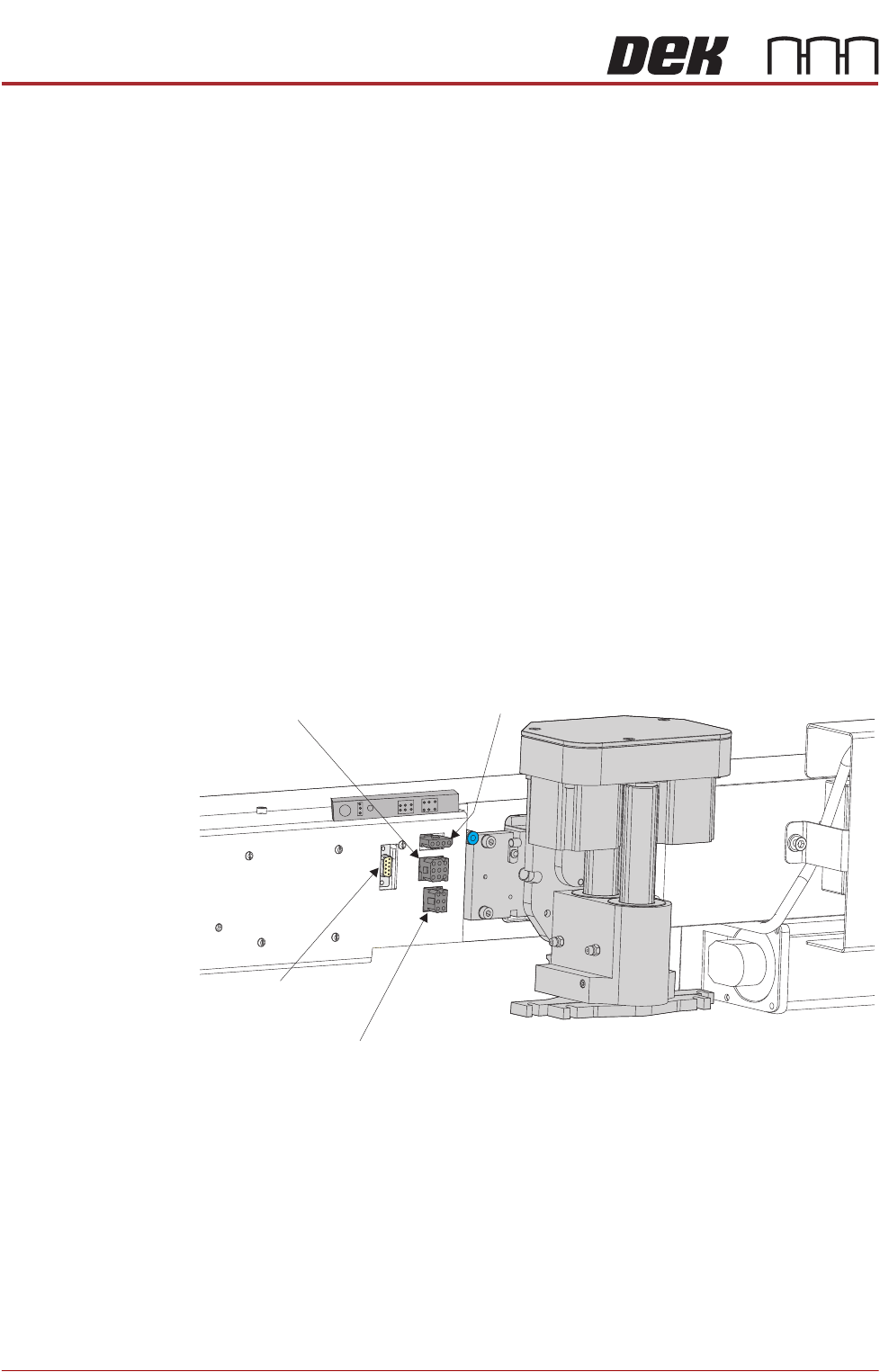
8. Disconnect the four squeegee mechanism connectors from the print car-
riage, left hand side:
• Rear Squeegee Motor
• Front Squeegee Motor
• Home Sensors
• Squeegee Pressure Amplifier
9. Loosen the four captive screws securing the squeegee printhead mecha-
nism to the print carriage using a 4mm Allen key. Carefully remove the
Rear Squeegee
Motor (9SK17)
Front Squeegee
Motor (9SK16)
Home Sensors
(9SK08)
Squeegee Pressure
Amplifier (N3SK16)