Micron Technical Reference V9 Volume 1.pdf - 第64页
COVERS PRINTER COVERS 3.22 Technical Reference Manual Chapter Issue 11, Jan 17 T ype 3 Covers In order to protect personnel and prevent dama ge to the printer , eight panels are fitted around the base o f the printer . •…
COVERS
PRINTER COVERS
Chapter Issue 11, Jan 17 Technical Reference Manual 3.21
Rear Side Cover To remove the rear side cover, carry out the following:
1. Remove the rear panel.
2. Remove the safety cover.
3. Open the rear printhead cover.
4. Locate and release the corner panel quarter- turn ring fastener; lift the corner
panel away to gain access to the rear side cover quarter- turn ring fastener.
5. Release the fastener.
6. lift the rear side panel away from the location pin and slide the panel away
from the front side cover locating tabs.
7. Remove the earth strap from the bottom of the panel.
8. Remove the panel.
Sliding Cover The sliding cover is heavy and requires a minimum of two people to lift it away
from its mountings. If the cover needs to be removed; contact ASM Customer
Support Group for further information and the special tools required.
Rear Printhead
Cover
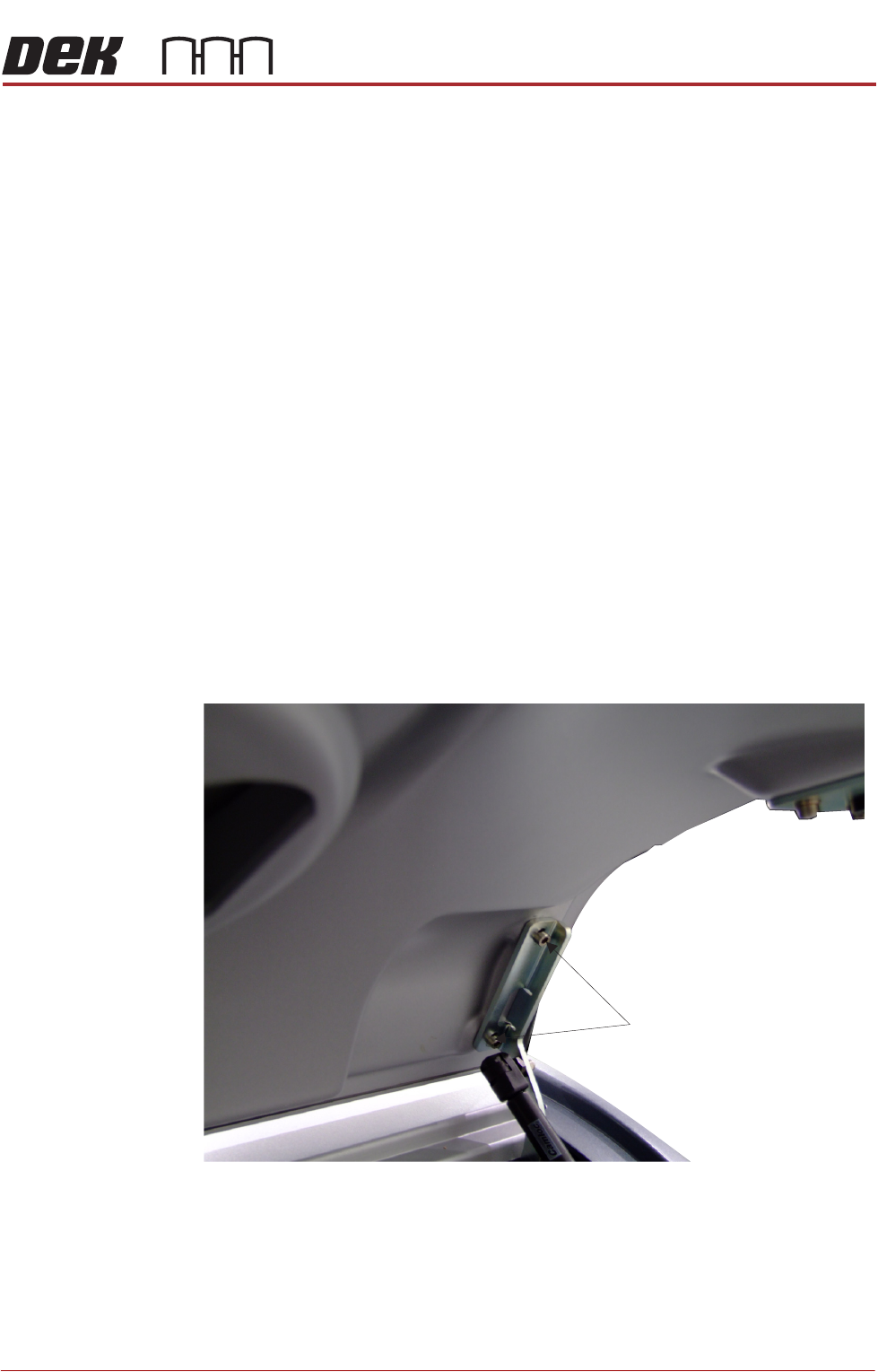
To remove the rear printhead cover:
1. Lift the rear printhead cover.
2. Locate the cover open mechanism.
3. Remove the bracket securing screws from both sides of the lid.
4. Lift the cover away from the printer.
Refitting the Covers NOTE
Before fastening latches ensure that all panels are located on the pins and the
location tabs are fully engaged.
Bracket Securing Screws
View on Right Hand Side of the Cover Assembly
(Cover in the Open Position)
COVERS
PRINTER COVERS
3.22 Technical Reference Manual Chapter Issue 11, Jan 17
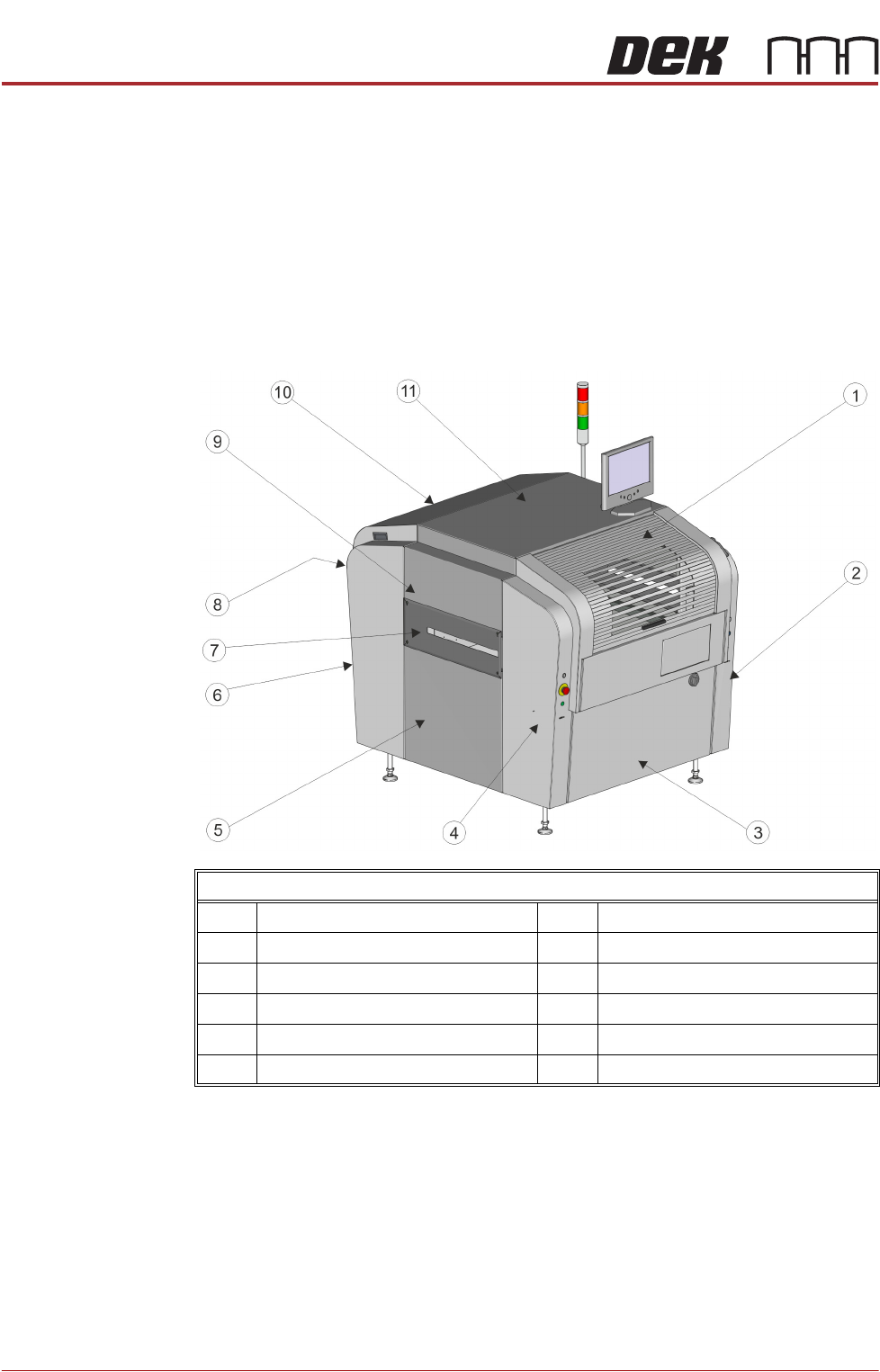
Type 3 Covers In order to protect personnel and prevent damage to the printer, eight panels
are fitted around the base of the printer.
• Front Panel
• Rear Panel
• Corner Panels (4 positions)
• Lower Side Panels (2 positions)
The upper part of the printer is protected by the front printhead cover, the rear
fixed printhead cover, the top panel and two upper side panels.
NOTE
Some of the covers can only be removed in a specific order due to the covers
interlocking with each other.
Front Left Quarter View
1 Front Printhead Cover 7 Safety Cover (2 positions)
2 Front Right Hand Corner Panel 8 Rear Panel
3 Front Panel 9 Upper Side Panel (2 positions)
4 Front Left Hand Corner Panel 10 Rear Fixed Printhead Cover
5 Lower Side Panel (2 positions) 11 Top Panel
6 Rear Corner Panel (2 positions)
COVERS
PRINTER COVERS
Chapter Issue 11, Jan 17 Technical Reference Manual 3.23
Cover Removal Before removing covers ensure that the supplies (air and electrical) have been
isolated from the printer.
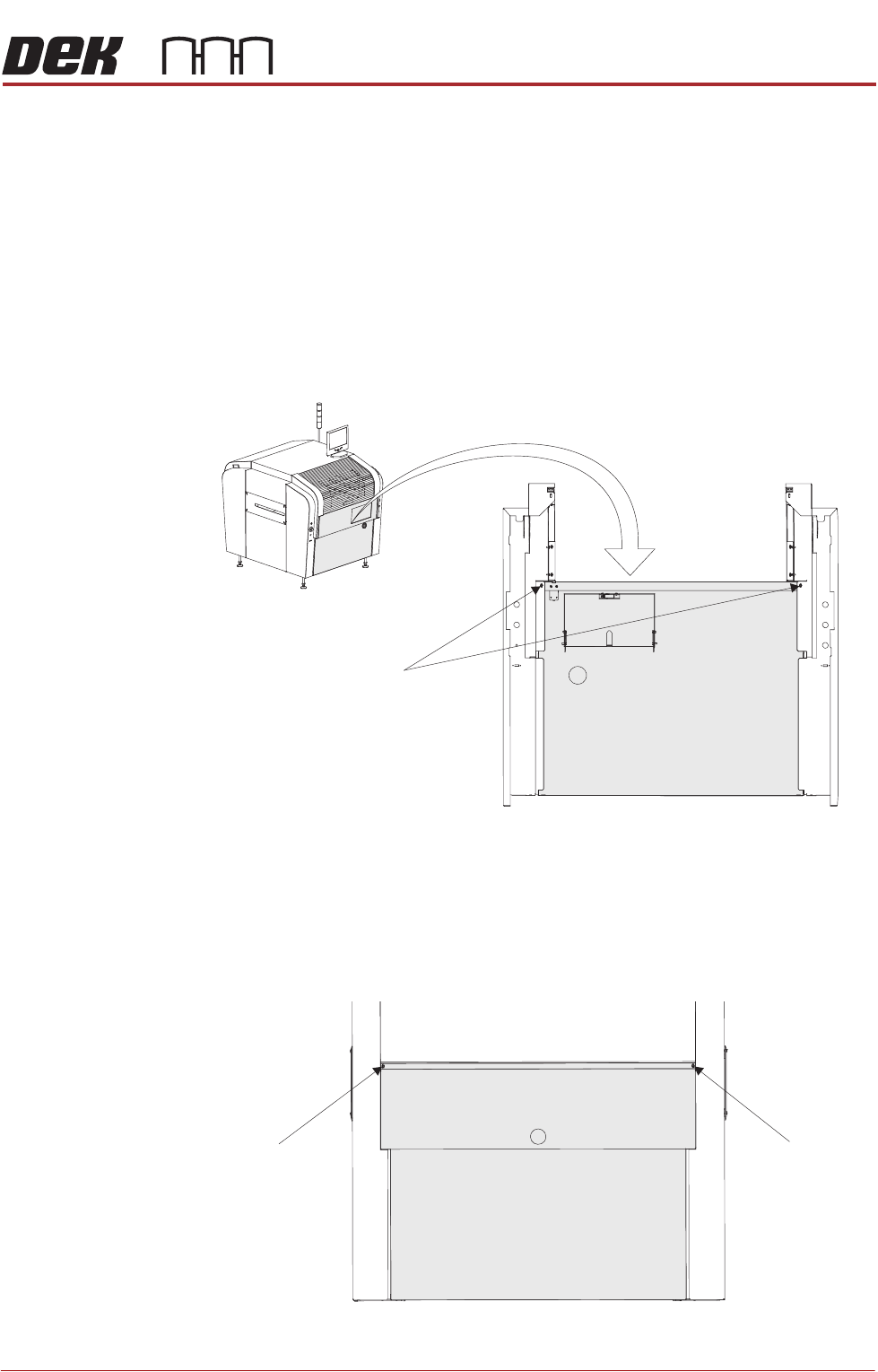
Front Panel To remove the front panel, carry out the following:
1. Open the front printhead cover.
2. Open the keyboard stowage door.
3. Disconnect the keyboard from the 4 port USB hub.
4. Remove the keyboard from its stowage.
5. Using a 4mm Allen key, undo the two captive screws on the rear side of the
panel.
6. Tilt the top of the panel away from the printer and lift the panel clear, taking
care not to damage the earth cable.
Rear Panel To remove the rear panel, carry out the following:
1. Using a 4mm Allen key, undo the two captive screws.
M5 Captive Screws
View on Rear of Front Panel
M5 Captive Screw
M5 Captive Screw
View on Rear of Machine