Micron Technical Reference V9 Volume 1.pdf - 第69页
COVERS PRINTER COVERS Chapter Issue 11, Jan 17 Technical Reference Manual 3.27 8. Using an 4mm Allen key , u ndo the two captive screws. 9. T ilt the top of the panel away from the printer and lift the panel clear , taki…
COVERS
PRINTER COVERS
3.26 Technical Reference Manual Chapter Issue 11, Jan 17
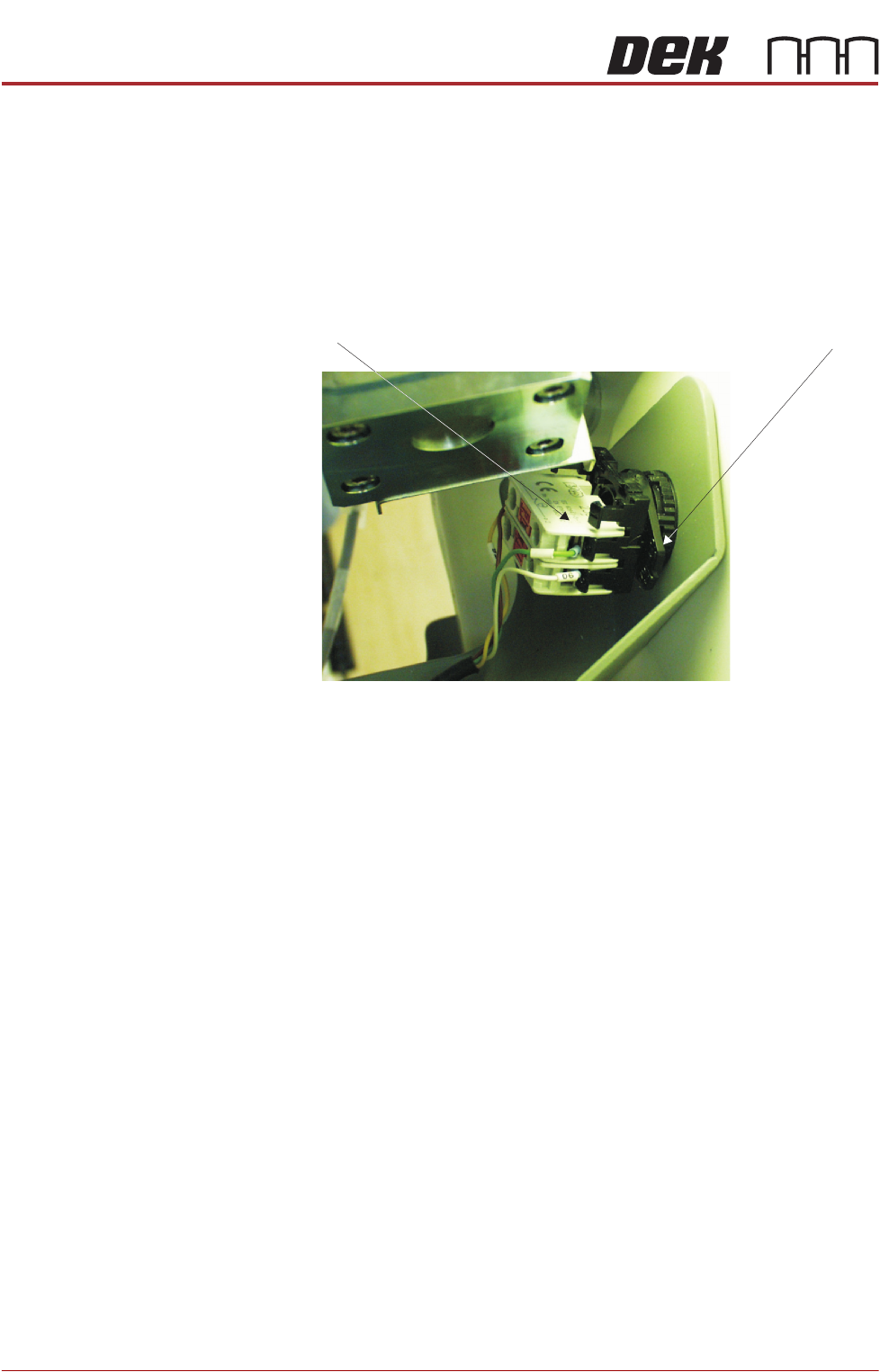
the switch body.
d. Remove the switch release tool from the contact assembly.
NOTE
To refit the contact assembly to the switch body, using the locating
keyway, push the two units together until they click into place.
4. To disconnect the E Stop, turn the latch anti-clockwise and pull the contact
assembly away from the cover.
5. Undo the appropriate M5 captive screws (refer to rear corner panels figure
for screw position).
6. Lift the panel clear of the printer, taking care not to damage the earth cable.
7. Repeat Steps 3 to 6 for the other front corner panel, if required.
Lower Side Panels To remove the lower side panels, carry out the following:
1. Remove the corresponding safety cover (as detailed previously).
2. Open the front printhead cover.
3. Remove the front panel (as detailed previously).
4. Remove the rear panel (as detailed previously).
5. Remove the rear fixed printhead cover (as detailed previously).
6. Remove the corresponding rear corner panel (as detailed previously).
7. Remove the corresponding front corner panel (as detailed previously).
Contact Assembly Latch
View on Rear of E Stop
COVERS
PRINTER COVERS
Chapter Issue 11, Jan 17 Technical Reference Manual 3.27
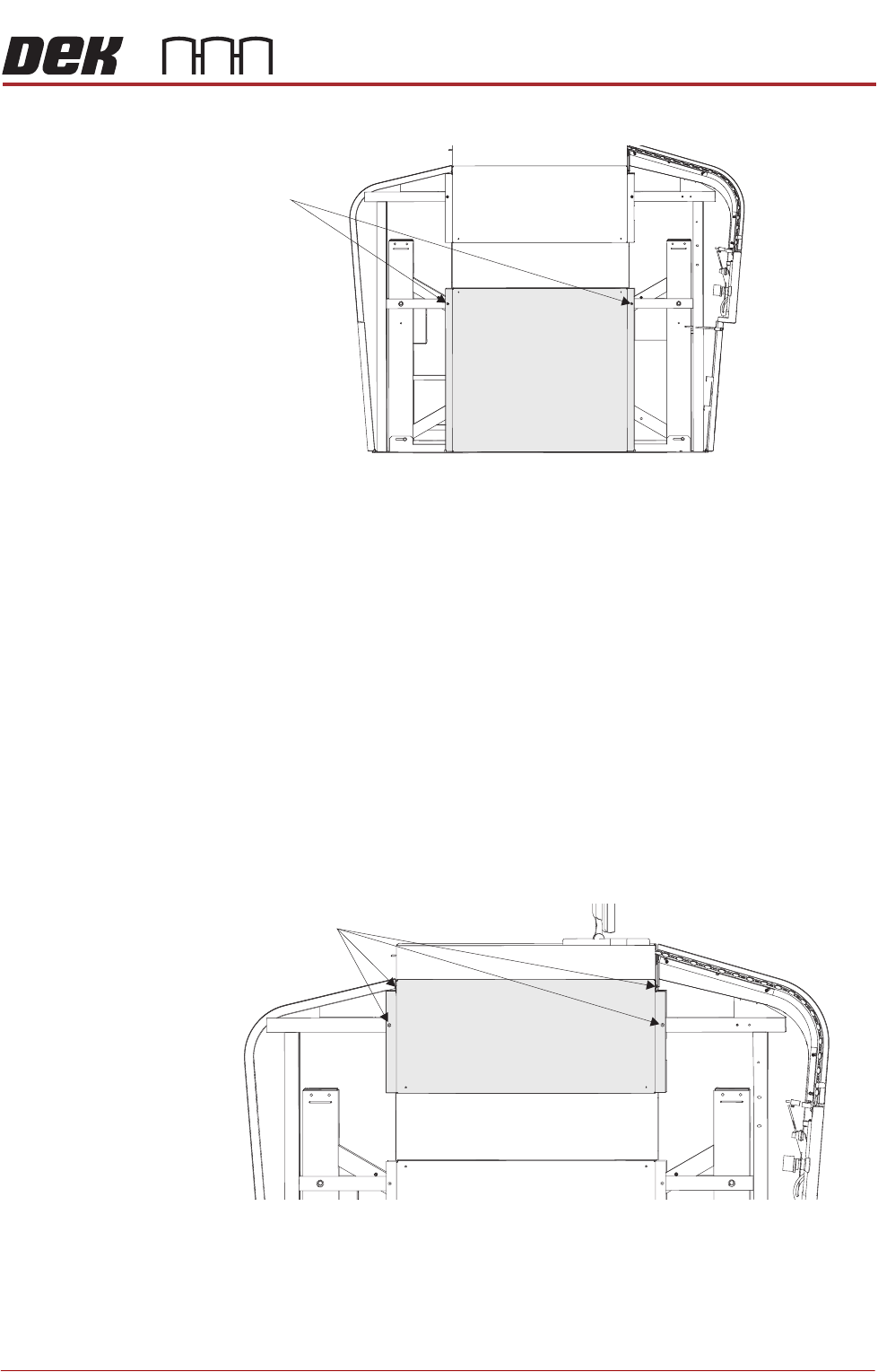
8. Using an 4mm Allen key, undo the two captive screws.
9. Tilt the top of the panel away from the printer and lift the panel clear, taking
care not to damage the earth cable.
10. Repeat Steps 1 and 6 to 9 for the other lower side panel, if required.
Upper Side Panels To remove the upper side panels, carry out the following:
1. Remove the corresponding safety cover (as detailed previously).
2. Open the front printhead cover.
3. Remove the front panel (as detailed previously).
4. Remove the rear panel (as detailed previously).
5. Remove the rear fixed printhead cover (as detailed previously).
6. Remove the corresponding rear corner panel (as detailed previously).
7. Remove the corresponding front corner panel (as detailed previously).
8. Using an 4mm Allen key, undo the four captive screws.
9. Tilt the bottom of the panel away from the printer and lift the panel clear,
taking care not to damage the earth cable.
10. Repeat Steps 1 and 6 to 9 for the other upper side panel, if required.
View on Left Hand Side of Machine
M5 Captive
Screws
View on Left Hand Side of Machine
Captive Screws
COVERS
PRINTER COVERS
3.28 Technical Reference Manual Chapter Issue 11, Jan 17
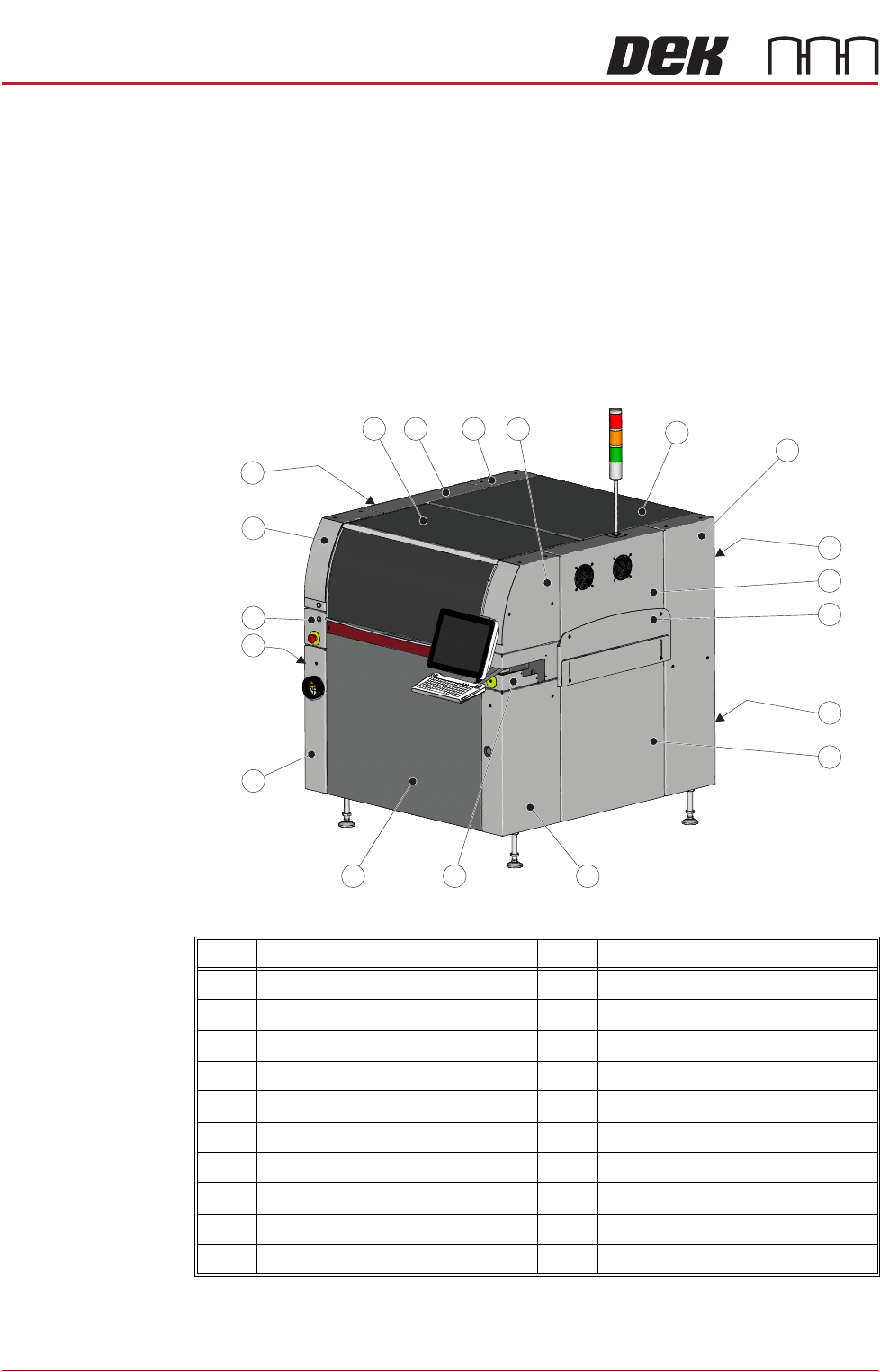
Type 4 Covers In order to protect personnel and prevent damage to the printer, eight panels
are fitted around the base of the printer.
• Front Panel
• Rear Panel
• Corner Panels (4 positions)
• Lower Side Panels (2 positions)
The upper part of the printer is protected by the front printhead cover, two front
corner panels, two MMI panels, a rear upper panel, the top rear panel and two
upper side panels.
NOTE
Some of the covers can only be removed in a specific order due to the covers
interlocking with each other.
Item Description Item Description
1 Top Rear Panel 11 Front Left Hand Lower Corner Panel
2 Rear Right Hand Corner Panel 12 Left Hand Lower Side Panel
3 Upper Rear Panel 13 Left Hand MMI Arm Panel
4 Right Hand Upper Side Panel 14 Front Left Hand Upper Corner Panel
5 Right Hand Safety Coverl 15 Left Hand Safety Cover
6 Lower Rear Panel 16 Front Printhead Cover
7 Right Hand Lower Side Panel 17 Left Hand Upper Side Panel
8 Front Right Hand Lower Corner Panel 18 Rear Left Hand Corner Panel
9 Right Hand MMI Arm Panel 19 Front Right Hand Upper Corner Panel
10 Front Panel
3
Front Right Quarter View
1
6
2
5
4
7
89
19
10
16
18
17
14
13
11
12
15