Micron Technical Reference V9 Volume 1.pdf - 第72页
COVERS PRINTER COVERS 3.30 Technical Reference Manual Chapter Issue 11, Jan 17 Front Panel T o remove the front panel, carry out the fo llowing: 1. Open the front printhead cover . 2. Using a 4mm Allen key , undo the two…
COVERS
PRINTER COVERS
Chapter Issue 11, Jan 17 Technical Reference Manual 3.29
Cover Removal Before removing covers ensure that the supplies (air and electrical) have been
isolated from the printer.
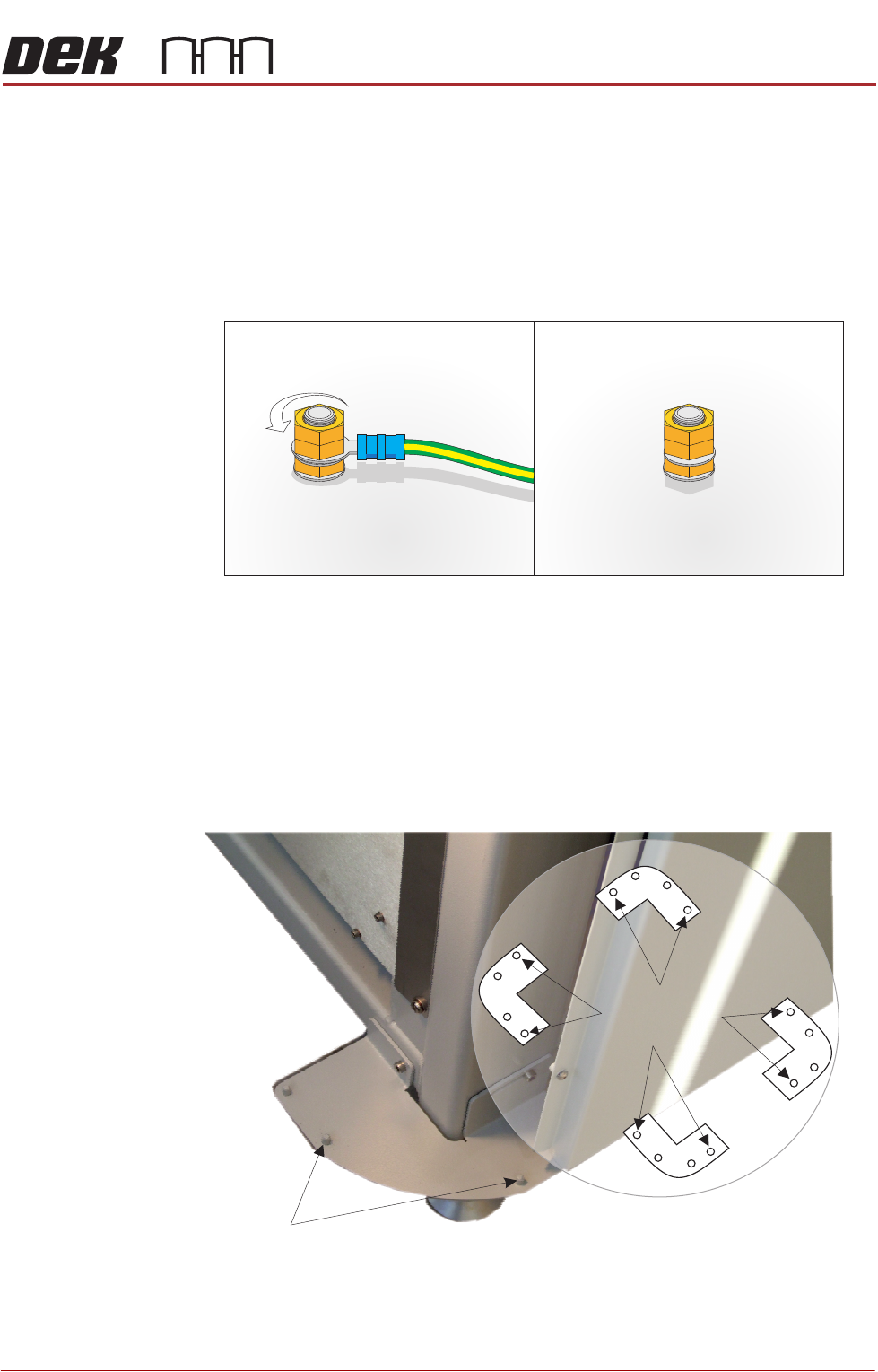
Earth Bonding All external metal surfaces are mechanically and electrically bonded to the
printer earth point. The bonding wire used is identified by its green and yellow
insulation and is commonly used to earth bond throughout.
Using an 8mm spanner, remove the two earth lead securing nuts and detach
the earth lead from the panel.
Care should be taken when removing these links, to ensure that when they are
replaced they are secured tightly and cleanly.
Locating Pins Side, corner, front and rear panels are secured on location pins at the base of
the printer. Plates mounted on each corner of the printer (see vignette below)
house the four pins; the two centre pins are for the corner panels and two outer
pins are for the side, front and rear panels.
Figure 3-8 Mounting Plates
Earth Stud
Corner Panel
Location Pins
View on Base of Printer
Location Pins
Side, Front &
Rear Panels
COVERS
PRINTER COVERS
3.30 Technical Reference Manual Chapter Issue 11, Jan 17
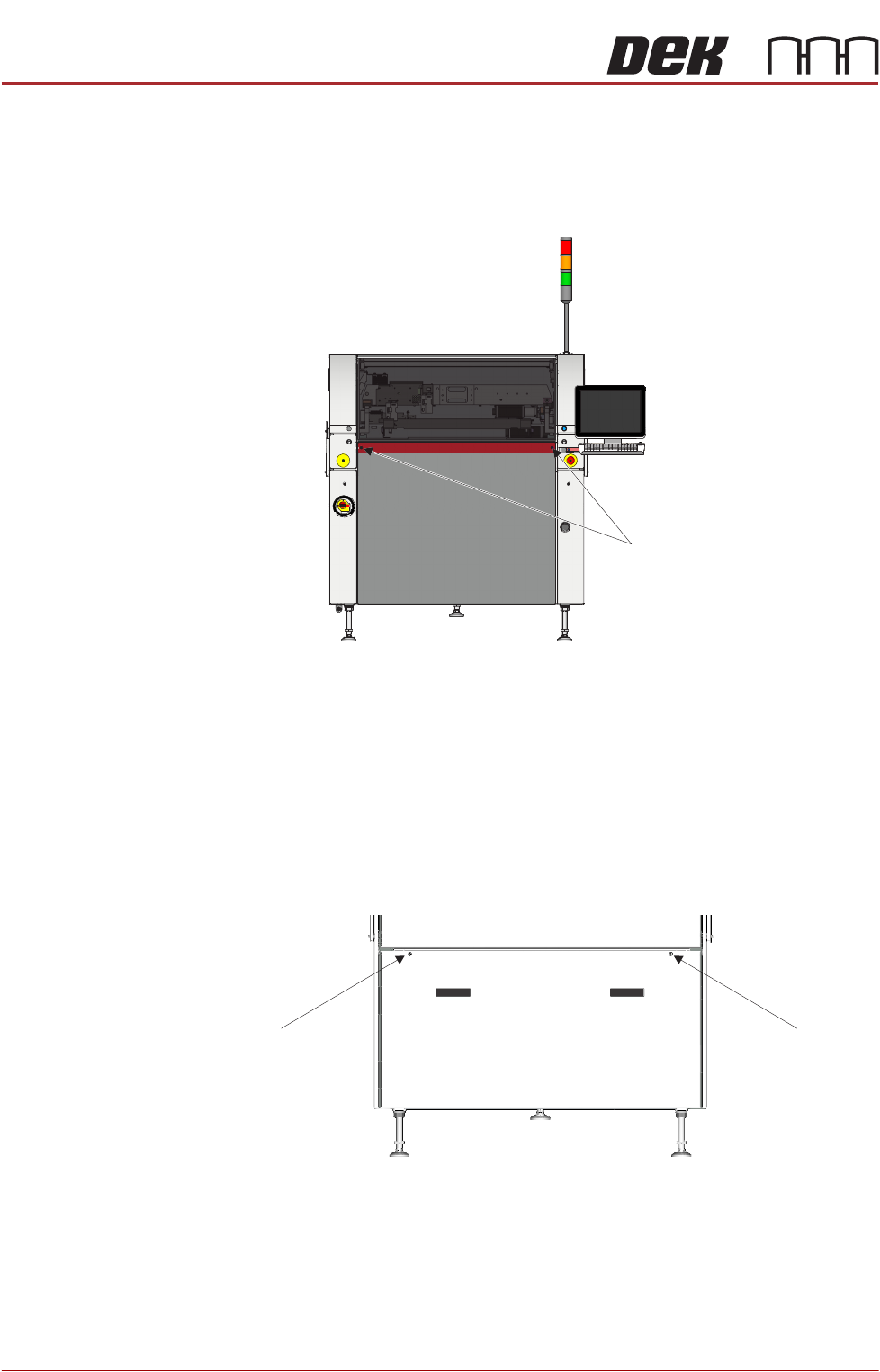
Front Panel To remove the front panel, carry out the following:
1. Open the front printhead cover.
2. Using a 4mm Allen key, undo the two captive screws on the front side of the
panel.
3. Tilt the top of the panel away from the printer and lift the panel clear of the
location pins that locate the panel to the printer frame, taking care not to
damage the earth cable.
Lower Rear Panel To remove the lower rear panel, carry out the following:
1. Using a 4mm Allen key, undo the two captive screws.
2. Tilt the top of the panel away from the printer and lift the panel clear of the
location pins that locate the panel to the printer frame, taking care not to
damage the earth cable.
M5 Captive Screws
View on Front of Machine
M5 Captive Screw
View on Rear of Machine
M5 Captive Screw
COVERS
PRINTER COVERS
Chapter Issue 11, Jan 17 Technical Reference Manual 3.31
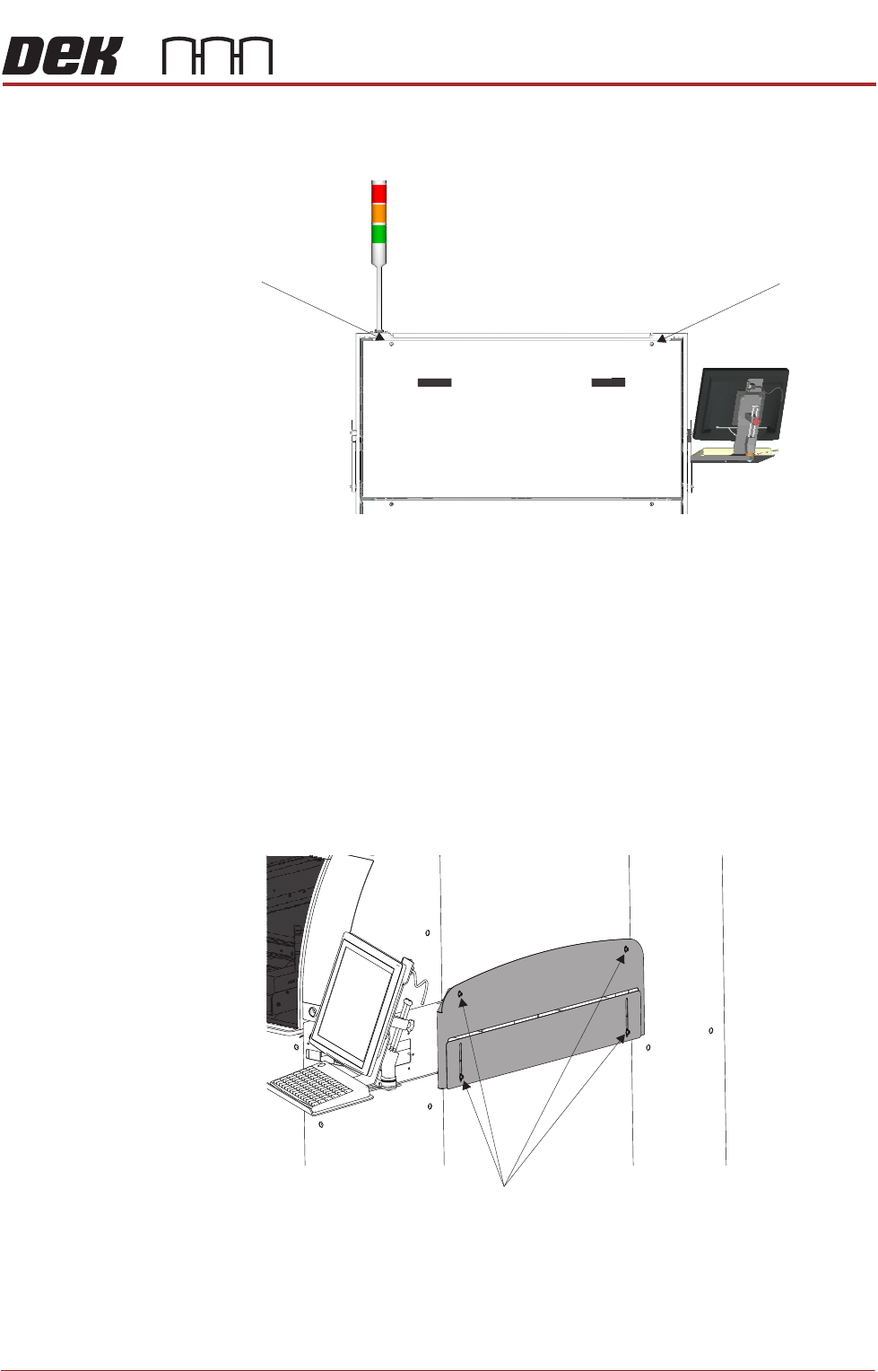
Upper Rear Panel To remove the upper rear panel, carry out the following:
1. Using a 4mm Allen key, undo the two captive screws.
2. Tilt the top of the panel away from the printer and lift the panel clear of the
location pins that locate the panel to the printer frame, taking care not to
damage the earth cable.
Safety Covers Safety covers are fitted to the side panels to protect personnel from inadvertent
access to the board entry/exit ports.
NOTE
The lower section of the safety panel can be adjusted to accommodate the
thickness of the product.
To remove the safety cover, remove the four securing screws.
Rear Corner Panels To remove the rear corner panels, carry out the following:
1. Remove the Left Hand Safety Cover (as detailed previously).
2. Remove the Right Hand Safety Cover (as detailed previously).
M5 Captive Screw
View on Rear of Machine
M5 Captive Screw
Safety Cover Securing Screws