JANETS_INM.pdf - 第110页
J aN et s Inst r ucti on Manual 4. User Manage ment 4-2 4.2 User M anagement This f unct ion al low s you to add a user or chang e the set ting s of the exi sti ng user. Figure 4.2 -1 “User M anag ement” screen * If ther…
JaNets Instruction Manual 4. User Management
4-1
4. User Management
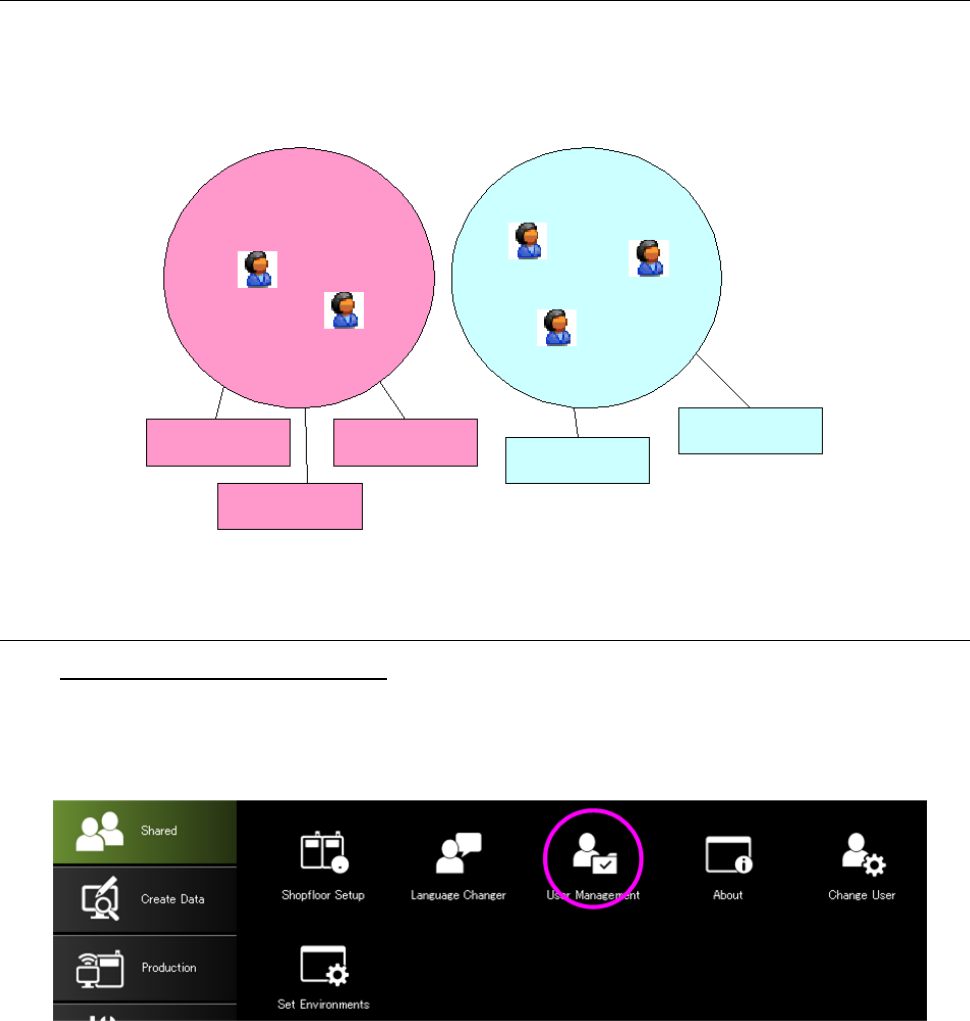
What is the User Management?
Put each user in a group and define the operation authority and display setting collectively for the
group.
Figure 4-1 Relation between a group and users
4.1 Starting Up the User Management
To start up the User Management:
Select the “Shared” tab of the Launcher, and then the “User Management” icon, or select the
[User Management] command from the toolbar, and then the [User Management] command on
the “User Management” menu.
Figure 4.1-1 Launcher screen
User group 1
User group 2
User 1
User2
User3
User5
User4
Operational
privilege 1
Operational
privilege 2
Operational
privilege 3
Operational
privilege 4
Operational
privilege 5
JaNets Instruction Manual 4. User Management
4-2
4.2 User Management
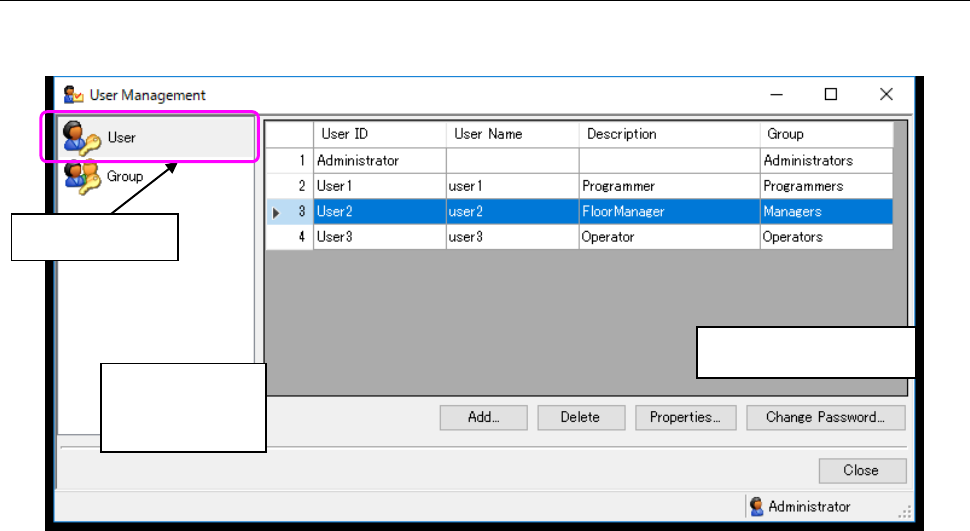
This function allows you to add a user or change the settings of the existing user.
Figure 4.2-1 “User Management” screen
* If there is not any group, you cannot add a user.
If you do not have the operational privilege, “Edit user/groups,” you cannot operate the screen
above. You can display the list only.
* The maximum number of users/groups you can register is 100 including the default user
“Administrator” and the default group “Administrators.”
Select this icon.
Setting item
display area
List display area
JaNets Instruction Manual 4. User Management
4-3
4.2.1 Adding a user
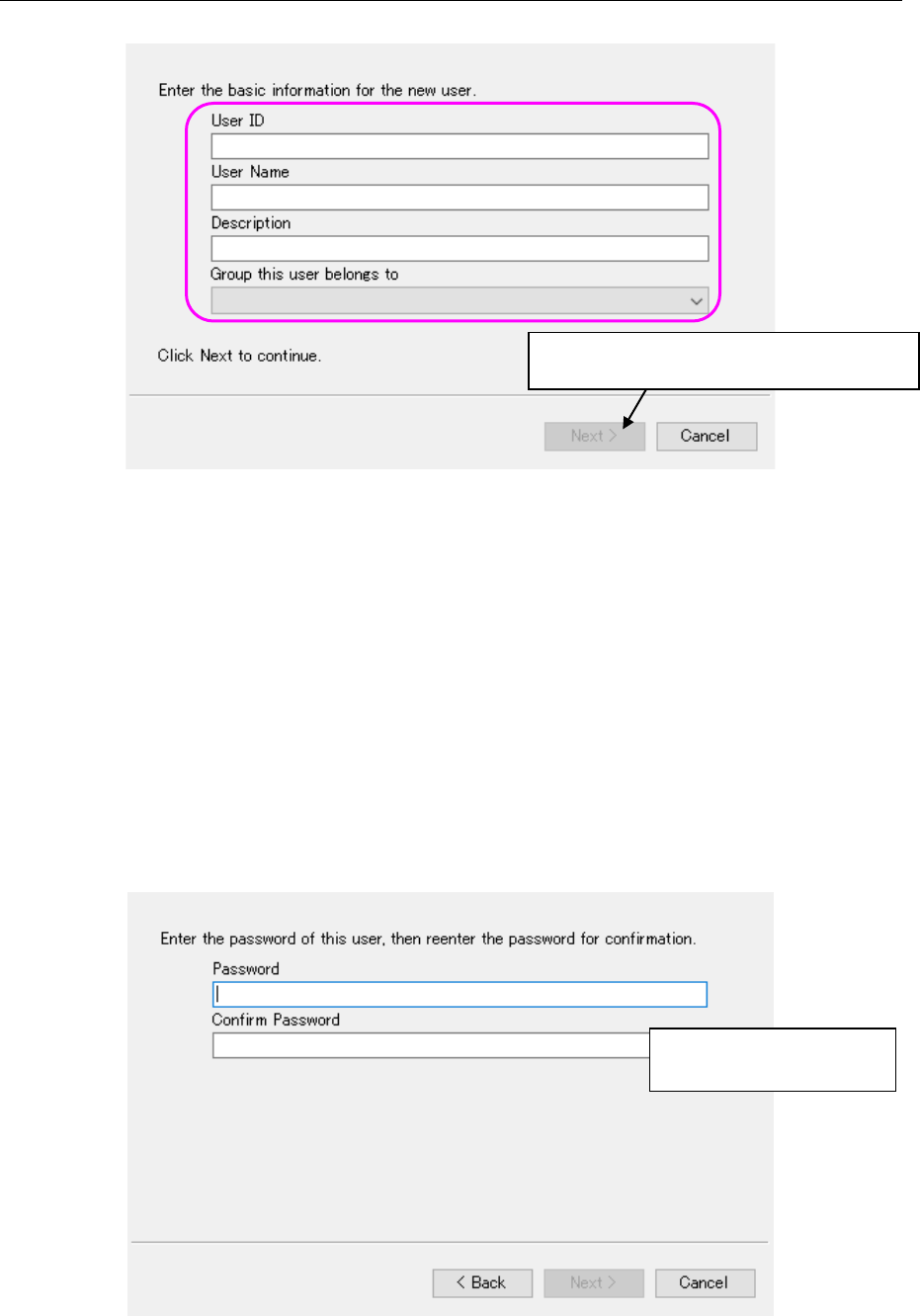
Click the <Add> button on the “User Management” screen.
Figure 4.2-2 “Add User” dialog box – Basic information entry screen
User ID : Enter the user ID here (this is a required item). You can specify up to 64
half-width (one byte) characters as a user ID, and you can use all characters
except for the following: double-width (two-bytes) characters, “ / ¥ [ ] :
(colon) ; (semicolon) | = , (comma) + * ? < > . (period) and a user ID
specified with blank characters only.
User Name : You can specify up to 64 half-width characters as a user name.
Description : You can specify up to 256 half-width characters.
Group this user belongs to : You have to specify this field. Select a group name
registered for a group from the combo box.
When you select the <Next> button on the screen above, the system checks the entered user ID.
Enter the password.
Figure 4.2-3 “Add User” dialog box – Password setting screen
You can specify up to 16
half-width characters.
* When you enter data in each field above,
the <Next> button is enabled.