JANETS_INM.pdf - 第112页
J aN et s Inst r ucti on Manual 4. User Manage ment 4-4 The app li cati on dis pl ay is s et by sel ecti ng “N ext” on the abov e s cr een. The user c an sel ect an ap pl ic ation t o be di sp layed on the launc her aft …
JaNets Instruction Manual 4. User Management
4-3
4.2.1 Adding a user
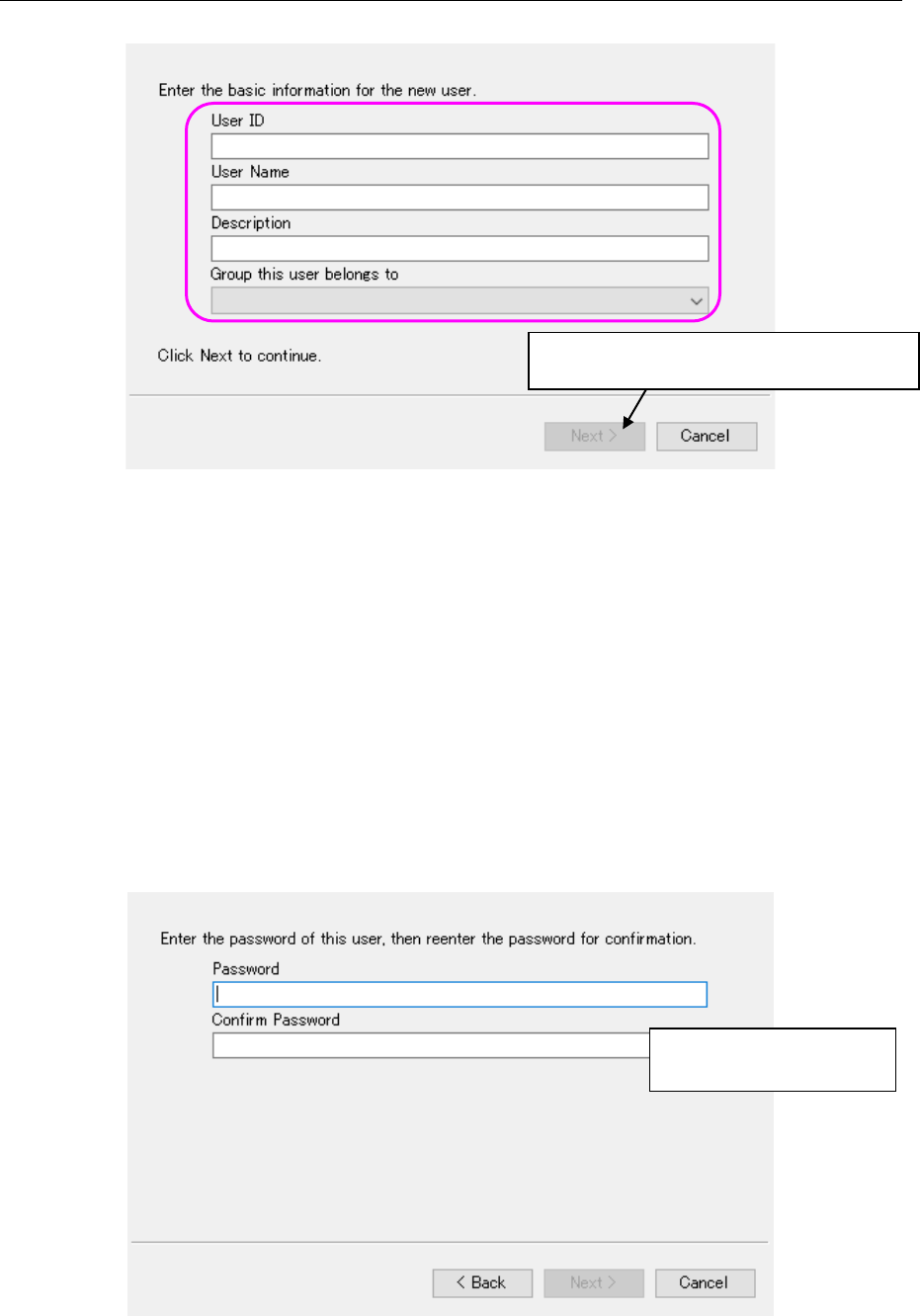
Click the <Add> button on the “User Management” screen.
Figure 4.2-2 “Add User” dialog box – Basic information entry screen
User ID : Enter the user ID here (this is a required item). You can specify up to 64
half-width (one byte) characters as a user ID, and you can use all characters
except for the following: double-width (two-bytes) characters, “ / ¥ [ ] :
(colon) ; (semicolon) | = , (comma) + * ? < > . (period) and a user ID
specified with blank characters only.
User Name : You can specify up to 64 half-width characters as a user name.
Description : You can specify up to 256 half-width characters.
Group this user belongs to : You have to specify this field. Select a group name
registered for a group from the combo box.
When you select the <Next> button on the screen above, the system checks the entered user ID.
Enter the password.
Figure 4.2-3 “Add User” dialog box – Password setting screen
You can specify up to 16
half-width characters.
* When you enter data in each field above,
the <Next> button is enabled.
JaNets Instruction Manual 4. User Management
4-4
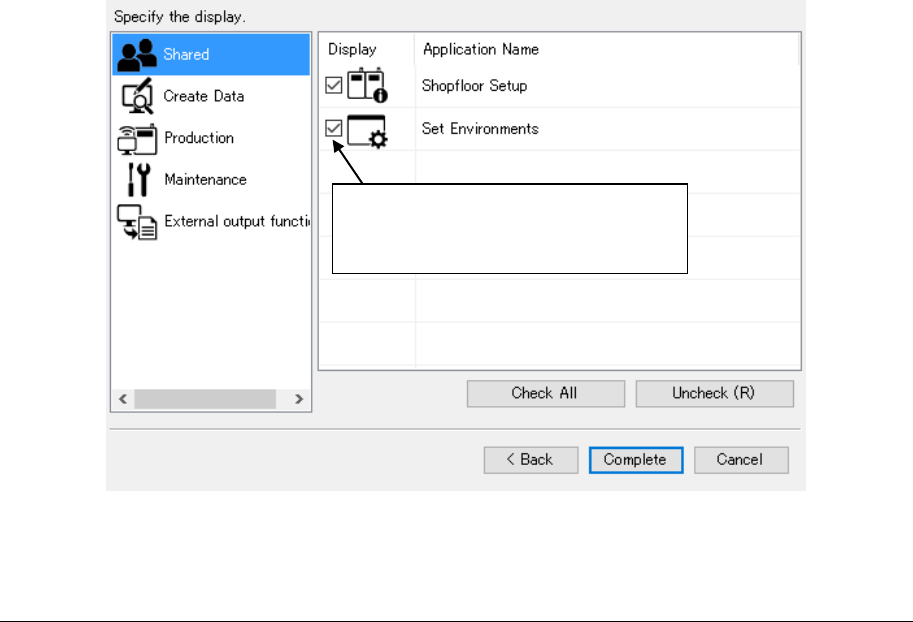
The application display is set by selecting “Next” on the above screen.
The user can select an application to be displayed on the launcher after the display setting.
The applications to be set are displayed for each of the group setting in which the user belongs
and the user setting.
Figure 4.2-4 Addition of users – Display setting screen
4.2.2 Deleting a user
When you select the <Delete> button on the “User Management” screen, you can delete a user.
However, if you select “Administrator” or if you select a name of a user who logged in the system,
the <Delete> button is displayed in gray and you cannot delete the selected user.
* The application is displayed by
checking off. It is not displayed by
removing a displayed check-off mark.
JaNets Instruction Manual 4. User Management
4-5
4.3 Setting the Properties
This function displays the detailed information on a user such as a user ID and a user name.
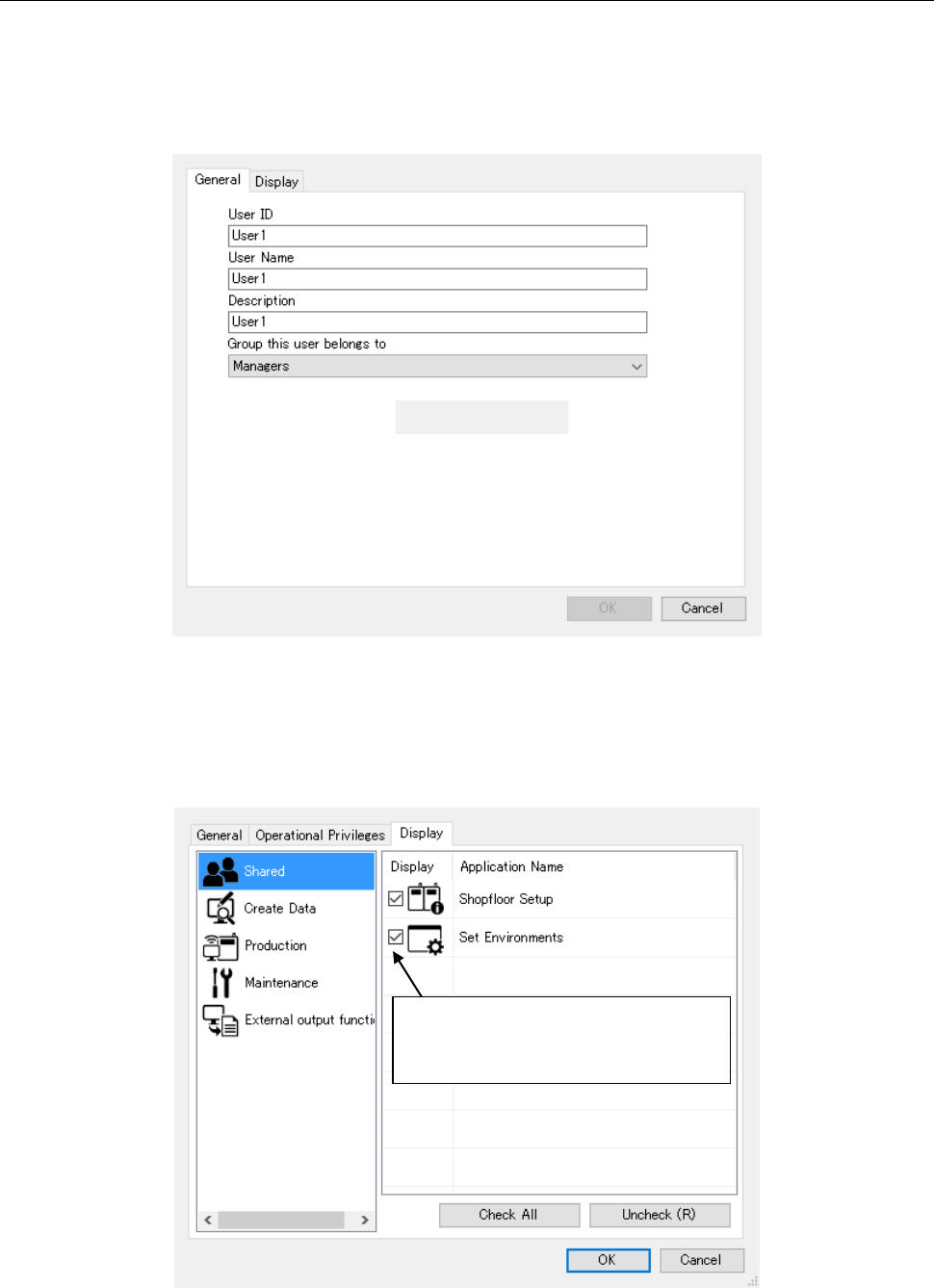
When you select the <Properties> button on the “User Management” screen, the system displays
the detailed information screen for the specified user. However, if you select “Administrator,” the
<Properties> button is displayed in gray and you cannot select it.
Figure 4.3-1 “Properties” dialog box – Detailed information screen
An application to be displayed in the launcher can be selected by display setting.
The applications to be set are displayed in the launcher for each of the group setting in which the
user belongs and the user setting.
Figure 4.3-2 “Properties” dialog box – Display setting screen
* The application is displayed by
checking off. It is not displayed by
removing a displayed check-off mark.