JANETS_INM.pdf - 第116页
J aN et s Inst r ucti on Manual 4. User Manage ment 4-8 4.6 Adding a Group Cl ic k the < Add> b utton on the G roup setti ng scr een ab ove, and set the i nf orm at ion on a new gr oup throug h the w i zar d. Figur…
JaNets Instruction Manual 4. User Management
4-7
4.5 Setting a Group
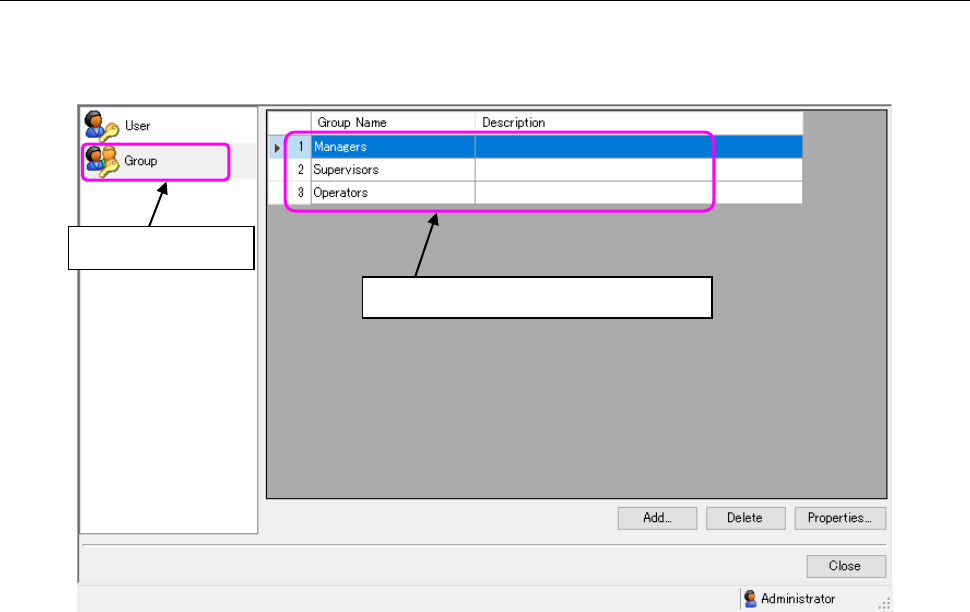
Select the “Group” icon on the “User Management” screen, and set the group to which a user
belongs. Set the operational privilege of each application on this Group setting screen.
Figure 4.5-1 Group setting screen
* If a user does not have the operational privilege, “Edit user/group,” you cannot operate the
screen above. You can display the list of groups only.
Select this icon.
The list of groups is displayed here.
JaNets Instruction Manual 4. User Management
4-8
4.6 Adding a Group
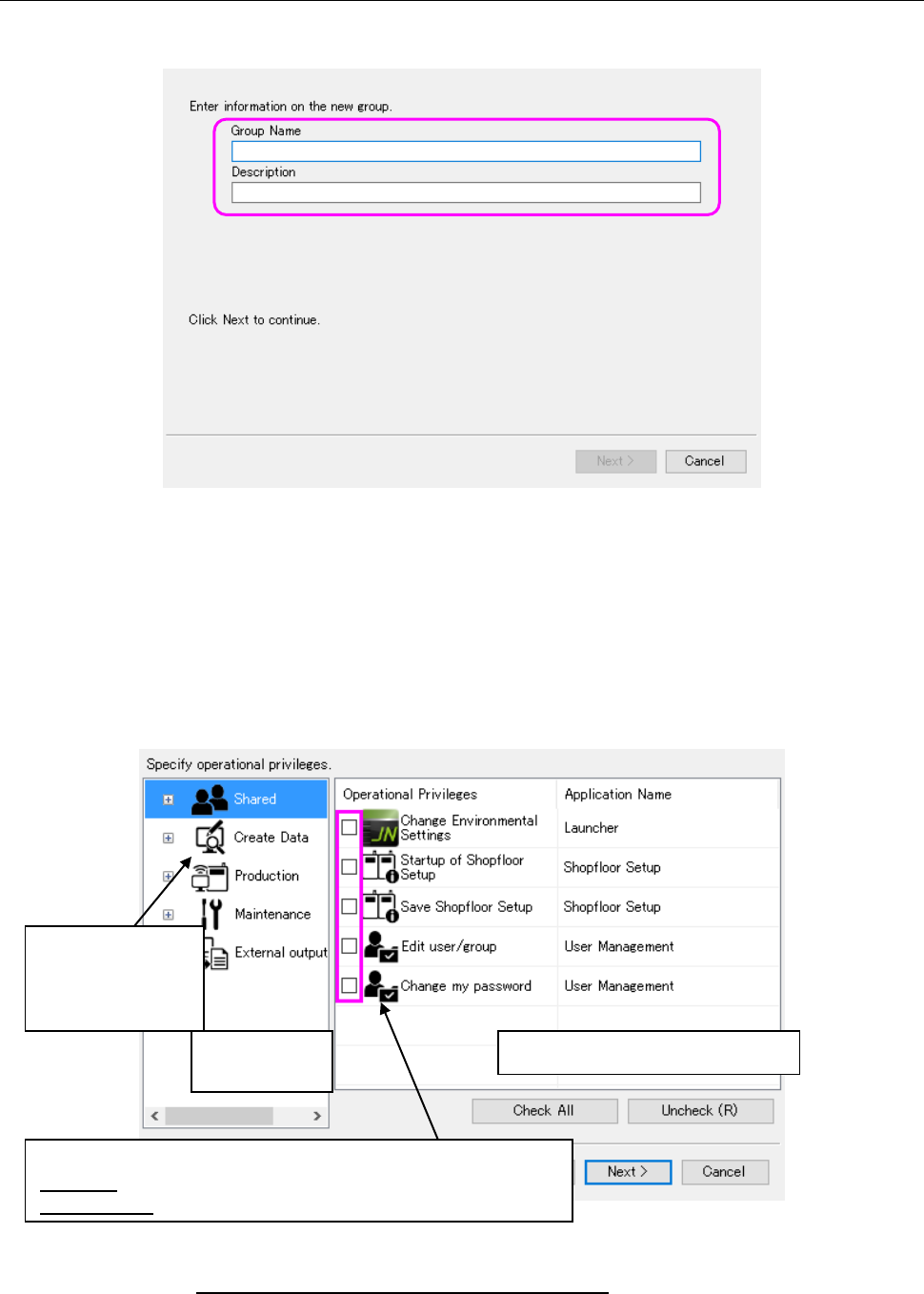
Click the <Add> button on the Group setting screen above, and set the information on a new
group through the wizard.
Figure 4.6-1 Adding a group
Group Name : You have to enter data in this field. You can specify up to 64 half-width
characters as a group name. You can use all characters except for the
following: double-width (two-bytes) characters, “ / ¥ [ ] : (colon) ; (semicolon) |
= , (comma) + * ? < > . (period) and a user ID specified with blank characters
only.
Description : You can specify up to 256 half-width characters. You may enter any characters
here.
Figure 4.6-2 Operational privileges setting screen
* See Section 4.9 “Operational Privileges of Each Application” for details of the operational
privileges.
Select application
whose operational
privileges are to be
set.
Application
selecting area
Operational privileges setting area
Set the operational privileges of each application.
Checked: having the corresponding operational privilege
Not checked: Not having the corresponding operational privilege
JaNets Instruction Manual 4. User Management
4-9
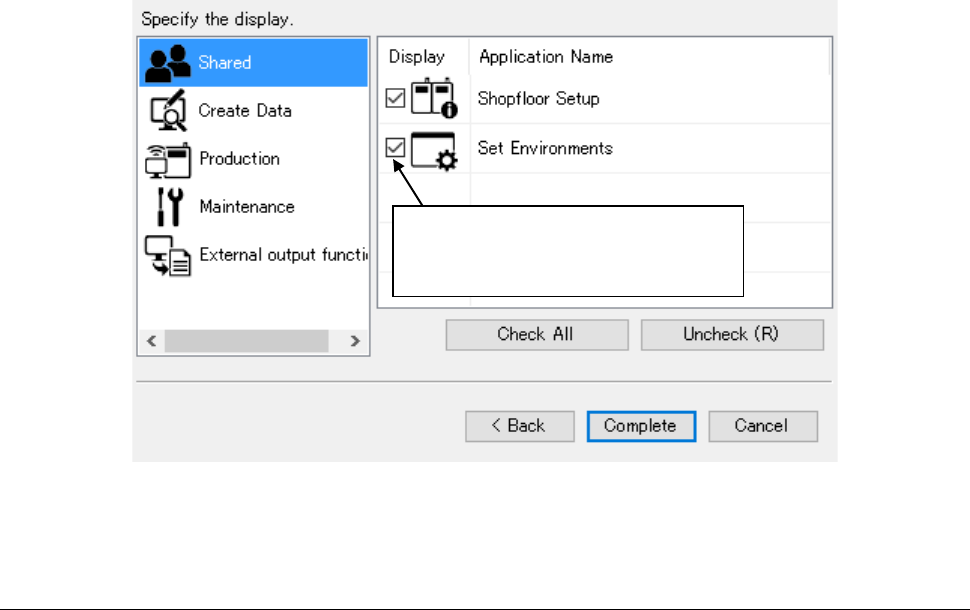
An application to be displayed in the launcher can be selected by display setting.
The applications to be set are displayed in the launcher for each of the group setting in which the
user belongs and the user setting.
Figure 4.6-3 Display setting screen
4.7 Deleting a Group
You can delete a group by selecting the <Delete> button on the Group setting screen. However,
if there is any user in the group to be deleted, the system will not delete the group.
* The application is displayed by
checking off. It is not displayed by
removing a displayed check-off mark.