JANETS_INM.pdf - 第125页
JaNets In structio n Manual 5. Shopflo or Setu p 5-5 Floor view (Floor information di splay) Figure 5.2 -5 Floor information di splay scre en Floor view: When you set t he pos ition s of prod uction l ines acc ordin g to…
JaNets Instruction Manual 5. Shopfloor Setup
5-4
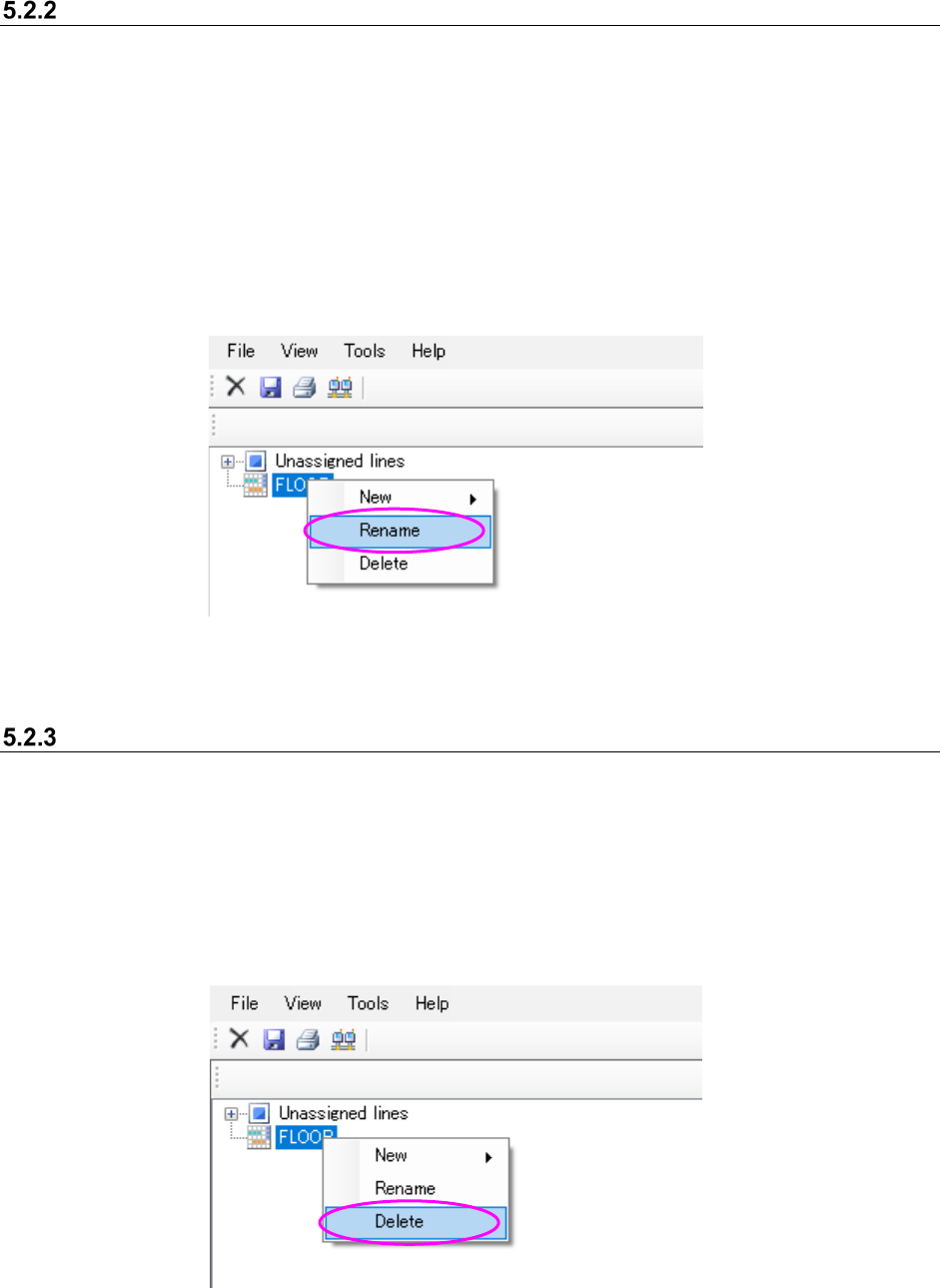
Changing the floor name
Select the desired “floor” hierarchy from the floor configuration tree. Then, perform the operation
① or ② below.
① Select the [File] command from the menu bar, and then the [Rename] command from the “File”
menu.
② Click the right button of a mouse to display the pop-up menu. Select the [Rename] from this
pop-up menu.
* When you perform the operation ① or ②, the selected floor layer can accept your input, and
you can change its name.
Figure 5.2-3 Changing the “floor name” (Operation ②)
Deletion of floor
In the status where a floor hierarchy in the floor configuration tree, execute either operation ① or
② shown below.
① Select “File” – “Delete.”
② Click the right button of the mouse and select “Delete” in the displayed popup menu.
* An unarranged hierarchy cannot be deleted.
Figure 5.2-4 Deletion of “Floor” (Operation ②)
JaNets Instruction Manual 5. Shopfloor Setup
5-5
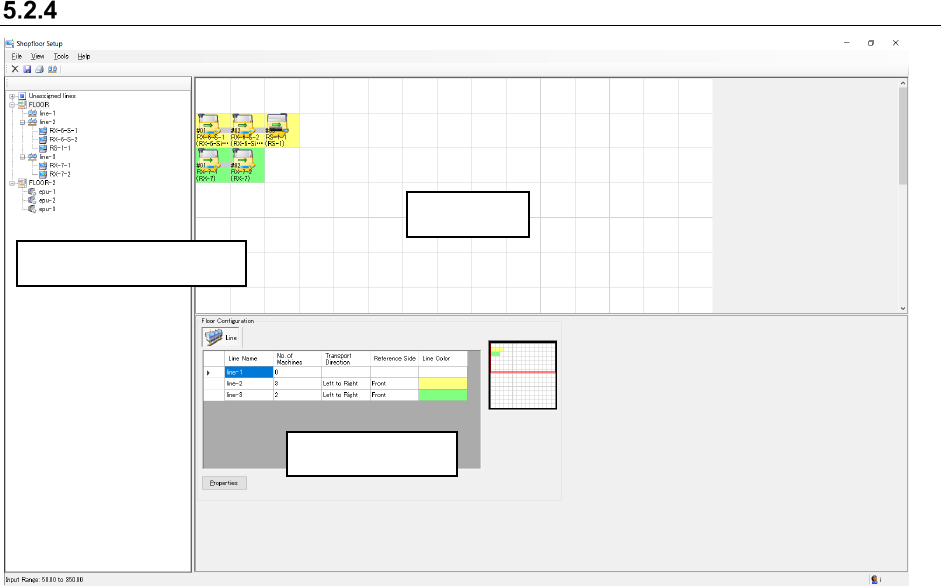
Floor view (Floor information display)
Figure 5.2-5 Floor information display screen
Floor view: When you set the positions of production lines according to the actual assignments
on the factory floor (working floor), the system visually represents the machine
assignment conditions.
You can move a production line or equipment, or set the production line
configuration here.
The icon indicating a machine on the floor view allows you to judge its model name,
board transporting direction and reference side.
Floor details: The list of production lines on the floor is displayed here.
You can set the color of a production line.
Floor view
Details of a floor
Floor configuration tree
JaNets Instruction Manual 5. Shopfloor Setup
5-6
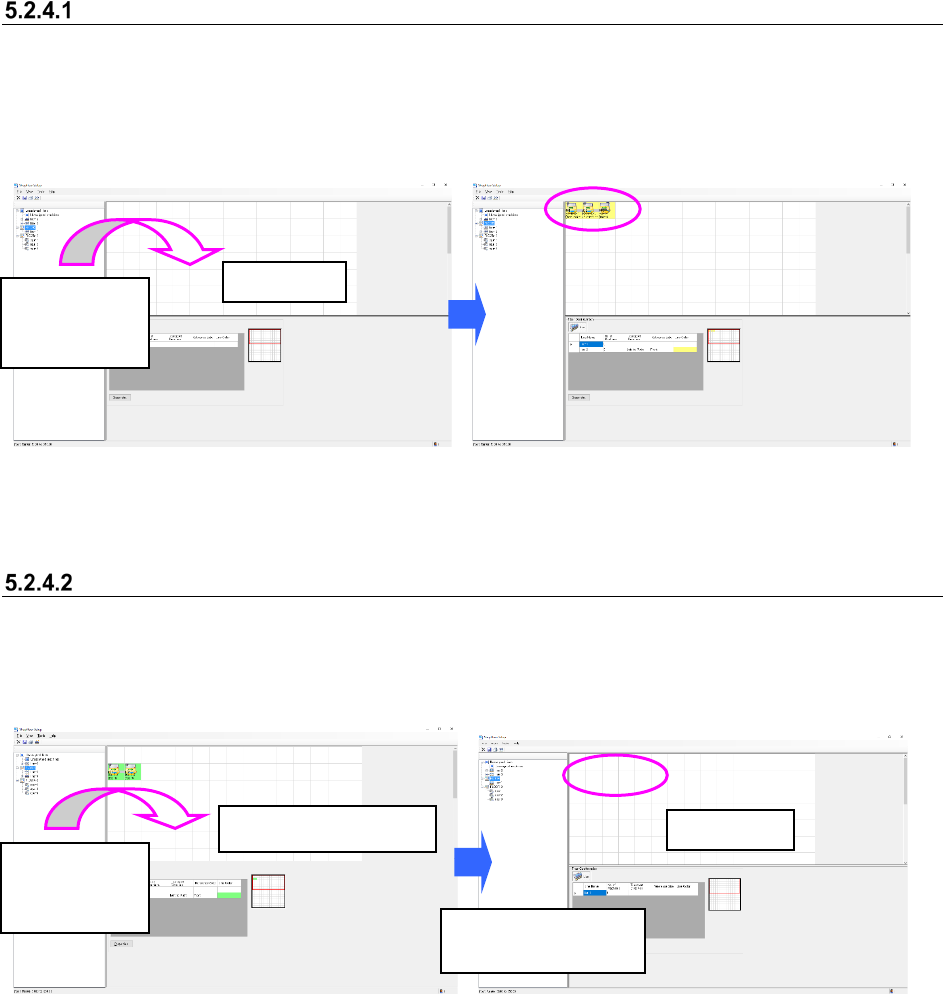
Making assignment of a floor
Drag and drop a “production line” located under the “Unassigned” lines, or a floor to the floor view.
When a line is assigned to the floor, the corresponding “line” is moved from the floor configuration
tree to the destination “floor.”
Figure 5.2-6 Before making assignment of a
floor
Figure 5.2-7 After making assignment of a floor
Canceling a floor assignment
Select the “Unassigned lines” on the floor configuration tree, and drag them to the floor view.
When you drop them, they are moved under the “Unassigned” item on the floor configuration tree.
Your cancel of a floor assignment causes the machine icon to be deleted from the floor view.
Figure 5.2-8 Assigned production lines –
Canceling a floor assignment
Figure 5.2-9 Assigned production lines –
after the floor assignment is cancelled
Floor
configuration
tree
Floor view
Floor
configuration
tree
Floor view
Unassigned floor view
Floor configuration
tree