JANETS_INM.pdf - 第129页
JaNets In structio n Manual 5. Shopflo or Setu p 5-9 Searching the display pos it ion When you se lect the des ired line fr om the floor d etails l ist, the floor vi ew is mo ved to the ass igned position. Figure 5.2 - 1…
JaNets Instruction Manual 5. Shopfloor Setup
5-8
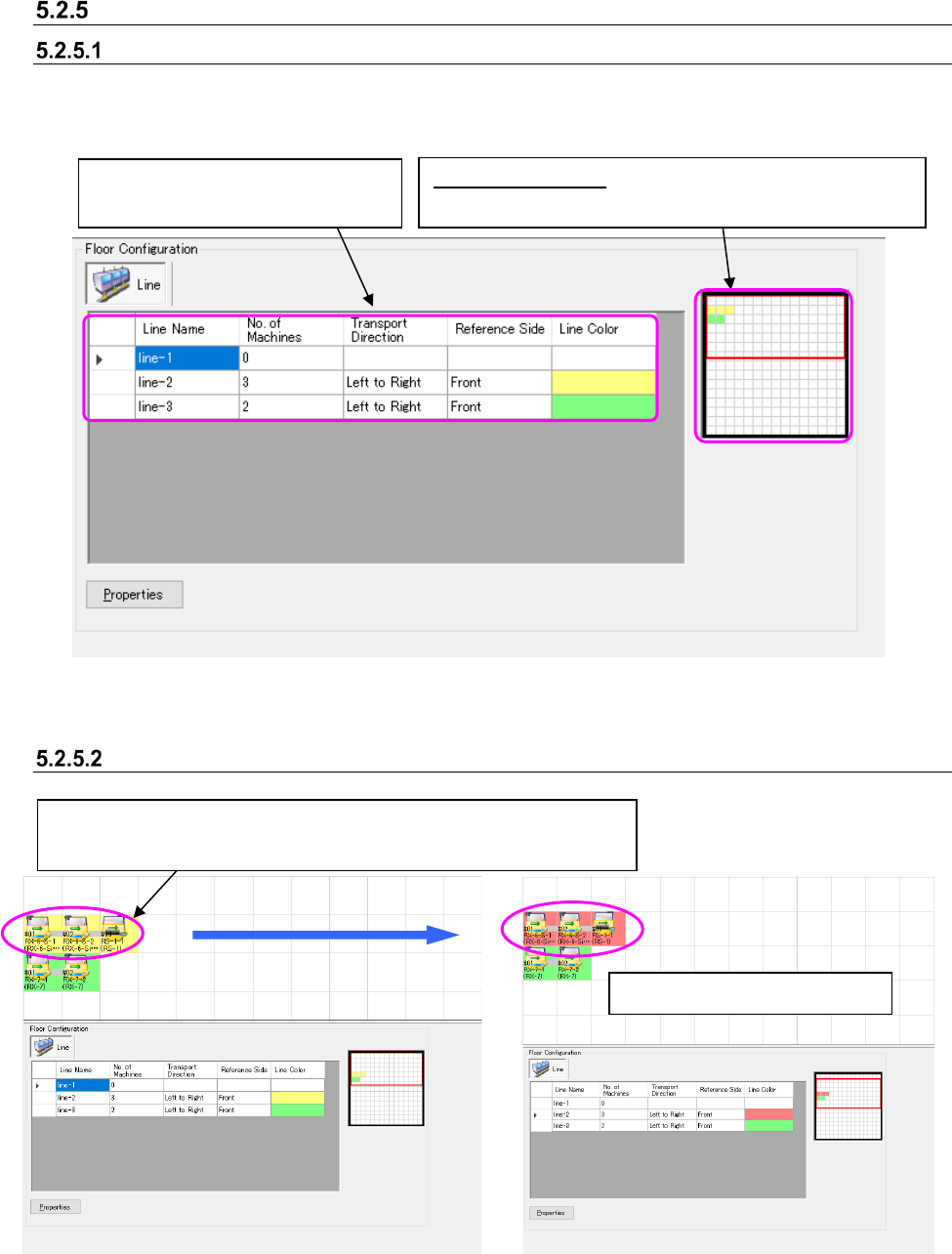
Floor Configuration
Floor Configuration (Line)
When you assign a production line to the floor, the setting items for the assigned production line
are added to the list.
Figure 5.2-13 Floor details
Setting the background color of a production line
Figure 5.2-14 Production line view – Before the
background color of a production line is changed
Figure 5.2-15 Production line view – After the
background color of a production line is
changed
The background color changes.
“Floor map” control:
Displays the entire map of the floor
and the area cursor for displaying the floor view.
Production lines assigned to the floor
are displayed on this list.
Double-click the desired production line or press the Enter key. → The
“Set Colors” dialog box appears on the screen. Select the desired color.
JaNets Instruction Manual 5. Shopfloor Setup
5-9
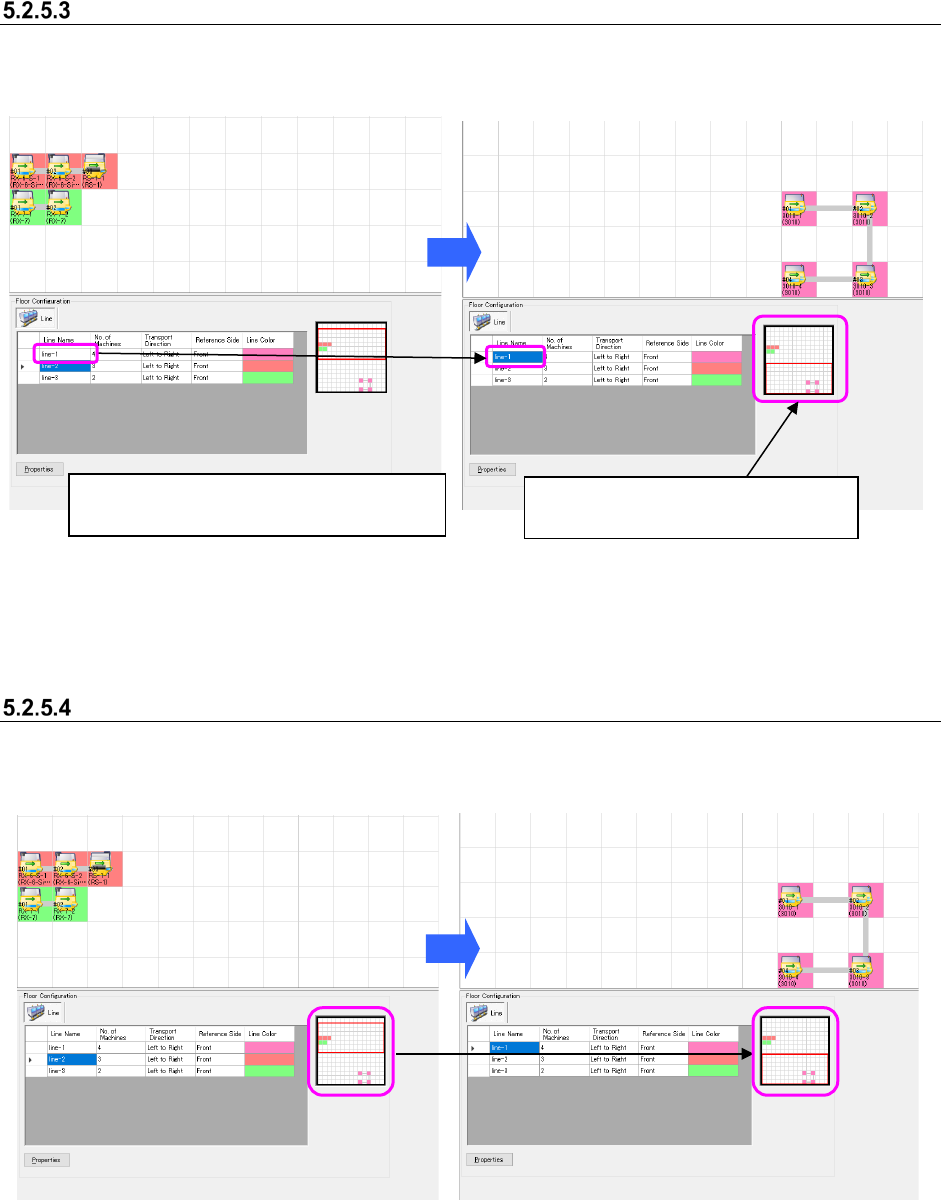
Searching the display position
When you select the desired line from the floor details list, the floor view is moved to the assigned
position.
Figure 5.2-16 Production line view – Before a
production line is searched
Figure 5.2-17 Production line view – After a
production line is searched
Moving the floor map display area
Drag the display area cursor on the floor map and move the mouse. The display area is moved
onto the floor view.
Figure 5.2-18 Before the display area cursor
is moved on the floor map
Figure 5.2-19 After the display area cursor is
moved on the floor map
Select the production line “LINE-1” from the
“production line list.”
The floor view is moved to the
assignment position of the “LINE-1.”
JaNets Instruction Manual 5. Shopfloor Setup
5-10
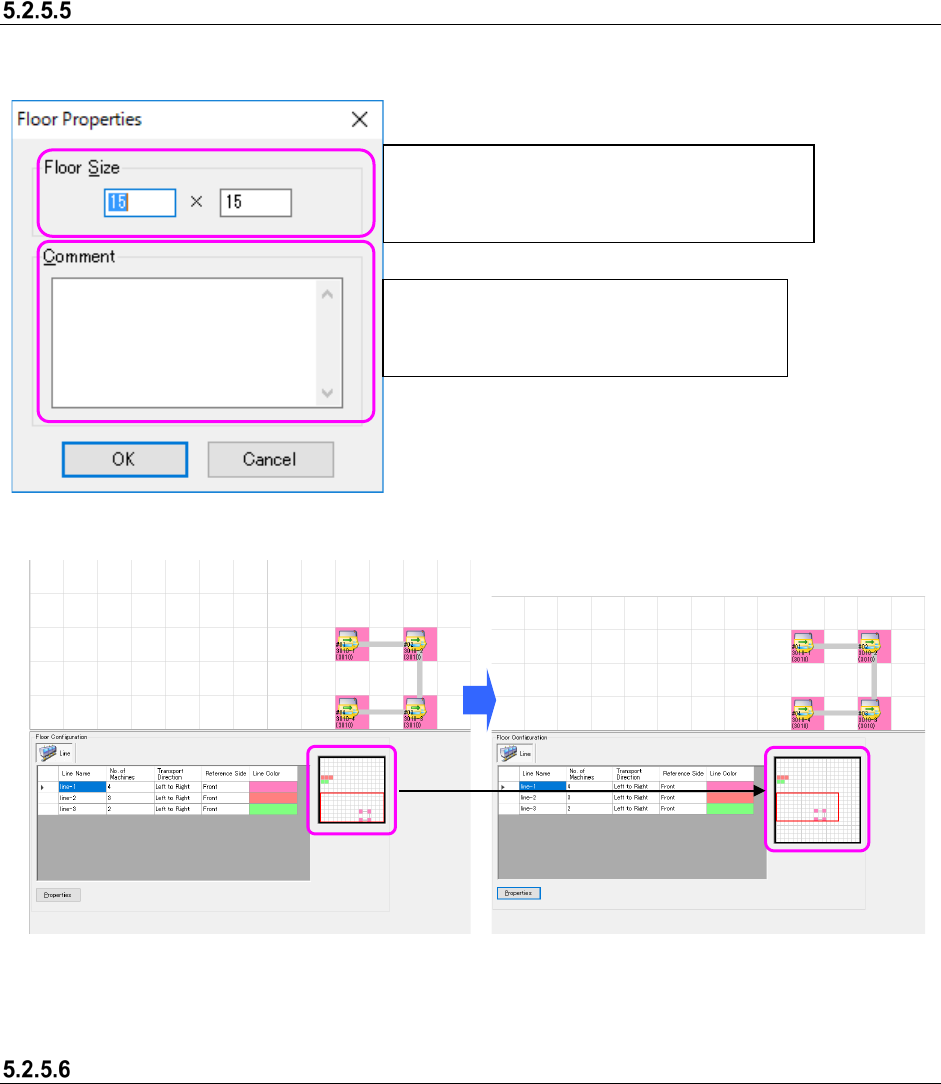
Setting the floor properties
When you click the <Properties> button, the following screen appears.
Figure 5.2-20 “Floor Properties”
Figure 5.2-21 Before changing the settings in
the “Floor Properties” fields
Figure 5.2-22 After changing the settings in
the “Floor Properties” fields
When an error message appears
An error message appears when:
1. You change the setting in the “Floor Properties” fields to any value not within the input range.
2. You set the floor size smaller than the production line assignment area on the floor view.
* When you click the <OK> on the error message screen in either case above, the
“Shopfloor Setup” screen reappears.
Set the “Floor Size” in the following format:
horizontal width (X-axis) × vertical width (Y-axis).
Input range: 5×5 to 50 × 50
Set the comment for a floor.
You can enter up to 64 characters regardless
of the character width, half-width or full-width.