JANETS_INM.pdf - 第137页
JaNets In structio n Manual 5. Shopflo or Setu p 5- 17 Mac hine – H ow t o Ope rate Creat ing a ne w ma chin e Select an un assigned m achine or a product ion line f rom the f loor configurat ion t ree, and then perform …
JaNets Instruction Manual 5. Shopfloor Setup
5-16
Production line details
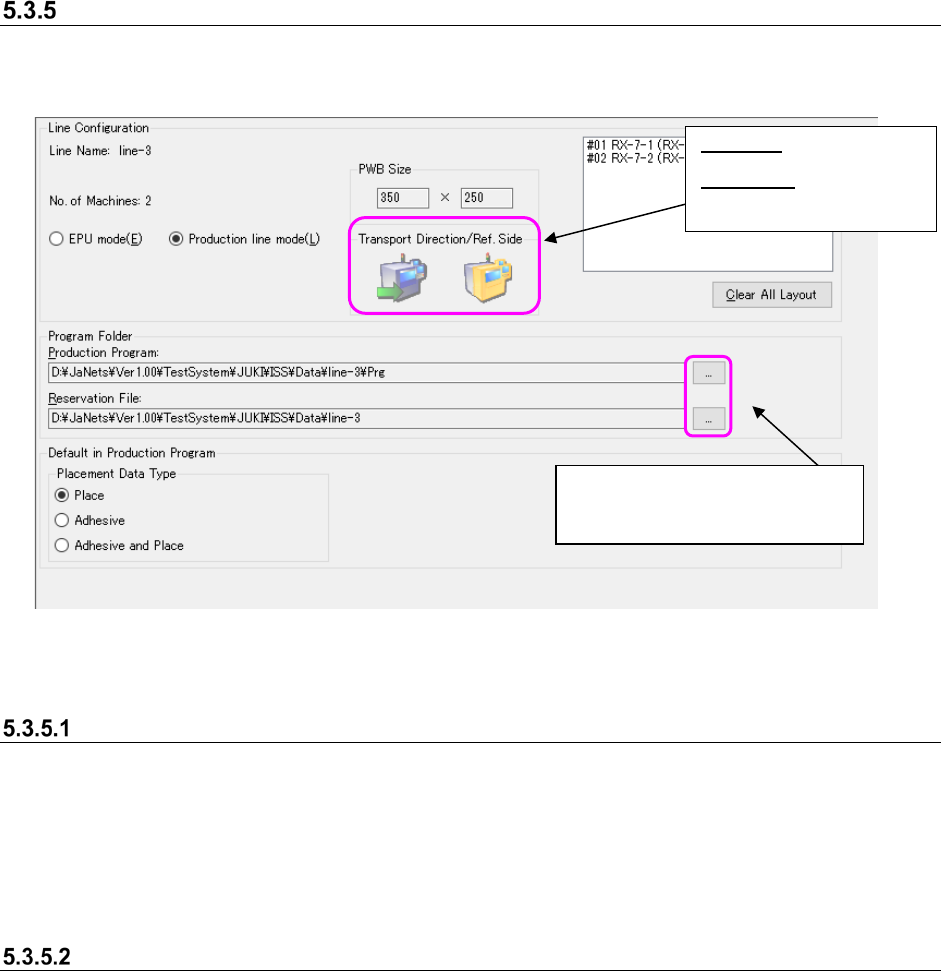
On the production line details screen, set the line configurations (board size, board transporting
direction, reference side and number of connected machines) and set the production line
environment (set the program folder).
Figure 5.3-15 Production line details
Line Configuration
As the maximum size entered in the “PWB Size” fields, the minimum one of those of machines
assigned to a production line is displayed.
The setting of the “Transport Direction” field is based on the first machine assigned to the
production line view, while that of the “Ref. Side” field is based on the first mounter, adhesive
dispenser or inserting machine assigned to the production line view.
Environment settings of a production line
Set the folder path to which a production program file is to be stored on the production line details
screen.
- Initial folder path of a production program: JaNets installation folder\Data\Production line
name\prg
- Initial folder path of the reservation file: Install folder\Data\Line name of JaNets
* The “JaNets installation folder\Data” is set when the JaNets is installed.
* “\Production line name” is set when a new production line is created.
These buttons display the dialog
box for selecting a folder to which
the initial folder is set.
Left icon: Displays the
board transport direction.
Right icon: Displays the
reference side, front or
rear.
JaNets Instruction Manual 5. Shopfloor Setup
5-17
Machine – How to Operate
Creating a new machine
Select an unassigned machine or a production line from the floor configuration tree, and then
perform the operation ① or ② below.
You can create a printer or an inserting machine only when an Equipment Manager option is
added to the system.
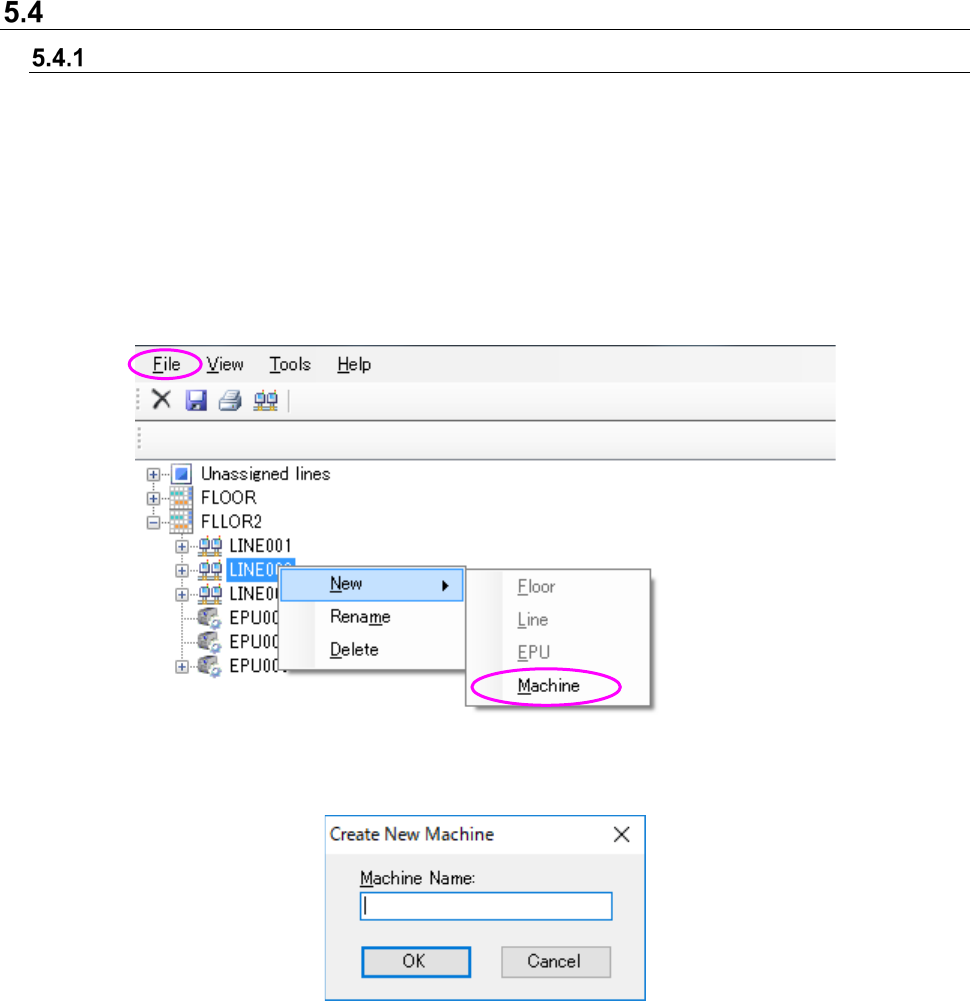
① Select the [File] command from the menu bar, the [New] command and the [Machine]
command in this order.
② Click the right button of a mouse to display the pop-up menu. Select the [New] command, and
then the [Machine] command from this pop-up menu.
Figure 5.4-1 Creating a new machine (Operation 1)
Figure 5.4-2 “Create New Machine” dialog box
Machine Name: You can use up to 20 characters. The lower cases are not distinguished from
the upper ones. You can use half-width alphanumeric characters and the
following special characters.
However, you cannot use the following special characters: (”)「#」「&」「’」「<」「>」)
You cannot enter same machine name among floor, line, and equipment.
OK: This button adds a new machine to the floor configuration tree.
A machine newly created is added to the end of the production line.
JaNets Instruction Manual 5. Shopfloor Setup
5-18
Changing the machine name
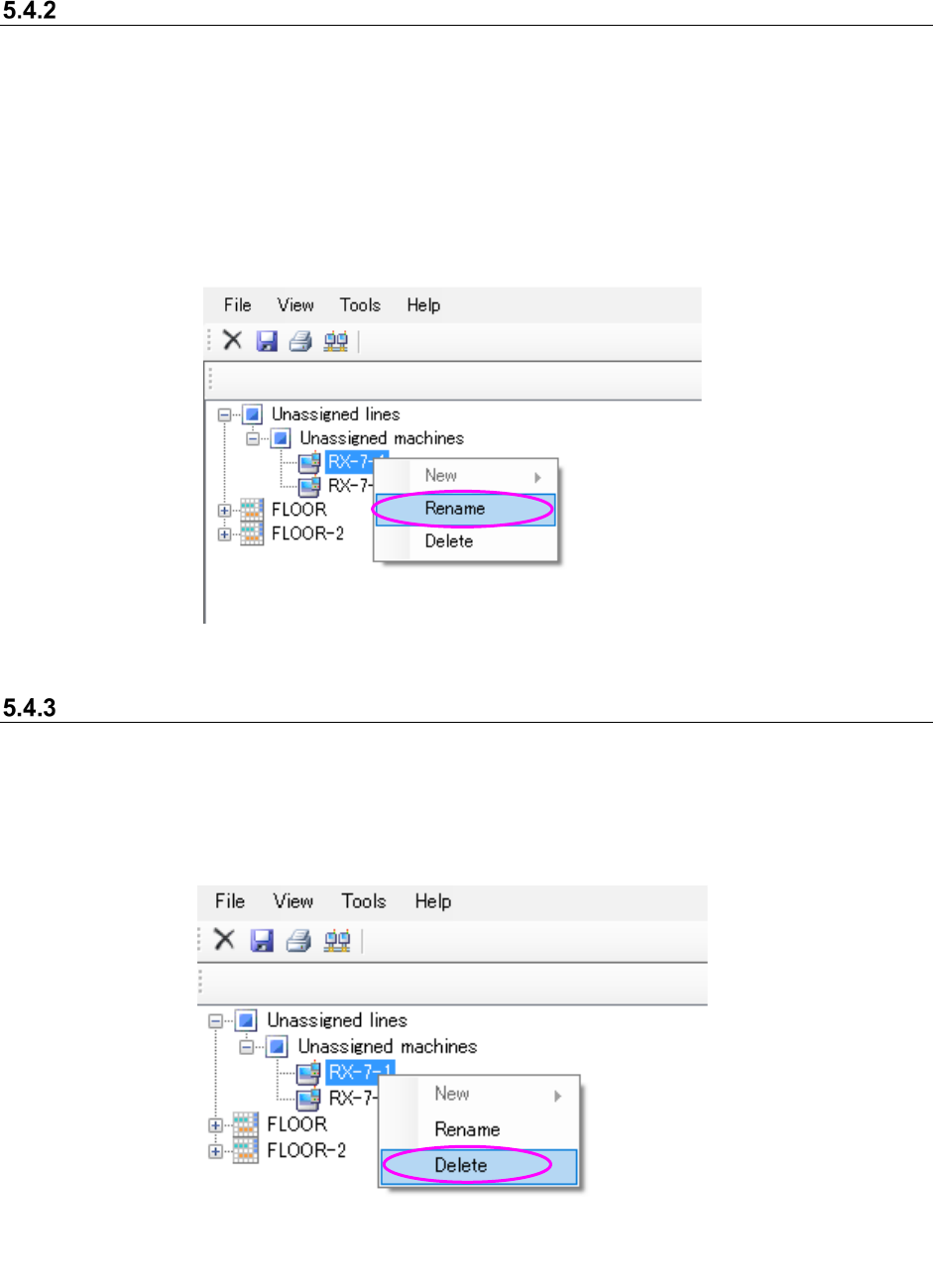
Select a machine under the “Unassigned” machines from the floor configuration tree, and then
perform the operation ① or ② below.
① Select the [File] command from the menu bar, and then the [Rename] command from the
“File” menu.
② Click the right button of a mouse to display the pop-up menu. Select the [Rename] command
from this pop-up menu.
* When you perform either of the operations above, the selected machine can accept your input,
and you can change its name.
Figure 5.4-3 Changing the machine name (Operation 2)
Deleting a machine
Select a machine under the “Unassigned” machines on the floor configuration tree, and perform
the operation ① or ② below.
① Select the [File] command, and then the [Delete] command from the “File” menu.
② Click the right button of a mouse to display the pop-up menu. Select the [Delete] command
from this pop-up menu.
Figure 5.4-4 Deleting a machine name (Operation 2)