JANETS_INM.pdf - 第138页
JaNets In structio n Manual 5. Shopflo or Setu p 5- 18 Changing the machine name Select a mac hine und er the “Unass igned” machin es from the f loor configur atio n tree, and then perform t he operat ion ① or ② bel ow .…
JaNets Instruction Manual 5. Shopfloor Setup
5-17
Machine – How to Operate
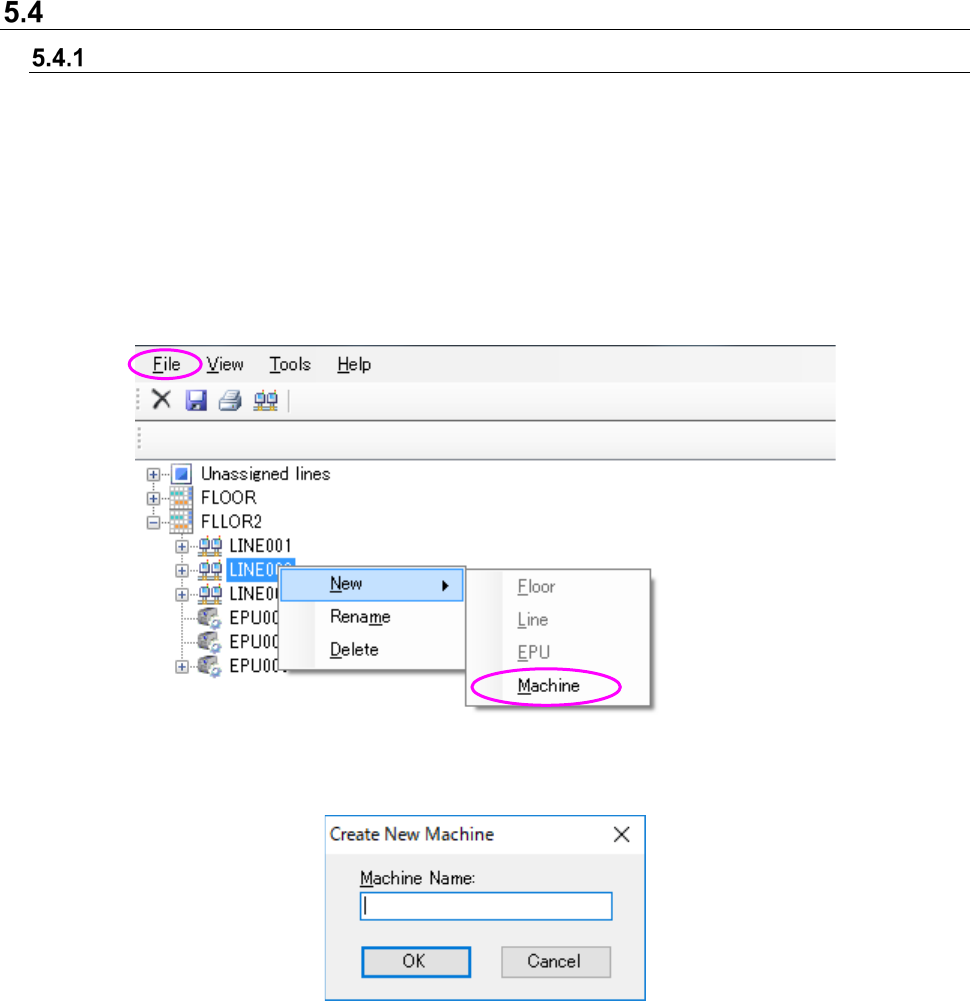
Creating a new machine
Select an unassigned machine or a production line from the floor configuration tree, and then
perform the operation ① or ② below.
You can create a printer or an inserting machine only when an Equipment Manager option is
added to the system.
① Select the [File] command from the menu bar, the [New] command and the [Machine]
command in this order.
② Click the right button of a mouse to display the pop-up menu. Select the [New] command, and
then the [Machine] command from this pop-up menu.
Figure 5.4-1 Creating a new machine (Operation 1)
Figure 5.4-2 “Create New Machine” dialog box
Machine Name: You can use up to 20 characters. The lower cases are not distinguished from
the upper ones. You can use half-width alphanumeric characters and the
following special characters.
However, you cannot use the following special characters: (”)「#」「&」「’」「<」「>」)
You cannot enter same machine name among floor, line, and equipment.
OK: This button adds a new machine to the floor configuration tree.
A machine newly created is added to the end of the production line.
JaNets Instruction Manual 5. Shopfloor Setup
5-18
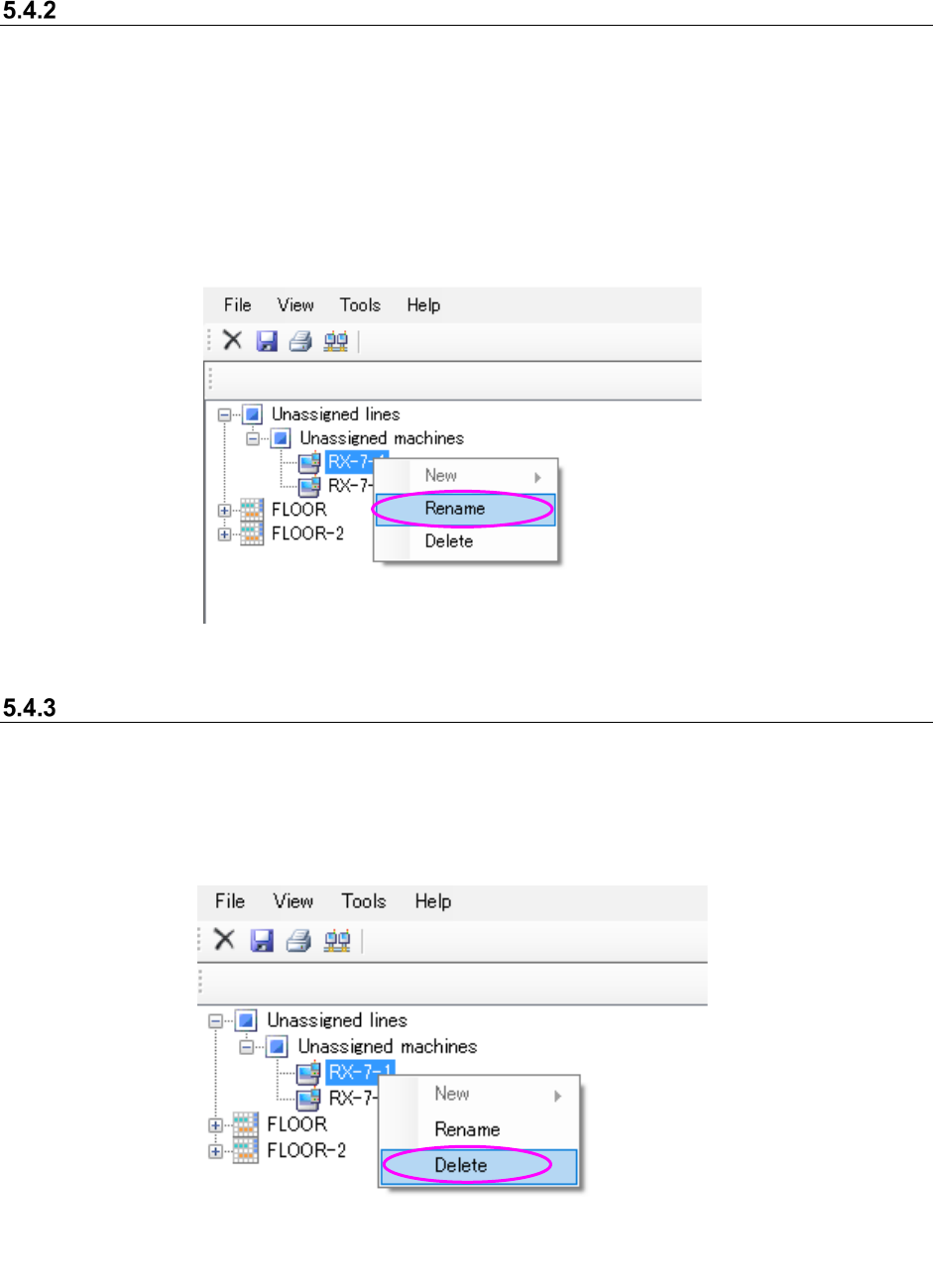
Changing the machine name
Select a machine under the “Unassigned” machines from the floor configuration tree, and then
perform the operation ① or ② below.
① Select the [File] command from the menu bar, and then the [Rename] command from the
“File” menu.
② Click the right button of a mouse to display the pop-up menu. Select the [Rename] command
from this pop-up menu.
* When you perform either of the operations above, the selected machine can accept your input,
and you can change its name.
Figure 5.4-3 Changing the machine name (Operation 2)
Deleting a machine
Select a machine under the “Unassigned” machines on the floor configuration tree, and perform
the operation ① or ② below.
① Select the [File] command, and then the [Delete] command from the “File” menu.
② Click the right button of a mouse to display the pop-up menu. Select the [Delete] command
from this pop-up menu.
Figure 5.4-4 Deleting a machine name (Operation 2)
JaNets Instruction Manual 5. Shopfloor Setup
5-19
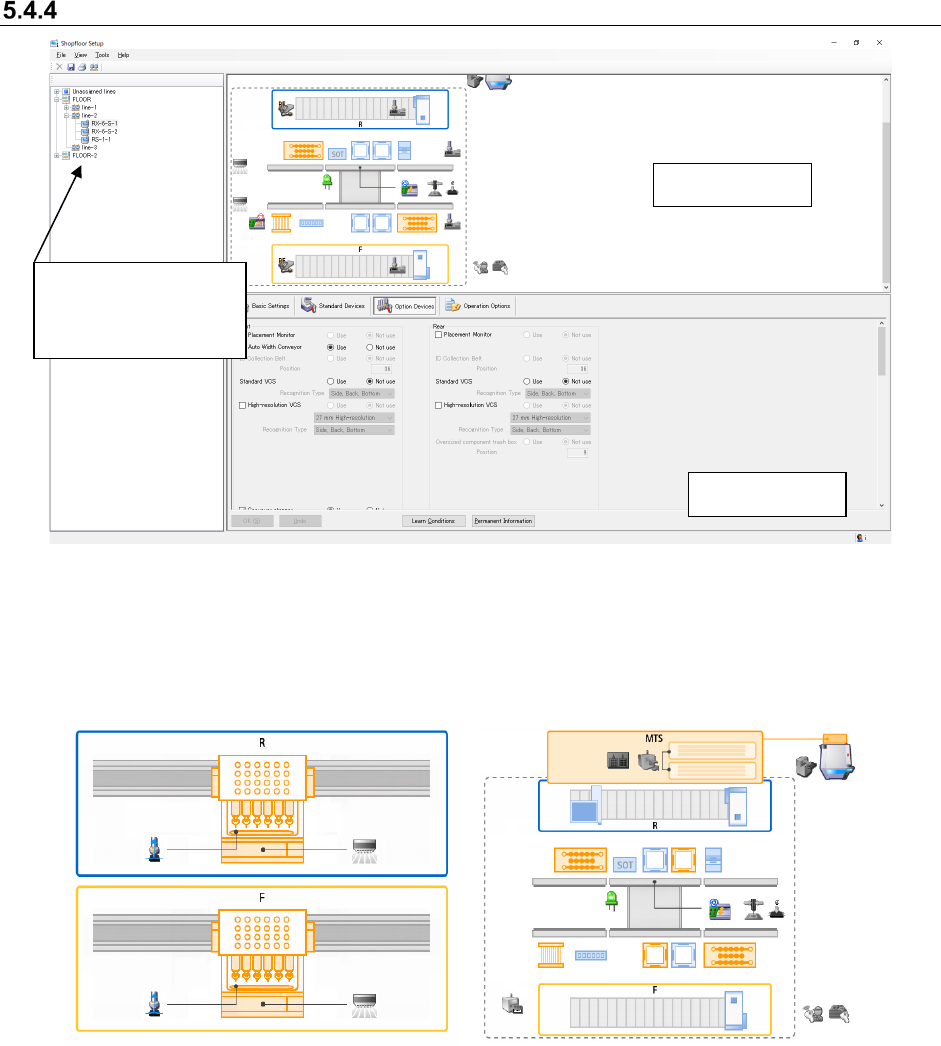
Machine view (Machine information display)
Figure 5.4-5 Example of the machine selection screen
Machine view : The image of the machine selected on the floor configuration tree is
displayed here.
The model name, devices and option conditions of the machine are visually displayed.
Figure 5.4-6 Machine view of the standard
setting
Figure 5.4-7 Machine view of option devices
Machine details
Machine view
Select a machine on
the floor configuration
tree.