JANETS_INM.pdf - 第151页
JaNets In structio n Manual 5. Shopflo or Setu p 5- 31 Or , select a produ ction li ne from the “Floor Configur ation” with the Explorer , and then drag and drop it onto the “ Register ed Line” list. Figure 5.5 -3 Regist…
JaNets Instruction Manual 5. Shopfloor Setup
5-30
Setting a Production Line to Be Monitored
Select it from the arranged line on the created floor.
It is impossible to select an unarranged line, “Floor” and “Machine” hierarchy, and specify a
registered line.
When the program downloader (or external output monitor) is already started, the monitor line
cannot be set.
Setting method
“Monitor line setting” is displayed on the main screen by pressing the “Tool” – “Monitor line setting”
(or monitor line setting icon of the tool bar).
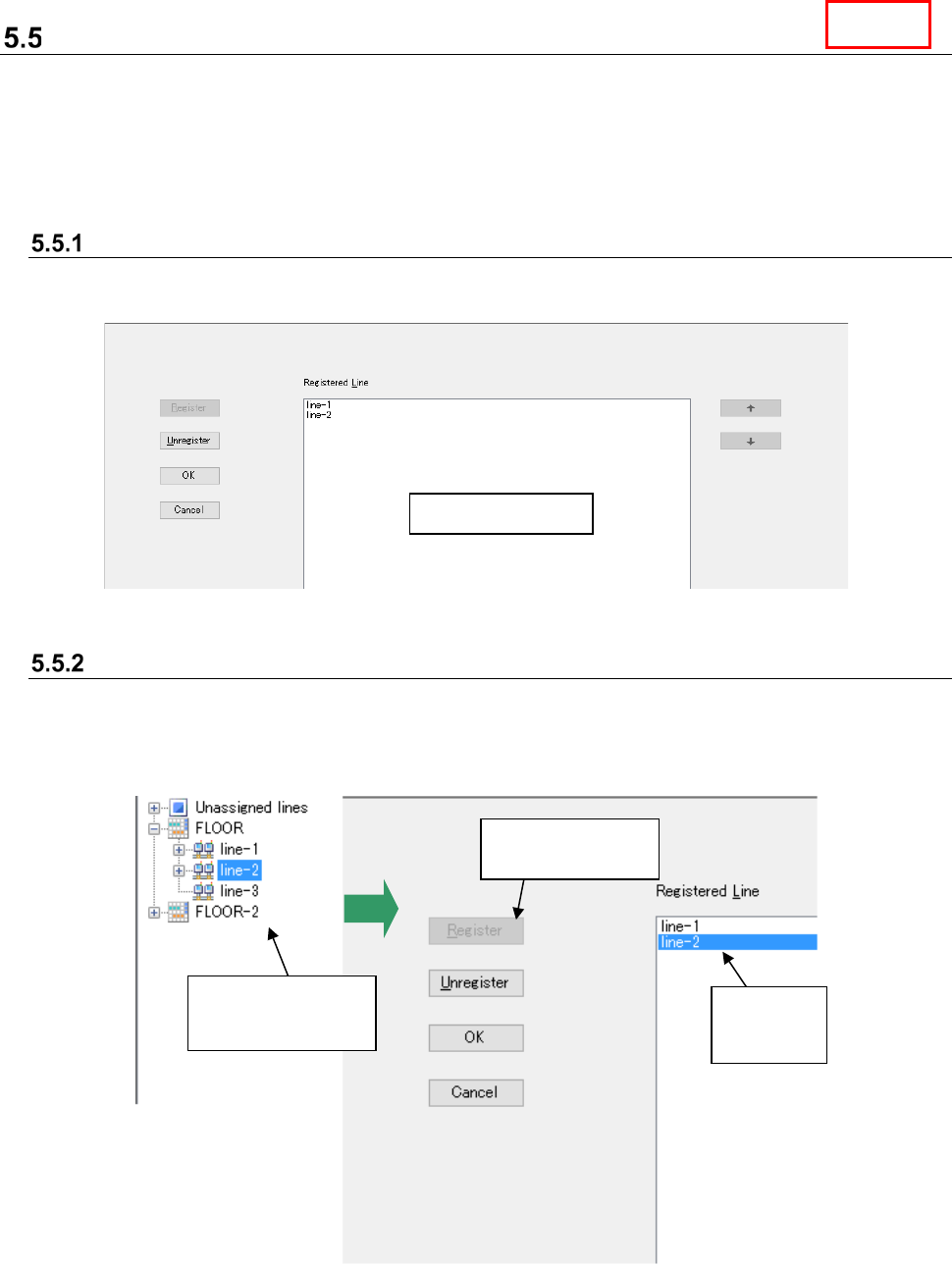
Figure 5.5-1 Screen for setting a production line to be monitored
Registration of a line to be monitored
Select a production line to be registered from the “Floor Configuration” of the Explorer (you cannot
select two or more lines). Then, select the “Register” button on the “Set Lines to Monitor” screen.
The selected production line is added to the “Registered Line” list.
When another line is already registered, it is added to the last line in the list.
Figure 5.5-2 Registering a production line to be monitored ①
Machine details
Select a production
line with the Line
Explorer.
“Line 1-4”
is added to
the list.
Click the
“Register” button.
Line
JaNets Instruction Manual 5. Shopfloor Setup
5-31
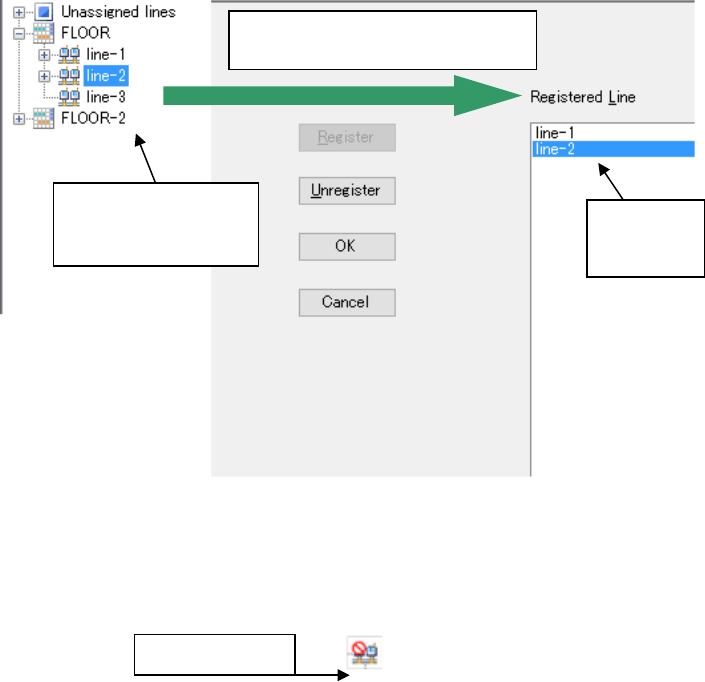
Or, select a production line from the “Floor Configuration” with the Explorer, and then drag and
drop it onto the “Registered Line” list.
Figure 5.5-3 Registering a production line to be monitored ②
The line is registered by pressing “OK” on the monitor line setting screen, and the “Monitor line
setting” screen is closed.
Figure 5.5-4 Icons of the monitor line
Monitor line
Select a production
line with the Line
Explorer and drag it.
“Line” is
added to
the list.
Drop the selected production line
onto the “Registered Line” list.
JaNets Instruction Manual 5. Shopfloor Setup
5-32
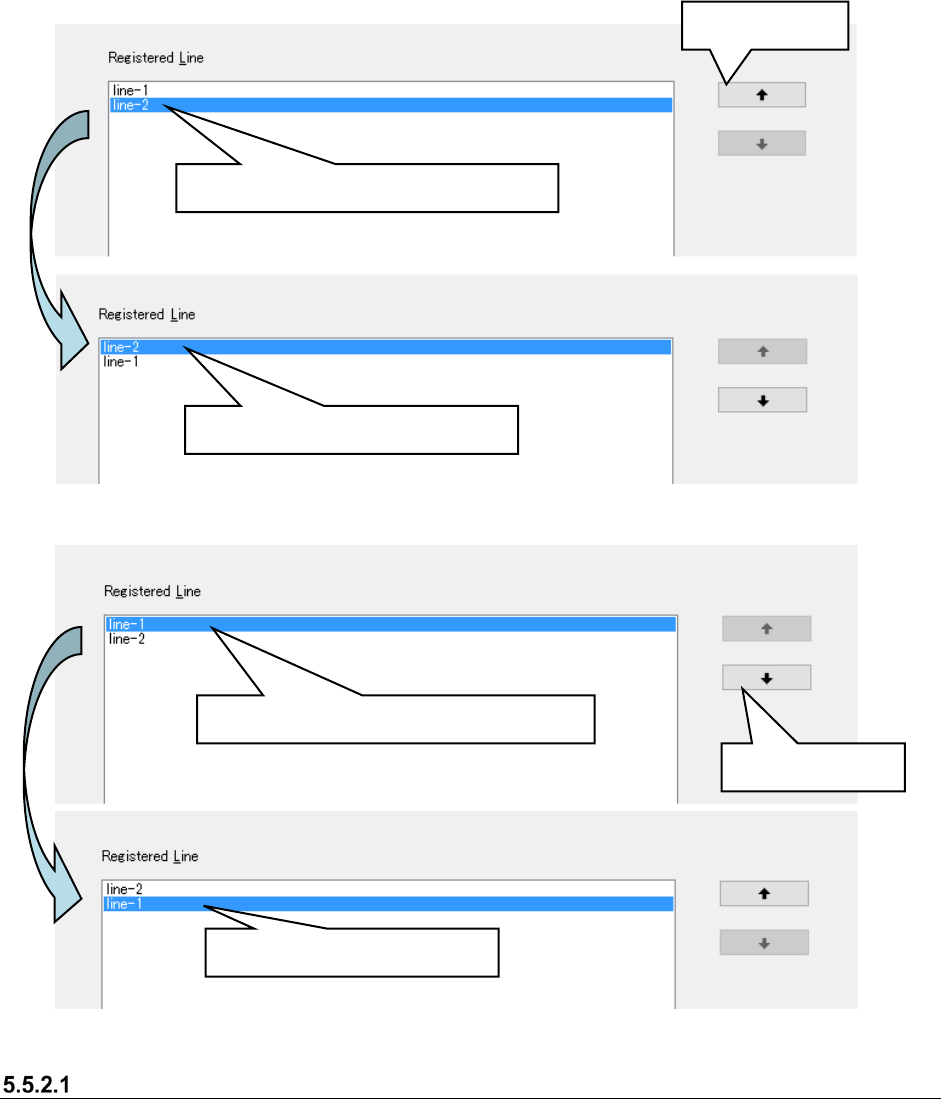
The lines displayed by the line monitor of “Program downloader” are displayed in the order
registered (displayed) in the “Register line” list.
To make an order change, select a line (multiple lines cannot be selected) in the “Register line” list,
and execute it by “Up shift/Down shift.”
Figure 5.5-5 Change of order ①
Figure 5.5-6 Change of order ②
Lines that cannot be registered by the monitor line
・ A line of the EPU mode cannot be registered in the monitor line.
・ When the number of machines of the registered line exceeds 15, they cannot be registered in
the monitor line.
Select a line in the “Registered lines” list.
Line-2 is shifted upward.
Up shift button
Select a line in the “Registered lines” list.
Down shift button
Line-1 is shifted downward.