JANETS_INM.pdf - 第154页
JaNets In structio n Manual 5. Shopflo or Setu p 5- 34 Set Envi ron men ts Setting the environments Set the unit system use d with the ent ire JaNe ts . Select the [ T ools] command f rom the m enu bar , and then t he [S…
JaNets Instruction Manual 5. Shopfloor Setup
5-33
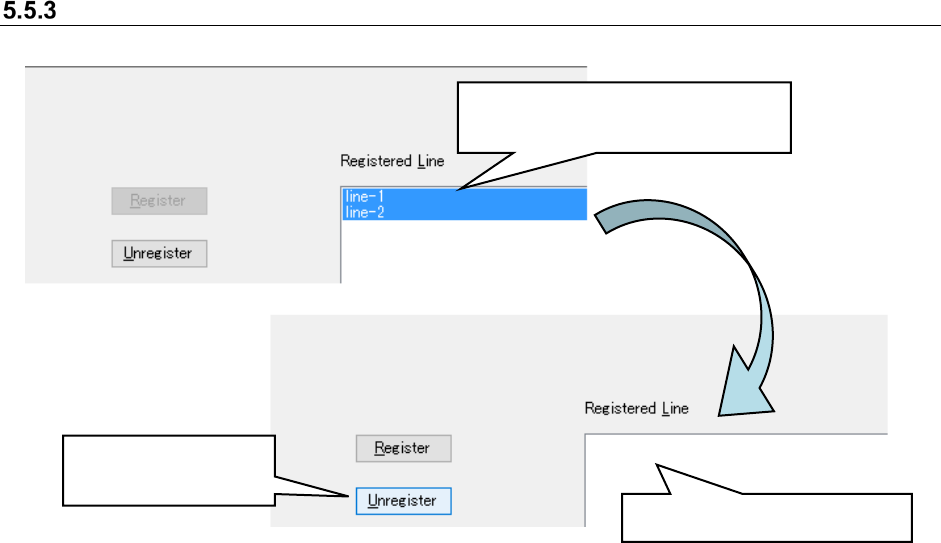
Cancelation of the registration of a line to be monitored
Figure 5.5-7 Canceling registration of a production line
When you select the “OK” button on the “Set Lines to Monitor” screen, the registration of the
selected production line is canceled, the “Set Lines to Monitor” screen closes.
Select the registered production line.
* Multiple lines can be selected
Click the “Unregister”
button.
Line-1 and Line-2 are deleted.
JaNets Instruction Manual 5. Shopfloor Setup
5-34
Set Environments
Setting the environments
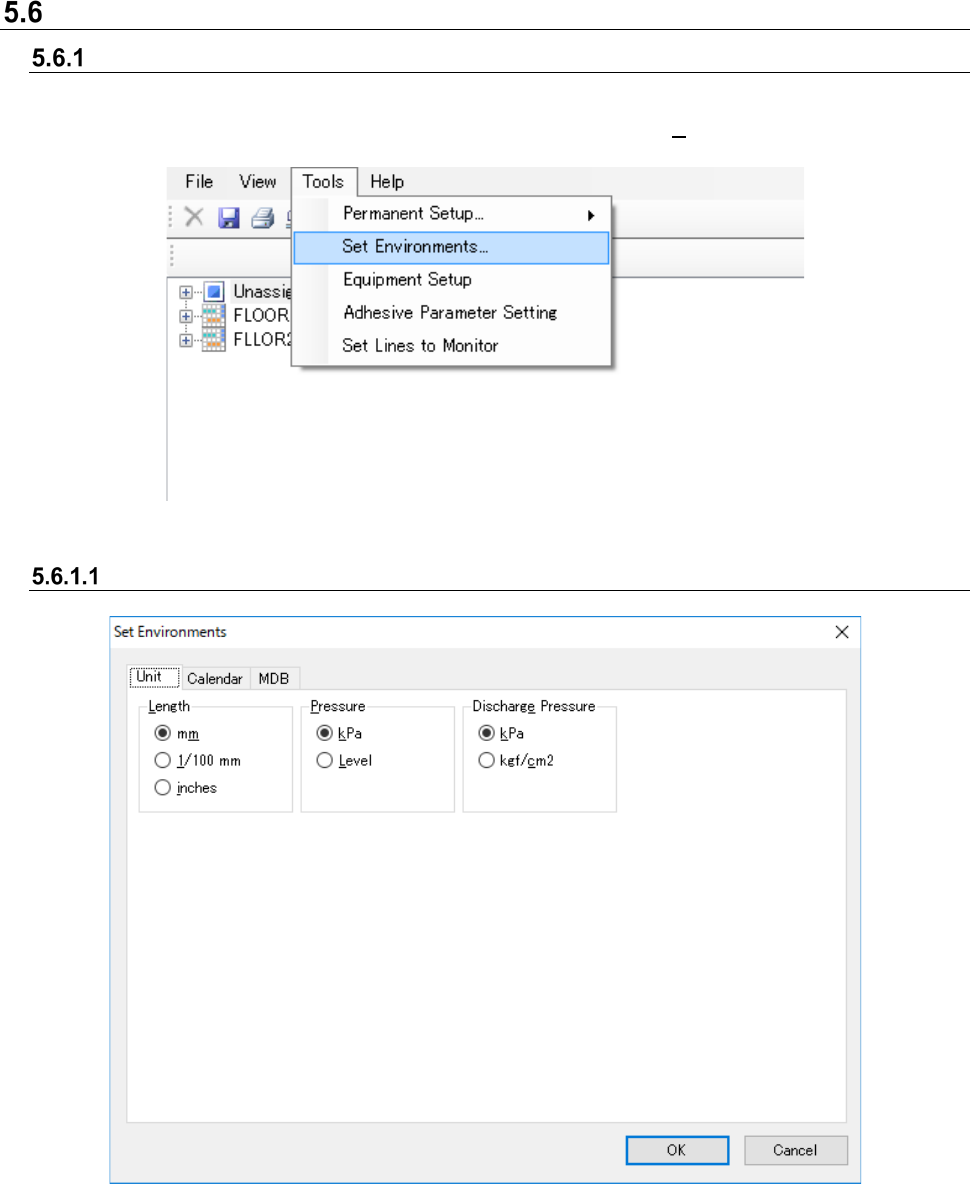
Set the unit system used with the entire JaNets.
Select the [Tools] command from the menu bar, and then the [Set Environments] command from
the “Tools” menu. The “Set Environments” screen appears.
Figure 5.6-1 [Tools] - [Set Environments]
Unit
Figure 5.6-2 “Set Environments” screen (Unit)
Set the length and pressure unit systems here.
All JaNets applications are displayed and allow your input according to the settings made here.
JaNets Instruction Manual 5. Shopfloor Setup
5-35
Set calendar
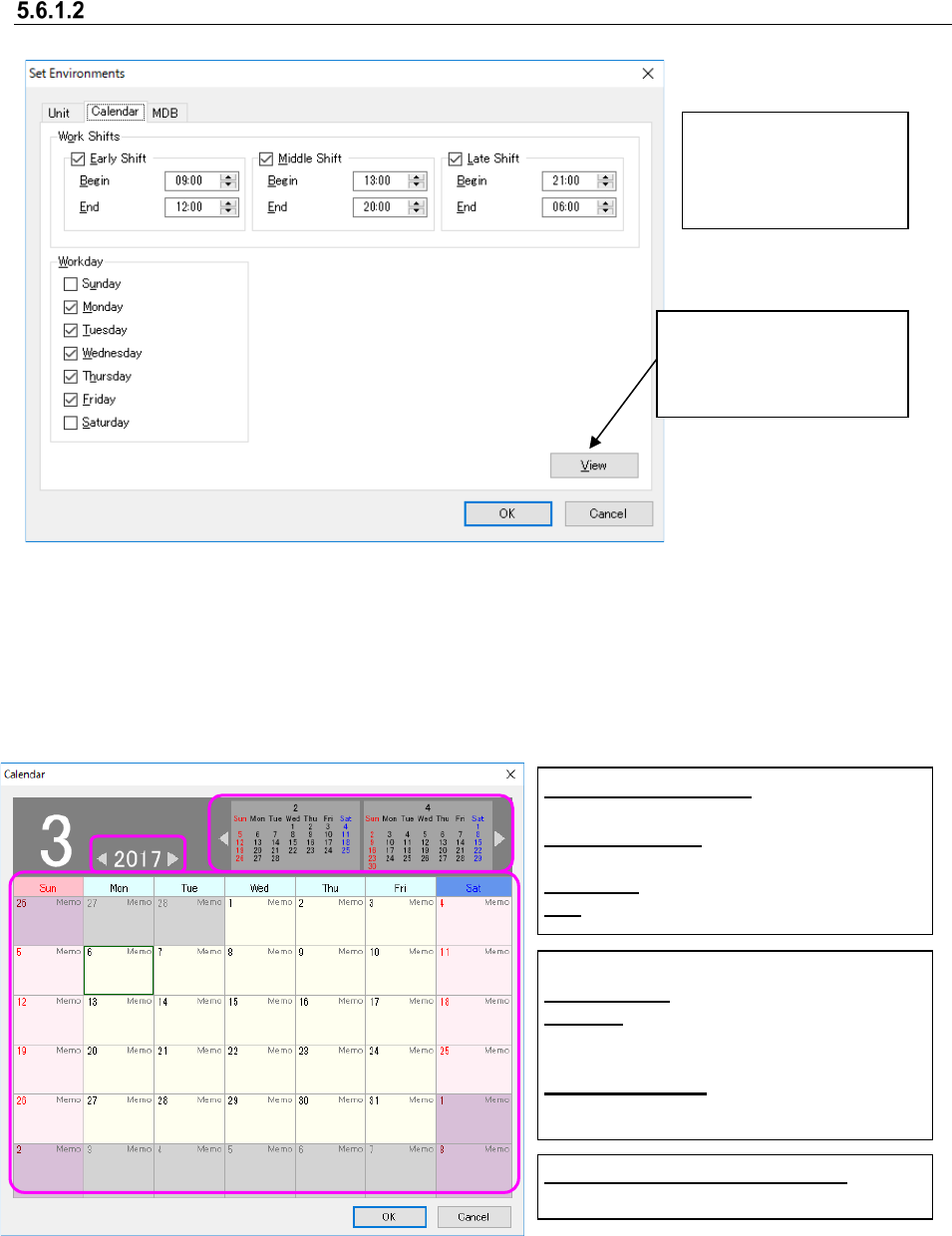
Figure 5.6-3 Environment setting screen (calendar)
Calendar Screen
When you click [Display] by the calendar tab in Set environment, the calendar screen will be
displayed. In this screen, you can cancel or add any holiday, change the operating time
(half-day attendance, etc.), and enter a comment.
Figure 5.6-4 Calendar screen
When you click the [Day] cell, the popup menu will be displayed.
Display:
Used to display the
calendar screen.
Set the operating time
of the whole factory.
The set items are used
for the time estimate.
[Year] [←] [→] button:
Moves the year to be set.
[Month] [
←
] [
→
]:
Moves the month to be set.
[Day] cell: Displays a comment.
OK: Terminates after saving the setting.
Other than user’s working day:
Indicated in red.
<Definition of day>
Working day: User’s working day
Holiday:
Holiday set by the working day
of the environment setting or holiday set
by adding a holiday
National Holiday: National holiday set
by adding a national holiday