JANETS_INM.pdf - 第155页
JaNets In structio n Manual 5. Shopflo or Setu p 5- 35 Set calendar Figure 5.6 -3 Environment se tting scree n (calendar) Calendar Scr een When you clic k [Displ ay] by t he calendar tab in Set enviro nment, the calen da…
JaNets Instruction Manual 5. Shopfloor Setup
5-34
Set Environments
Setting the environments
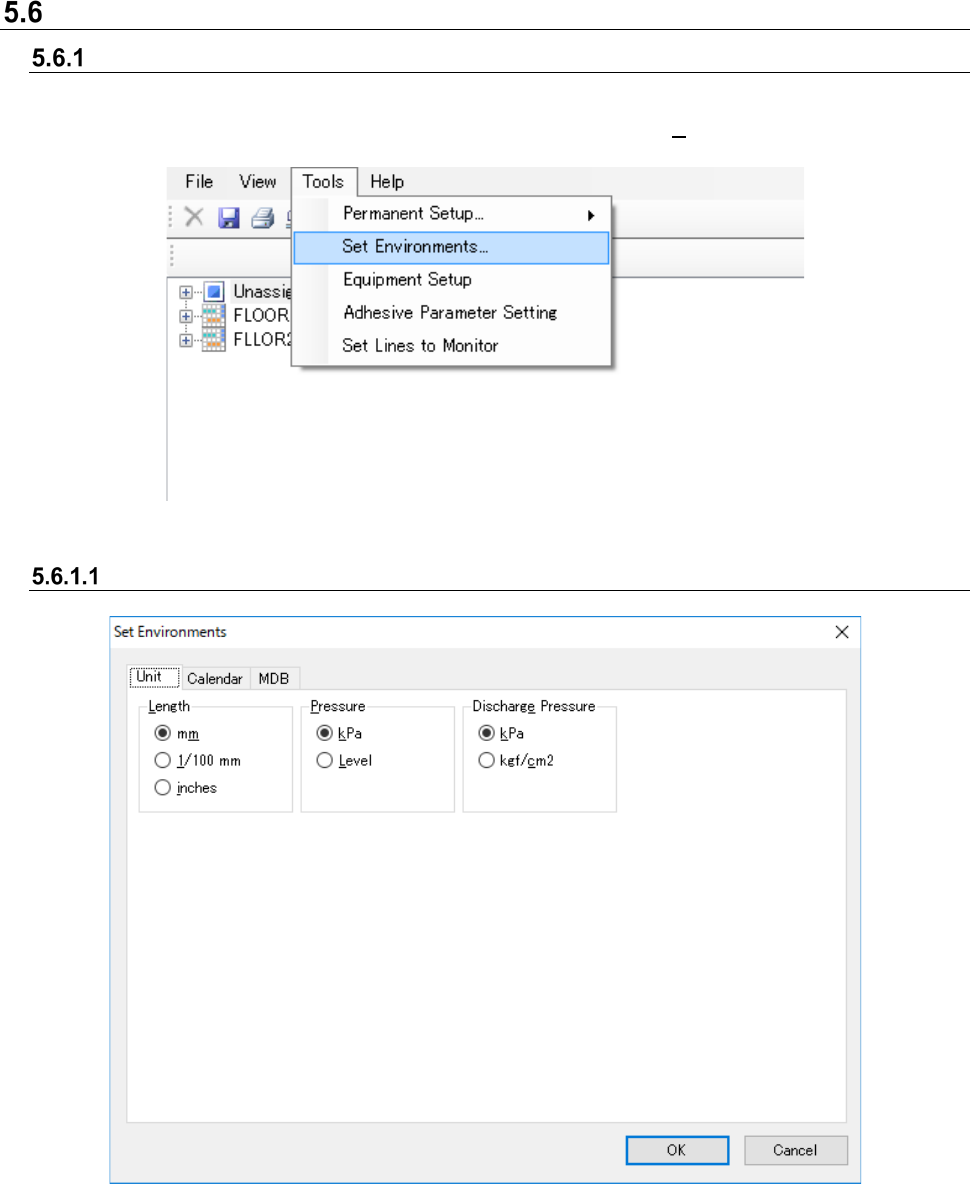
Set the unit system used with the entire JaNets.
Select the [Tools] command from the menu bar, and then the [Set Environments] command from
the “Tools” menu. The “Set Environments” screen appears.
Figure 5.6-1 [Tools] - [Set Environments]
Unit
Figure 5.6-2 “Set Environments” screen (Unit)
Set the length and pressure unit systems here.
All JaNets applications are displayed and allow your input according to the settings made here.
JaNets Instruction Manual 5. Shopfloor Setup
5-35
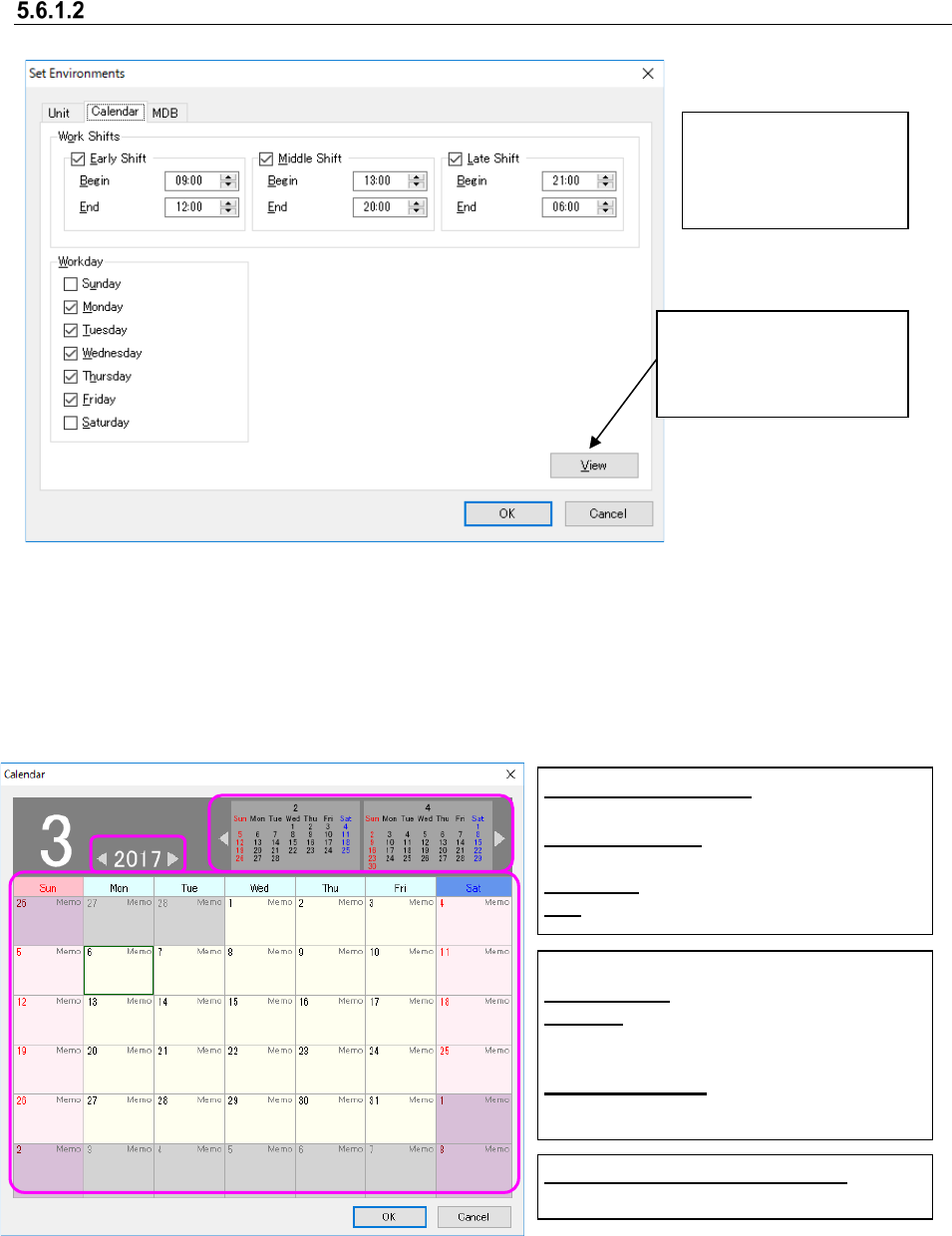
Set calendar
Figure 5.6-3 Environment setting screen (calendar)
Calendar Screen
When you click [Display] by the calendar tab in Set environment, the calendar screen will be
displayed. In this screen, you can cancel or add any holiday, change the operating time
(half-day attendance, etc.), and enter a comment.
Figure 5.6-4 Calendar screen
When you click the [Day] cell, the popup menu will be displayed.
Display:
Used to display the
calendar screen.
Set the operating time
of the whole factory.
The set items are used
for the time estimate.
[Year] [←] [→] button:
Moves the year to be set.
[Month] [
←
] [
→
]:
Moves the month to be set.
[Day] cell: Displays a comment.
OK: Terminates after saving the setting.
Other than user’s working day:
Indicated in red.
<Definition of day>
Working day: User’s working day
Holiday:
Holiday set by the working day
of the environment setting or holiday set
by adding a holiday
National Holiday: National holiday set
by adding a national holiday
JaNets Instruction Manual 5. Shopfloor Setup
5-36
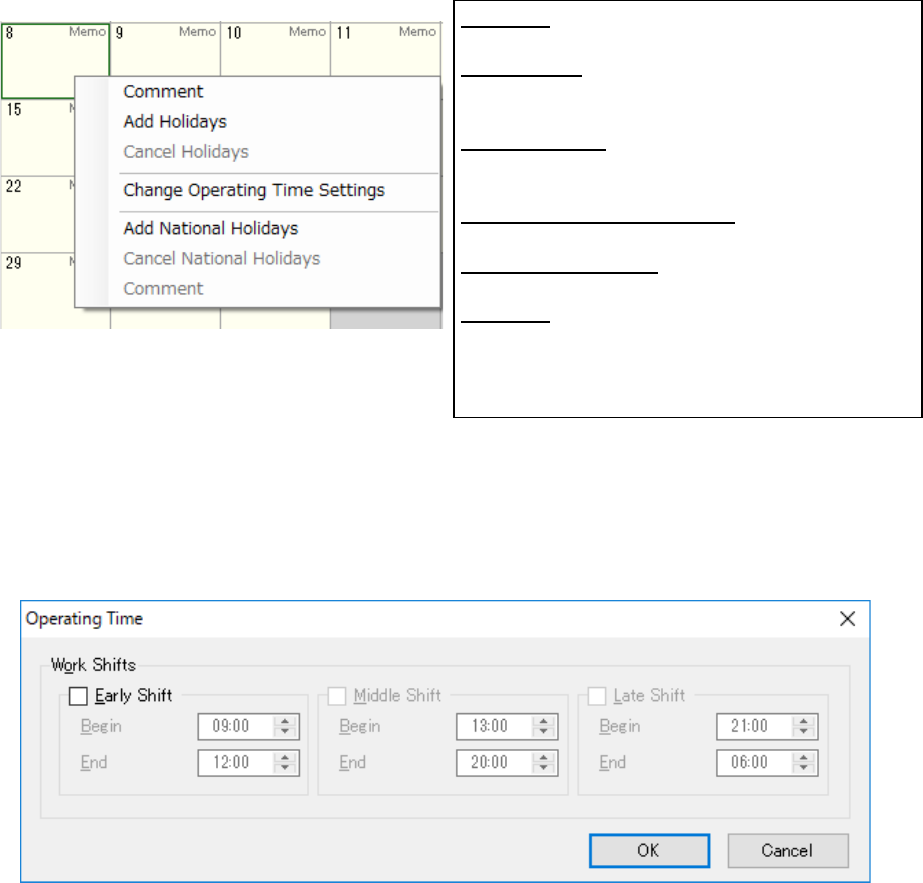
Figure 5.6-5 Calendar screen
Change the operating time
This function permits setting a time zone that is different from the time zone set by the
environment setting or user’s operating time. Set the start time and end time set in each of
“Early Shift”, “Middle Shift” and “Late Shift” so that there may not be any overlap time zone.
Figure 5.6-6 Change the operating time
Comment: A window is displayed. After description
is performed, a comment is displayed under the date.
Add Holidays: After Add holidays is executed for the
holiday indicated in red, the indicated color is changed
into a holiday.
Cancel Holidays: When Cancel holidays is executed
for the holiday indicated in red, the indicated color is
changed into a user’s working day.
Change Operating Time Setting: Changes the
operating time of the user working day.
Add National Holidays: Sets the selected day as a
national holiday.
Comment: A window is displayed. After description is
performed, a comment is displayed under the date. *
Up to 32 characters can be entered regardless of
double byte or single byte.