JANETS_INM.pdf - 第161页
JaNets In structio n Manual 5. Shopflo or Setu p 5- 41 Error operation If any invali d value is ente red, t he correspo nding err or messag e appears o n the screen. Click the <OK> butt on on the disp layed scre en…
JaNets Instruction Manual 5. Shopfloor Setup
5-40
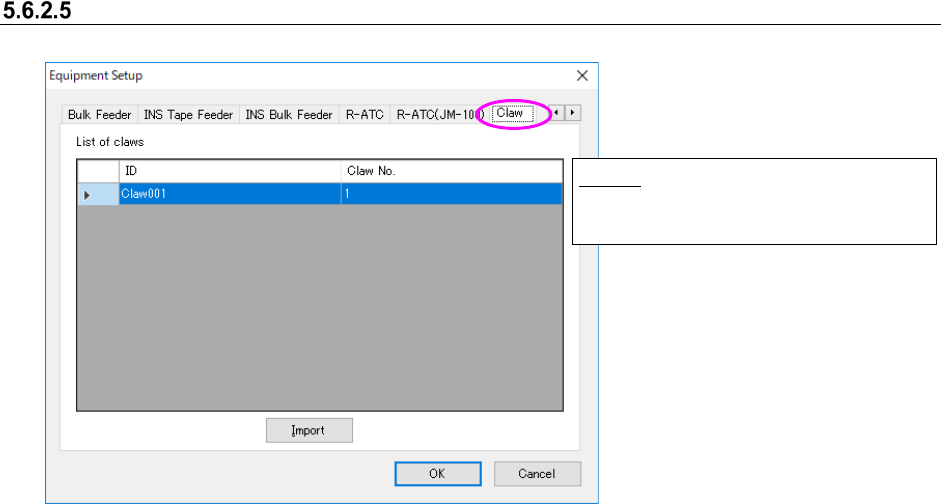
Claw Setting
Figure 5.6-13 “Equipment Setup” screen (Claw)
Import:
Take in Claw for JM-100 from INI file.
JaNets Instruction Manual 5. Shopfloor Setup
5-41
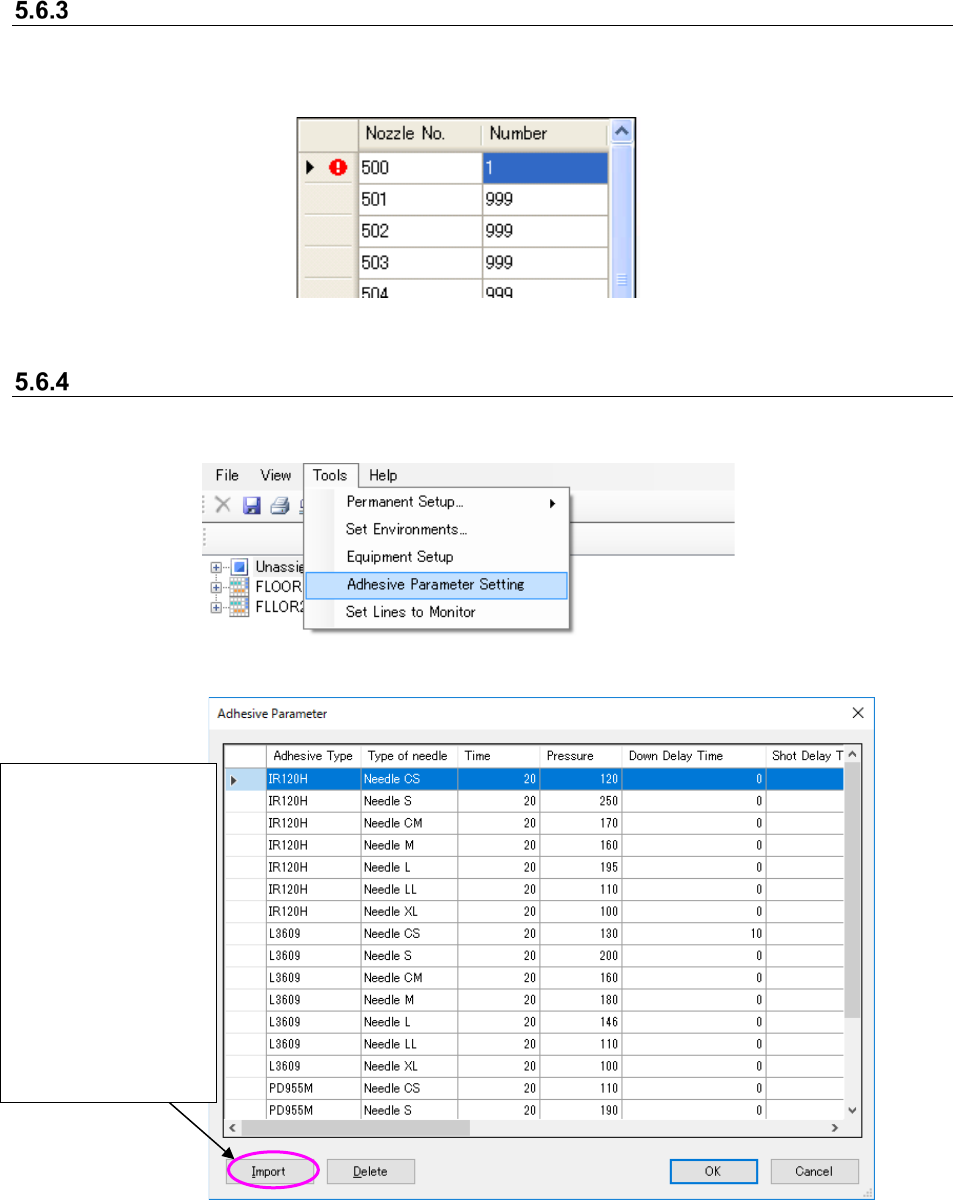
Error operation
If any invalid value is entered, the corresponding error message appears on the screen. Click the
<OK> button on the displayed screen, and enter data again on the line on which the error mark is
displayed.
Figure 5.6-14 Input error
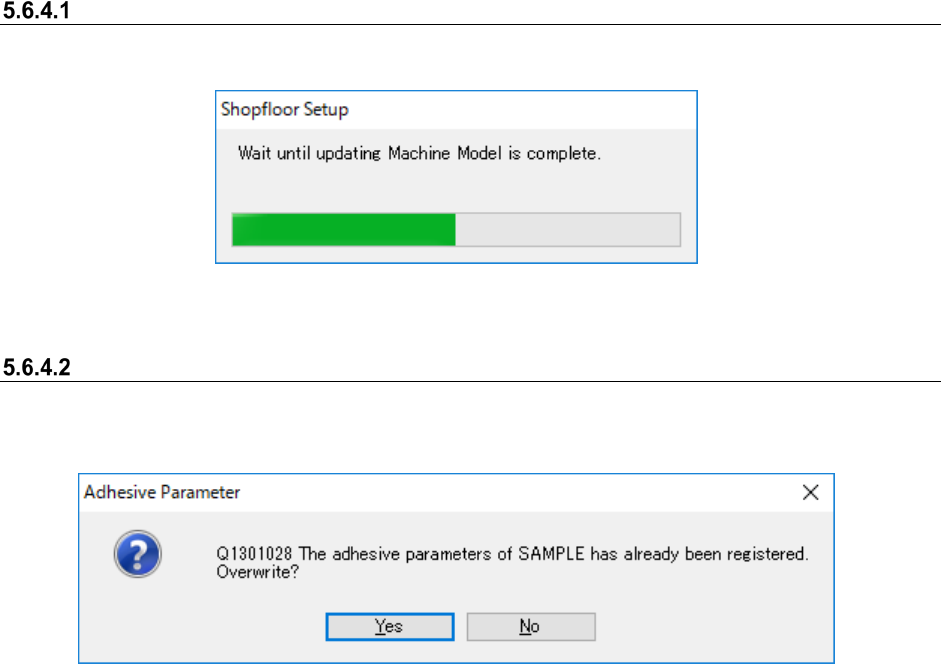
Adhesive parameter setting
The list of adhesive parameters that are now registered is displayed by selecting “Tool” -
“Adhesive parameter setting.”
Figure 5.6-15 “Tool” - “Adhesive parameter setting”
Figure 5.6-16 “Adhesive parameter setting” screen
* The adhesive parameter cannot be edited directly.
Import the adhesive
parameter from the
adhesive parameter
file (*AD2).
* The adhesive
parameter that can
be imported is only
the adhesive
parameter file of
*AD2 type.
* Only the imported
adhesive parameter
can be deleted.
JaNets Instruction Manual 5. Shopfloor Setup
5-42
Import of adhesive parameter
The adhesive parameter is immediately reflected onto the database by import (take-in).
Figure 5.6-17 Import status
Overwrite register
When an adhesive parameter registered by the above import is selected, the confirmation dialog is
displayed.
Figure 5.6-18 Overwrite confirmation dialog
* After an adhesive parameter is overwritten, all the needle parameters defined in the adhesive
parameter file are updated.