JANETS_INM.pdf - 第167页
JaNets In structio n Manual 5. Shopflo or Setu p 5- 47 Shopfloo r Setup – Nozzl e Layout What is the Nozzle Lay out? This applicat ion allows y o u to change the a ssignme nt/number of nozz les to be set in th e A utom a…
JaNets Instruction Manual 5. Shopfloor Setup
5-46
Outputting text
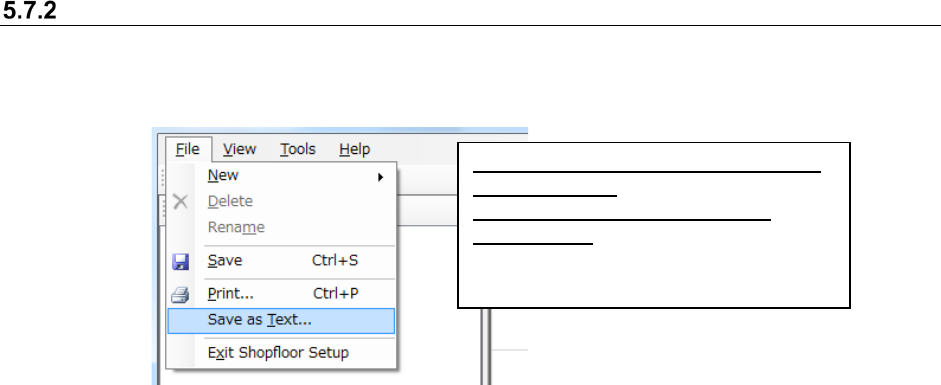
When you select the [File] command from the menu bar, and the [Save as Text] command from the
“File” menu, the “Save as Text” screen appears, and the system outputs the data set with the
Shopfloor Setup application as a text file.
Figure 5.7-8 [Save as Text] command
See Section 5.7.1.1 “Printing production
line information
(settings, production line/machine
information)” for descriptions and
operations of the “Save ad Text” screen,
“Data to Save” tree and the “Permanent
JaNets Instruction Manual 5. Shopfloor Setup
5-47
Shopfloor Setup – Nozzle Layout
What is the Nozzle Layout?
This application allows you to change the assignment/number of nozzles to be set in the Automatic
Tray Changer (ATC) or check the nozzle assignment visually.
Starting Up and Quitting the Nozzle Layout
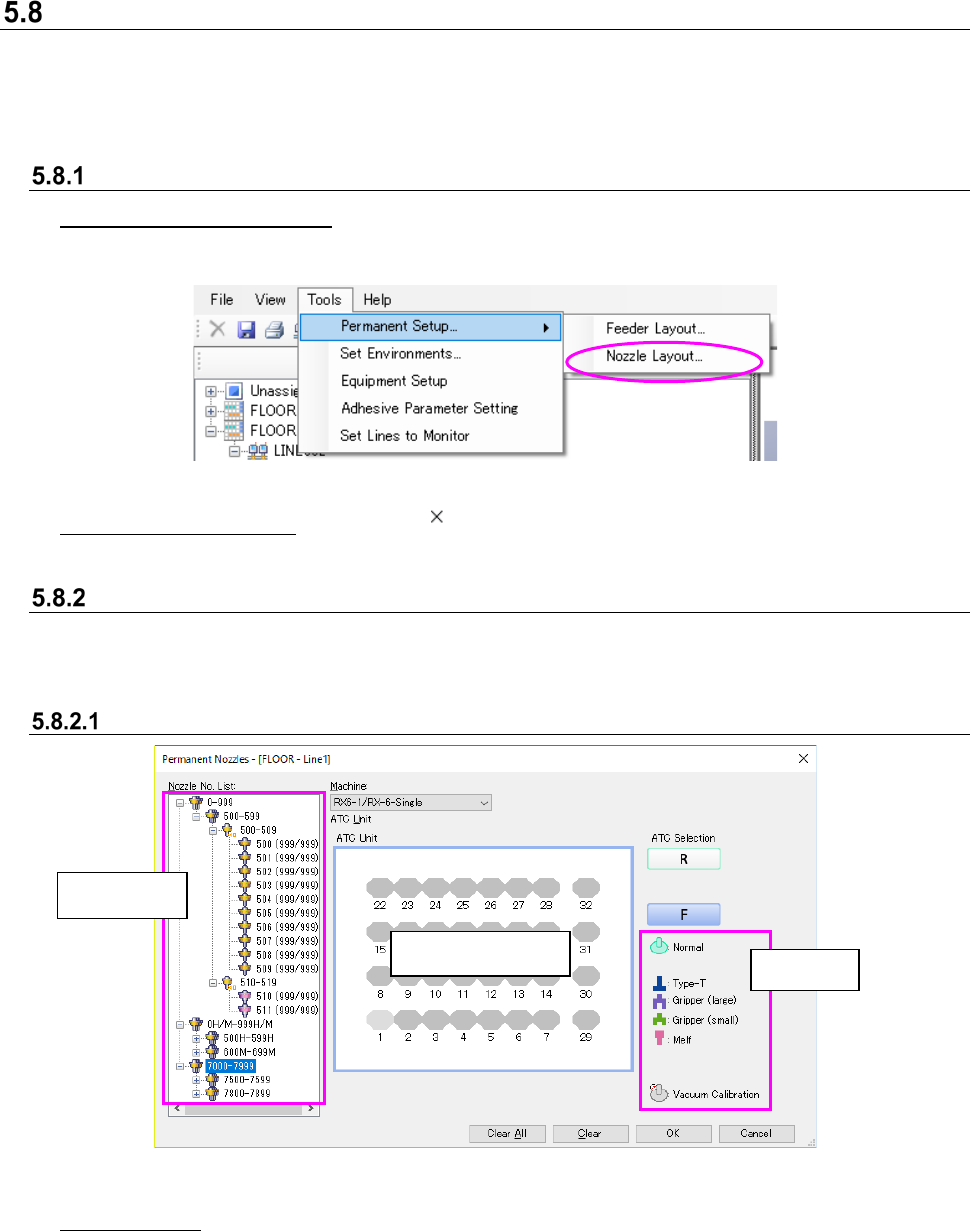
To start up the Nozzle Layout: Select the [Tools] command from the “Shopfloor Setup” menu bar,
the [Permanent Setup...] command and the [Nozzle Layout]
command in this order.
Figure 5.8-1 Starting up the Nozzle Layout
To quit the Nozzle Layout: Click the “ ” at the upper right corner of the screen shown in Figure
5.8.2-1.
Permanent Nozzles Setting Screen
On this screen, make the ATC nozzle assignment that is always made (fixed) when you set a
machine with the Shopfloor Setup application.
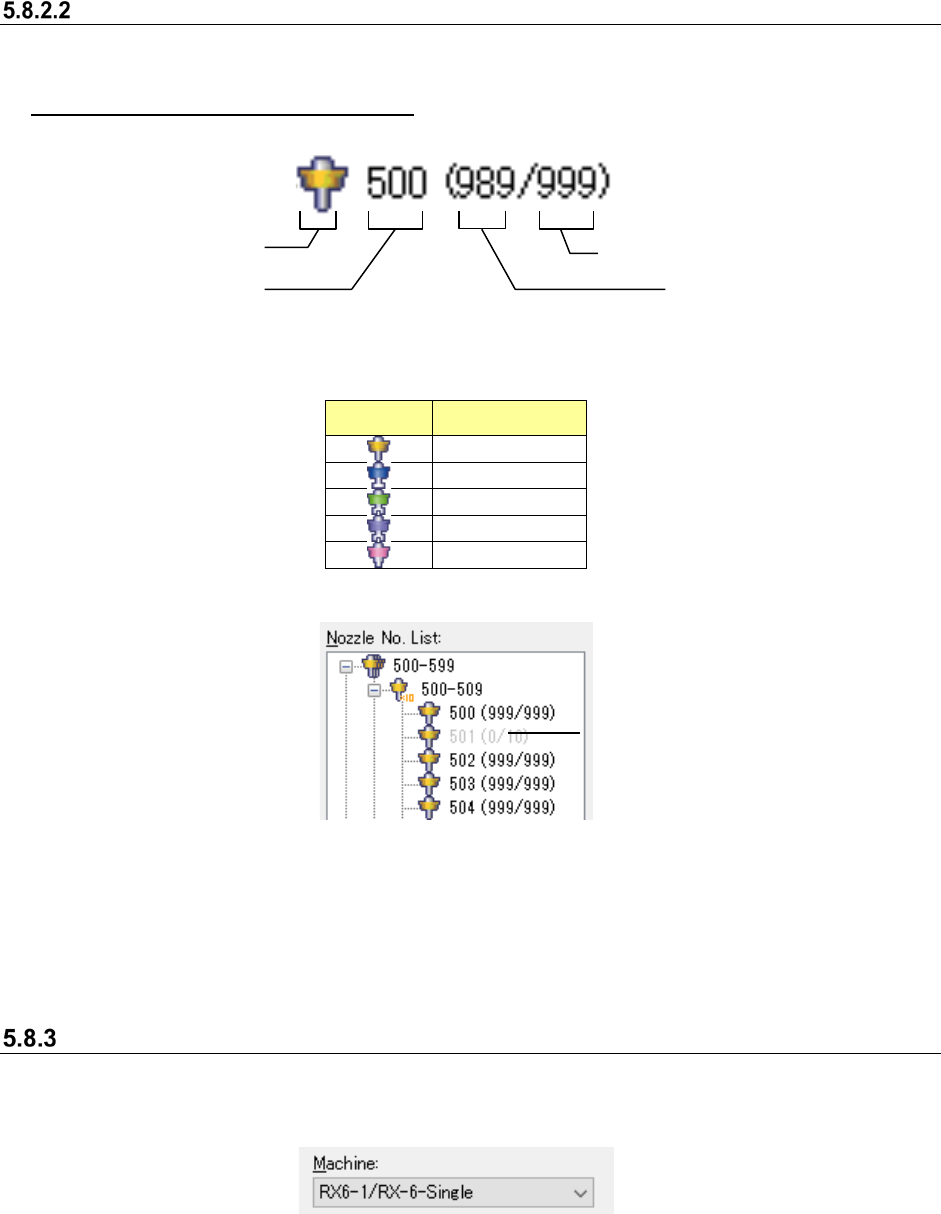
Configuration of the “Permanent Nozzles” screen
Figure 5.8-2 “Permanent Nozzles” setting screen (RX-6)
Nozzle No. List: Displays the nozzle numbers whose resources are set in the tree format.
The standard nozzle numbers set on the “Equipment Setup (nozzles) screen
are displayed as standard. Nozzles other than standard nozzles are displayed
if they are added on the Equipment Setup (nozzles) screen of the Shopfloor
Setup application.
* Unless you have the privilege for saving the Shopfoor Setup, the <OK> is displayed in gray and
you cannot select it.
Legends
ATC layout screen
Tree screen
JaNets Instruction Manual 5. Shopfloor Setup
5-48
Nozzle No. List (tree screen)
The nozzle numbers are displayed in the tree format.
Display of the number of used nozzles
The system displays information on nozzles set as the permanent nozzles.
Figure 5.8-3 Nozzle display
Table 5.8-1 Descriptions of the nozzle type icons (on the tree screen)
Icon Nozzle type
Normal
Type T
Gripper (small)
Gripper (large)
Melf
If the number of nozzles of one type that can be set is 0, the corresponding nozzle icon is
displayed in gray.
Figure 5.8-4 Nozzle display (The No. 501 nozzle cannot be set.)
* You cannot set a nozzle type whose displayed color is gray as a permanent nozzle.
* When you clear another nozzle type set as a permanent nozzle and then the number of nozzles
that can be set becomes 1 or more, you can set a nozzle of that type as a permanent nozzle.
Switching a machine
On the “Permanent Nozzles” setting screen, select a machine whose nozzle layout is to be set.
Select a machine whose nozzle layout you want to edit from the following screen.
Figure 5.8-5 Screen for selecting a machine
* Only machines whose nozzles can be set are displayed on the screen.
Nozzle icon
Nozzle number
Number of nozzle resources
Number of nozzles
that can be set
Nozzle icon displayed in gray: you
cannot set this nozzle type.