JANETS_INM.pdf - 第169页
JaNets In structio n Manual 5. Shopflo or Setu p 5- 49 ATC Un it (L ayout screen) This is a screen t hat allo ws you to set noz zles in a machine (t he follo wing fig ure indic ates the layout of a RX -6 mac hine) . Figu…
JaNets Instruction Manual 5. Shopfloor Setup
5-48
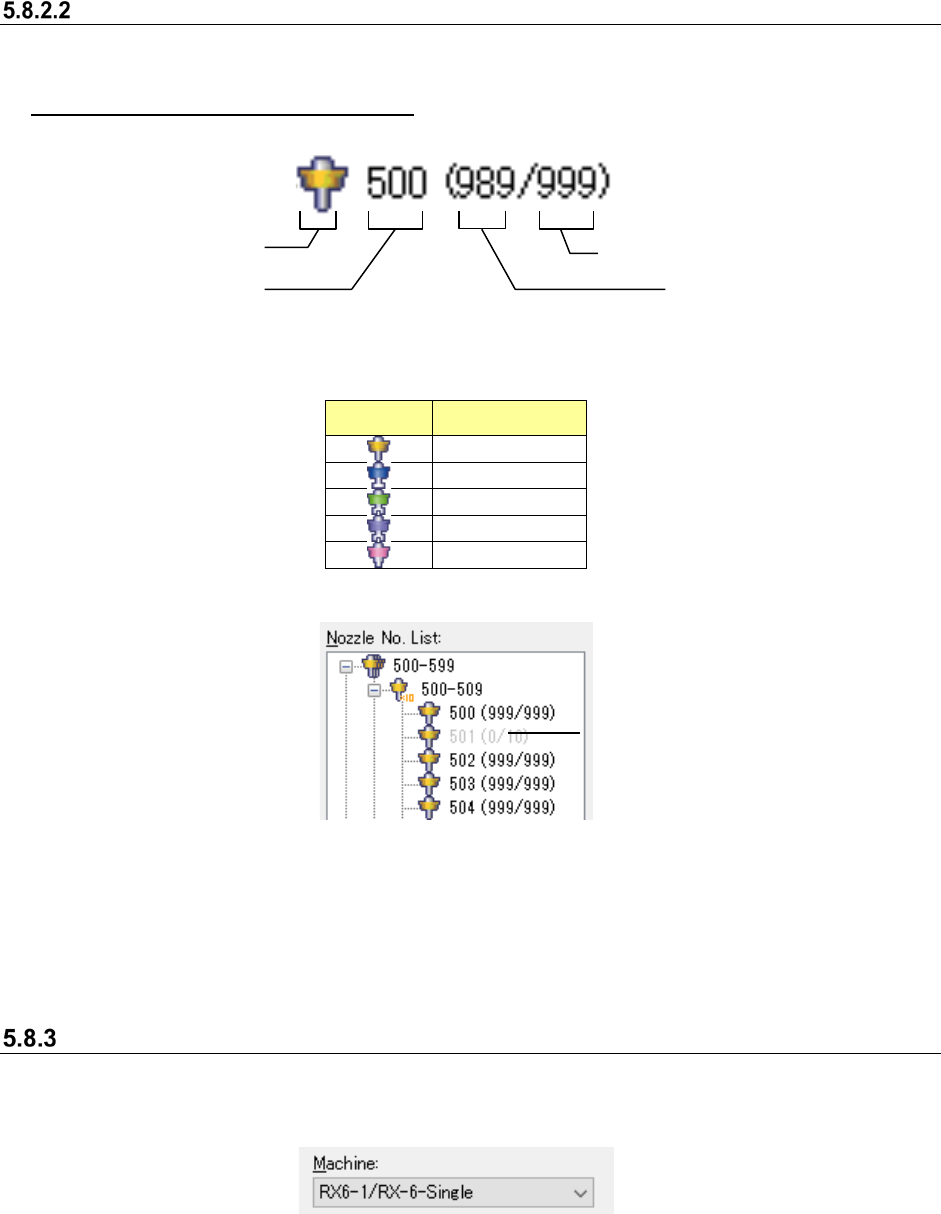
Nozzle No. List (tree screen)
The nozzle numbers are displayed in the tree format.
Display of the number of used nozzles
The system displays information on nozzles set as the permanent nozzles.
Figure 5.8-3 Nozzle display
Table 5.8-1 Descriptions of the nozzle type icons (on the tree screen)
Icon Nozzle type
Normal
Type T
Gripper (small)
Gripper (large)
Melf
If the number of nozzles of one type that can be set is 0, the corresponding nozzle icon is
displayed in gray.
Figure 5.8-4 Nozzle display (The No. 501 nozzle cannot be set.)
* You cannot set a nozzle type whose displayed color is gray as a permanent nozzle.
* When you clear another nozzle type set as a permanent nozzle and then the number of nozzles
that can be set becomes 1 or more, you can set a nozzle of that type as a permanent nozzle.
Switching a machine
On the “Permanent Nozzles” setting screen, select a machine whose nozzle layout is to be set.
Select a machine whose nozzle layout you want to edit from the following screen.
Figure 5.8-5 Screen for selecting a machine
* Only machines whose nozzles can be set are displayed on the screen.
Nozzle icon
Nozzle number
Number of nozzle resources
Number of nozzles
that can be set
Nozzle icon displayed in gray: you
cannot set this nozzle type.
JaNets Instruction Manual 5. Shopfloor Setup
5-49
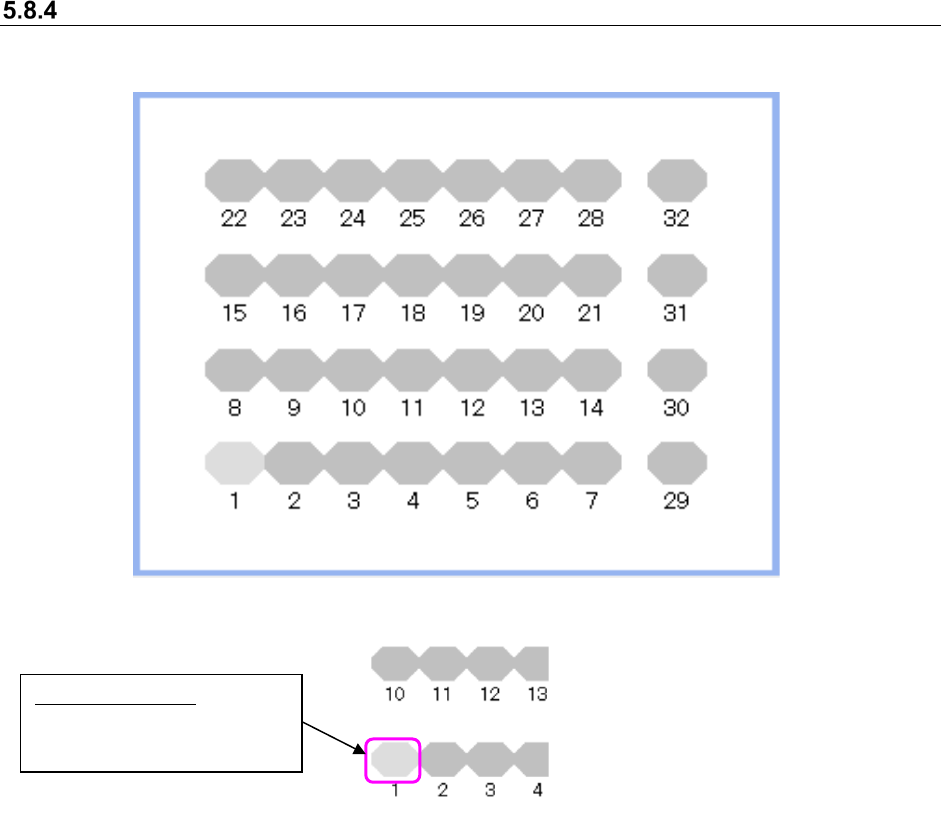
ATC Unit (Layout screen)
This is a screen that allows you to set nozzles in a machine (the following figure indicates the
layout of a RX-6 machine).
Figure 5.8-6 ATC Unit
Figure 5.8-7 When the focus is on the ATC whose number is “1”
(no nozzle is assigned to this ATC)
When you directly select an ATC with a mouse, the focus is moved to the selected ATC.
When you operate the down/right arrow key on the keyboard when the focus is on an ATC number,
the focus moves in ascending order of the ATC numbers.If you operate the up/left arrow key on the
keyboard, the focus moves in descending order of the ATC numbers.
Bright gray color: The focus
is on an ATC to which no
nozzle is assigned.
JaNets Instruction Manual 5. Shopfloor Setup
5-50
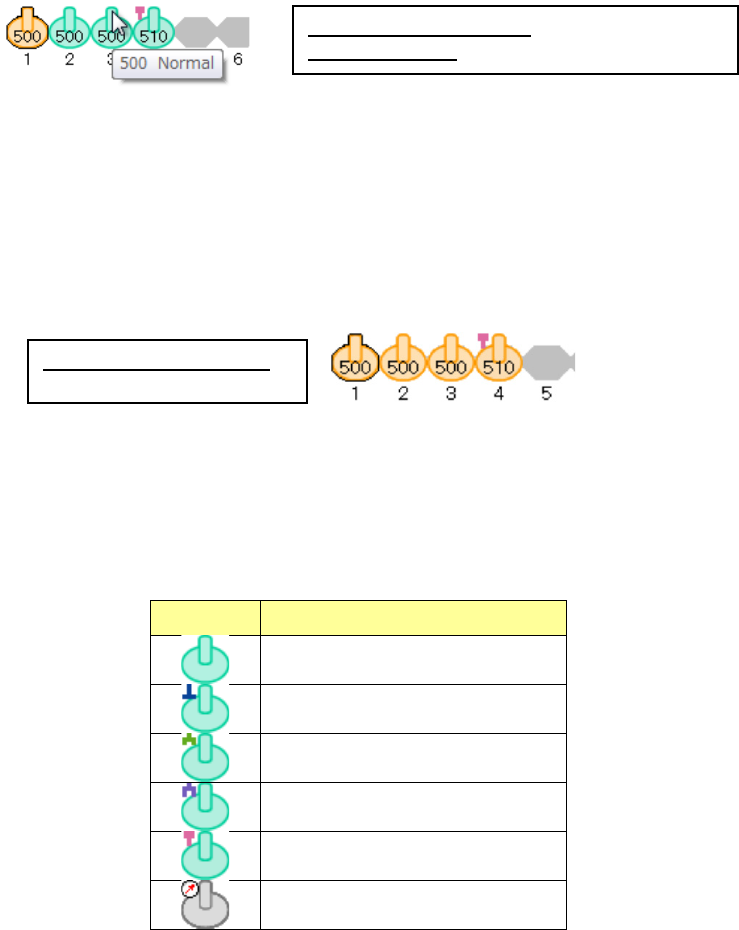
When you move the mouse cursor over the nozzle icon, the “nozzle number” and the “nozzle type”
are displayed on the tool chip menu.
Figure 5.8-8 When the focus is on the ATC number 1
(the nozzle is already assigned to this number)
You can select two or more nozzles at a time, and all nozzles except for the focused one are
displayed in orange only.
(When you drag the mouse cursor to surround two or more nozzles or select nozzles while holding
down the Ctrl key, you can select two or more nozzles.)
Figure 5.8-9 When two or more nozzles are selected
(the focus is on the ATC number 1)
The nozzle icon of each nozzle type is displayed as shown in the table below.
Table 5.8-2 Descriptions of the nozzle icons (on the layout screen)
Icon Nozzle type
Normal
Type T
Gripper (small)
Gripper (large)
Melf
Vacuum calibration unit
Nozzle already assigned: displayed in green
Focused nozzle: displayed in dark green/orange
When a nozzle is selected:
displayed in orange