JANETS_INM.pdf - 第173页
JaNets In structio n Manual 5. Shopflo or Setu p 5- 53 ATC displayed The color of t he screen f rame is t he same as t hat of the selected A TC Sel ection but ton. Figur e 5.8 - 14 Displ ayed ATC uni t When an A TC Selec…
JaNets Instruction Manual 5. Shopfloor Setup
5-52
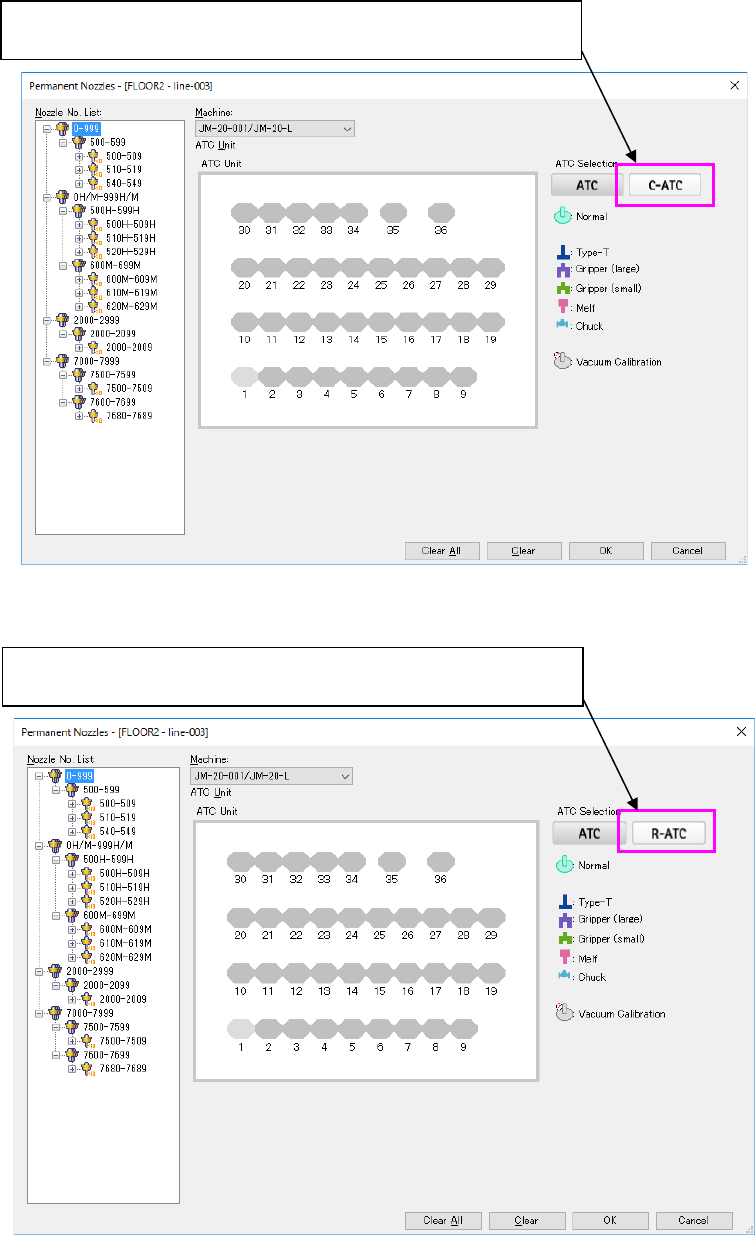
Figure 5.8-12 Layout screen (Machine: JM-20)
Figure 5.8-13 Layout screen (Machine: JM-20) when an R-ATC is attached on the machine
When a C-ATC is located in the right ATC unit, the <C-ATC> button is
displayed as the “ATC Selection” button.
When a R-ATC is located in the right ATC unit, the <R-ATC> button is
displayed as the “ATC Selection” button.
JaNets Instruction Manual 5. Shopfloor Setup
5-53
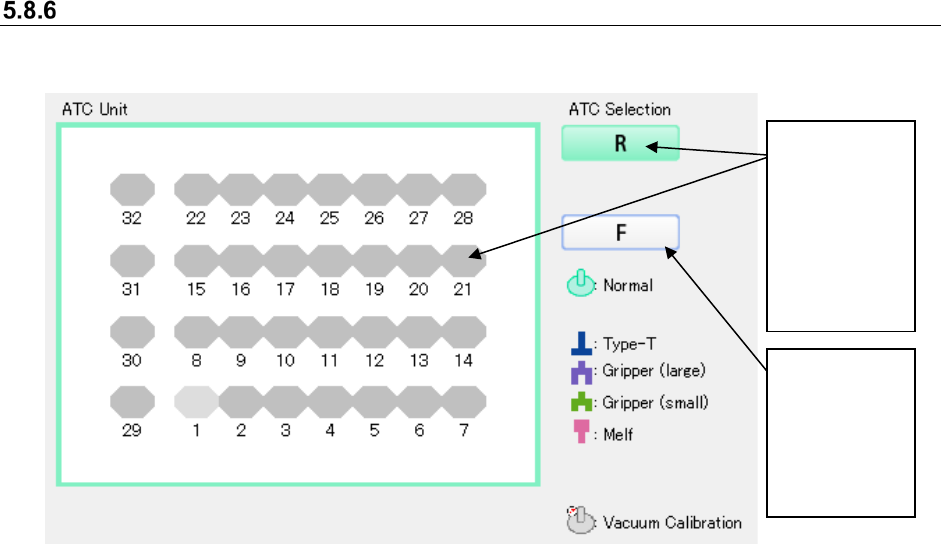
ATC displayed
The color of the screen frame is the same as that of the selected ATC Selection button.
Figure 5.8-14 Displayed ATC unit
When an ATC
Selection
button is not
selected, only
its frame is
colored.
The selected
ATC Selection
button is filled
with the same
color as that of
the frame of
the ATC Unit
screen.
JaNets Instruction Manual 5. Shopfloor Setup
5-54
Operations
Assigning a nozzle
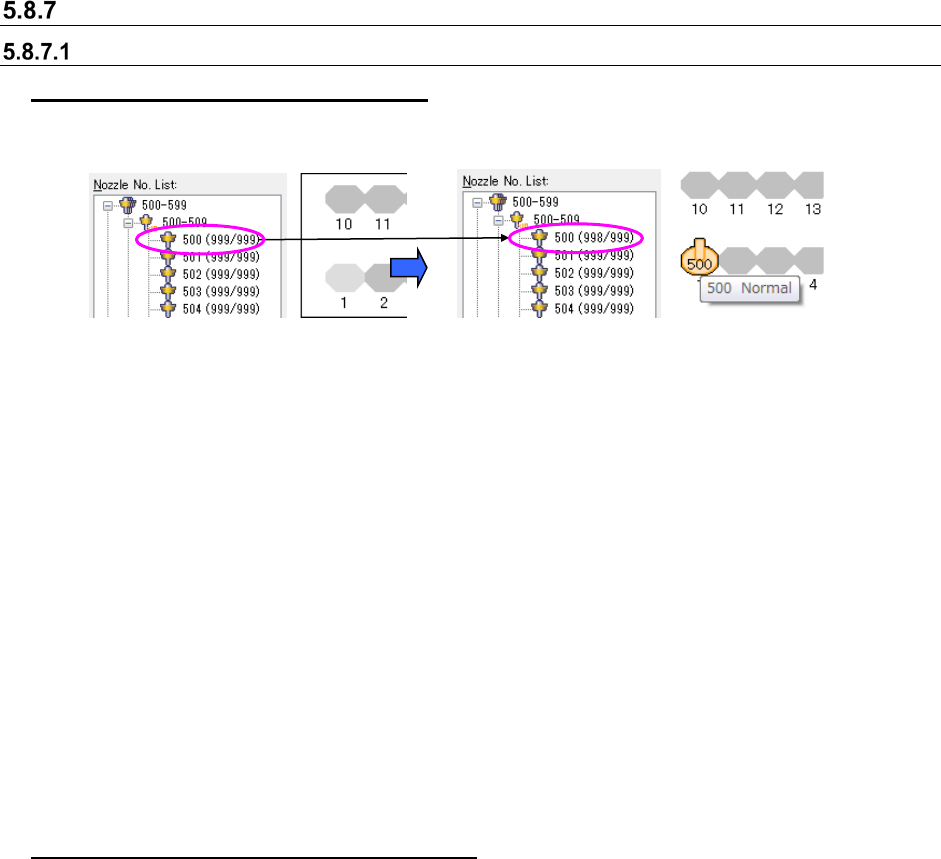
Assigning a nozzle from the tree screen
Select the nozzle number on the “Nozzle No. List,” and drag it to the image of the desired ATC
number (on the layout screen).
* When the “number of nozzles that can be set” reaches “0,” you cannot drag any nozzle number.
The number of nozzles you can select at a time is just “1.”
You can assign a nozzle to an ATC unit by following the procedure below too.
1. Select a nozzle displayed on the “Nozzle No. List” (on the tree screen), and click the right
button of a mouse to display the pop-up menu. Then, select the [Copy] command on this
pop-up menu.
2. Click the image of the ATC number (on the layout screen) to which the selected nozzle is to
be assigned by the right button to display the pop-up menu. Select the [Paste] command on
this pop-up menu. (Any nozzle you copied once can be pasted again as long as the number of
resources allows.)
* When a machine has two or more ATC units, you can switch the ATC layout screens to paste
the copied nozzle.
* You can paste the copied nozzle by switching the setting in the “Machine” field too.
Assigning a nozzle on the ATC layout screen
1. Select a nozzle assigned to an ATC number (on the layout screen), and click the right button
of a mouse to display the pop-up menu. Select the [Copy] command from this pop-up menu.
(You can select two or more nozzles.)
2. Click the image of the ATC number to which the selected nozzle is to be assigned with the
right button to display the pop-up menu. Select the [Paste] command from this pop-up menu.
You can paste the nozzle copied at Step 1 to this ATC number.
When the system finishes pasting the nozzle, “1” is subtracted from the “number of nozzles that
can be set” on the “Nozzle No. List” (on the tree screen).
* When you select two or more nozzles and copy them, they are assigned in the order they are
copied.
* You can paste a copied nozzle again as long as the number of resources allows.
* When a machine has two or more ATC units, you can switch the ATC layout screens to paste
the copied nozzle.
* You can paste the copied nozzle by switching the setting in the “Machine” field too.
Figure 5.8-16 Nozzle assignment
(Dropping)
Figure 5.8-15 Nozzle assignment
(Dragging)