JANETS_INM.pdf - 第176页
JaNets In structio n Manual 5. Shopflo or Setu p 5- 56 Clearing an assigned nozzle Se lect a noz zle icon as signed t o an A TC nu mber (yo u can select t wo or mor e nozzle icons), and click the <C lear> on t he “…
JaNets Instruction Manual 5. Shopfloor Setup
5-55
Error messages
Error conditions
Displayed error message
You tried to assign (paste) a nozzle even though this assignment
exceeds the number of resources set with the equipment setup.
“Cannot assign more than or equal to the number
of the resources.”
You tried to assign a nozzle to an ATC number to which this
nozzle type cannot be assigned.
“Cannot assign this nozzle type to this position.”
You tried to assign a nozzle to an ATC number to which a nozzle
is already assigned.
“Permanent nozzles are already set.”
One (or more) of nozzles you selected is about to be assigned to
an area other than the ATC numbers when two or more nozzles
are selected.
“ Illegal nozzle layout position” →When you press
the <OK> button, the screen is switched back to
the “Permanent Nozzles” setting screen.
* If any of the nozzles satisfies the error conditions when you select two or more nozzles, all nozzle
operations cause an error.
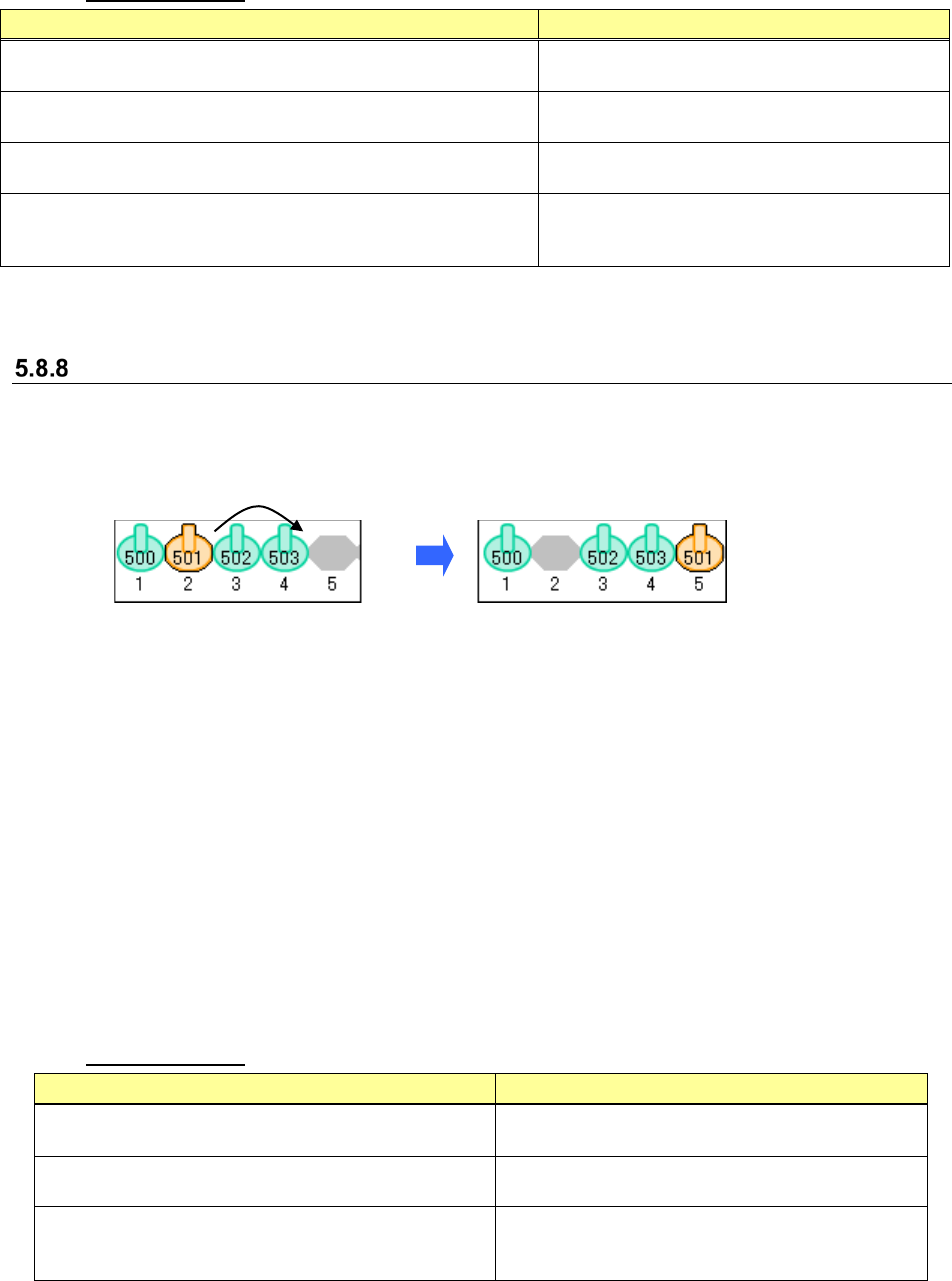
Changing the nozzle assignment
Select the ATC number whose nozzle assignment you want to change (on the layout screen),
and drag it to the destination.
Drop it to a blank ATC number (on the layout screen). The nozzle assignment is changed.
Figure 5.8-17 Changing the nozzle assignment (to a blank ATC number)
When you select two or more nozzles, you can change their assignments at a time.
The order of the selected nozzle assignments is kept after they are changed. However, you
cannot move the selected nozzles unless the destinations of all selected nozzles are blank ATC
numbers.
You can also change the nozzle assignment by following the procedure shown below.
1. Select a nozzle to be moved, and click the right button of the mouse to display the pop-up
menu. Select the [Cut] command from this pop-up menu.
2. Click the right button of a mouse on the destination ATC number (on the layout screen) to
display the pop-up menu. Select the [Paste] command from the pop-up menu.
* The cut nozzle can be pasted only once. To change its assignment further, cut it again.
* When a machine has two or more ATC units, you can switch the ATC layout screens to paste
the cut nozzle.
* You can paste the cut nozzle by switching the setting in the “Machine” field too.
Error messages
Error condition
Displayed error message
You tried to assign a nozzle to an ATC number to which
this nozzle type cannot be assigned.
“Cannot assign this nozzle type to this position.”
You tried to assign a nozzle to an ATC number to which
a nozzle is already assigned.
“Permanent nozzles are already set.”
One (or more) of nozzles you selected is about to be
assigned to an area other than the ATC numbers when
two or more nozzles are selected.
“Illegal nozzle layout position” → When you press
the <OK> button, the screen is switched back to the
“Permanent Nozzles” setting screen.
* If any of the nozzles satisfies the error conditions when you select two or more nozzles, all nozzle
operations cause an error.
JaNets Instruction Manual 5. Shopfloor Setup
5-56
Clearing an assigned nozzle
Select a nozzle icon assigned to an ATC number (you can select two or more nozzle icons), and
click the <Clear> on the “Permanent Nozzles” setting screen.
Figure 5.8-18 Before deleting a nozzle
Figure 5.8-19 After deleting a nozzle
Clearing all nozzles at a time
When you click the <Clear All> button on the “Permanent Nozzles” setting screen, you can clear
all of the assigned nozzles.
When you select the <Yes> button after the confirmation message appears on the screen, all
nozzles assigned on the “Permanent Nozzles” setting screen are cleared.
* All nozzles assigned to the machine displayed at the present are cleared.
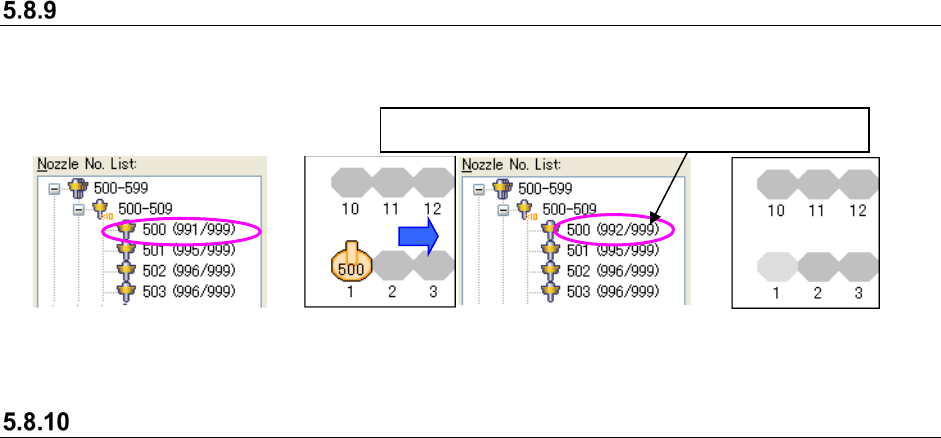
The number of nozzles that can be set increases.
JaNets Instruction Manual 5. Shopfloor Setup
5-57
“Nozzle Layout” screen
This is the screen that allows you to check the nozzle settings for each machine specified with an
optimized production program.
This screen is used with the Program Editor
Descriptions of the screen
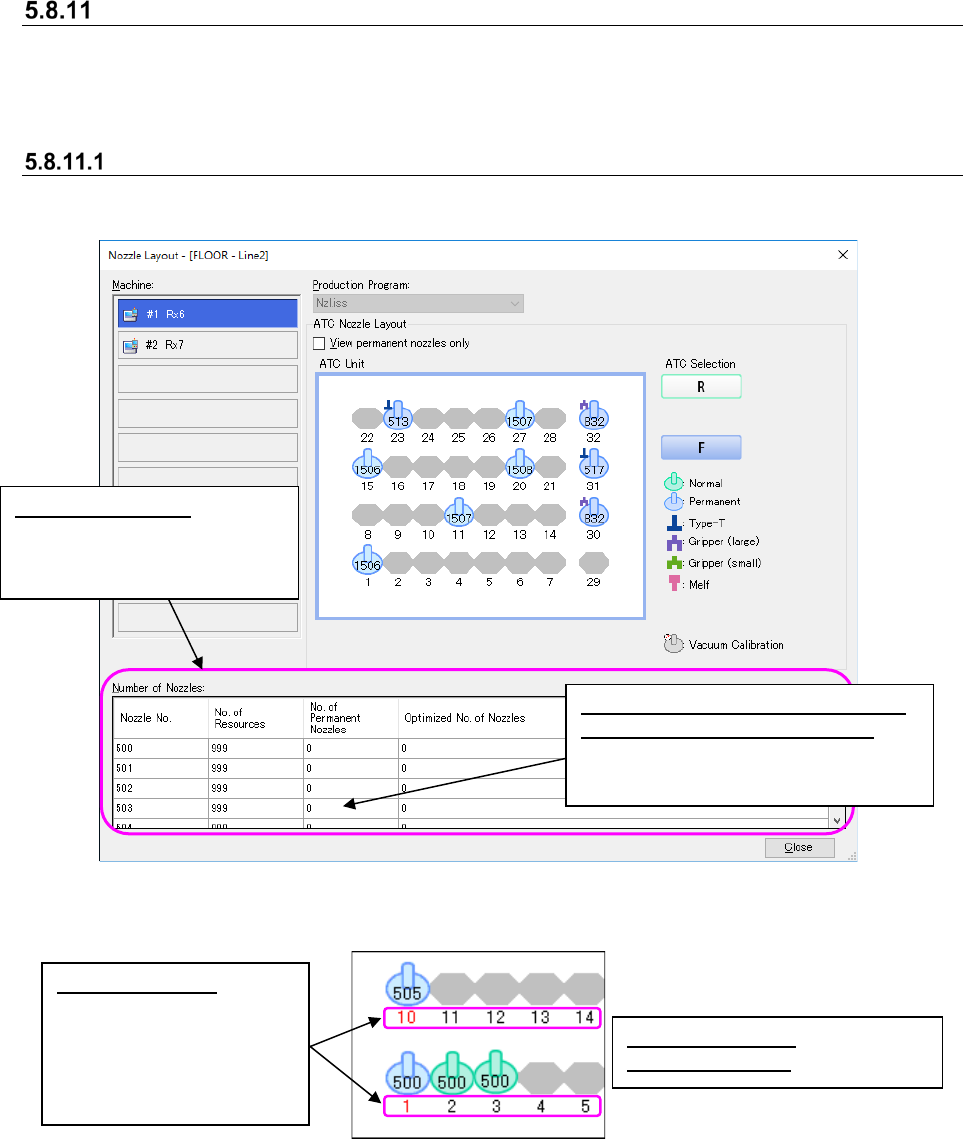
This screen displays the nozzle layout of a production program that is used to produce PWBs for
each production line.
Figure 5.8-20 Nozzle layout(Example: RX-6)
Figure 5.8-21 Color of displayed nozzles
Permanent nozzles: bright blue
Optimized nozzles: green
Red ATC number:
The nozzle assignment
made before optimization
is different that after
optimization, and you
have to replace nozzles.
Number of nozzles:
The number of resources of
each nozzle is listed for each
selected machine.
Number of nozzles (No. of Permanent
Nozzles/Optimized No. of Nozzles):
Displays the total number of nozzles
of not an ATC unit but one machine.