JANETS_INM.pdf - 第177页
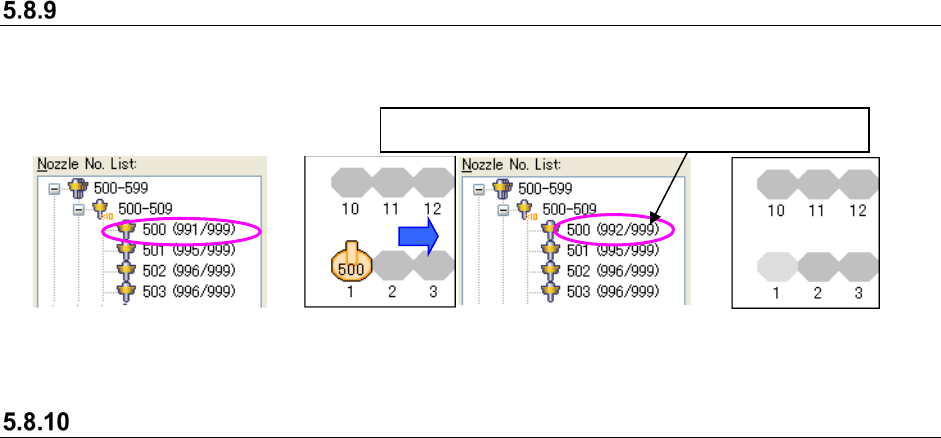
JaNets In structio n Manual 5. Shopflo or Setu p 5- 57 “Noz zle Layou t” s creen This is the scr een that a llows you to chec k the nozz le sett ings for ea ch machi ne spec ified with an optimized produ ction prog ram. …
JaNets Instruction Manual 5. Shopfloor Setup
5-56
Clearing an assigned nozzle
Select a nozzle icon assigned to an ATC number (you can select two or more nozzle icons), and
click the <Clear> on the “Permanent Nozzles” setting screen.
Figure 5.8-18 Before deleting a nozzle
Figure 5.8-19 After deleting a nozzle
Clearing all nozzles at a time
When you click the <Clear All> button on the “Permanent Nozzles” setting screen, you can clear
all of the assigned nozzles.
When you select the <Yes> button after the confirmation message appears on the screen, all
nozzles assigned on the “Permanent Nozzles” setting screen are cleared.
* All nozzles assigned to the machine displayed at the present are cleared.
The number of nozzles that can be set increases.
JaNets Instruction Manual 5. Shopfloor Setup
5-57
“Nozzle Layout” screen
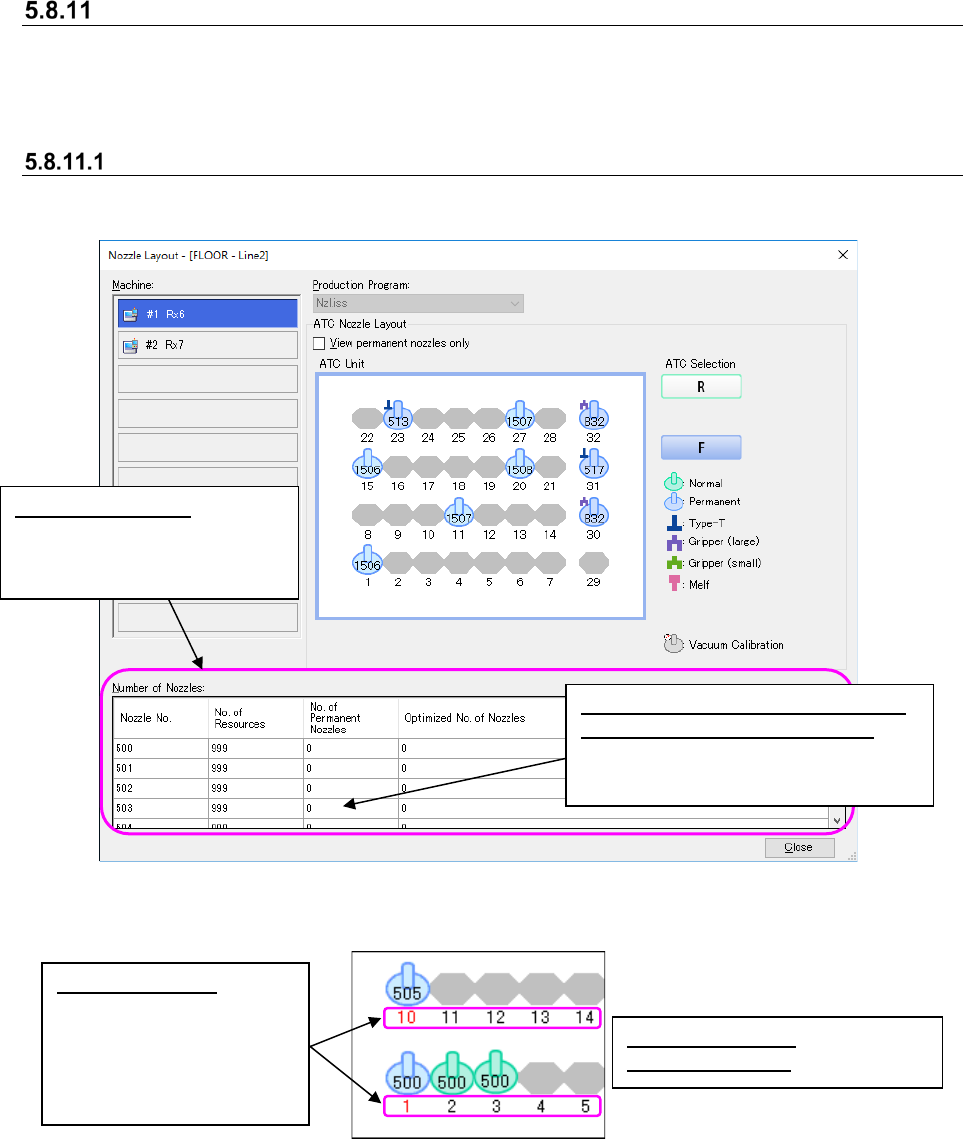
This is the screen that allows you to check the nozzle settings for each machine specified with an
optimized production program.
This screen is used with the Program Editor
Descriptions of the screen
This screen displays the nozzle layout of a production program that is used to produce PWBs for
each production line.
Figure 5.8-20 Nozzle layout(Example: RX-6)
Figure 5.8-21 Color of displayed nozzles
Permanent nozzles: bright blue
Optimized nozzles: green
Red ATC number:
The nozzle assignment
made before optimization
is different that after
optimization, and you
have to replace nozzles.
Number of nozzles:
The number of resources of
each nozzle is listed for each
selected machine.
Number of nozzles (No. of Permanent
Nozzles/Optimized No. of Nozzles):
Displays the total number of nozzles
of not an ATC unit but one machine.
JaNets Instruction Manual 5. Shopfloor Setup
5-58
Operations
Switching the displayed machine layout
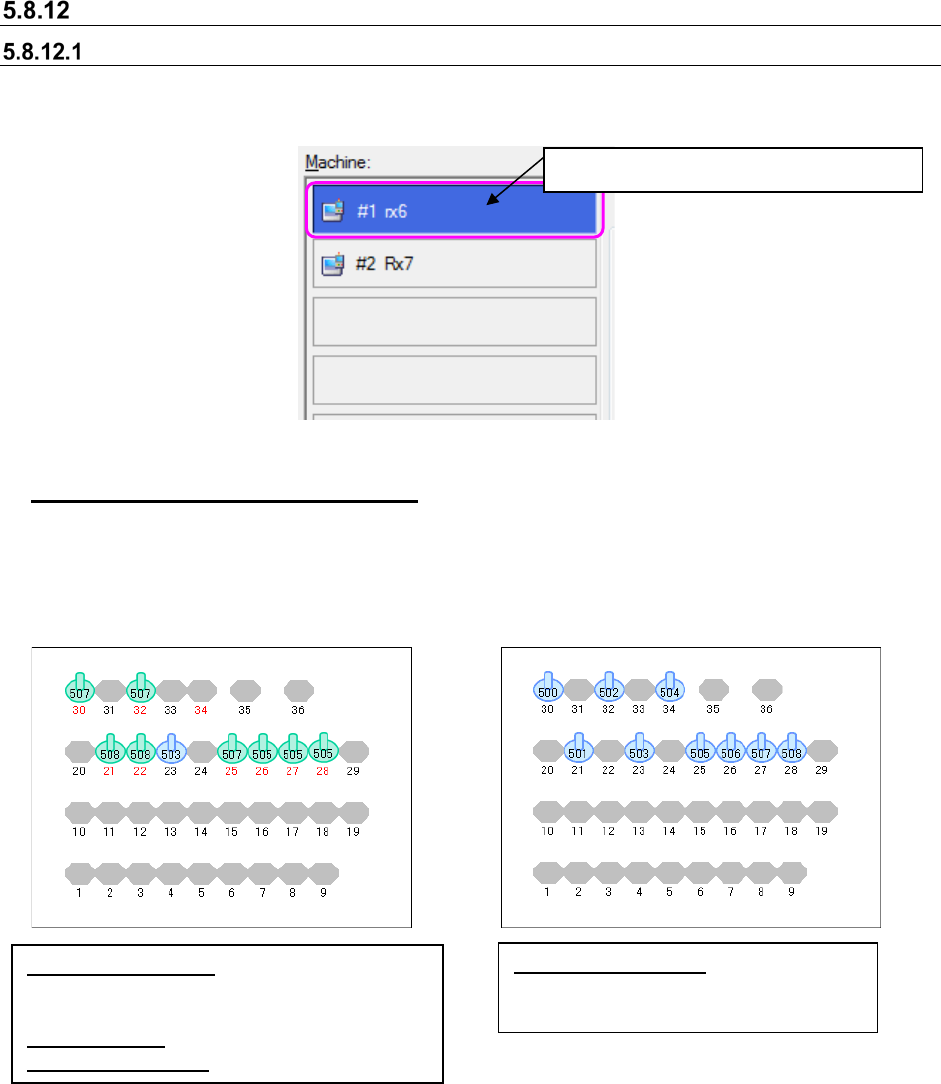
To display data of other machines of the line, select the desired machine with the corresponding
<Machine> on the “Nozzle Layout” screen.
Figure 5.8-22 Machine selecting buttons
Displaying the permanent nozzles only
When you check the check box “View permanent nozzles only” on the Nozzle Layout” screen, the
system displays the permanent nozzles only. When you deselect this check box, the normal
screen reappears. Normally, the optimized nozzle settings are displayed, and the screen
displaying the permanent nozzles only indicates the settings made before optimization.
Figure 5.8-23 Left: Not checked off (setting after optimization)
Right: Checked off (setting before optimization)
Nozzle number in red:
The nozzle assignments
are changed after optimization, and you have to
replace nozzles.
Nozzle in green: Optimized nozzle assignments
Nozzle in bright blue: Permanent nozzles
Nozzles in bright blue:
Permanent nozzle assignments made
before optimization
The selected machine is displayed in blue.