JANETS_INM.pdf - 第181页
JaNets In structio n Manual 5. Shopflo or Setu p 5- 61 Perman ent F eeder Setu p Screen This scree n allows y ou to make sett ings of a feed er that is always set (fixed) on a m achine when you set the mac hine wit h the…
JaNets Instruction Manual 5. Shopfloor Setup
5-60
Shopfloor Setup – Feeder Layout
What is the Feeder Layout?
This application allows you to handle changes of feeder assignments visually.
Starting Up And Quitting the Feeder Layout
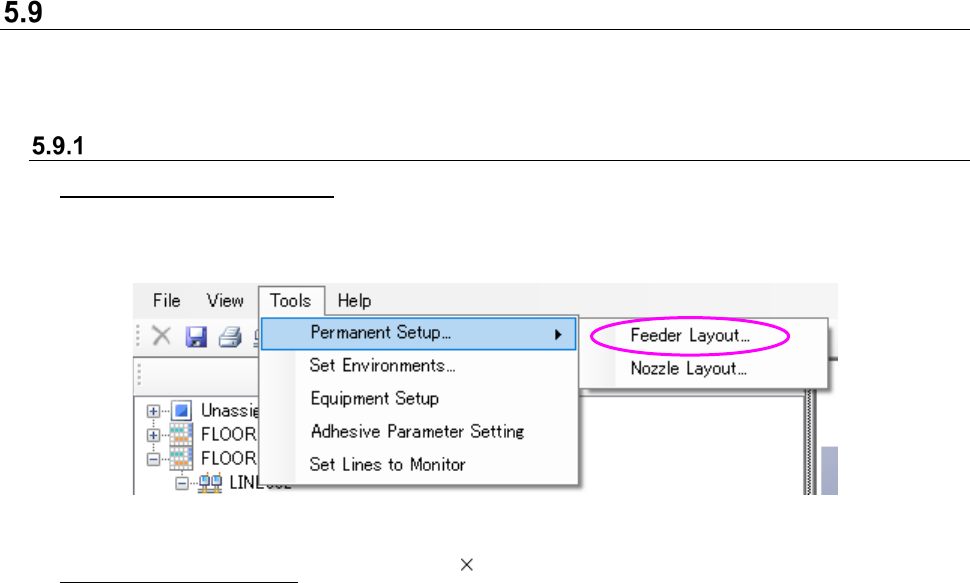
To start up the Feeder Layout: Select the [Tools] command from the Shopfloor Setup menu bar,
the [Permanent Setup] command and then the [Feeder Layout]
command in this order.
Figure 5.9-1 Starting up the Feeder Layout
To quit the Feeder Layout: Click the “ ” at the upper right corner of the title bar on the
“Permanent Feeder Setup” screen shown in Figure 5.9.2.
JaNets Instruction Manual 5. Shopfloor Setup
5-61
Permanent Feeder Setup Screen
This screen allows you to make settings of a feeder that is always set (fixed) on a machine when
you set the machine with the Shopfloor Setup.
Screen configuration
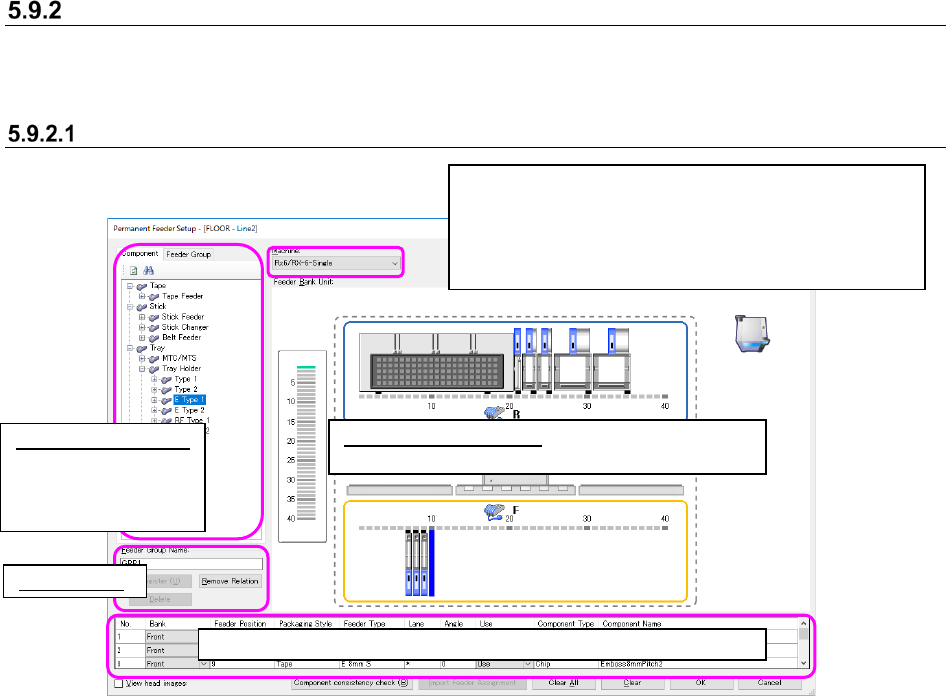
Figure 5.9-2 “Permanent Feeder Setup” screen
Feeder Group Name: Displays the feeder group name currently being referred to. You can enter a
group name when registering a new feeder group here also. If a machine
does not refer to any feeder group, this field becomes blank.
Register: Registers a new feeder group or updates the existing one (when a name
displayed in the “Feeder Group Name” field is the same as that of an existing
feeder group, the system performs the updating process, and when it
indicates the name of a feeder group that does not exist, the system registers
it as a new feeder group name).
If you do not have the privilege to save the Shopfloor Setup settings, the
<Register> and the <OK> buttons become displayed in gray; you cannot
select them.
Details setting screen:
Displays the detailed
information on a
feeder assigned on
the layout screen.
Feeder bank unit screen:
Sets a feeder for a machine (as a permanent feeder).
You can select a “machine name/model type” you want
to set its permanent feeder setup, and the machine
currently being selected appears here.
* A machine such as an adhesive dispenser is not
displayed in this selection field.
Feeder Group
Information setting screen: (“Component” list tree/”Feeder Group” tree)
JaNets Instruction Manual 5. Shopfloor Setup
5-62
Information setting screen
This screen lists data to be used when you set a feeder.
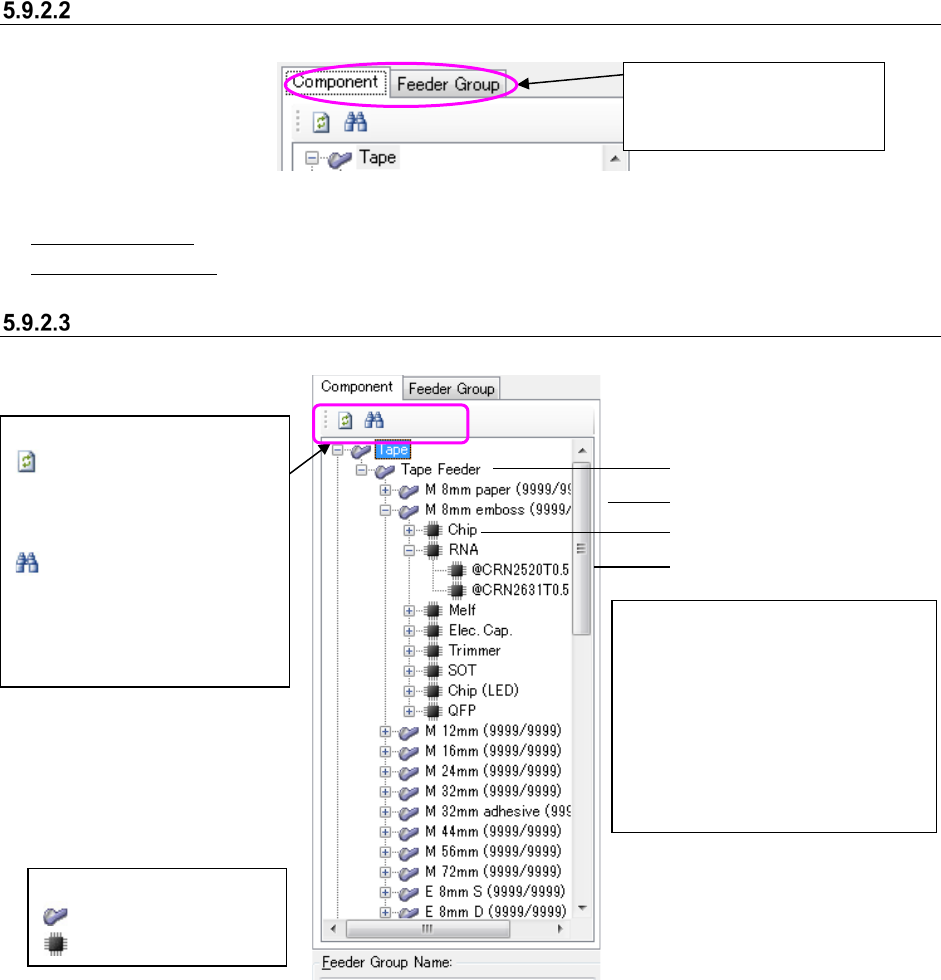
Figure 5.9-3 Information setting screen (tab)
“Component” tab: displays the list of components registered in the component database.
“Feeder Group” tab: displays the list of created permanent feeder groups.
Component data list (tree screen)
This list displays the list of components registered in the component database in the tree format.
Figure 5.9-4 Component data list
Only packaging styles, feeder types, component types and component names of the component
information registered in the component database are displayed.
* If no component information is registered in the component database, nothing is displayed on
the tree screen.
See the descriptions of the “Equipment Setup” of the Shopfloor Setup for the number of feeder
resources.
* If both the mechanical feeder and electric feeder are available, the component data list displays
them separately. However, when the “Feeder pitch” is set to the particular one that is not
common to the mechanical feeder and the electric feeder, the component information is
displayed under the corresponding feeder type only.
* The mechanical feeder and the electric feeder are managed as different resources even if the
component names are the same.
These tabs switch
information to be displayed
so that you can use it.
Packaging style
Component type
Feeder type
Component name
<Description of icons>
: Feeder icon
: Component icon
* For a feeder type only, the
number of feeder that can be set
and that of feeder resources are
displayed.
* For a packaging style, a
component type and a
component name, only the
corresponding icon and type are
displayed.
<Description of the toolbar>
: Updates the displayed
information to the latest one
(by obtaining the list of
component data again).
: Searches data (by
displaying the search dialog
box to search a component
item in the tree).