JANETS_INM.pdf - 第183页
JaNets In structio n Manual 5. Shopflo or Setu p 5- 63 Display of a fee der type Informat ion on a feeder se t as a perm anently f eeder is disp layed here. Figure 5.9 -5 Display of a feed er type Figure 5.9 -6 D isplay …
JaNets Instruction Manual 5. Shopfloor Setup
5-62
Information setting screen
This screen lists data to be used when you set a feeder.
Figure 5.9-3 Information setting screen (tab)
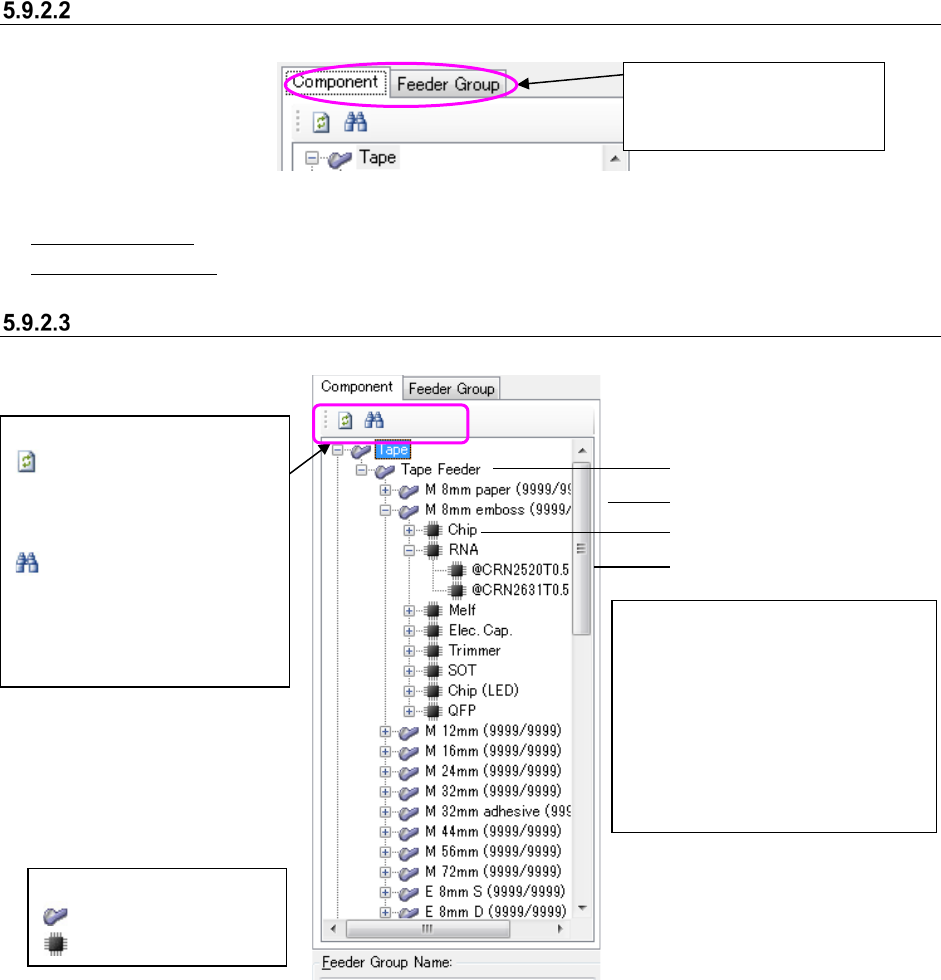
“Component” tab: displays the list of components registered in the component database.
“Feeder Group” tab: displays the list of created permanent feeder groups.
Component data list (tree screen)
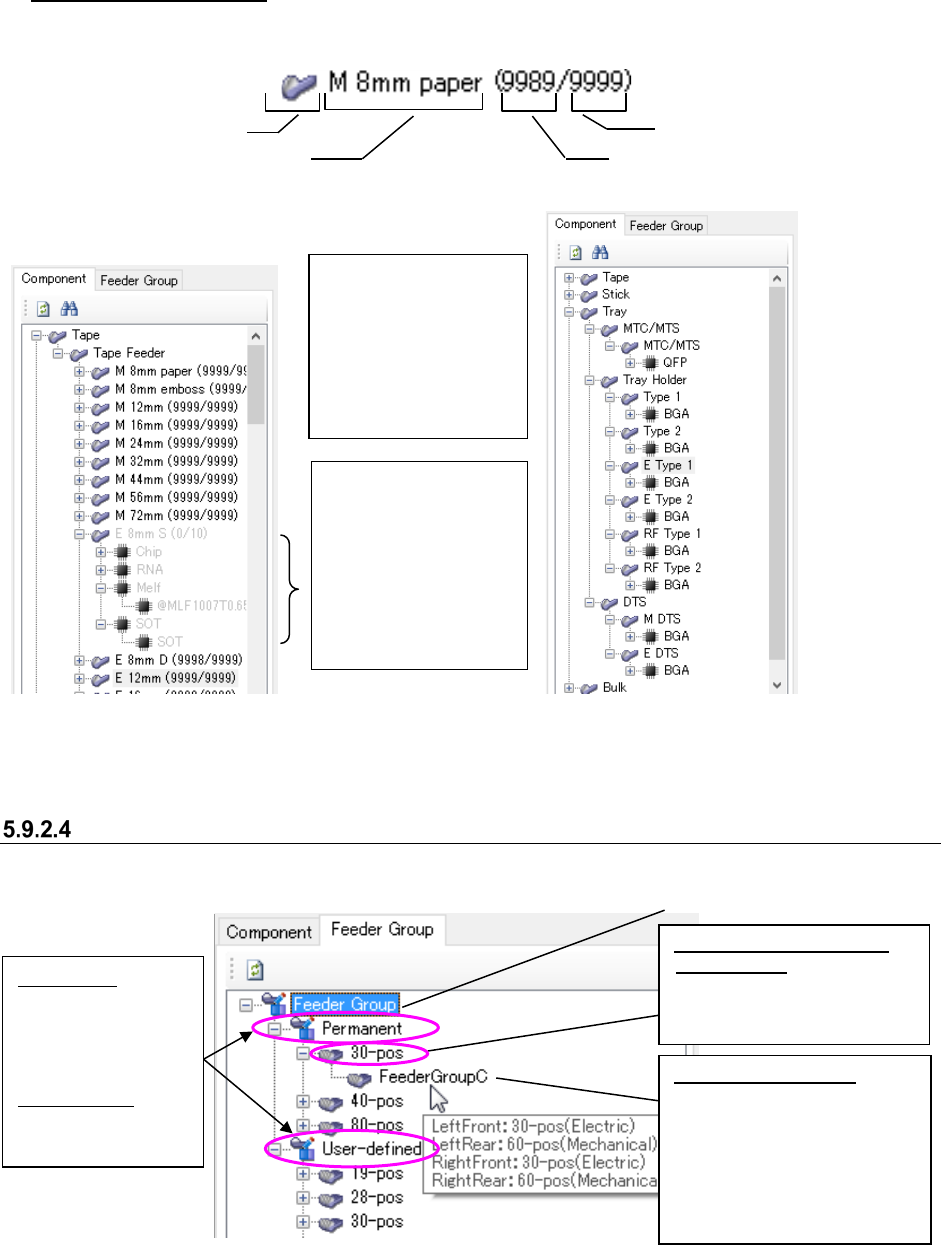
This list displays the list of components registered in the component database in the tree format.
Figure 5.9-4 Component data list
Only packaging styles, feeder types, component types and component names of the component
information registered in the component database are displayed.
* If no component information is registered in the component database, nothing is displayed on
the tree screen.
See the descriptions of the “Equipment Setup” of the Shopfloor Setup for the number of feeder
resources.
* If both the mechanical feeder and electric feeder are available, the component data list displays
them separately. However, when the “Feeder pitch” is set to the particular one that is not
common to the mechanical feeder and the electric feeder, the component information is
displayed under the corresponding feeder type only.
* The mechanical feeder and the electric feeder are managed as different resources even if the
component names are the same.
These tabs switch
information to be displayed
so that you can use it.
Packaging style
Component type
Feeder type
Component name
<Description of icons>
: Feeder icon
: Component icon
* For a feeder type only, the
number of feeder that can be set
and that of feeder resources are
displayed.
* For a packaging style, a
component type and a
component name, only the
corresponding icon and type are
displayed.
<Description of the toolbar>
: Updates the displayed
information to the latest one
(by obtaining the list of
component data again).
: Searches data (by
displaying the search dialog
box to search a component
item in the tree).
JaNets Instruction Manual 5. Shopfloor Setup
5-63
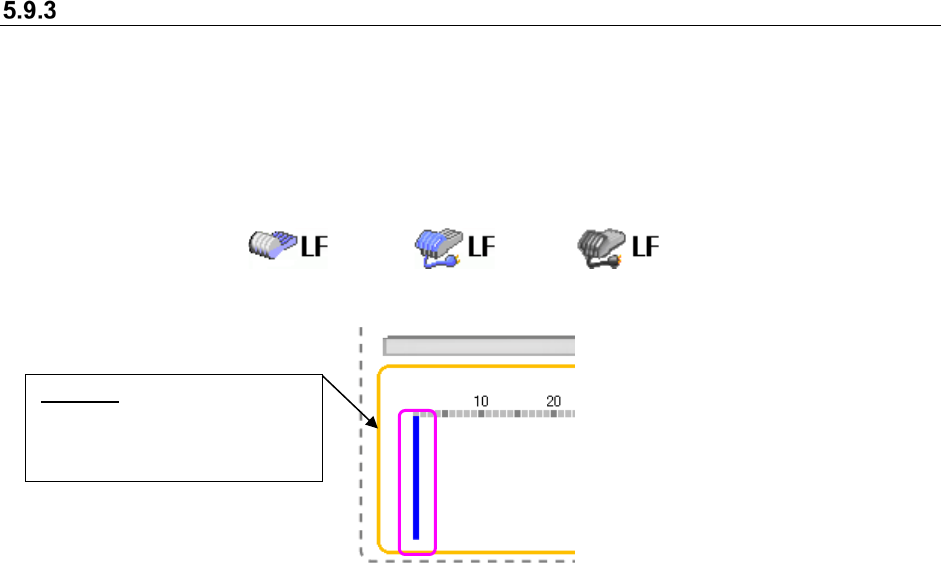
Display of a feeder type
Information on a feeder set as a permanently feeder is displayed here.
Figure 5.9-5 Display of a feeder type
Figure 5.9-6 Display of the component data
(example for indicating that an feeder cannot be set)
Figure 5.9-7 Display of the
component data (tray items)
“Feeder Group” list (tree screen)
The list of created permanent feeder groups is displayed in the tree format.
Figure 5.9-8 “Feeder Group” list
* Only feeder group types (number of holes on the bank) and feeder group names of the feeder
group information that is set in the feeder set database are displayed on this screen.
Feeder type (M: mechanical, E: electric)
Icon
Number of feeders that can be set
Number of feeder resources
When the number of
feeders of a type that
can be set reaches “0,”
the corresponding icon
is displayed in gray
(that is, you cannot set
this type of feeders any
more).
When the number of
feeders that can be set
becomes 1 or more by
clearing a feeder(s) set
as a permanent feeder,
you can set that type of
feeder(s).
Feeder group type (bank
information): Classified
according to the number of
holes on the (left) front bank
for a feeder group.
Feeder group name:
A feeder group created on
the “Permanent Feeder
Setup” screen is displayed
here. When you put the
mouse pointer on it,
information of all the banks is
displayed on a tooltip.
Root
Permanent:
Feeder group set
as the permanent
information of a
machine
User-defined:
Feeder group not
set in a machine
JaNets Instruction Manual 5. Shopfloor Setup
5-64
Feeder bank unit (example of the layout screen)
You can set a feeder on each attachment position of the bank as you like (*).
When you set a feeder, the image of the feeder is displayed in corresponding size.
* Feeder types that can be attached on each position vary depending on machine models.
The icon that represents a driving method of bank, the mechanical type or the electric type, is
displayed for all types of machines.
Figure 5.9-9 Icons representing the driving method of bank
(Left side: Mechanical type, Center side :Electric type(EF)/Right side :Electric type(RF))
Figure 5.9-10 Selecting a position (No feeder is set yet.)
To change the position of the blue bar, click the desired position on the layout screen with the
mouse; the blue bar moves to the new position.
Besides the mouse, the arrow keys on the keyboard also work to change the position of the blue
bar. With the <Down> or <Right> arrow key, the blue bar moves in ascending order. With the <Up>
or <Left> arrow key, it moves in descending order. Refer to the following example:
Blue bar: Indicates a position
that you selected; no feeder is
set to this position yet in this
state.