JANETS_INM.pdf - 第190页
JaNets In structio n Manual 5. Shopflo or Setu p 5- 70 When you as sign a tra y to a DTS Figure 5.9 - 25 T ray assignment (to a DTS) When t wo or mor e tr ay hol ders or DT S are as signe d Even when two or more tray hol…
JaNets Instruction Manual 5. Shopfloor Setup
5-69
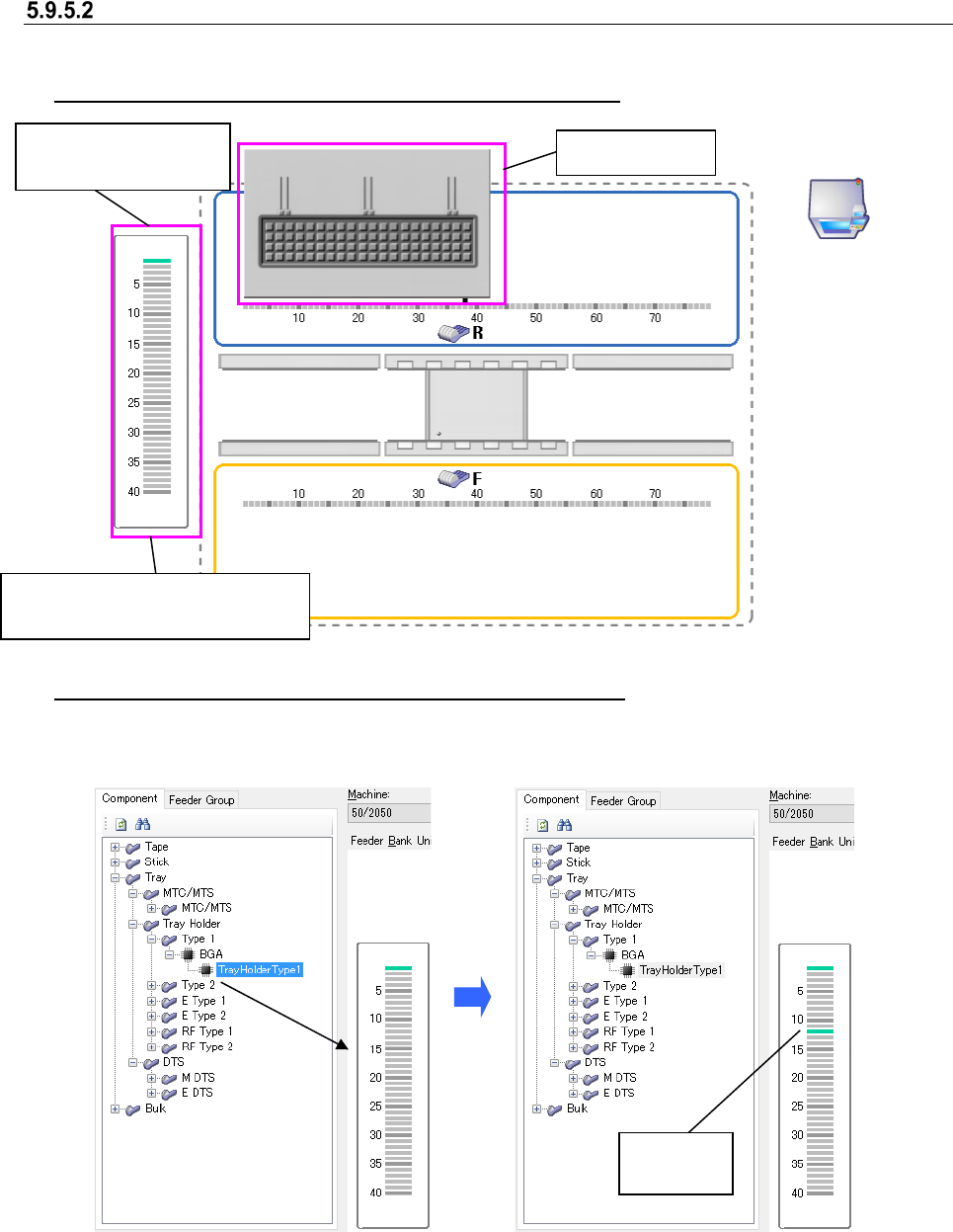
Assigning a tray
In the same manner as other feeder types, assign a tray component on the feeder bank to be set.
When you assign a tray to a tray holder (not attached yet)
Figure 5.9-22 Tray assignment
When you assign a tray to a tray holder (already attached)
Assign a tray type of component to the desired position of the image on the Tray assignment
screen.
Figure 5.9-23 Setting a tray level
(before setting)
Figure 5.9-24 Setting a tray level
(after setting)
* The number of tray components that can be assigned on the Tray assignment screen is up to
40 for one machine.
Tray holder icon
Tray assignment screen (displayed
when you set a tray holder)
A tray is placed on the
first level by default.
A tray is
set here.
JaNets Instruction Manual 5. Shopfloor Setup
5-70
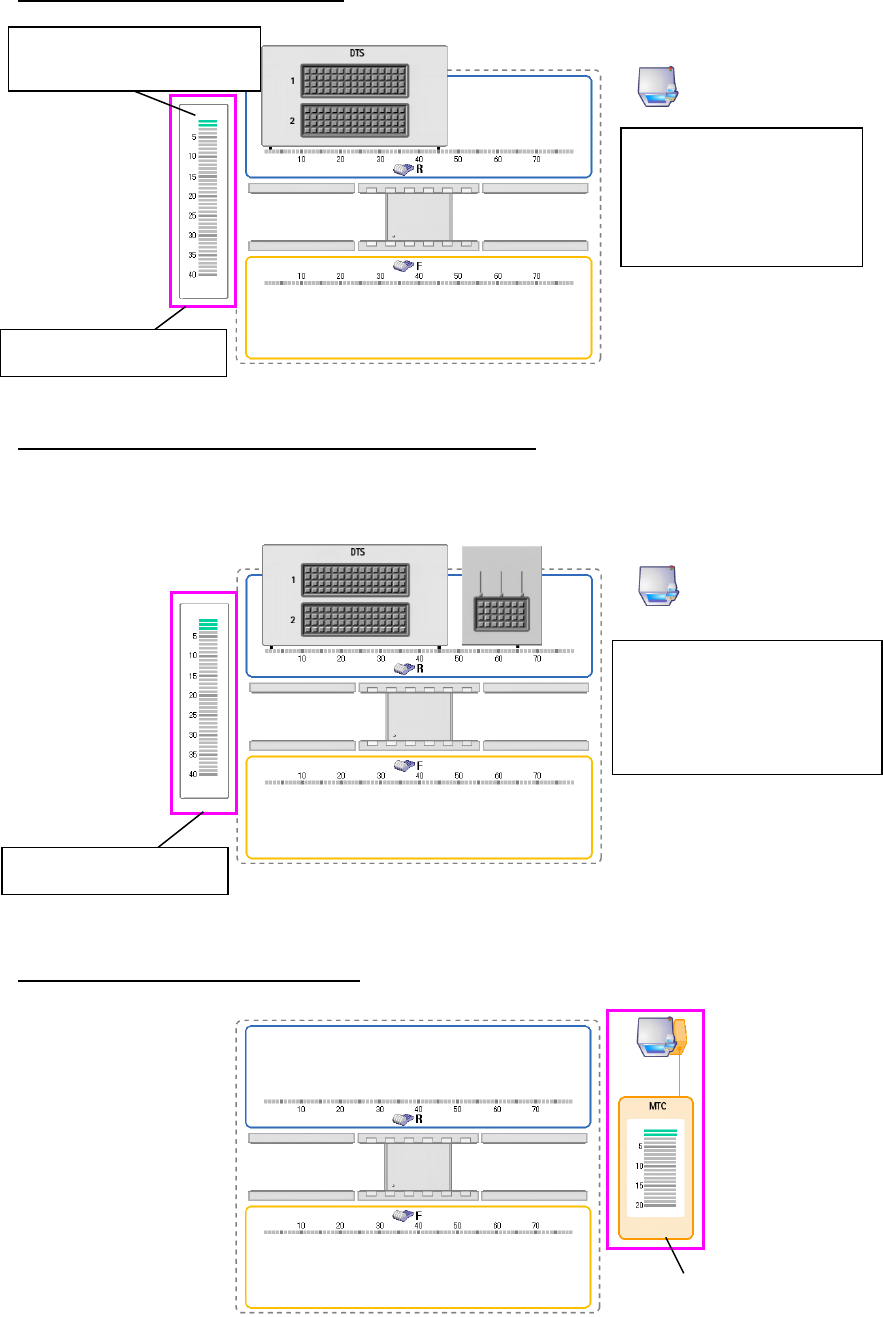
When you assign a tray to a DTS
Figure 5.9-25 Tray assignment (to a DTS)
When two or more tray holders or DTS are assigned
Even when two or more tray holders or DTS are attached on a machine, only one Tray assignment
screen is displayed on the left of the screen, and you can assign two or more types of tray
components in the mixed pattern.
Figure 5.9-26 Tray assignment
(when two or more tray holders are attached on a machine)
When you assign a tray to an MTC
Figure 5.9-27 Tray assignment (MTC)
When you want to change
the level from which a
component is supplied,
change it on the Details
setting screen.
Tray assignment screen
When you add a tray
component to the Tray
assignment screen, it is to be
assigned to the tray holder
you selected the last time.
MTC tray assignment screen
Tray assignment screen
A tray is placed on the first
level by default.
JaNets Instruction Manual 5. Shopfloor Setup
5-71
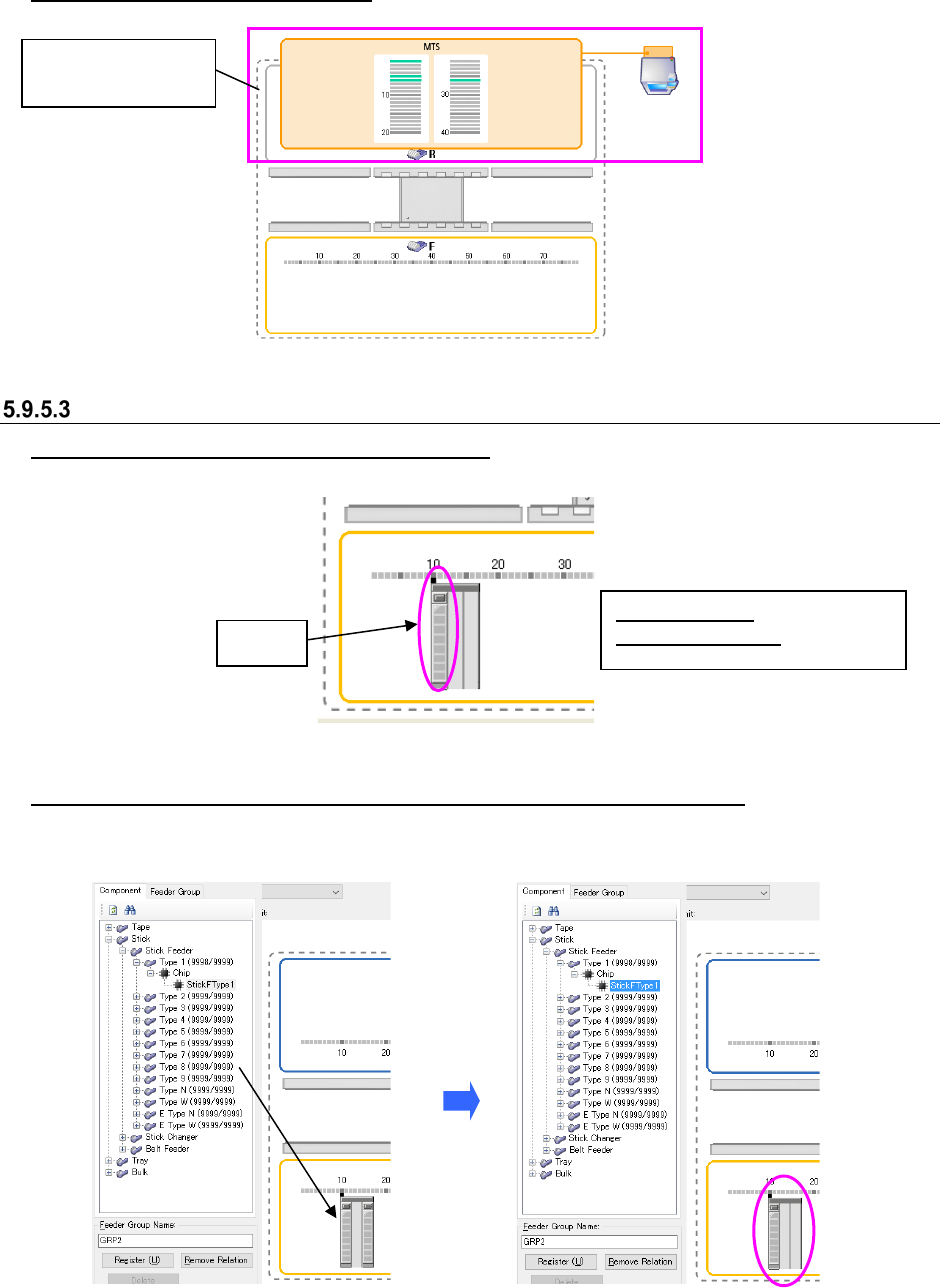
When you assign a tray to an MTS
Figure 5.9-28 Tray assignment (MTS)
Assigning a feeder having two or more lanes
Assigning a feeder to an attachment position
A feeder is assigned with set on the Lane 1.
Figure 5.9-29 Assigning a feeder having two or more lanes (it is set on the Lane 1)
Assigning a feeder to a not-occupied lane of a feeder already assigned
To assign a feeder to a not-occupied lane of a feeder already assigned, drag it to the desired lane
position.
Figure 5.9-30 Assigning a feeder having two or more lanes
(Before/after assigning a feeder to the Lane 3)
* When you add a component to a not-occupied lane of a feeder already assigned, the number of
feeder resources does not change.
Displayed lane: Set lane
Not displayed lane: Unset lane
Lane 1
MTS tray
assignment screen