JANETS_INM.pdf - 第191页
JaNets In structio n Manual 5. Shopflo or Setu p 5- 71 When yo u ass ign a tr ay to a n MTS Figure 5.9 - 28 T ra y assign ment (MTS) Assigning a feeder having two or more lanes Assigni ng a f eeder to an att achme nt pos…
JaNets Instruction Manual 5. Shopfloor Setup
5-70
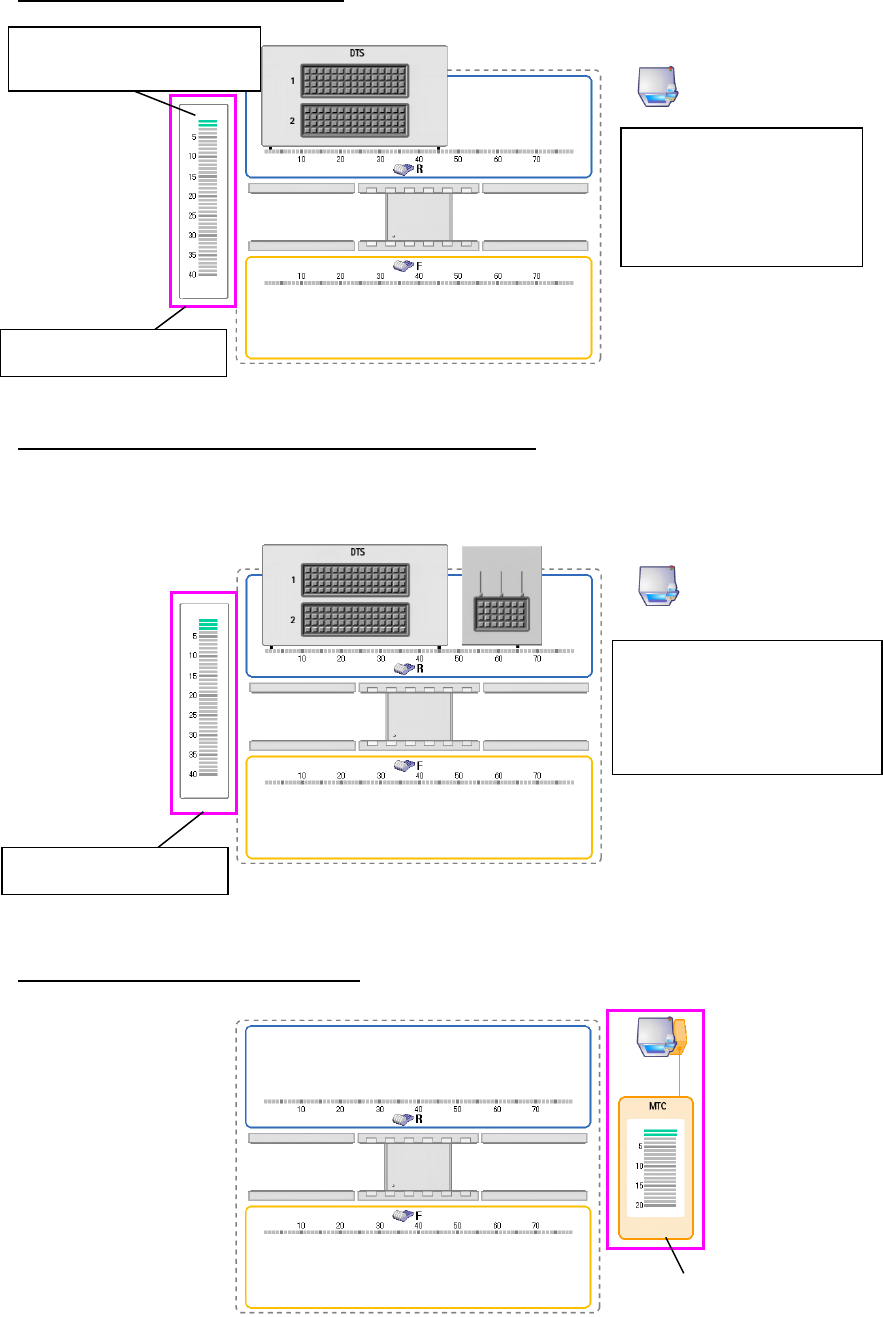
When you assign a tray to a DTS
Figure 5.9-25 Tray assignment (to a DTS)
When two or more tray holders or DTS are assigned
Even when two or more tray holders or DTS are attached on a machine, only one Tray assignment
screen is displayed on the left of the screen, and you can assign two or more types of tray
components in the mixed pattern.
Figure 5.9-26 Tray assignment
(when two or more tray holders are attached on a machine)
When you assign a tray to an MTC
Figure 5.9-27 Tray assignment (MTC)
When you want to change
the level from which a
component is supplied,
change it on the Details
setting screen.
Tray assignment screen
When you add a tray
component to the Tray
assignment screen, it is to be
assigned to the tray holder
you selected the last time.
MTC tray assignment screen
Tray assignment screen
A tray is placed on the first
level by default.
JaNets Instruction Manual 5. Shopfloor Setup
5-71
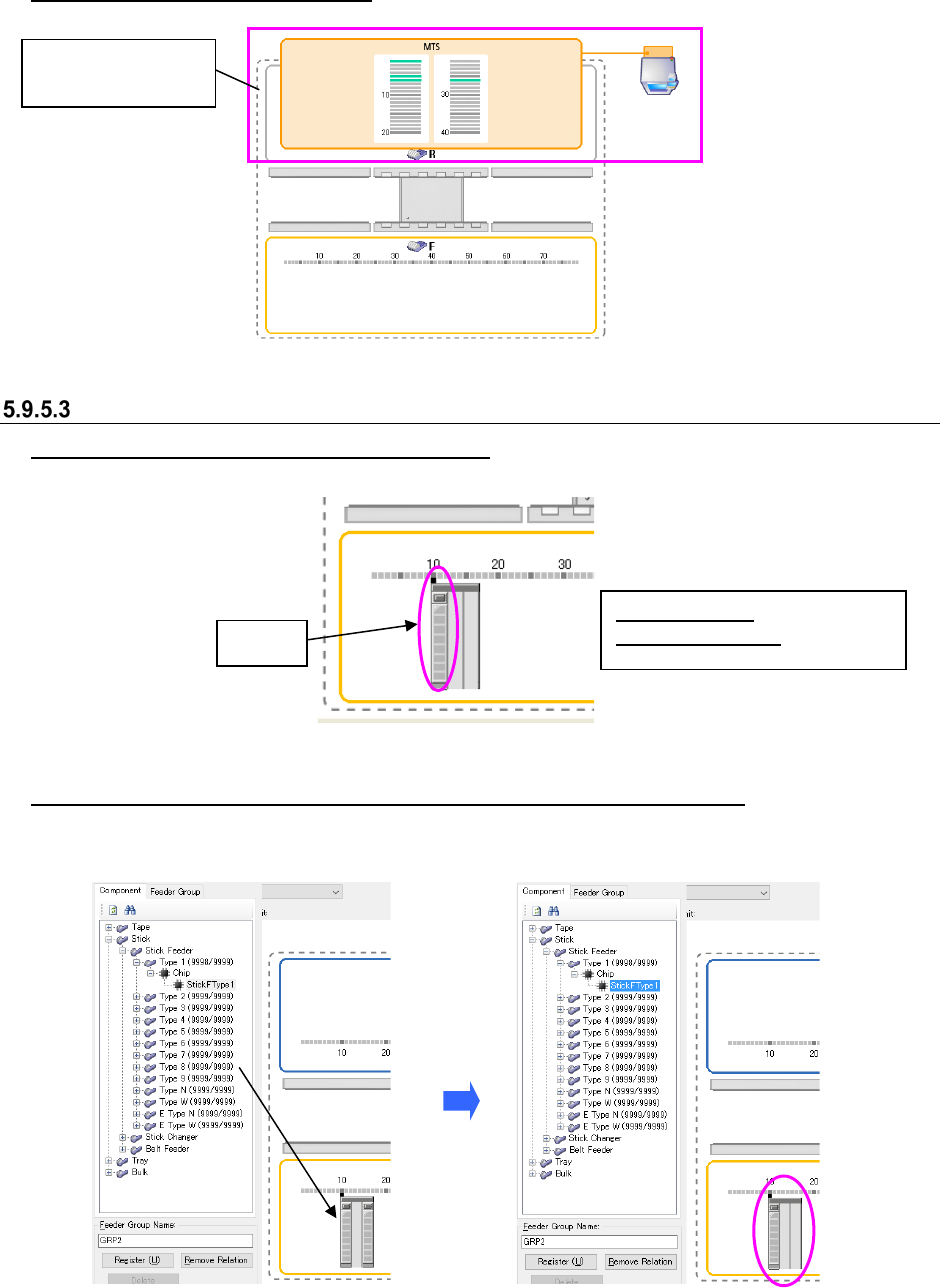
When you assign a tray to an MTS
Figure 5.9-28 Tray assignment (MTS)
Assigning a feeder having two or more lanes
Assigning a feeder to an attachment position
A feeder is assigned with set on the Lane 1.
Figure 5.9-29 Assigning a feeder having two or more lanes (it is set on the Lane 1)
Assigning a feeder to a not-occupied lane of a feeder already assigned
To assign a feeder to a not-occupied lane of a feeder already assigned, drag it to the desired lane
position.
Figure 5.9-30 Assigning a feeder having two or more lanes
(Before/after assigning a feeder to the Lane 3)
* When you add a component to a not-occupied lane of a feeder already assigned, the number of
feeder resources does not change.
Displayed lane: Set lane
Not displayed lane: Unset lane
Lane 1
MTS tray
assignment screen
JaNets Instruction Manual 5. Shopfloor Setup
5-72
Changing a feeder assignment (set as a permanent feeder)
Even for a component that can be set on both the mechanical and electric feeder, you cannot
change the feeder type that has already been set. (e.g. A feeder assigned as “E 8mm D” cannot be
changed into “M 8mm” or “E 8mm S”.)
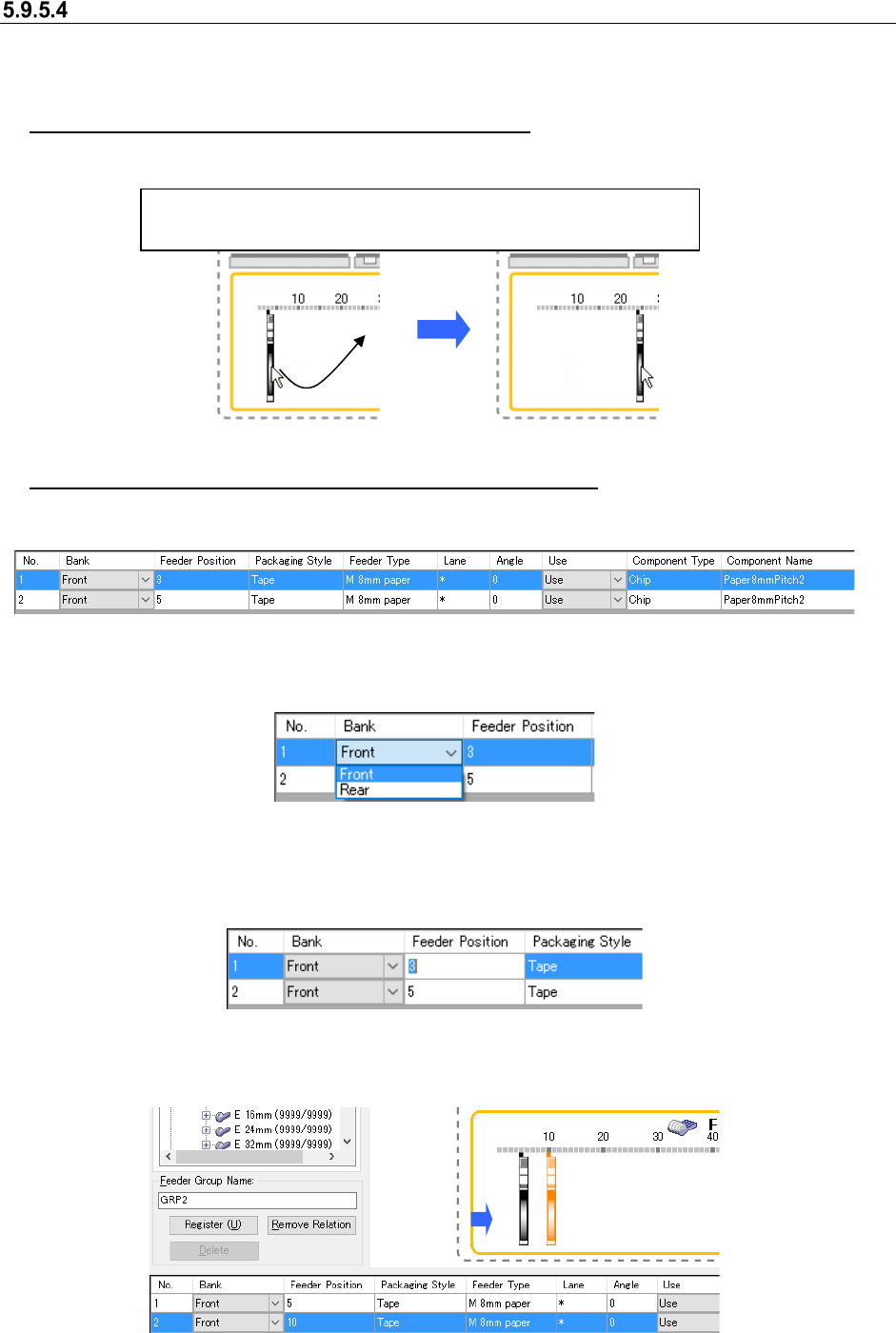
Changing a feeder assignment on the layout screen
When the layout of the mechanical feeder has been changed to the mechanical bank
Figure 5.9-31 Changing a feeder assignment (to a not-occupied position)
Changing a feeder assignment on the Details setting screen
Select a feeder whose assignment you want to change on the “Permanent Feeder Setup” screen
to display it on the Details setting screen.
Figure 5.9-32 Details setting screen
When you select the “Bank” cell combo box, the items for changing the bank to set a feeder are
displayed. When you select the desired bank, you can change the setting.
Figure 5.9-33 Details setting screen (Changing the “Bank” item)
After selecting a bank, set the feeder position in the “Feeder Position” cell. Enter the number to
which you want to assign a feeder.
* You can change only the feeder position without changing the bank.
Figure 5.9-34 Detail setting screen (Changing the “Feeder Position” item)
When you enter the feeder position at which a feeder can be assigned, the feeder icon is moved to
that position displayed on the screen.
Figure 5.9-35 Details setting screen (after changing a feeder assignment)
Drag and drop a feeder icon displayed on the feeder bank to change
the feeder assignment. You can select two or more feeders.