JANETS_INM.pdf - 第193页
JaNets In structio n Manual 5. Shopflo or Setu p 5- 73 Changin g a tray assi gnment 1. Select a tr ay holder to w hich you want to move a tr ay on the ban k attachm ent posit ion. (A tray is suppose d to be m oved to the…
JaNets Instruction Manual 5. Shopfloor Setup
5-72
Changing a feeder assignment (set as a permanent feeder)
Even for a component that can be set on both the mechanical and electric feeder, you cannot
change the feeder type that has already been set. (e.g. A feeder assigned as “E 8mm D” cannot be
changed into “M 8mm” or “E 8mm S”.)
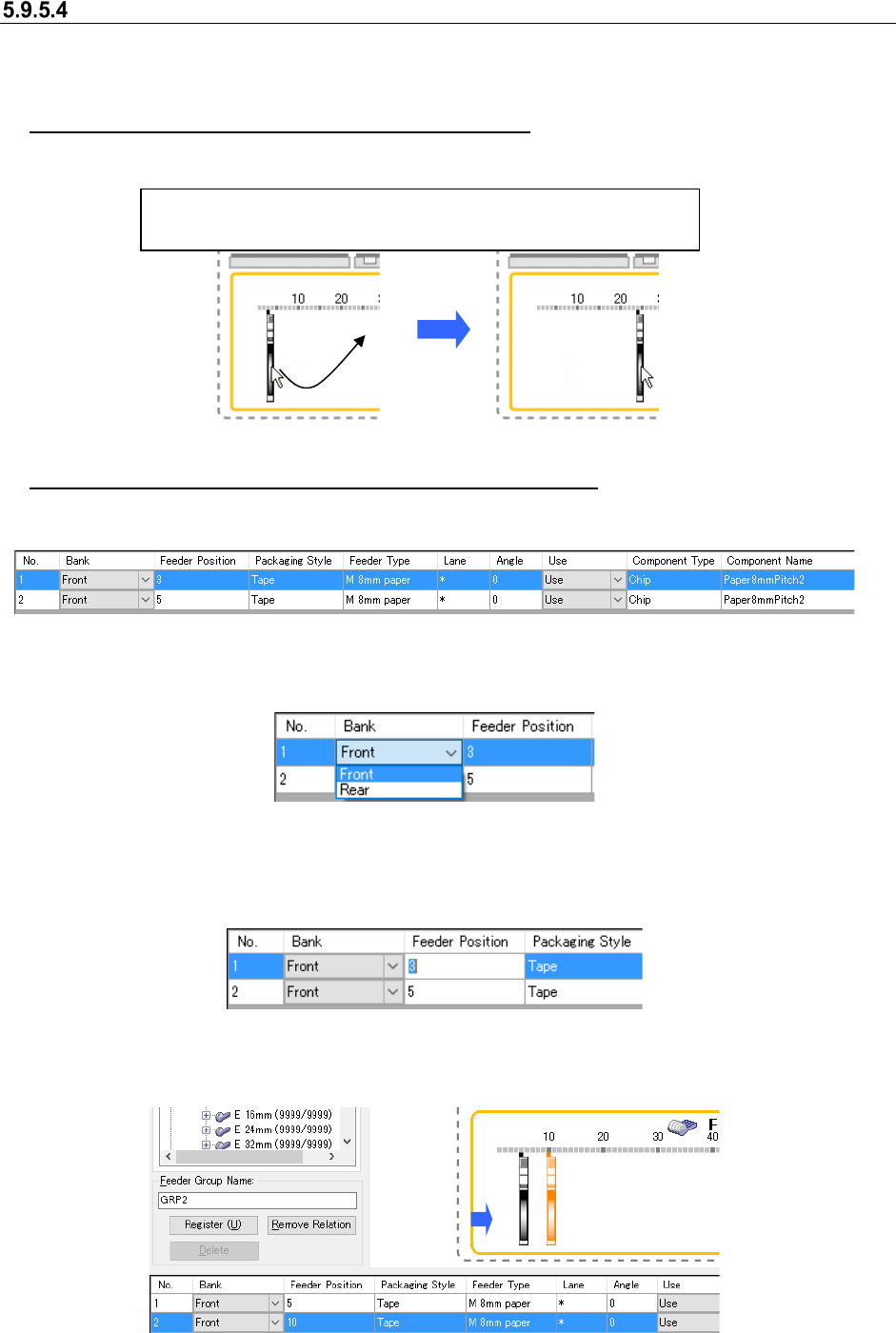
Changing a feeder assignment on the layout screen
When the layout of the mechanical feeder has been changed to the mechanical bank
Figure 5.9-31 Changing a feeder assignment (to a not-occupied position)
Changing a feeder assignment on the Details setting screen
Select a feeder whose assignment you want to change on the “Permanent Feeder Setup” screen
to display it on the Details setting screen.
Figure 5.9-32 Details setting screen
When you select the “Bank” cell combo box, the items for changing the bank to set a feeder are
displayed. When you select the desired bank, you can change the setting.
Figure 5.9-33 Details setting screen (Changing the “Bank” item)
After selecting a bank, set the feeder position in the “Feeder Position” cell. Enter the number to
which you want to assign a feeder.
* You can change only the feeder position without changing the bank.
Figure 5.9-34 Detail setting screen (Changing the “Feeder Position” item)
When you enter the feeder position at which a feeder can be assigned, the feeder icon is moved to
that position displayed on the screen.
Figure 5.9-35 Details setting screen (after changing a feeder assignment)
Drag and drop a feeder icon displayed on the feeder bank to change
the feeder assignment. You can select two or more feeders.
JaNets Instruction Manual 5. Shopfloor Setup
5-73
Changing a tray assignment
1. Select a tray holder to which you want to move a tray on the bank attachment position.
(A tray is supposed to be moved to the tray holder you selected the last time on the tray
assignment screen.)
2. Drag a tray component you want to move on the tray assignment screen.
3. When you drop it on the tray assignment screen, the tray holder to which the tray is to be
assigned changes.
You can also change a tray assignment on the Details setting screen.
1. Select a tray you want to change to display it on the Details setting screen.
2. Set the bank and the feeder position to set the tray holder to which the selected tray is to
be assigned.
Changing the component supply level number of a DTS
1. Put the “Lane” cell of a DTS component whose supply level you want to change in the editing
state on the Details setting screen.
2. When you enter the desired supply level number, the level number for supplying the
component changes.
* You cannot change the DTS attachment position itself.
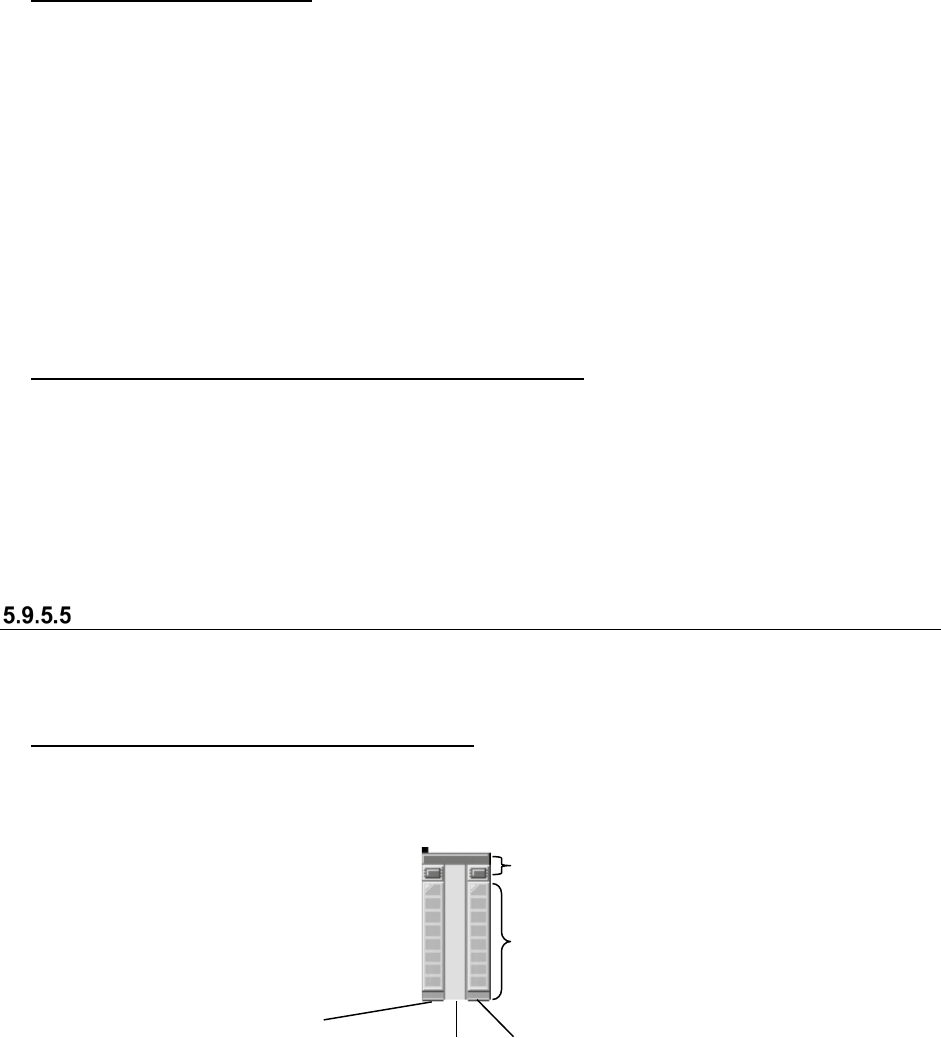
Changing an assignment of a feeder having two or more lanes
You can change the feeder assignment itself or move the assigned lane if the feeder has two or
more lanes.
Changing a feeder attachment position itself
To change the feeder attachment position, follow the procedure below.
1. Select the upper section of the icon of a feeder you want to move or select the section to
which any lane is not assigned.
Figure 5.9-36 Stick feeder (3-lane type)
2. To move the feeder, perform the same operation as that for the “Changing a feeder
assignment on the layout screen”.
Lane 1 (already assigned)
Lower section of the
icon (Lane section)
Lane 2 (not assigned)
Lane 3 (already assigned)
Upper section of the icon
JaNets Instruction Manual 5. Shopfloor Setup
5-74
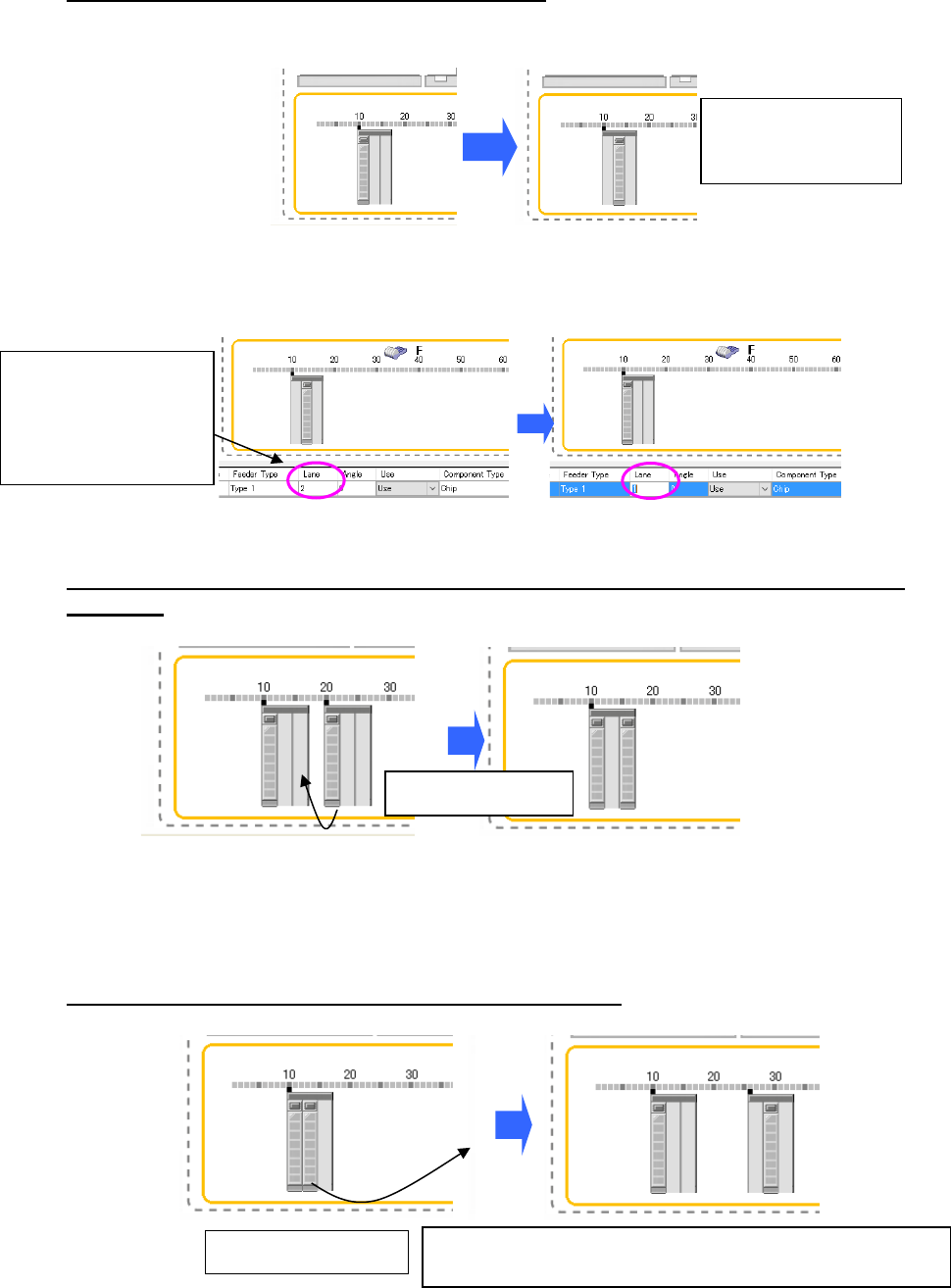
Changing the position of a lane already assigned
Drag the icon of the lane already assigned, and drop it on the desired lane position. The lane is
moved to that position.
Figure 5.9-37 Assigning a feeder having two or more lanes (Moving a lane)
You can also change the lane position on the Details setting screen.
Figure 5.9-38 Details setting screen (Before/after moving a lane)
When a lane is moved between the feeders of the same type attached on the different
positions.
Figure 5.9-39 Before/after moving a lane (between the different feeders)
* When you move a lane from a feeder to which two or more lanes are already assigned,
only a lane is moved.
When a lane is assigned to the bank attachment position
Figure 5.9-40 Moving a lane (to another attachment position)
You cannot select two
or more lanes at the
same time.
Drag & drop a lane.
Drag & drop a lane.
A new feeder is assigned to the position a lane is dropped. “1” is
subtracted from the number of the feeder resources.
Put this cell in the
editing state, and enter
the desired lane
number here (“2” in this
example).