JANETS_INM.pdf - 第197页
JaNets In structio n Manual 5. Shopflo or Setu p 5- 77 Setting a feeder group Referring to a fe eder group from a machi ne T o refer ence a feeder gr oup (f eeder assig nment inform ation) f rom the machi ne, f ollow the…
JaNets Instruction Manual 5. Shopfloor Setup
5-76
Copying a feeder assignment symmetrically
Drag a mouse to surround a feeder(s) to be copied and select it (them). Click the right button of the
mouse while the feeder(s) is (are) being selected to display the pop-up menu. Select the [Station
Copy] command from this pop-up menu.
The [Station Copy] command is enabled for a machine equipped with the left and right stations
only.
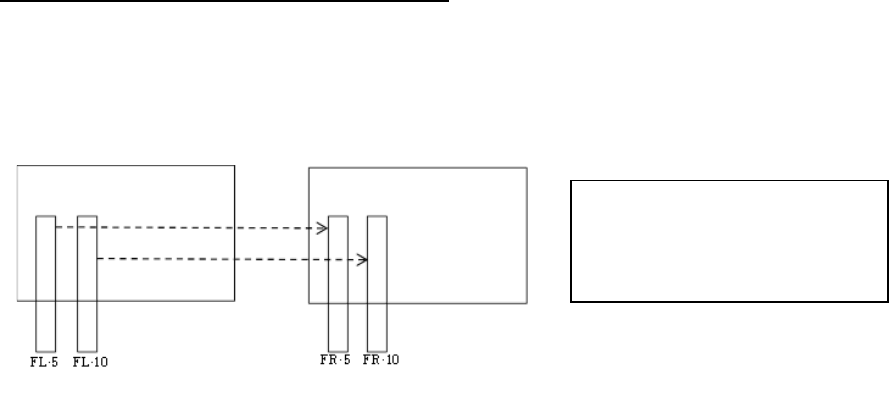
Figure 5.9-43 Feeder assignment position when the system copies a feeder
* No tray component can be copied even though you execute the [Mirror Copy]/[Position
Copy]/[ Station Copy] command. In addition, if you select any feeder located on both the front
side and the rear side (or the left station and right station), the system will not copy it.
* The copying is available only when the both banks are the same types (the number of holes
and the driving method).
When you select a feeder on the left
side, it is copied to the right side.
When you select a feeder on the right
side, it is copied to the left side.
JaNets Instruction Manual 5. Shopfloor Setup
5-77
Setting a feeder group
Referring to a feeder group from a machine
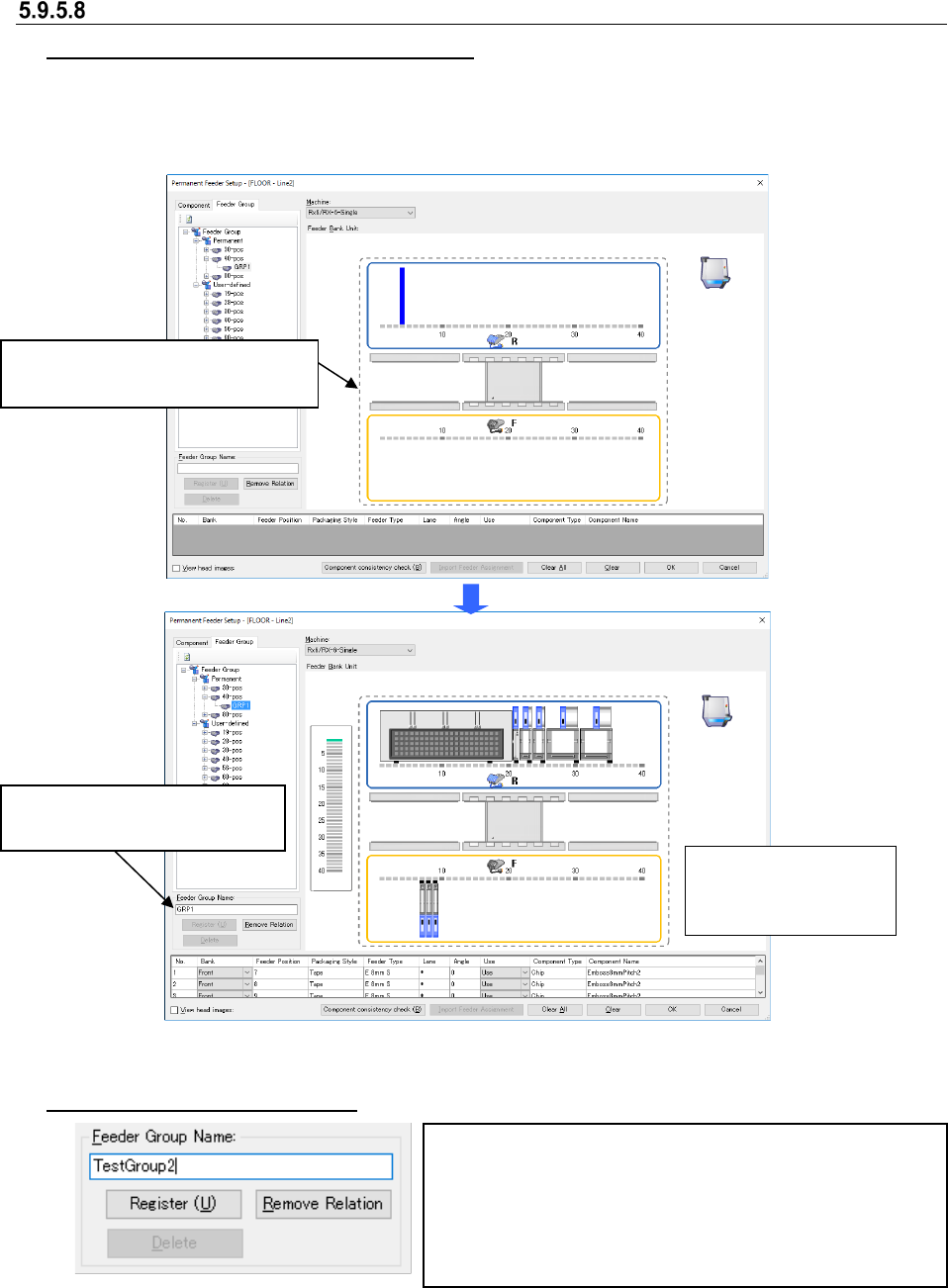
To reference a feeder group (feeder assignment information) from the machine, follow the
instruction below. Or, select a feeder group in the “Feeder Group” list, and click the right button of a
mouse to display the pop-up menu. Select the [Load & Feeder Group] command. The selected
feeder group is loaded into the machine currently being displayed.
Figure 5.9-44 Before/after referring to a feeder group
Registering a new feeder group
Figure 5.9-45 Entering the name of a feeder group name
Enter the name of a feeder group to be registered (up to 20
half-width characters). When you enter it, the <Register>
button is enabled. When you select this <Register> button, the
confirmation message appears on the screen. When you
select the <Yes> button, the selected feeder group is
registered in the database.
Drag and drop a feeder group to be
referred to onto the layout screen.
The layout of the
dropped feeder group
is displayed.
The name of the referred feeder
group is displayed here.
JaNets Instruction Manual 5. Shopfloor Setup
5-78
Updating an existing feeder group
1. Enter the name of a feeder group to be updated in the “Feeder Group Name” field on the
“Permanent Feeder Setup” screen.
2. When you select the <Register> button, the confirmation message appears on the screen.
When you select the <Yes> button, the feeder group whose name is displayed in the
“Feeder Group Name” field is updated according to the assignment information on the
layout being displayed currently.
* If you enter a feeder group name that does not belong to the permanent feeder group, the
system performs the same process as that for registering a new feeder group.
Canceling the association between a machine and a feeder group
1. Display the layout screen whose machine association is to be cancelled.
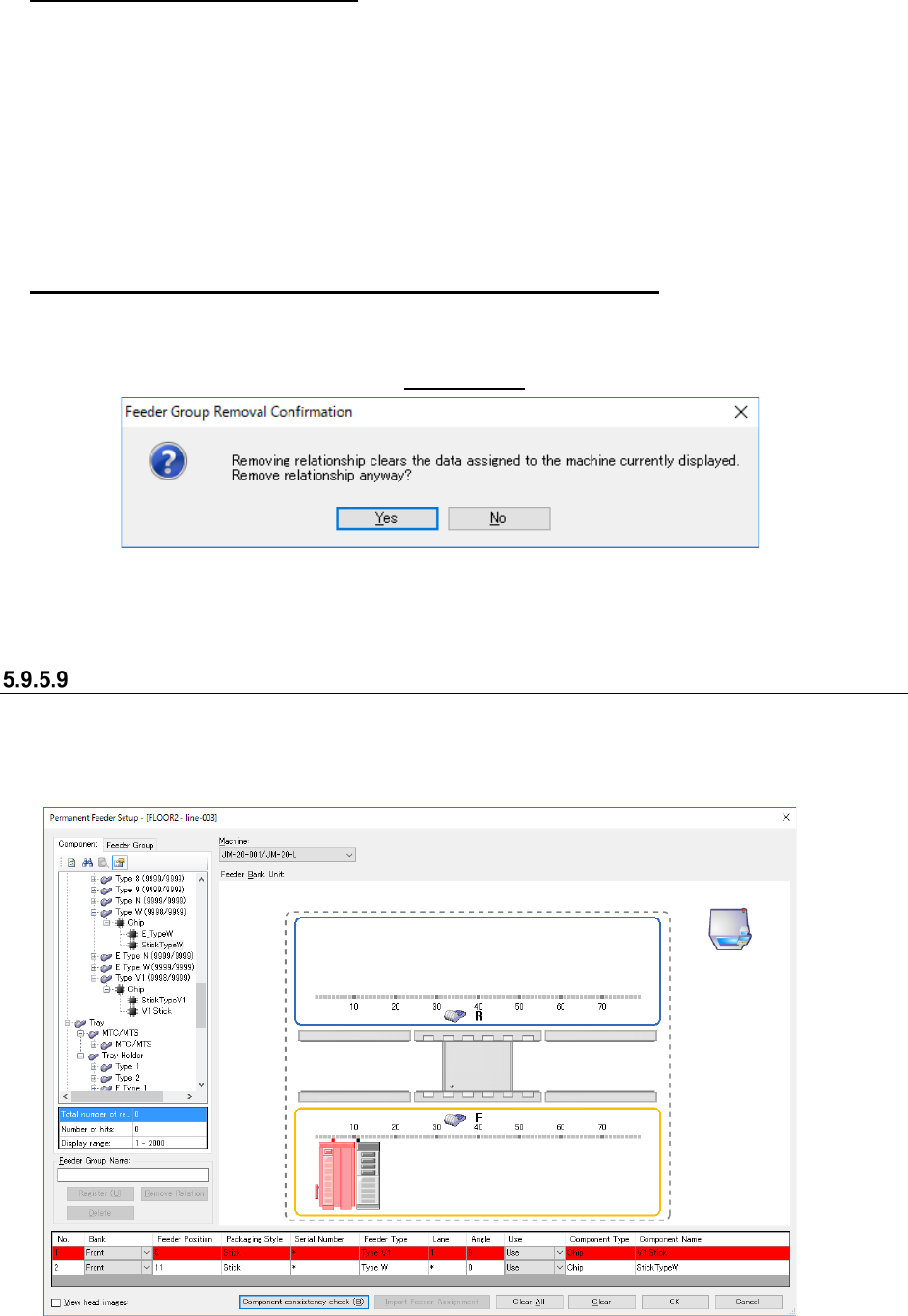
2. When a machine is associated with a feeder group, select the [Remove Relation]
command on the screen shown in Figure 5.9-45.
Figure 5.9-46 “Feeder Group Removal Confirmation” message
* When association is cancelled, data displayed in the “Feeder Group Name” field and the
information on the assigned feeder is all cleared.
Component consistency check
This function checks to see if an assigned component supply device is consistent with a
component registered in the database.
A component supply device at which a consistency error occurred is displayed with a red icon and
a red line.
Figure 5.9-47 Display of a component consistency check error