JANETS_INM.pdf - 第205页
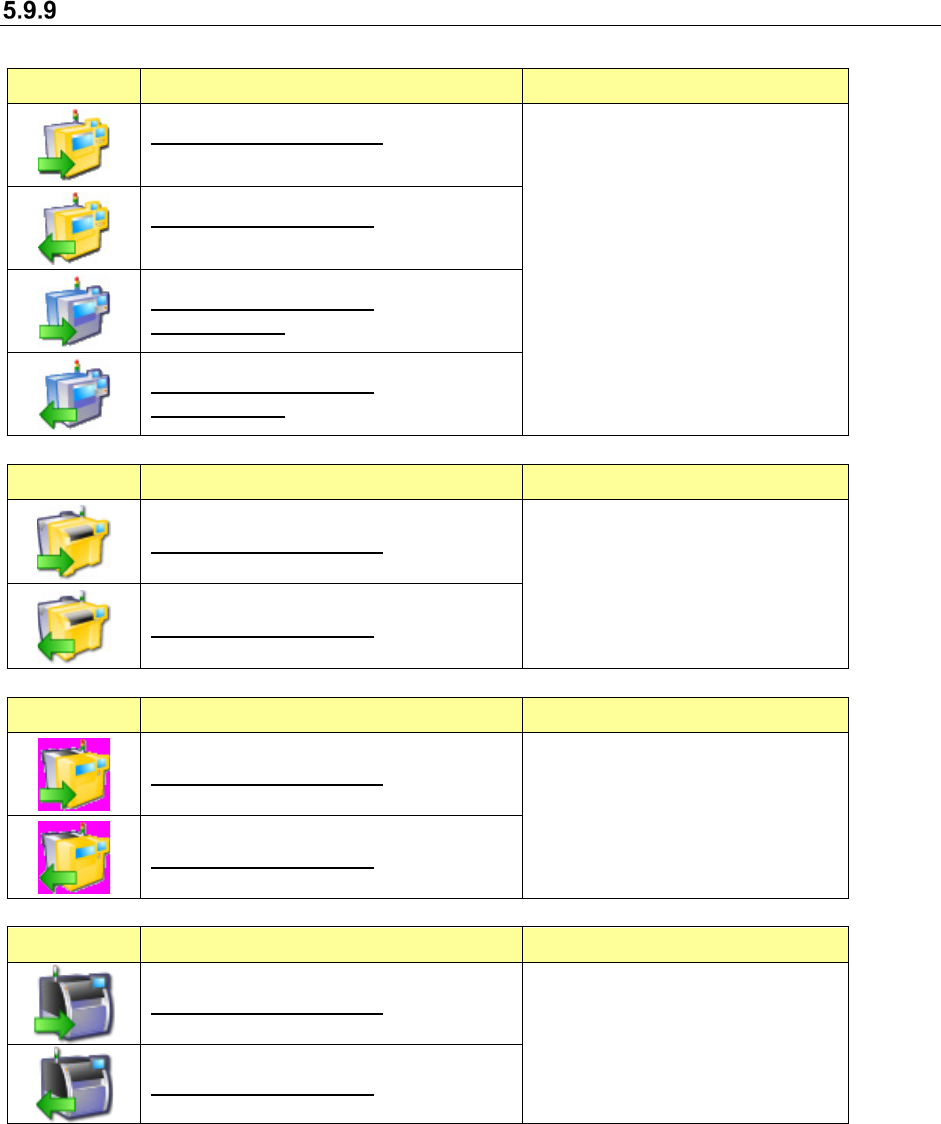
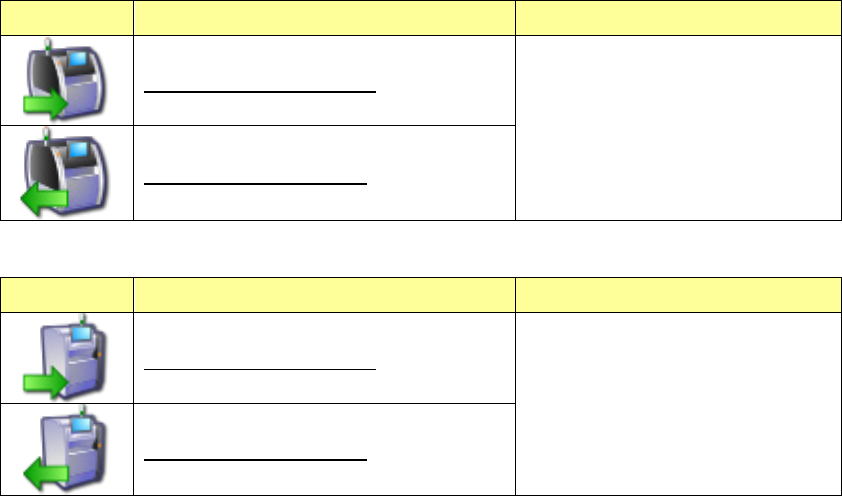
JaNets In structio n Manual 5. Shopflo or Setu p 5- 85 Icon Setting Applicabl e machin e models Board transport directio n: Left to right ・ R V-1 Board transport directio n: Right t o left Icon Setting Applicabl e machin…
JaNets Instruction Manual 5. Shopfloor Setup
5-84
Machine Icon Types
Table 5.8.9-1 Machine icons and their specifications
Icon Setting Applicable machine models
Board transport direction: Left to right
Reference side: Front
・RX-6 series
・RX-7 series
・KE-3020 series
・KE-3020R series
・KE-3010 series
・KE-3020V series
・KE-3020VR series
・FX-3 series
Board transport direction: Right to left
Reference side: Front
Board transport direction: Left to right
Reference side: Rear
Board transport direction: Right to left
Reference side: Rear
Icon Setting Applicable machine models
Board transport direction: Left to right
・RS-1 series
・JM-100
Board transport direction: Right to left
Icon Setting Applicable machine models
Board transport direction: Left to right
・JM-10 series
・JM-20 series
Board transport direction: Right to left
Icon Setting Applicable machine models
Board transport direction: Left to right
・RP-1
Board transport direction: Right to left
JaNets Instruction Manual 5. Shopfloor Setup
5-85
Icon Setting Applicable machine models
Board transport direction: Left to right
・RV-1
Board transport direction: Right to left
Icon Setting Applicable machine models
Board transport direction: Left to right
・RV-2 series
Board transport direction: Right to left
JaNets Instruction Manual 6. Language Changer
6-1
6. Language Changer (Tool for Switching the Used
Language)
What is the Language Changer?
This is the tool that can switch the used language in real time for a JaNets application
program.
6.1 Operation Procedure
6.1.1 Starting up or quitting the Language Changer
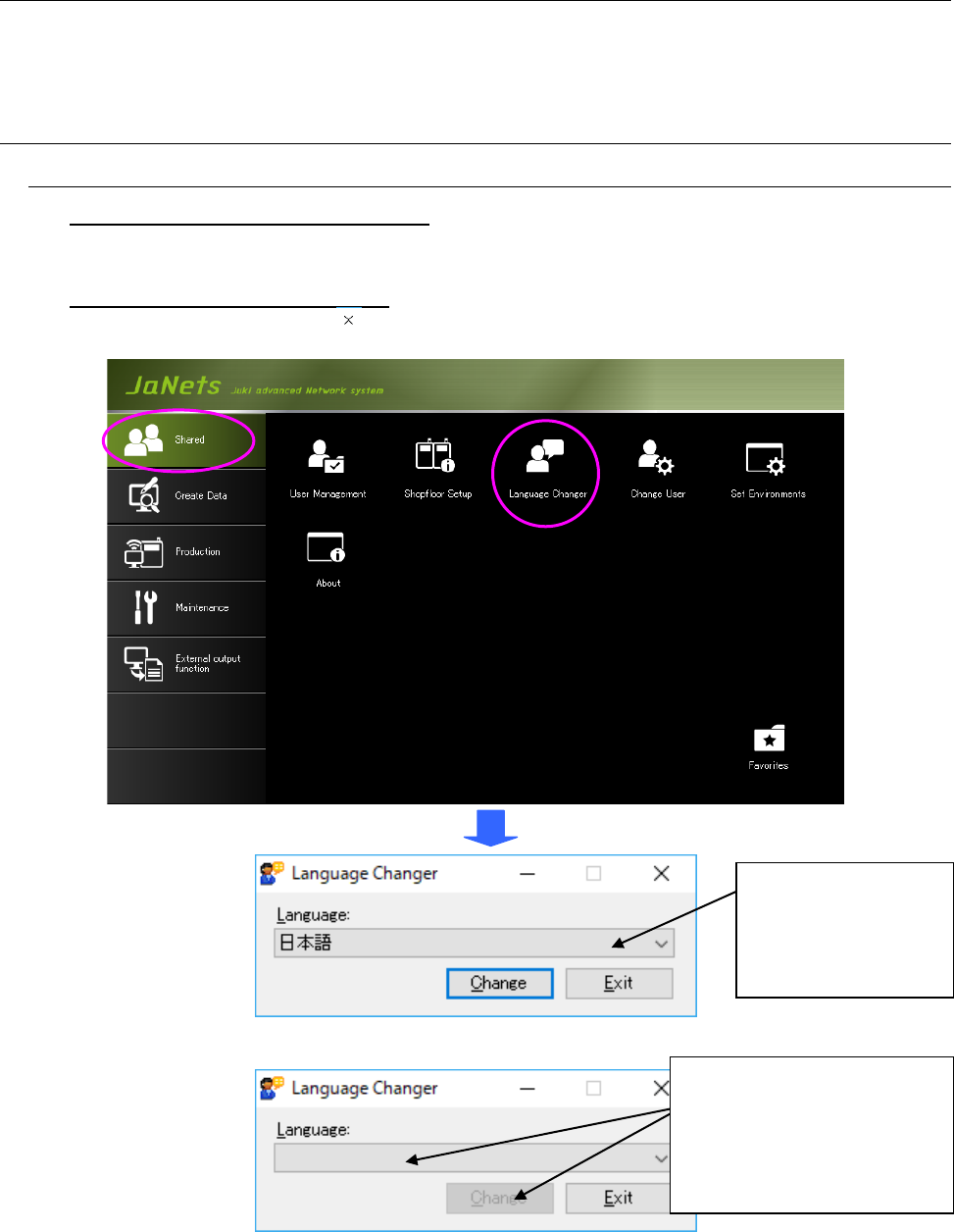
To start up the Language Changer: Double-click the “Shared” tab, and then the
“Language Changer” icon. The Language Changer starts up, and the language being
displayed at the present is selected in the “Language” combo box.
To quit the Language Changer: Click the <Exit> button on the “Language Changer”
screen, or select the close ( ) button at the upper right corner of the title bar.
Figure 6.1-1 JaNets Launcher / Language Changer start-up screen
Figure 6.1-2 “Language Changer” screen displayed when the Language Changer starts up
although the current language is switched to an unavailable language
Each selectable
language is displayed
in its native language in
the “Language” combo
box.
If you cannot find the specified
language, no language is
registered in the “Language”
combo box, and the <Change>
button is disabled when the
Language Changer starts up.