JANETS_INM.pdf - 第207页
J aN et s Inst ructi on Manual 6. Language Change r 6-2 6.1.2 Swi tc hing t he l ang uag e W hen you selec t the “ Language ” combo box , the l is t of selec t able l anguages i s di spl ayed on the pull - down list. Fig…
JaNets Instruction Manual 6. Language Changer
6-1
6. Language Changer (Tool for Switching the Used
Language)
What is the Language Changer?
This is the tool that can switch the used language in real time for a JaNets application
program.
6.1 Operation Procedure
6.1.1 Starting up or quitting the Language Changer
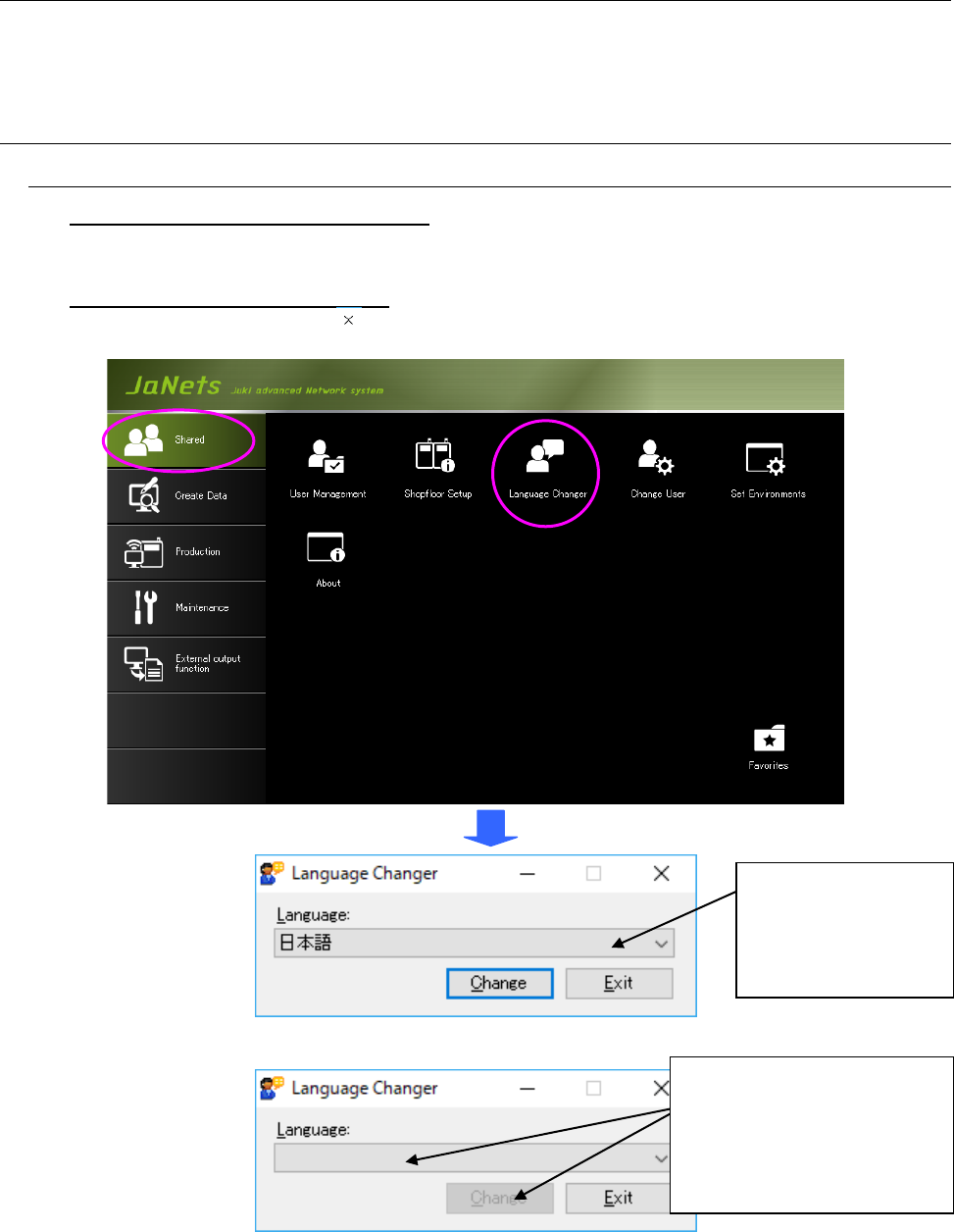
To start up the Language Changer: Double-click the “Shared” tab, and then the
“Language Changer” icon. The Language Changer starts up, and the language being
displayed at the present is selected in the “Language” combo box.
To quit the Language Changer: Click the <Exit> button on the “Language Changer”
screen, or select the close ( ) button at the upper right corner of the title bar.
Figure 6.1-1 JaNets Launcher / Language Changer start-up screen
Figure 6.1-2 “Language Changer” screen displayed when the Language Changer starts up
although the current language is switched to an unavailable language
Each selectable
language is displayed
in its native language in
the “Language” combo
box.
If you cannot find the specified
language, no language is
registered in the “Language”
combo box, and the <Change>
button is disabled when the
Language Changer starts up.
JaNets Instruction Manual 6. Language Changer
6-2
6.1.2 Switching the language
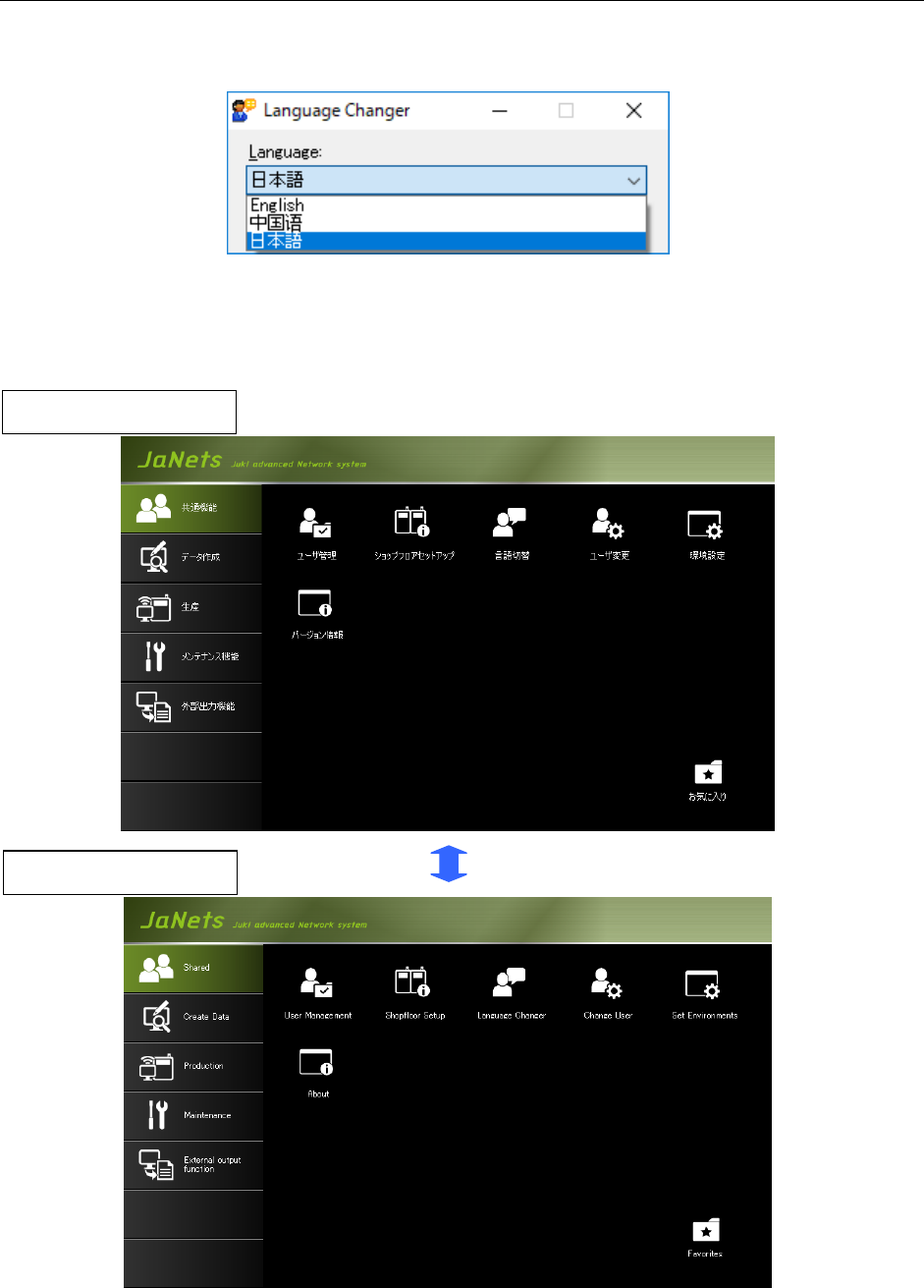
When you select the “Language” combo box, the list of selectable languages is displayed
on the pull-down list.
Figure 6.1-3 List of selectable languages
Select the language you want to switch to on the list, and then click the <Change> button.
The language that is being used in all running MI Line Optimizer application programs is
switched to the selected one.
Figure 6.1-4 “JaNets Launcher” screen before/after the used language is switched
Displayed in Japanese
Displayed in English
JaNets Instruction Manual 7. Program Editor
7-1
7. Program Editor
7.1 Introduction
The Program Editor allows you to create a production program for a machine of the selected
production line.
7.2 Starting Up or Quitting the Program Editor
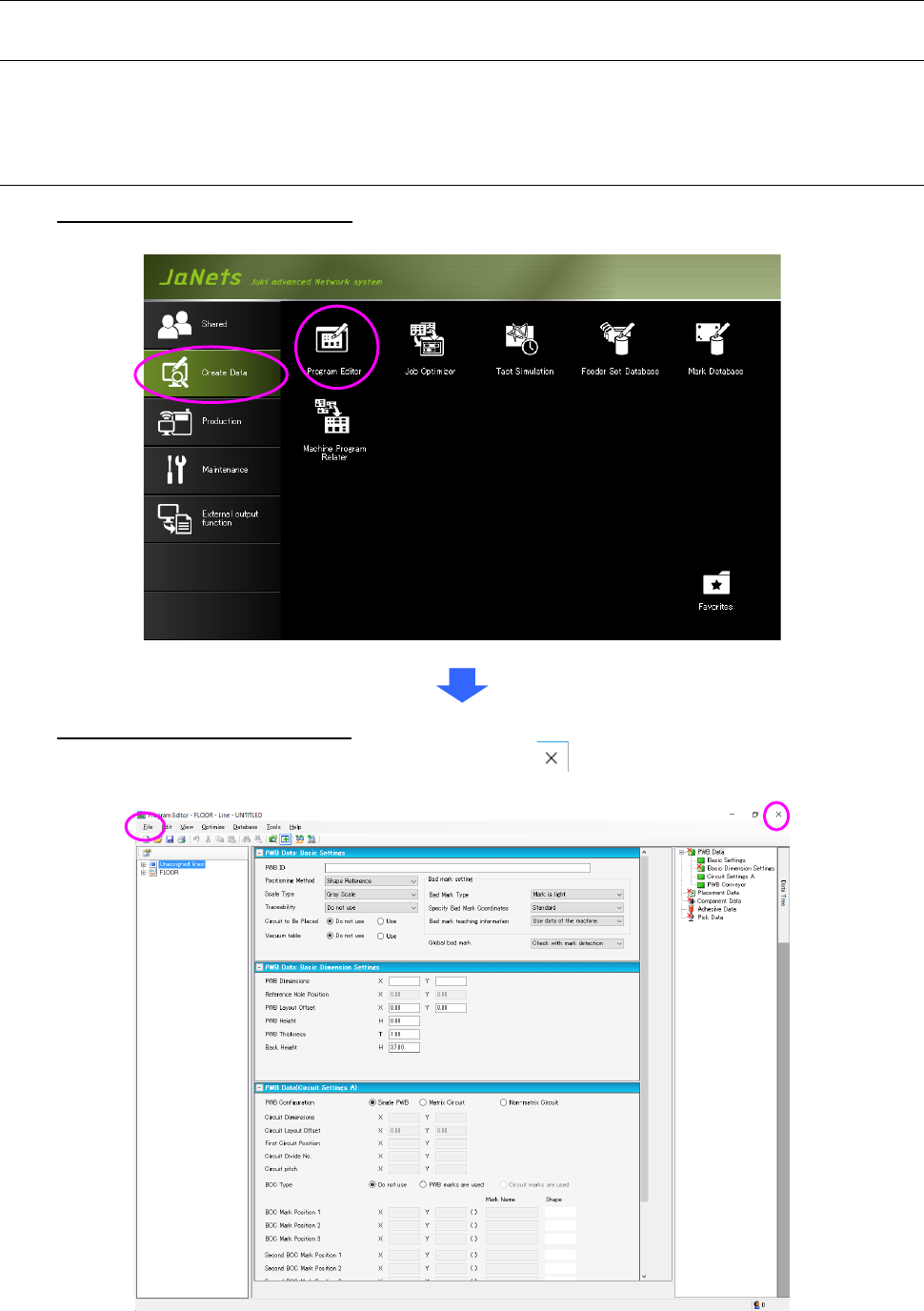
To start up the Program Editor: Double-click the “Create Data” tab from the JaNets Launcher,
and then the “Program Editor” icon.
To quit the Language Changer: Click the “File” tab, and then the “Program Editor” icon, or
select the close ( ) button at the upper right corner of the
title bar.
Figure 7.2-1 Screen displayed when the Program Editor starts up for the first time