JANETS_INM.pdf - 第210页
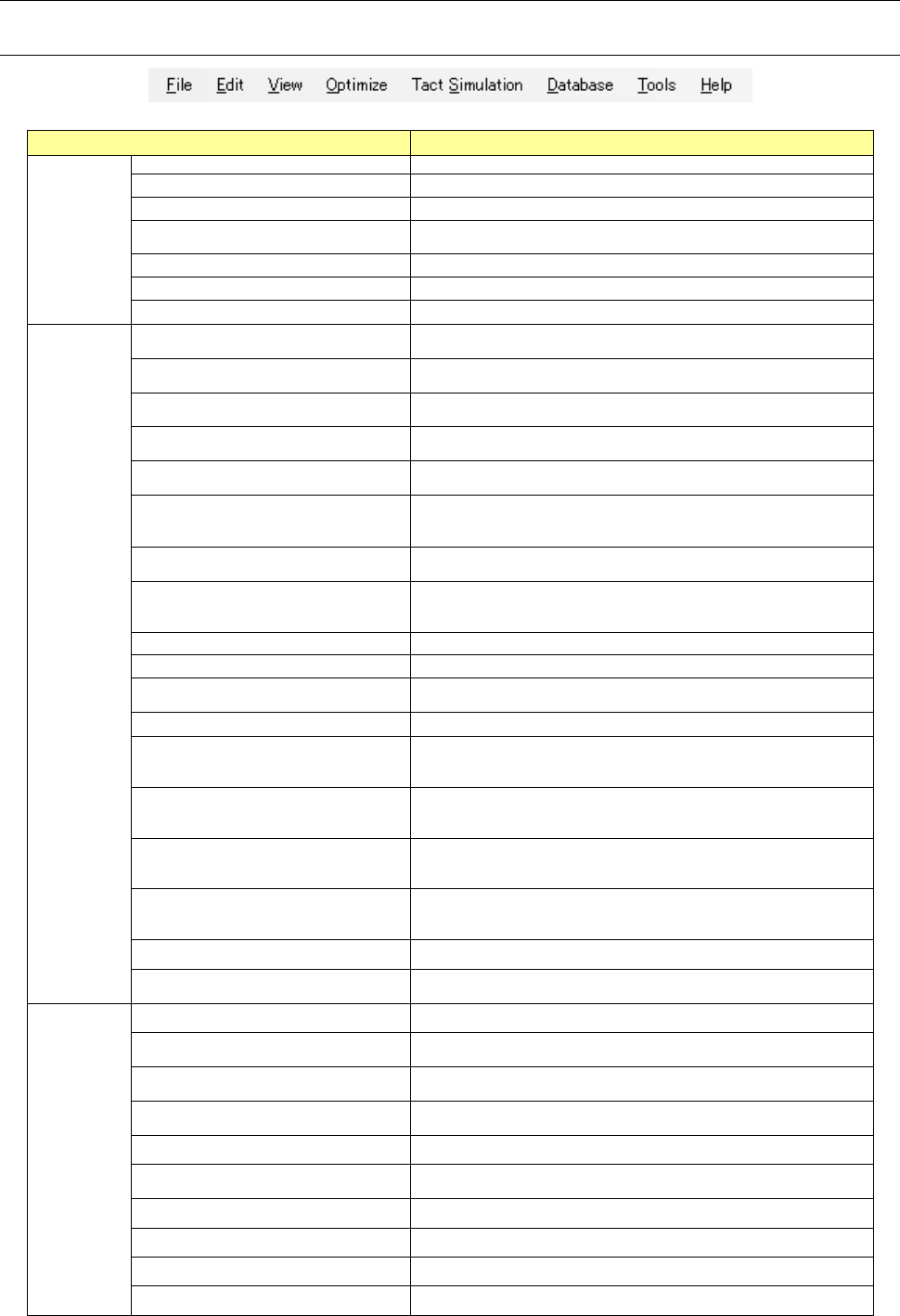
JaNets In structio n Manual 7. Program Editor 7-3 Menu item Description Statu s Bar (B) Displays/hides t he status bar . Optimize (O) Configure Optimizat ion (O) ... Decides the placem ent order of a production program a…
JaNets Instruction Manual 7. Program Editor
7-2
7.3 Menu Configuration
7.3.1 Menus
Table 7.3-1 Description of each menu item
Menu item Description
File (F)
New (N)
Creates a new production program.
Open (O)
Opens a production program.
Save (S)
Saves a production program that is being edited.
Save as (A)
Assigns a name to a production program that is being edited, and
saves it.
Read CAD Data (C)
Reads CAD data into a production program.
Print & Save to file (P)
Prints production program data and outputs it as a file (*).
Exit Program Editor (X)
Quits the Program Editor.
Edit (E)
Undo (U)
Cancels the operation you have done most recently, and restores
the data to its original state.
Cut (T) <on the “Placement Data”
screen or “Pick Data” screen>
Saves data temporarily in a clipboard.
Copy (C) <on the “Placement Data”
screen>
Copies data onto the clipboard.
Paste (P) <on the “Placement Data”
screen>
Pastes data on the clipboard by the number of times specified for
copy operation.
Insert Line (I) <on the “Placement Data”
screen>
Inserts a blank line.
Duplicate Line (D) <on the “Placement
Data” screen or the “Pick Data”
screen>
Duplicates the specified line.
Location (G) ... <on a screen other than
the “PWB Data” screen>
Moves the cursor to the specified line.
Search (S) ...<on the “Placement
Data” screen, the “Component Data”
screen or the “Pick Data” screen>
Searches a placement ID or a component name, and displays the
screen for setting the search function.
Find Next (N) ...
Searches the next data.
Replace (R)
Replaces the component data at a time (*).
Cell Copy (O) <on the “Placement
Data” screen>
Copies data in a cell onto the clipboard.
Cell Paste (A)
Pastes data on the clipboard into a cell.
Change Component Name (H)
Changes a component name, and displays the screen for changing
a component name (you can use this command on a screen other
than the “PWB Data” screen).
Change of adhesive parameter name
(B)
Change of the adhesive pattern name
Display of the adhesive pattern name change screen
<It can be used on the adhesive data screen.>
Update Layers (Y) <on the “Placement
Data” screen or the “Component Data”
screen)
Reflect the component layer in the placement layer: all compo-
nents are selected on the “Placement Data” screen, while a com-
ponent is selected on the “component Data” screen.
Matrix Paste (M) ...
Expands coordinates in a matrix according to your input of the X
pitch, Y pitch and the number of times, and then paste them. The
number of placement data records should be up to 30,000.
Clear Unlinked Comp Info (L) Deletes component data not linked with any placement data.
Clearing of unlinked adhesive infor-
mation (R)
Deletion of the adhesive data that is not linked with the component
data.
View (V)
Data Completion Status (D) Displays each data completion status.
Divided Placement Data (P) ...
Displays placement data that is assigned to each machine with the
Optimize function.
Feeder Layout (F) ...
Displays the feeder assignment condition of each machine graph-
ically.
Nozzle Layout (N) ...
Displays nozzles that are assigned to each machine with the Opti-
mize function.
Status (S) ... Displays the result of the tact (cycle time) simulation (*).
Board Viewer (V)
Displays the board transporting direction, the board layout offset,
the positioning hole and the component layout graphically.
Guidance Displays the explanation of an object where the cursor is located.
Coherence Check Results Displays the results of the data coherence check.
Line Explorer (E) ... Displays/hides the Line Explorer.
Toolbar (T) Displays/hides the toolbar.
JaNets Instruction Manual 7. Program Editor
7-3
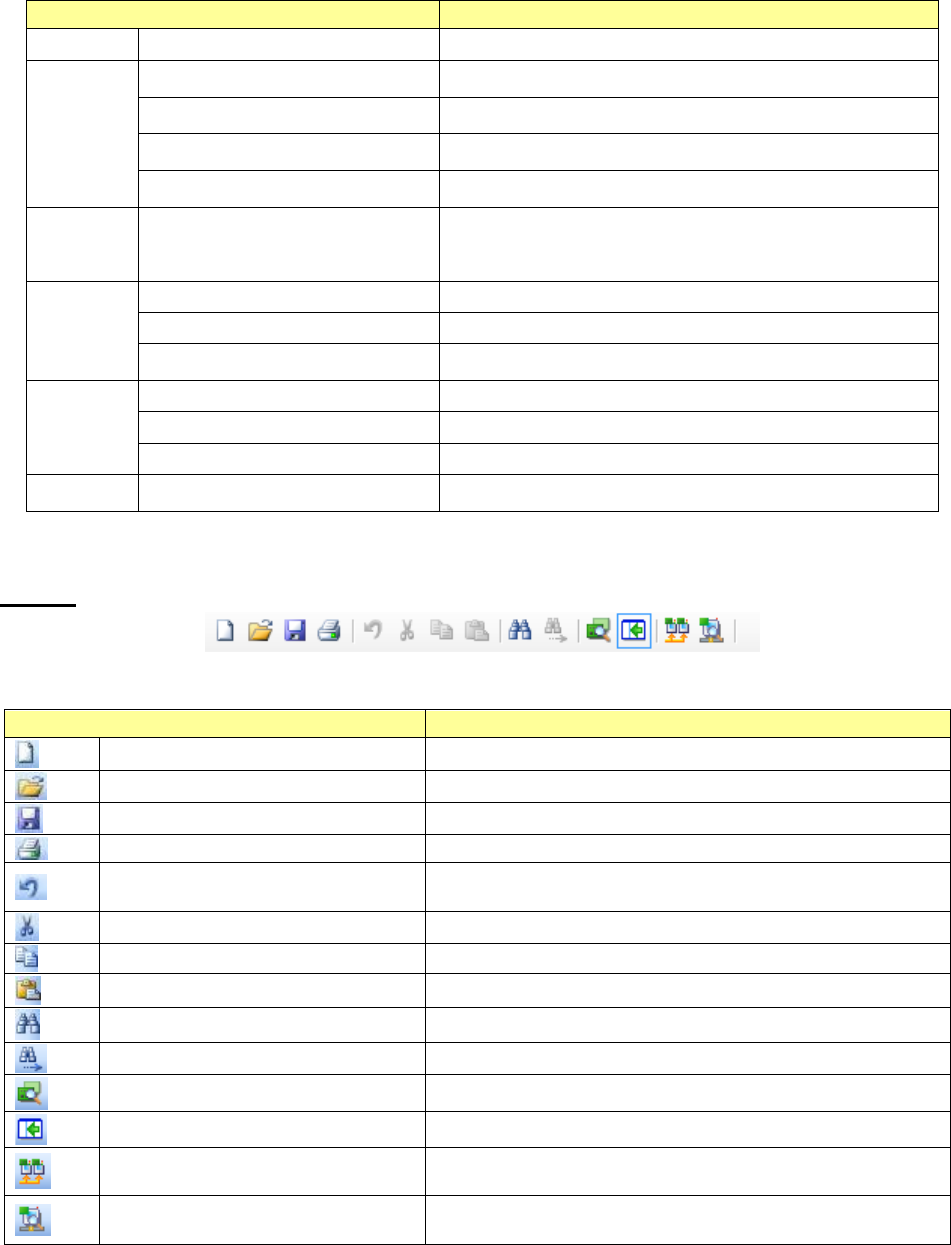
Menu item Description
Status Bar (B) Displays/hides the status bar.
Optimize (O)
Configure Optimization (O) ...
Decides the placement order of a production program and assigns
a feeder(s)/a nozzle(s).
Change Line (L) ...
Changes a production line to be optimized (and displays the screen
for changing a production line).
No. of Feeders (U) ...
Sets the upper limits of the number of feeders to be used for each
component (*).
Data Coherence Check (D)
Checks coherence of a production program that is being edited and
a production line.
Tactration
(M)
Tact simulation (S)
The production time of the production program is measured in a
pseudo way.
The production operation is displayed and the component
pick-up/placement status is displayed graphically.
Database
(D)
Export to Database (B) Registers data in the database.
Import (C) Imports data from the list of the database.
Re-Search (R)
Searches the database or permanent information for component
data or pick data to update a production program (*).
Tools (T)
Merge Production Program (W)… Pastes another production program and copies it (*).
Set Environments (E) ... Sets the environment of the Program Editor (*).
CAD Conversion Setup (S) ... Makes settings of the CAD conversion.
Help (H) About(A) Displays the version.
* See Section 7.6 for details.
Toolbar
Table 7.3-2 Toolbar
Toolbar item
Description
New Creates a new production program.
Open Opens a production program.
Save Saves a production program that is being edited.
Print & Output to a file
Prints production program data and outputs it as text.
Undo
Cancels the operation you have done most recently and re-
stores the data to its original state.
Cut Deletes data and copies it onto the clipboard.
Copy Copies data onto the clipboard.
Paste Pastes data onto the clipboard.
Search Searches a placement ID or a component name.
Find Next Searches the next data.
Data Completion Status Displays each data completion status.
Line Explorer Displays/hides the Line Explorer.
Displays each data completion status.
Performs the Optimize function and allows you to specify the
optimization options.
Data Coherence Check
Checks coherence between a production program that is being
edited and a production line.
JaNets Instruction Manual 7. Program Editor
7-4
7.4 Operating Procedure
7.4.1 Editing PWB data
Editing PWB Data (Basic Settings)
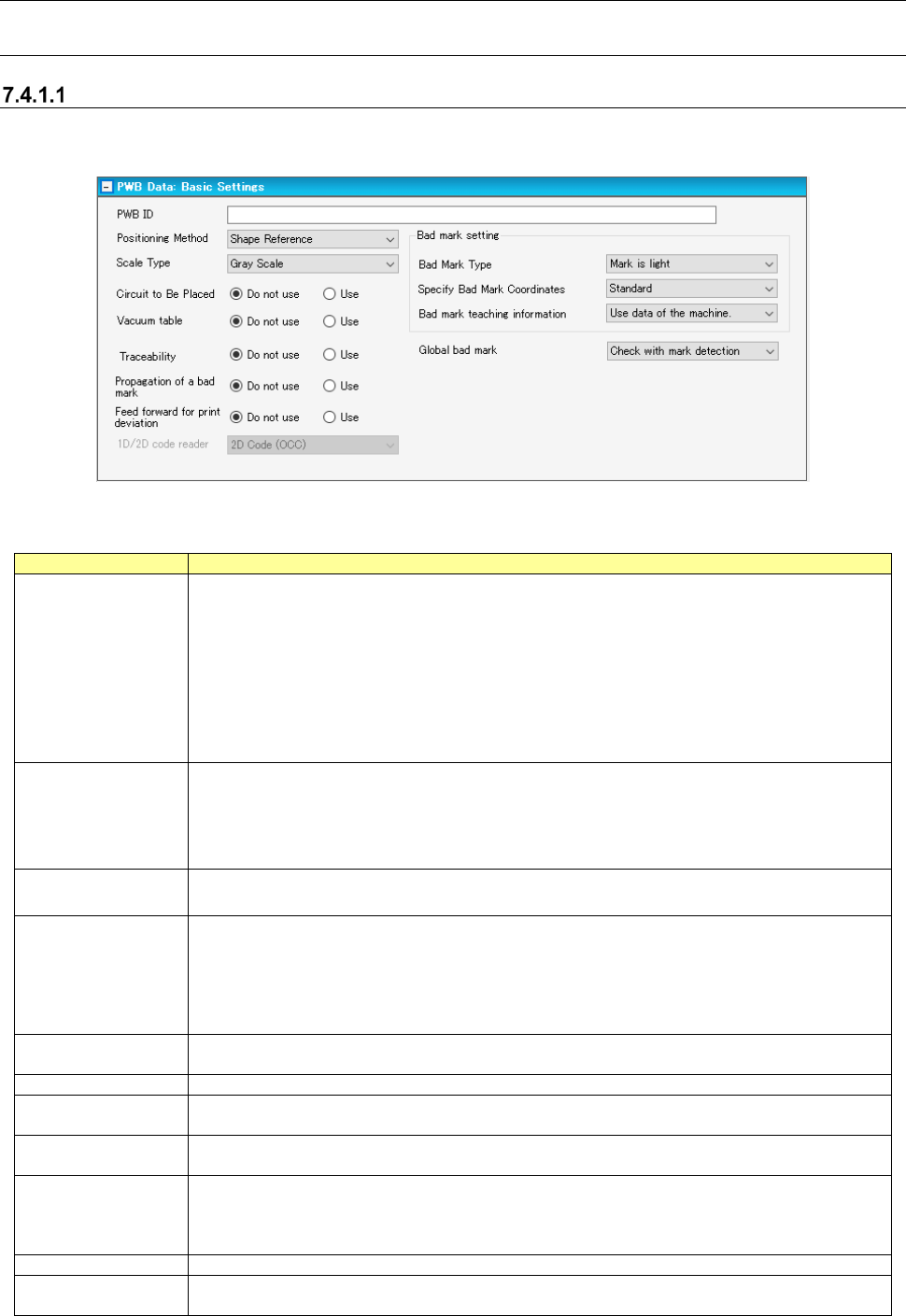
When you select the “PWB Data” from the tree view, and then the “Basic Settings,” the following
screen appears.
Figure 7.4-1 PWB data (Basic Settings) screen
Table 7.4-1 PWB data (Basic Settings) screen
Item
Description
PWB ID
Specify a comment on a PWB.
Set up a PWB ID using an English one byte character symbol and within 60 characters.
Blank specification is also possible.
Warning is displayed if any characters other than one-byte English numbers and letters are
entered.
In case of using double-byte characters in the existing production program, they are read in
as they are.
* In case of using characters other than the above on the substrate ID, there will be the
pos-sibility of unexpected actions such as garbling, unable to save substrate ID and so on.
Positioning Method
Select the positioning method of a PWB from between "Shape Reference" (default) and
"Positioning Hole Reference."
The "Positioning Hole Reference" can be used only by the machine which can use a refer-
ence pin unit.
An RX-6 and an RX-7 cannot use the reference pin unit, so select "Shape Reference."
Scale Type
Select the recognition method of a BOC mark and area fiducial mark from between "Gray
Scale" and "Binary Scale."
Circuit to Be Placed
When a circuit on which component is not placed exists, you can keep the production of a
specified circuit from being executed.
This function is effective function when PWB configuration is "multi-plane matrix" and "mul-
ti-plane non-matrix."
When you select "Use," specify a circuit to be placed or a circuit not to be placed on a circuit
arrangement screen.
Vacuum Table
Specify whether or not to fix a PWB with a vacuum table.
When "Do not use" is selected, a PWB is fixed with a backup pin.
Traceability
Select “Do not use” or “Use” to specify whether to use the traceability function.
L/R Use Same Bad
Mark Recognition
Select “Do not use” or “Use” to specify whether to use the same bad mark recognition.
Feed forward for
printing offset
Regarding the feed forward for printing offset, select “Not use” or Use.
1D/2D code reader
Select a code reader to be used among: “Barcode,” “2D barcode (OCC),” “Multi-code read-
er,” “Back side multi-code reader” and “2D (individual).”
Determine the code you can use according to the settings of a used PWB code made by the
Shopfloor setup.
Bad Mark Type
Select the detection method of a bad mark from between "Mark is light" and "Mark is dark."
Specify Bad Mark
Coordinates
Select the method of specifying bad mark coordinates from between "Standard" and "Ex-
pansion."