JANETS_INM.pdf - 第237页
JaNets In structio n Manual 7. Program Editor 7- 30 “ Packaging Style (Bulk) ” window W hen you sel ect “ Bu lk ” in the “ Com pon ent Pa ckagi ng ” field on the “ Ba sic Settings ” screen, and select “ Co mponent Data ”…
JaNets Instruction Manual 7. Program Editor
7-29
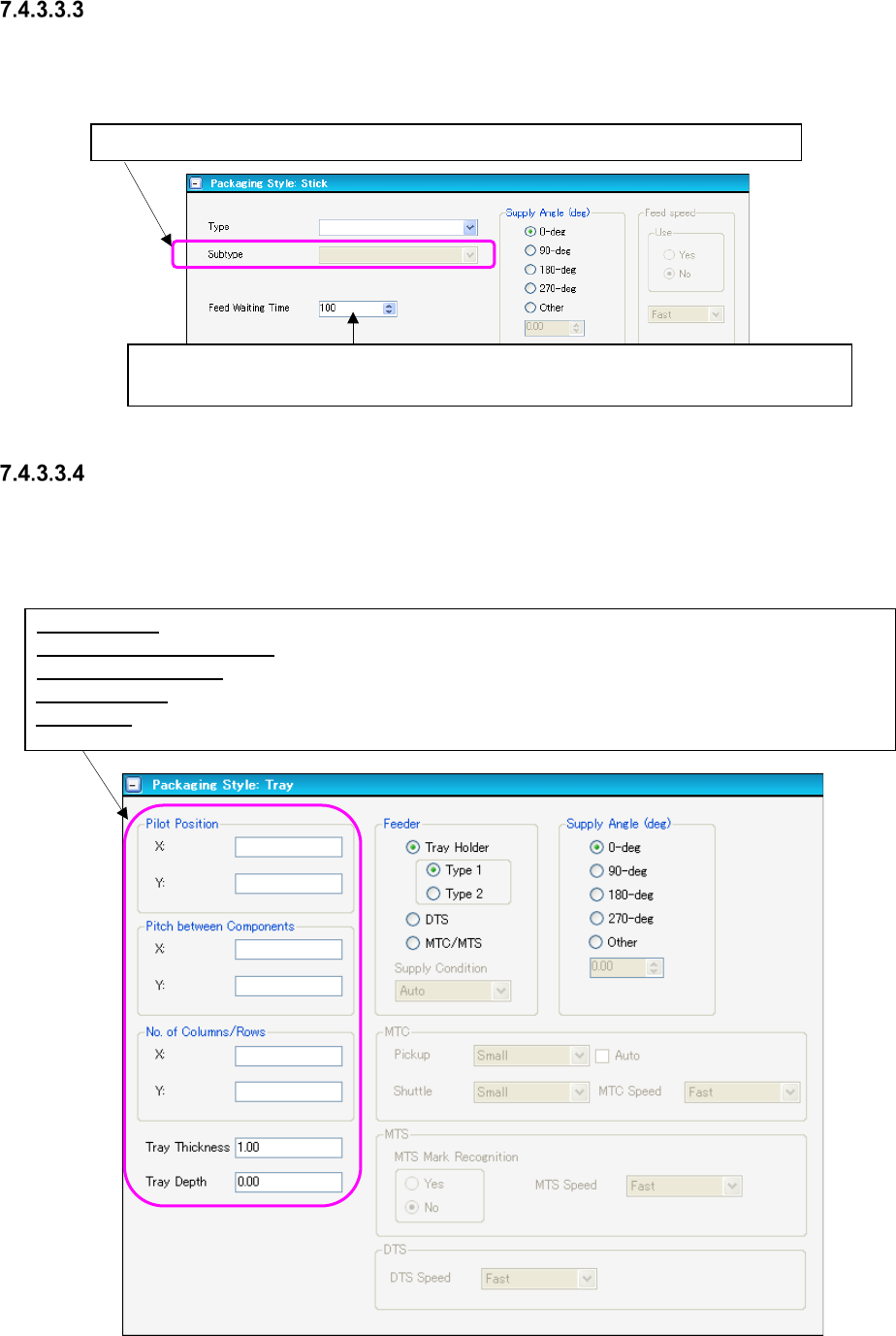
“Packaging Style (Stick)” window
When you select “Stick” in the “Component Packaging” field on the “Basic Settings” screen, and
select “Component Data” from the tree view and then “Packaging Style,” the following window
appears on the screen.
Figure 7.4-39 “Packaging Style (Stick)” window
“Packaging Style (Tray)” window
When you select “Tray” in the “Component Packaging” field on the “Basic Settings” screen, and
select “Component Data” from the tree view and then “Packaging Style,” the following window
appears on the screen.
Figure 7.4-40 “Packaging Style (Tray)” window
Specify the ratio of the waiting time from when a component is picked up until when the
next component becomes able to be picked up to the default waiting time of each type.
Pilot Position: Enter the distance from the outer of a tray to the center position (X, Y) of a component.
Pitch Between Components: Enter the pitch between two consecutive components (X, Y).
No. of Columns/Rows: Enter the number of columns and that of rows in the X or Y direction respectively.
Tray Thickness: Enter a value in mm (based on the height of a component).
Tray Depth: Enter the depth of the tray..
This field becomes able to be selected when you select the “Type” field above.
JaNets Instruction Manual 7. Program Editor
7-30
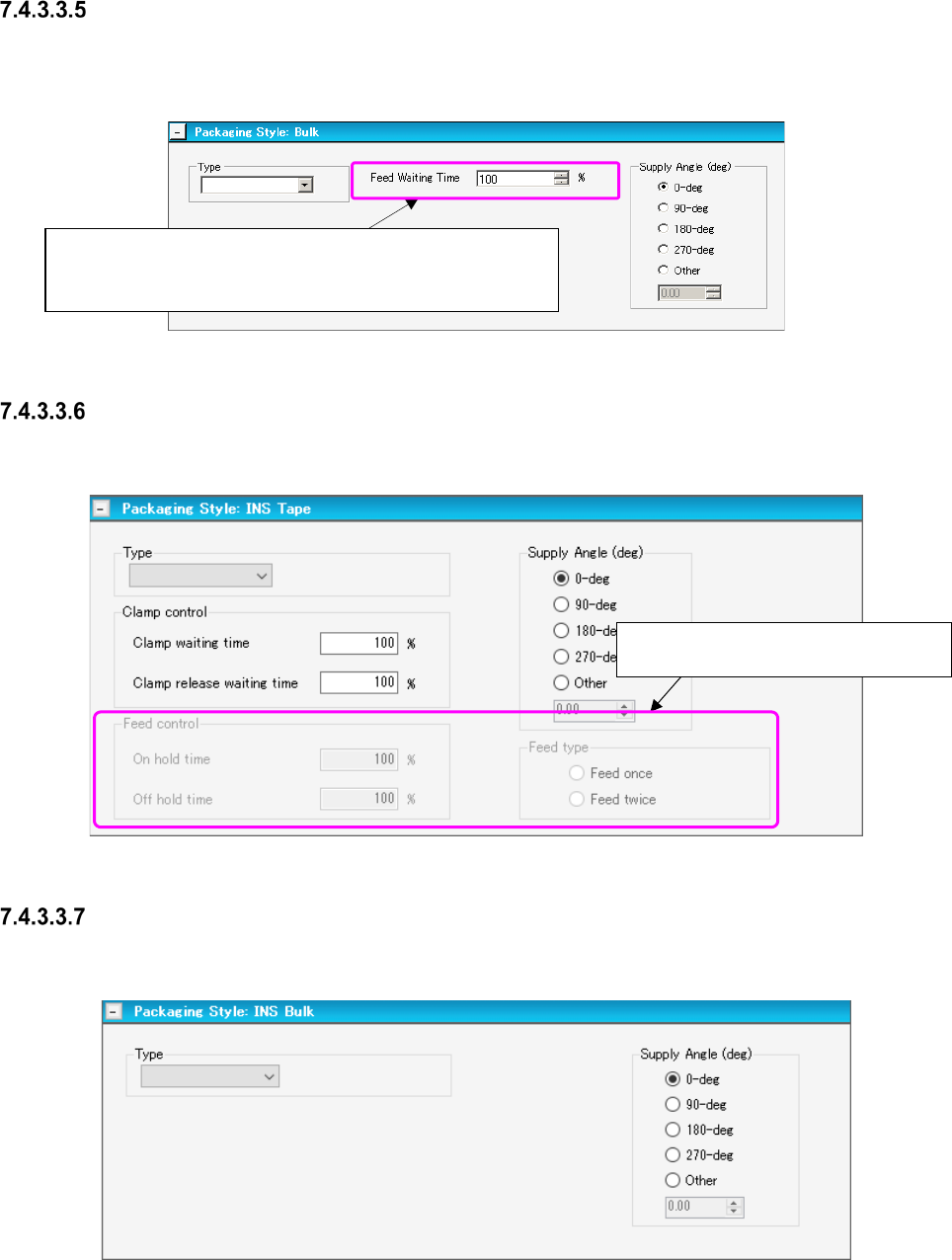
“Packaging Style (Bulk)” window
When you select “Bulk” in the “Component Packaging” field on the “Basic Settings” screen, and
select “Component Data” from the tree view and then “Packaging Style,” the window screen ap-
pears on the screen.
Figure 7.4-41 “Packaging Style (Bulk)” window
“Packaging Style (INS Tape)” window
Select “INS Tape” in the “Component Packaging” field on the “Basic Settings” screen, and then select
the “Component Data” from the tree view and then “Packaging Style.”
Figure 7.4-42 “Packaging Style (Bulk)” window
“Packaging Style (INS Bulk)” window
Select “INS Bulk” in the “Component Packaging” field on the “Basic Settings” screen, and then select
the “Component Data” from the tree view and then “Packaging Style.”
Figure 7.4-43 “Packaging Style (Bulk)” window
Specify the ratio of the waiting time from when a component is
picked up until when the next component becomes able to be
picked up to the default waiting time of each type.
This field becomes able to be selected
when you select the “Type” field above.
JaNets Instruction Manual 7. Program Editor
7-31
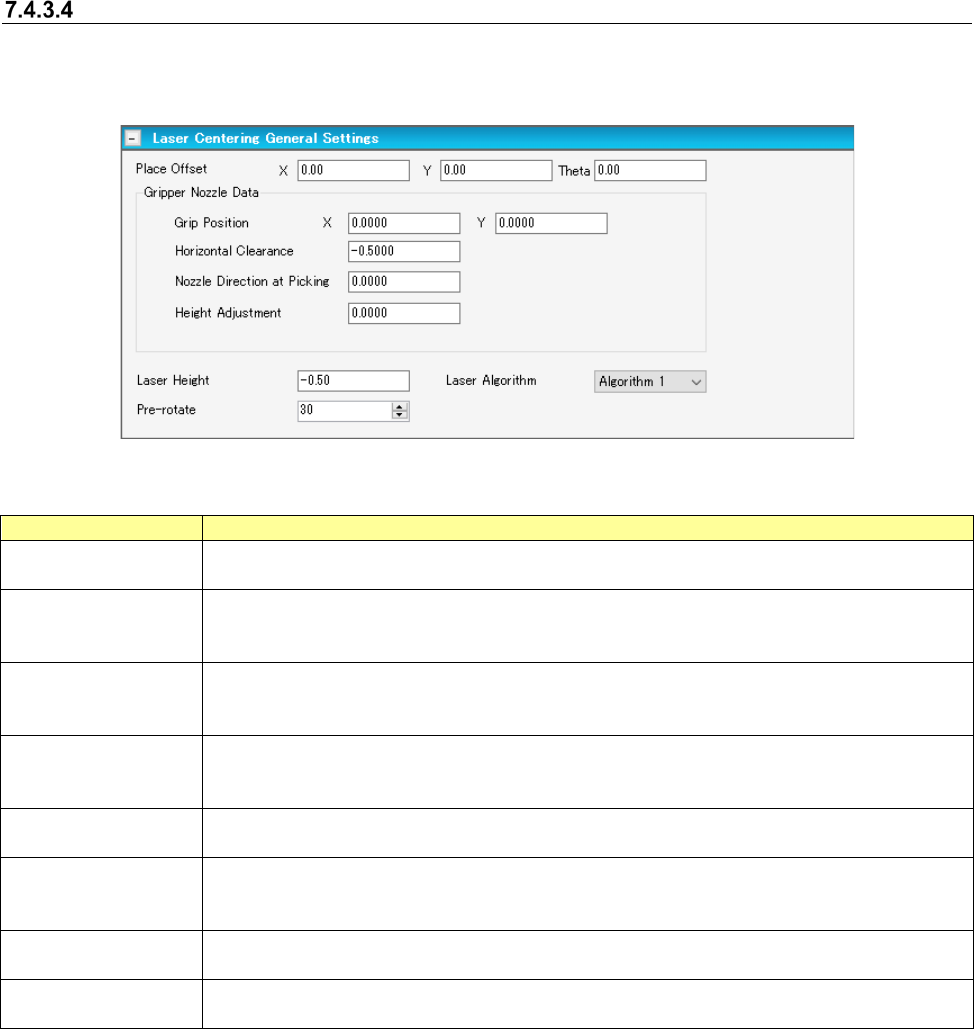
“Laser Centering General Settings” screen
When you check the “Laser” check box in the “Centering Method” column of the “Basic Settings”
screen, and select the “Component Data” from the tree view, and then the “Laser Centering,” the
following screen appears.
Figure 7.4-44 “Laser Centering General Settings” screen
Table 7.4-10 Laser centering shared settings screen item
Item
Description
Place Offset
Specify an offset value of an asymmetrical component to be applied when it is placed on a
board.
Gripper Nozzle Data
Grip Position
Enter an offset value to the center of a surface pressing the arm to fix the gripper nozzle from
the center of component into Y.
Do not enter any values other than zero into X.
Gripper Nozzle Data
Horizontal Clearance
Specify the clearance between a surface pressing the arm to fix the gripper nozzle and the
component using using a minus.
Note that a moving direction changes depending on a nozzle type and directions of a nozzle.
Gripper Nozzle Data
Nozzle Direction at
Picking
This is the direction of a nozzle at the time of pickup when components are supplied at 0 de-
gree.
Specify 0 degree, 90 degrees, 180 degrees, or 270 degrees.
Gripper Nozzle Data
Height Adjustment
Enter the offset value (sharing with the amount of stroke) of the pickup height at the time of
pickup.
Laser Height
Specify the measurement height at the time of laser centering.
When there is nothing in the setting item by machine type, this data is referred to as a laser
height.
Laser Algorithm
Specify the algorithm for laser recognition from a combo box.
An RX-6 does not need the setting of this item.
Pre-rotate
Specify how much a picked up laser recognition component is rotated before centering.
An RX-6 does not need the setting of this item.