JANETS_INM.pdf - 第267页
JaNets In structio n Manual 7. Program Editor 7- 60 Determination of the Top/Bottom of a compo nent when it is picked up Figure 7.4 - 86 “ Determination of the T op/Bot tom of a component when it is picked up ” screen T …
JaNets Instruction Manual 7. Program Editor
7-59
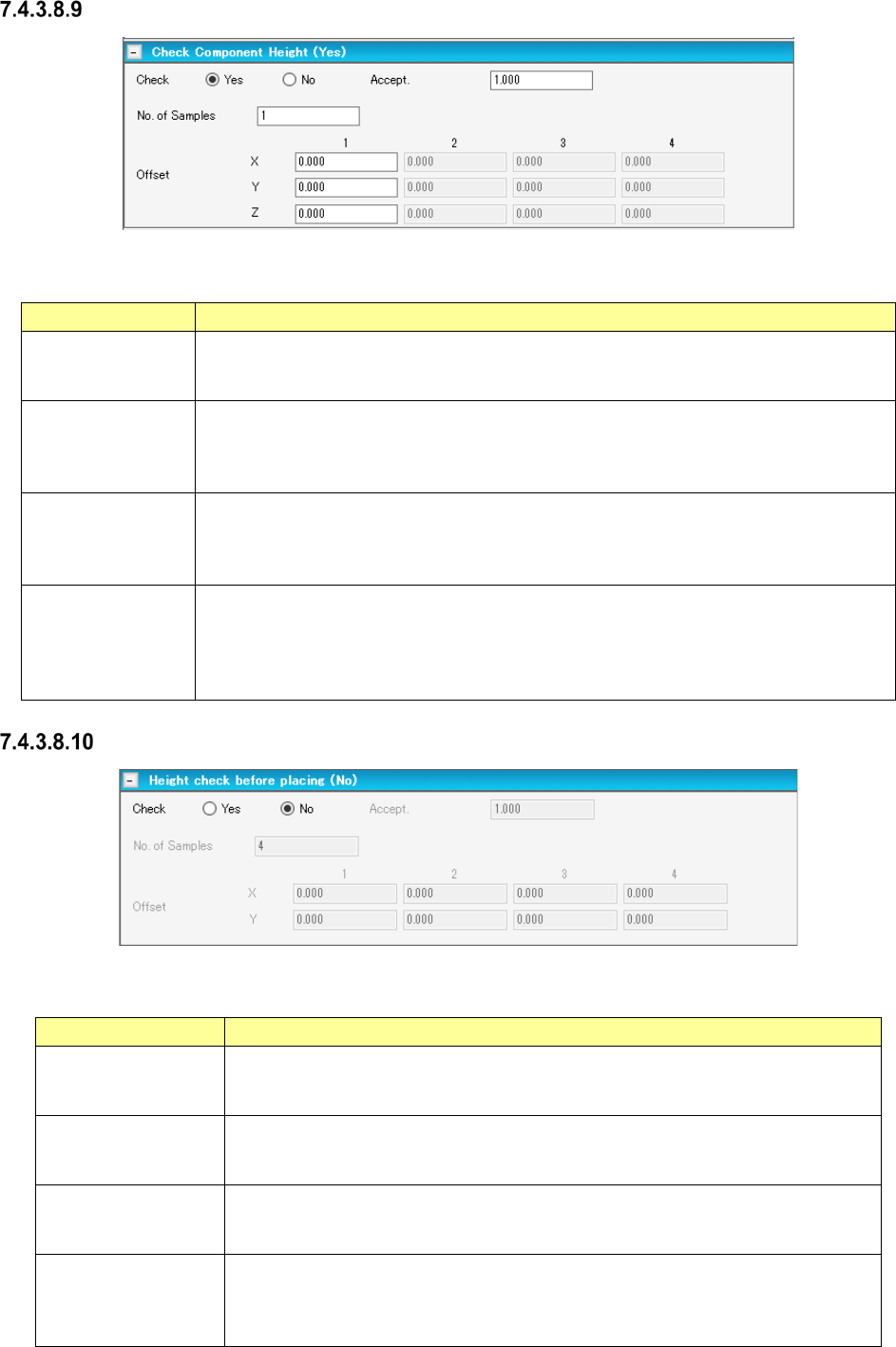
Check Component Height
Figure 7.4-84 “Check Component Height” screen
Table 7.4-49 Check items displayed on the “Check Component Height” screen
Item Description
Check
Yes/No
Select whether to run a placed component height check or not with the corresponding
radio button.
The “No” radio button is selected by default.
Check Component
Height
Accept.
You can enter this field when you select the “Yes” radio button of the menu item “Check.”
Enter the judgment value based on the measurement result by the HMS.
Input range: 0.00 to 5.00 mm
Default value: 0.50 mm
Check Component
Height
No. of Samples
You can enter this field when you select the “Yes” radio button of the menu item “Check.”
Enter the number of check positions of a component.
Input range: 1 – 4
Default value: 4
Check Component
Height
Offset X, Y, Z
You can enter these fields when you select the “Yes” radio button of the menu item
“Check.” Enter the offset (X, Y) from the center of the component.
You can enter the offset values also for the number of components specified with the
menu item “No. of Samples.”
Offset Z entering becomes capable only for the line containing JM-100.
Height check before placing
Figure 7.4-85 “Height check before placing” screen
Table 7.4-50 Check items displayed on the “Height check before placing” screen
Item
Description
Check
Yes/No
Select whether to run a placed component height check or not with the correspond-
ing radio button.
The “No” radio button is selected by default.
Height check before
placing
Accept.
You can enter this field when you select the “Yes” radio button of the menu item
“Check.” Enter the judgment value based on the measurement result by the HMS.
Input range: 0.00 to 5.00 mm Default value: 0.50 mm
Height check before
placing
No. of Samples
You can enter this field when you select the “Yes” radio button of the menu item
“Check.” Enter the number of check positions of a component.
Input range: 1 – 4 Default value: 4
Height check before
placing
Offset X, Y
You can enter these fields when you select the “Yes” radio button of the menu item
“Check.” Enter the offset (X, Y) from the center of the component.
You can enter the offset values also for the number of components specified with the
menu item “No. of Samples.”
JaNets Instruction Manual 7. Program Editor
7-60
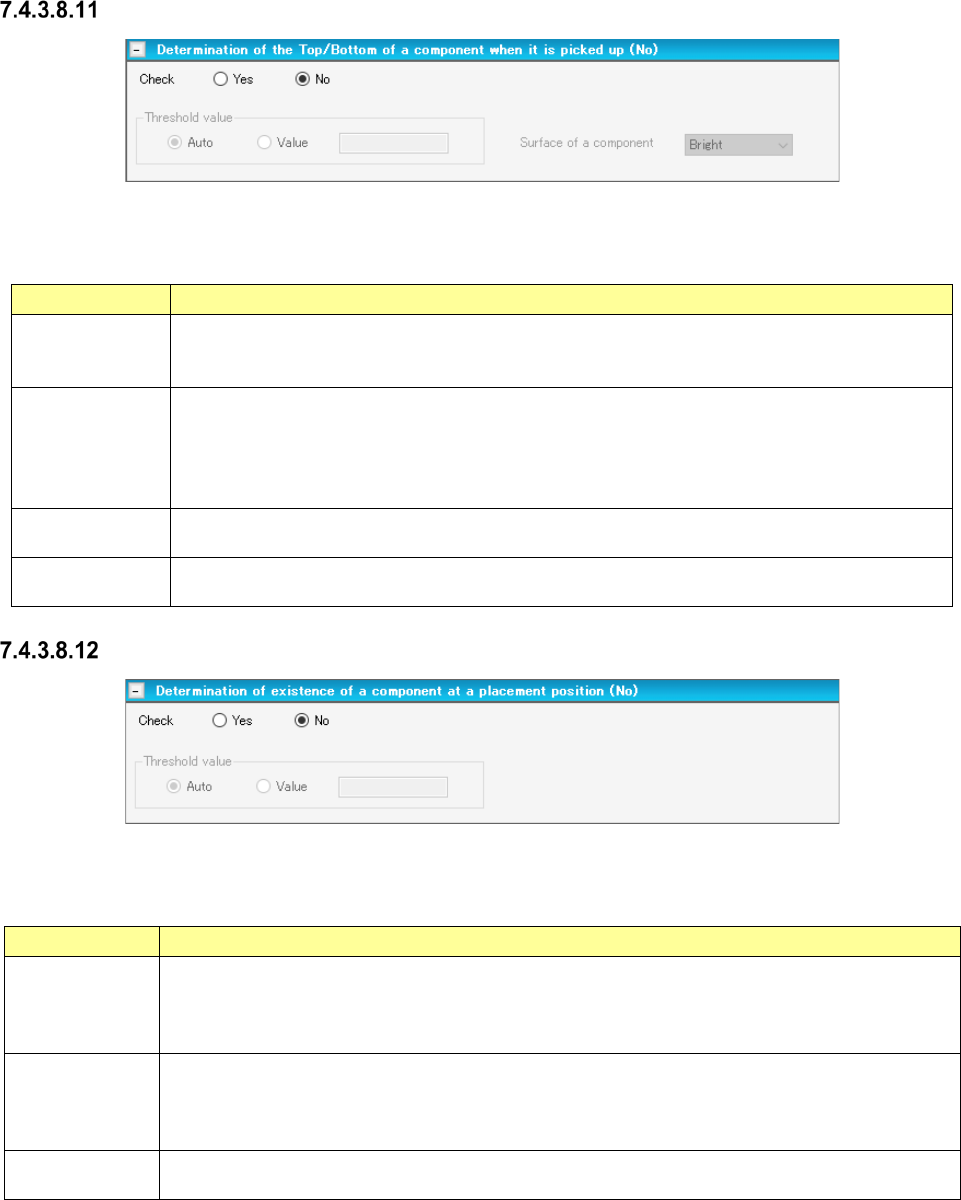
Determination of the Top/Bottom of a component when it is picked up
Figure 7.4-86 “Determination of the Top/Bottom of a component when it is picked up” screen
Table 7.4-51 Items displayed on the “Determination of the Top/Bottom of a component
when it is picked up” screen
Item Description
Check
Select with the corresponding radio button whether to decide the top/bottom of a component
when it is picked up.
The “No” radio button is selected by default.
Threshold value
Select whether a threshold value will be set automatically (Auto) or set by you (Value) with the
corresponding radio button.
The “Auto” radio button is selected by default.
When you select the “Value” radio button, the text box for entering a threshold value is
activated.
Threshold value
Value
Specify the threshold value for deciding the top/bottom of a component when it is picked up in
the range of 1 to 255. Default: 128
Surface of a
component
Select the surface of a component, “Bright” or “Dark.”
“Dark” is selected by default.
Determination of existence of a component at a placed position
Figure 7.4-87 “Determination of existence of a component at a placed position” screen
Table 7.4-52 Items displayed on the “Determination of existence of a component
at a placed position” screen
Item Description
Check
Select whether to decide if there is any component at a placement position with the corresponding
radio button.
When the length of the longer side of a component is 5.30 mm or less, the “Yes” radio button is
selected by default. When it exceeds 5.30 mm, the “No” radio button is selected by default.
Threshold value
Select whether a threshold value will be selected automatically (“Auto”) or set by you (Value) with
the corresponding radio button.
The “Auto” radio button is selected by default.
When you select the “Value” radio button, the text box for entering a threshold value is activated.
Threshold value
Value
Specify the threshold value for deciding the top/bottom of a component when it is picked up in the
range of 1 to 255. Default: 128
JaNets Instruction Manual 7. Program Editor
7-61
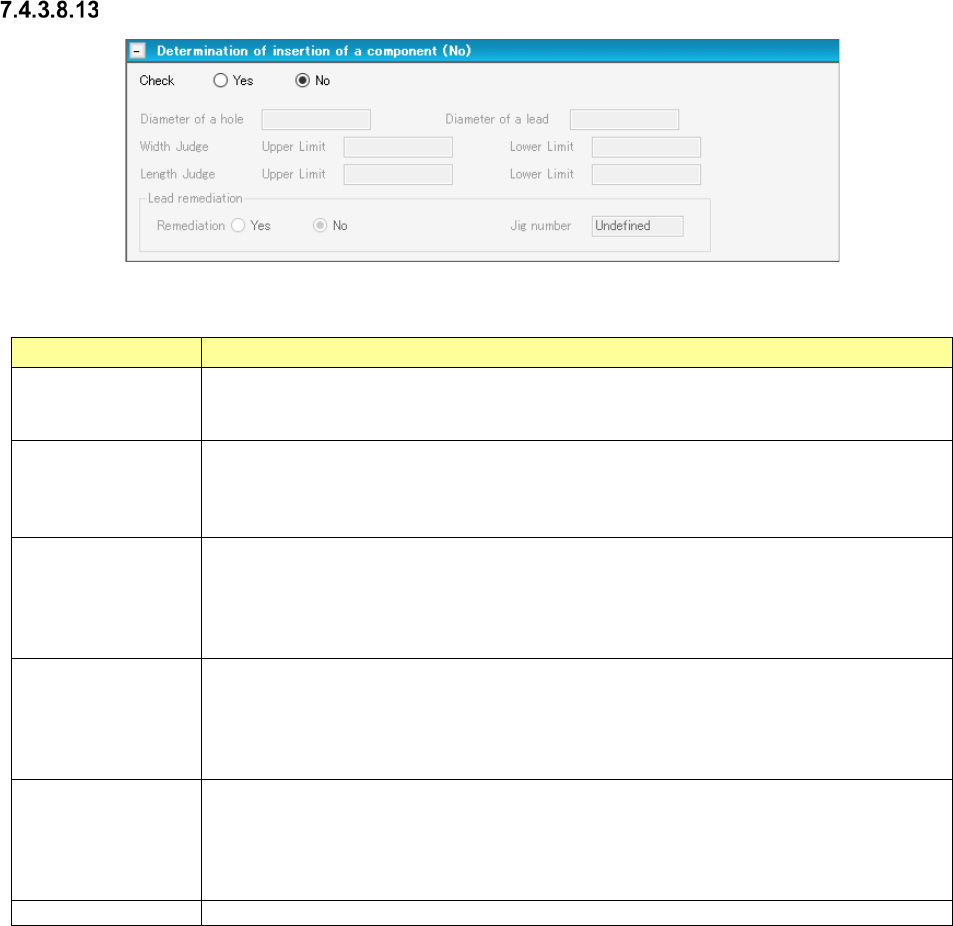
Determination of insertion of a component
Figure 7.4-88 “Determination of insertion of a component” screen
Table 7.4-53 Items displayed on the “Determination of insertion of a component” screen
Item Description
Check
Yes/No
Specify whether to decide if a component can be inserted into a board with the corre-
sponding radio button.
The “No” radio button is selected by default.
Determination of
insertion of a com-
ponent
Diameter of a hole
You can enter this field when you select the “Yes” radio button of the menu item “Check.”
Enter the diameter of a through hole of a component.
The input range is 0.01 to 15.00 mm. Note that it changes to the range of the lead diameter
to 33.5 mm when the lead diameter is set. A blank character is entered by default.
Determination of
insertion of a com-
ponent
Diameter of a lead
You can enter this field when you select the “Yes” radio button of the menu item “Check.”
Enter the diameter of a lead of a component.
The input range is 0.01 to 15.00 mm. Note that it changes to the range of 0.01 mm to the
diameter of the through hole when the through hole diameter is set. A blank character is
entered by default.
Determination of
insertion of a com-
ponent
Width Judge/Length
Judge
You can enter these fields when you select the “Yes” radio button of the menu item “Check.”
Enter the size for deciding a component.
Input range: 0.01 to 150.00 mm
The respective default values are calculated based on the through hole diameter and the
lead diameter.
Lead remediation
Yes/No
Select whether to correct a lead or not with the corresponding radio button.
You can select this menu item only when “INS Tape” is selected as the packaging style,
“MRF-S” or “MRF-L” is selected as the type, and the “Yes” radio button of this “Check” menu
item is selected.
The “No” radio button is selected by default.
Jig number
“Undefined” is selected by default.