JANETS_INM.pdf - 第278页
JaNets In structio n Manual 7. Program Editor 7- 71 “ Simple Input for Lead ed Component ” screen This scre en allows you to set data su ch as the nu mb er of leads, the lead pitch, the lead length a nd the lead width o …
JaNets Instruction Manual 7. Program Editor
7-70
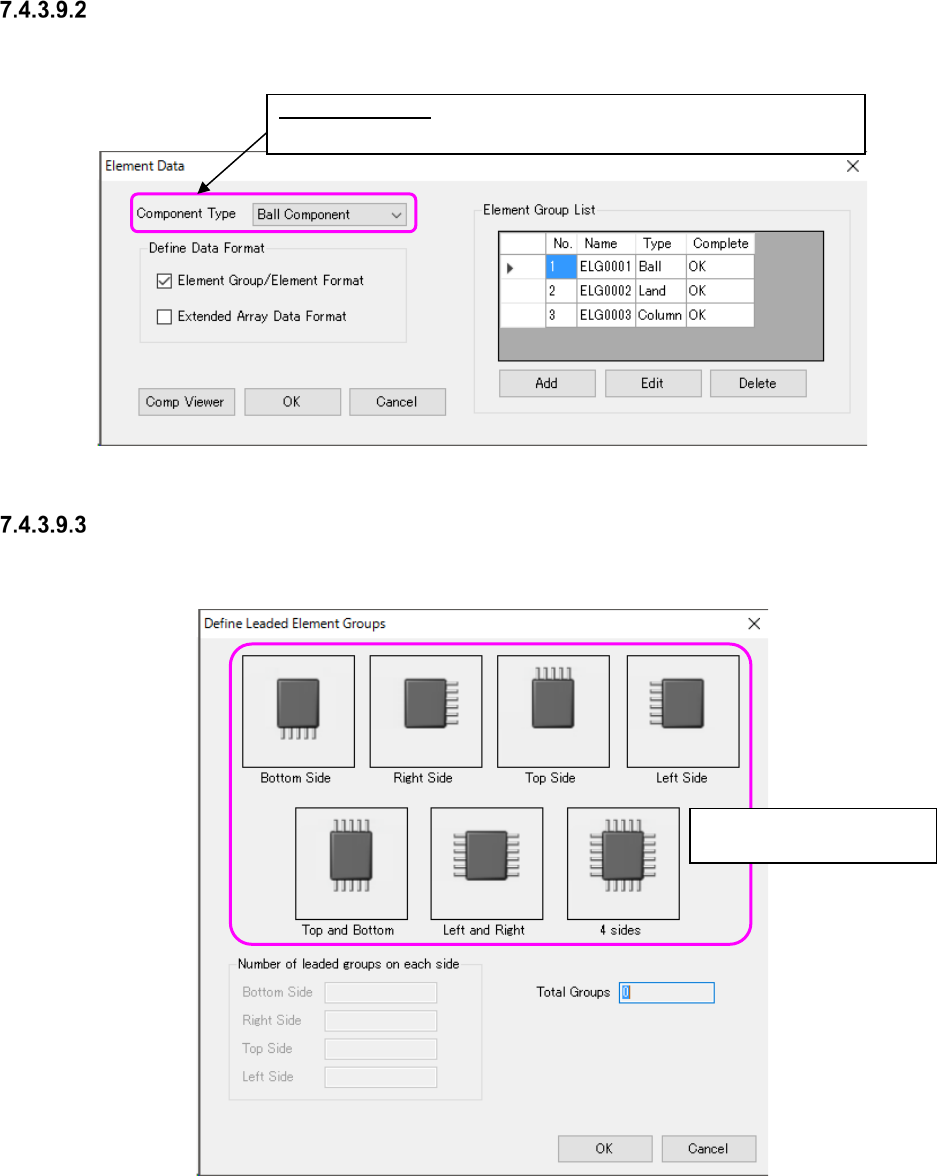
“Element Data” setting screen
Set the lead length, lead width, pitch between leads and lead assignment of a lead component on
this screen.
Figure 7.4-108 “Element Data” screen
“Define Leaded Element Groups” screen
On this screen, you can set data such as the number of element groups quickly.
Figure 7.4-109 “Define Leaded Element Groups” screen
Component Type: Select one of the following: “Lead Component,” Ball
Component” and “Outline Component.”
Select the corresponding
bit map pattern.
JaNets Instruction Manual 7. Program Editor
7-71
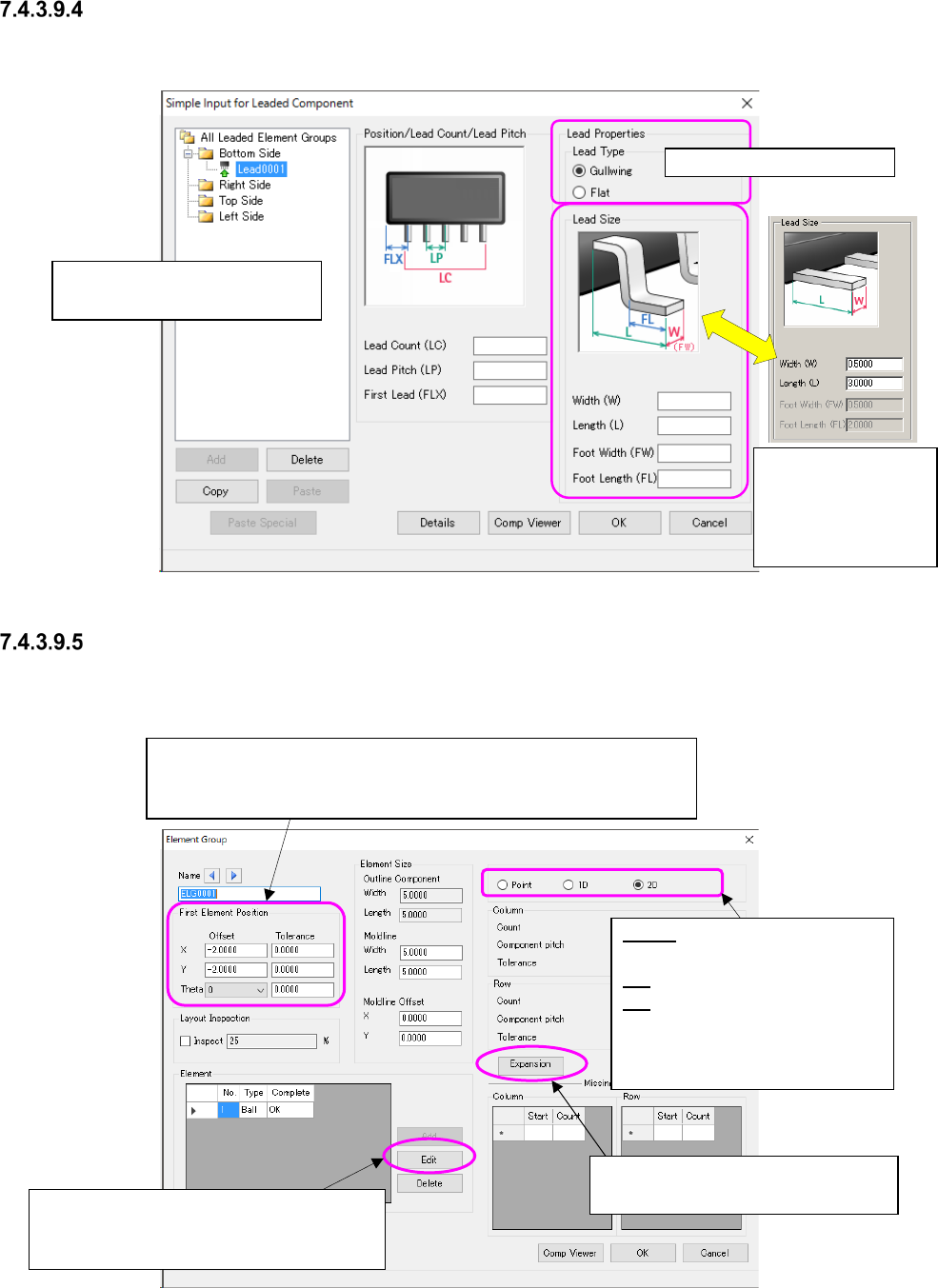
“Simple Input for Leaded Component” screen
This screen allows you to set data such as the number of leads, the lead pitch, the lead length and
the lead width of each element group easily by showing the bit map.
Figure 7.4-110 “Simple Input for Leaded Component” screen
“Element Group” setting screen
This screen allows you to set the details such as the element position, the number of elements,
and the pitch between the consecutive elements of each element group.
Figure 7.4-111 “Element Group” screen
Select the lead type here.
Enter the coordinates of the center of the tip of the reference lead
viewed from that of a component.
* The input range is within the outer dimensions of a component.
Point: Specify the side, corner
and mark.
1D: Specify a lead.
2D: Specify a ball/land.
* When you switch the radio
button, the input items are al-
so switched on the screen.
When an element is registered, this <Edit>
button is enabled, and the system allows
you to make the detailed settings.
Set the expansion data. It is valid for
3010/3020/3020R/3020V/3020VR.
Execute the element group set-
ting selected in this tree view.
The screen is
switched to another
one according to the
lead type you se-
lected above.
JaNets Instruction Manual 7. Program Editor
7-72
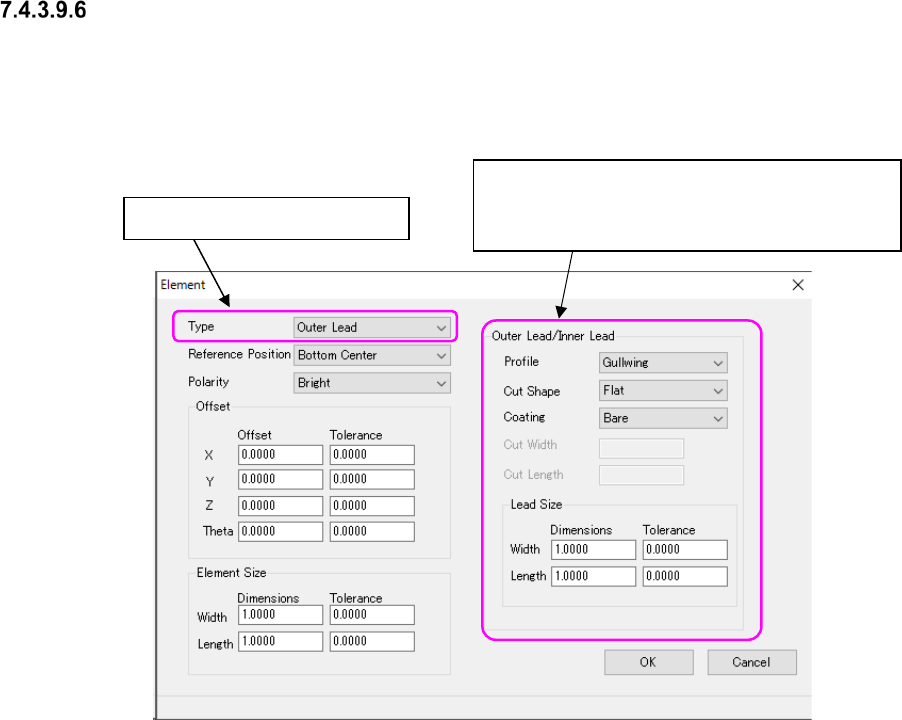
“Element” details setting screen
This screen allows you to set the detailed information on an element such as an element type,
assignment and dimensions.
According to the setting in the “Type” field, the following screen appears.
The example below shows the screen for setting an Outer Lead/Inner Lead.
Figure 7.4-112 “Outer Lead/Inner Lead” setting screen
Switch the element type here.
When you switch the element type in the “Type”
field, this column changes to the “Ball/Land,”
“Column,” “INS pin” “Mark” or “Corner” column