JANETS_INM.pdf - 第281页
JaNets In structio n Manual 7. Program Editor 7- 74 “ Edit outline element g roups graphically ” screen When you se lect a bitm ap with a mo use, you can s et an out line eleme nt group easily . Figure 7.4 - 11 4 “ Edit …
JaNets Instruction Manual 7. Program Editor
7-73
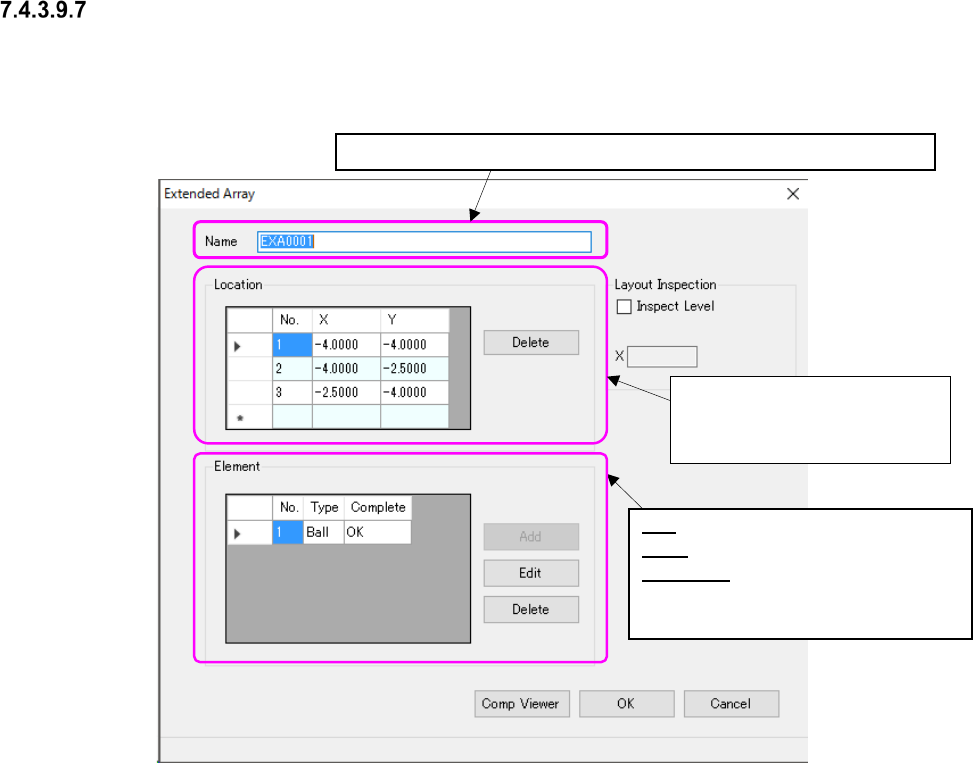
Extended Array” setting screen
This screen allows you to set the detailed information on an irregular ball pattern such as the el-
ement assignment and dimensions.
Figure 7.4-113 “Extended Array” screen
Enter up to 32 half-width alphanumeric characters to specify a name.
Enter the coordinates of a ball
to be checked viewed from the
center of a component.
No.: Displays the element number.
Type: Displays the element type.
Complete: Displays “OK” when an el-
ement is created completely, or
“NG” when it is not.
JaNets Instruction Manual 7. Program Editor
7-74
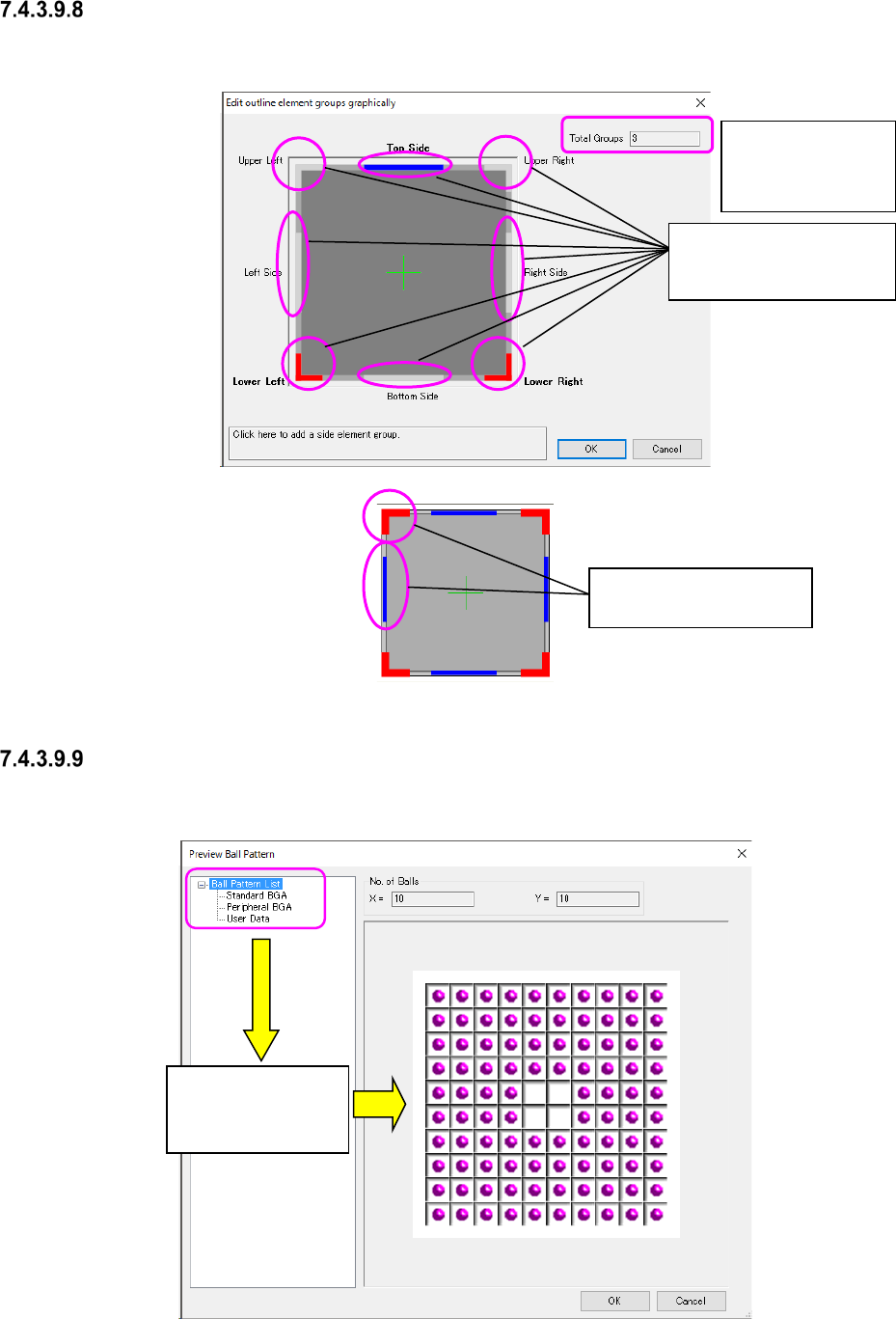
“Edit outline element groups graphically” screen
When you select a bitmap with a mouse, you can set an outline element group easily.
Figure 7.4-114 “Edit outline element groups graphically” screen
List of ball patterns and the “Preview Ball Pattern” screen
This screen displays the registered ball patterns in the tree view, and reflects the selected pattern
in data.
Figure 7.4-115 “Preview Ball Pattern” screen
Positions to which
you can add an
element group
The selected pat-
tern is displayed on
the screen.
Displays the total number
of element groups (you
cannot enter this field).
Corner: displayed in red.
Side: displayed in blue.
JaNets Instruction Manual 7. Program Editor
7-75
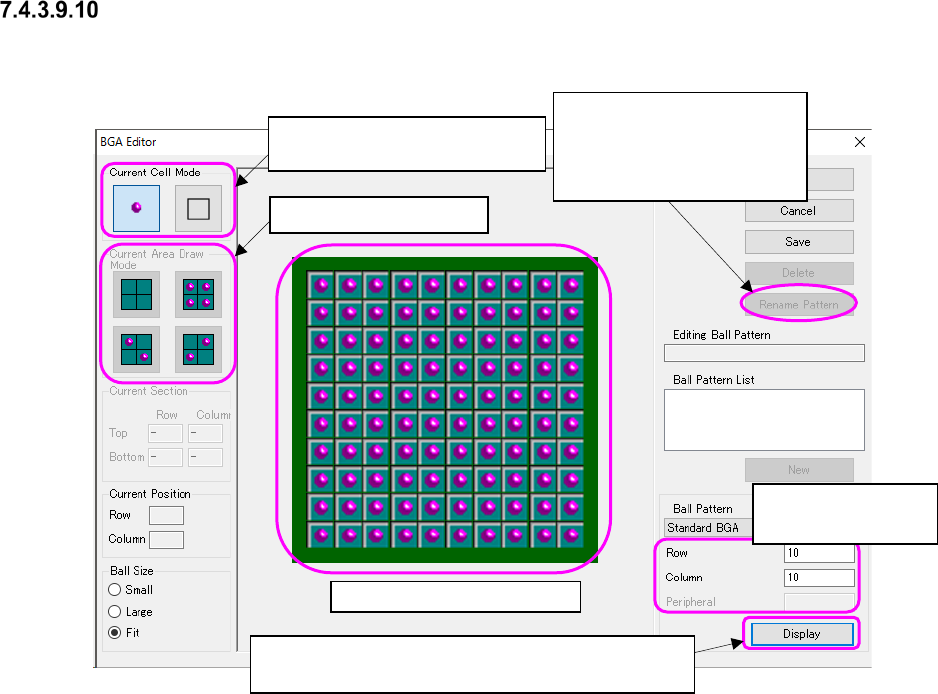
BGA Editor screen
This screen allows you to create a ball pattern while checking it graphically.
Figure 7.4-116 “BGA Editor” screen
Ball pattern creation area
Select a filling pattern.
Enter the maximum
number of balls.
Changes the name of the
existing ball pattern (source)
to the specified ball pattern
name (destination)
Select a ball or an index.
Select a filling pattern.
Displays the ball pattern specified in the “Ball Pat-
tern,” “Row,” “Column” and “Peripheral” fields