JANETS_INM.pdf - 第282页
JaNets In structio n Manual 7. Program Editor 7- 75 BGA Editor screen This scree n allows y ou to create a ball patt ern while checkin g it graphic ally . Figure 7.4 - 11 6 “ BGA Editor ” screen Ball patter n creati on a…
JaNets Instruction Manual 7. Program Editor
7-74
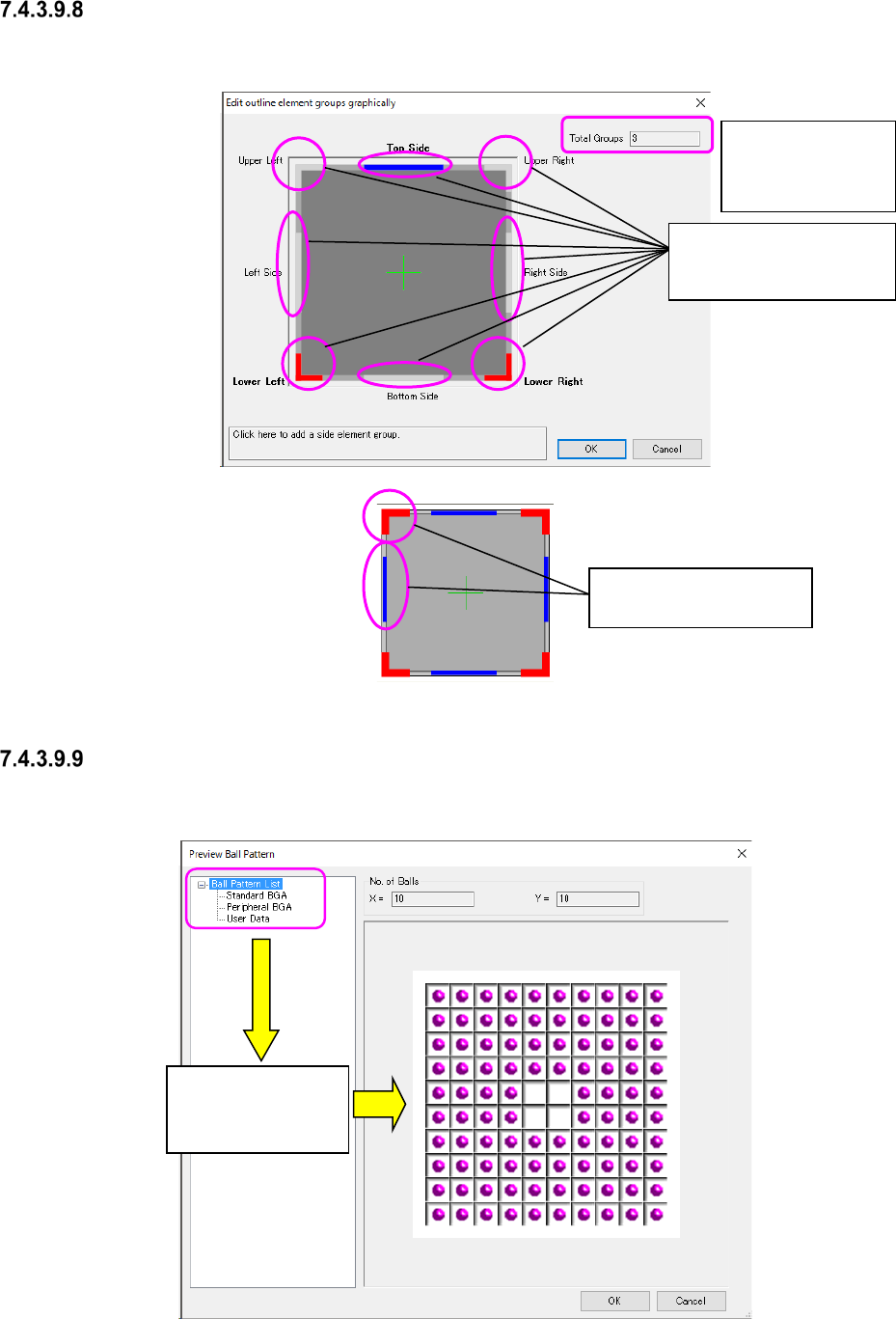
“Edit outline element groups graphically” screen
When you select a bitmap with a mouse, you can set an outline element group easily.
Figure 7.4-114 “Edit outline element groups graphically” screen
List of ball patterns and the “Preview Ball Pattern” screen
This screen displays the registered ball patterns in the tree view, and reflects the selected pattern
in data.
Figure 7.4-115 “Preview Ball Pattern” screen
Positions to which
you can add an
element group
The selected pat-
tern is displayed on
the screen.
Displays the total number
of element groups (you
cannot enter this field).
Corner: displayed in red.
Side: displayed in blue.
JaNets Instruction Manual 7. Program Editor
7-75
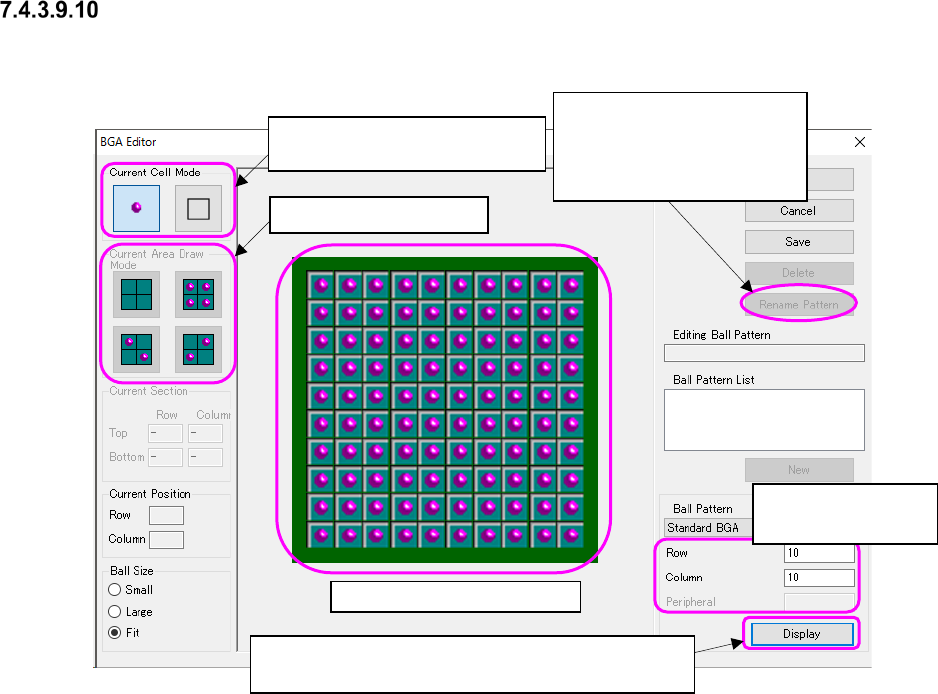
BGA Editor screen
This screen allows you to create a ball pattern while checking it graphically.
Figure 7.4-116 “BGA Editor” screen
Ball pattern creation area
Select a filling pattern.
Enter the maximum
number of balls.
Changes the name of the
existing ball pattern (source)
to the specified ball pattern
name (destination)
Select a ball or an index.
Select a filling pattern.
Displays the ball pattern specified in the “Ball Pat-
tern,” “Row,” “Column” and “Peripheral” fields
JaNets Instruction Manual 7. Program Editor
7-76
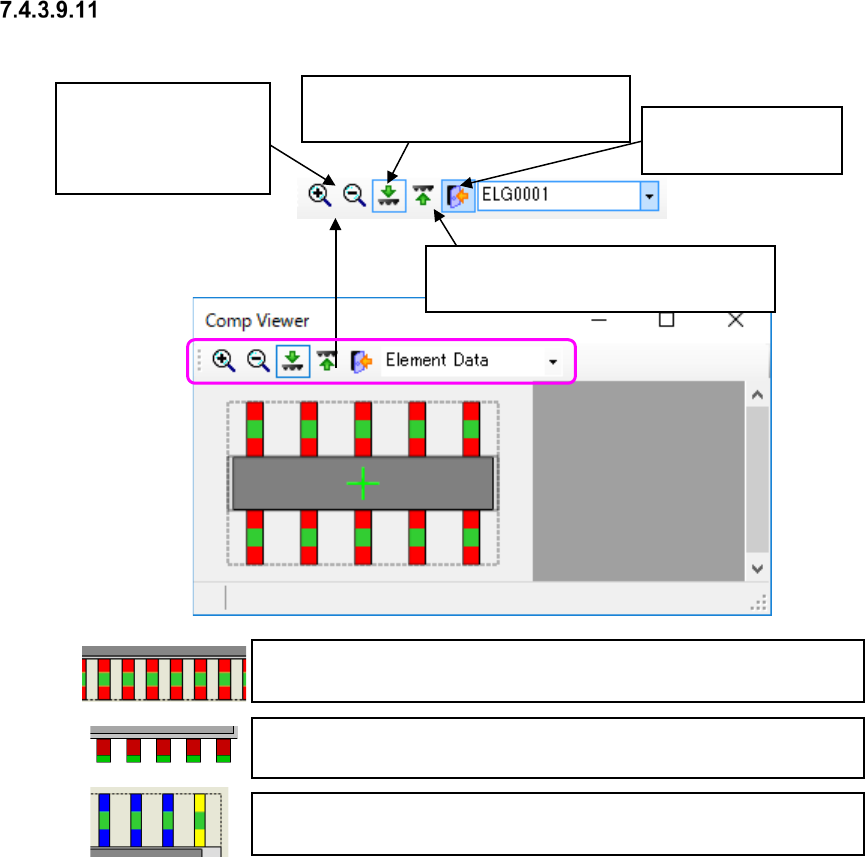
“Comp Viewer” (component viewer) screen
(1) Outer lead/inner lead element
Figure 7.4-117 “Comp Viewer” screen
When you click either
of these icons, the
screen is enlarged or
reduced by 10 %.
This tool displays the image of a
component viewed from the top side.
This tool displays the image of a com-
ponent viewed from the bottom side.
This tool closes the
component viewer.
There is a green spot in the center of a red rectangle in case of an outer
lead element.
There is a green spot at the tip of the red rectangle in case of an inner
lead element.
The first element of the selected element group is displayed in yellow,
while the others are displayed in blue.