JANETS_INM.pdf - 第284页
JaNets In structio n Manual 7. Program Editor 7- 77 (2) B all , lan d and colum n el emen t s This scree n shows wh at patter n leads or ba lls are assi gned to a ball in. Figure 7.4 - 11 8 Scree n displaying a ball, lan…
JaNets Instruction Manual 7. Program Editor
7-76
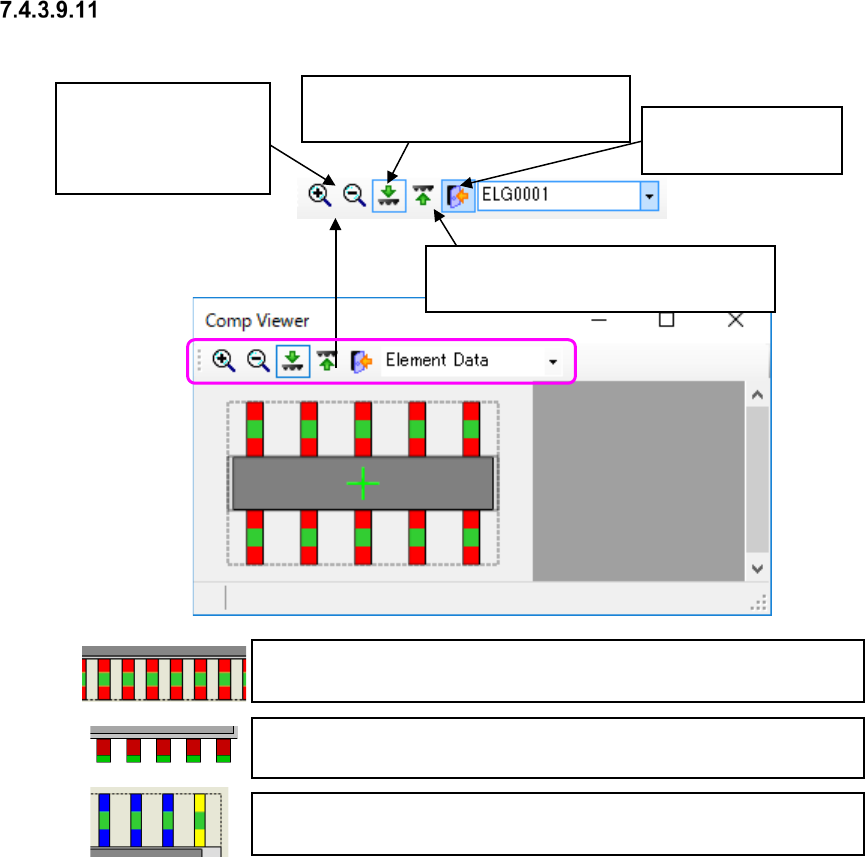
“Comp Viewer” (component viewer) screen
(1) Outer lead/inner lead element
Figure 7.4-117 “Comp Viewer” screen
When you click either
of these icons, the
screen is enlarged or
reduced by 10 %.
This tool displays the image of a
component viewed from the top side.
This tool displays the image of a com-
ponent viewed from the bottom side.
This tool closes the
component viewer.
There is a green spot in the center of a red rectangle in case of an outer
lead element.
There is a green spot at the tip of the red rectangle in case of an inner
lead element.
The first element of the selected element group is displayed in yellow,
while the others are displayed in blue.
JaNets Instruction Manual 7. Program Editor
7-77
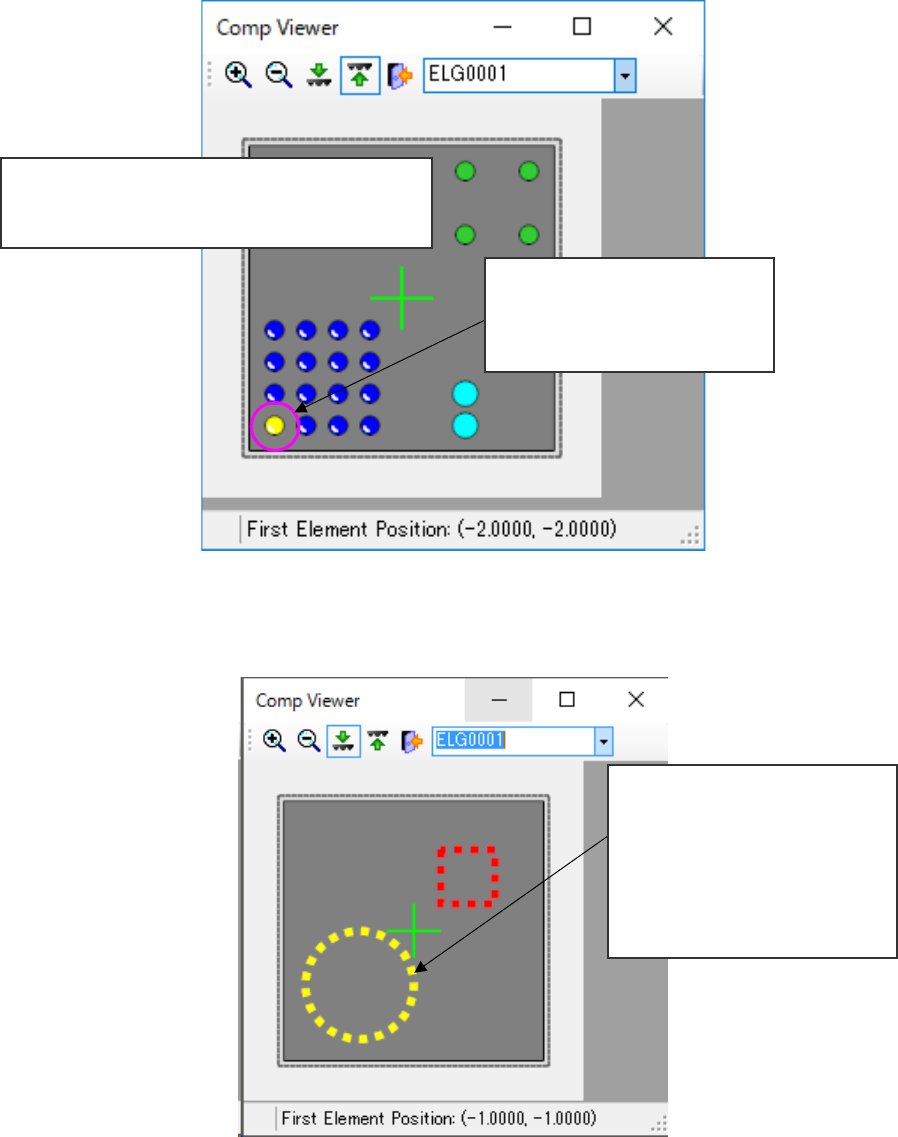
(2) Ball, land and column elements
This screen shows what pattern leads or balls are assigned to a ball in.
Figure 7.4-118 Screen displaying a ball, land and column elements
(3) Mark element
This screen shows how a mark element is assigned.
Figure 7.4-119 Screen for displaying a mark element
Ball element: shown with a red circle.
Land element: shown with a yellow green circle.
Column element: shown with a bright blue circle.
The selected first element of the
element group is shown with a
yellow circle, while others are
shown with a blue circle.
A mark element is displayed with
a circle or rectangle drawn with
a dotted line.
Red : not selected
Yellow: selected (first element)
Blue : selected (elements oth-
er than the first element)
JaNets Instruction Manual 7. Program Editor
7-78
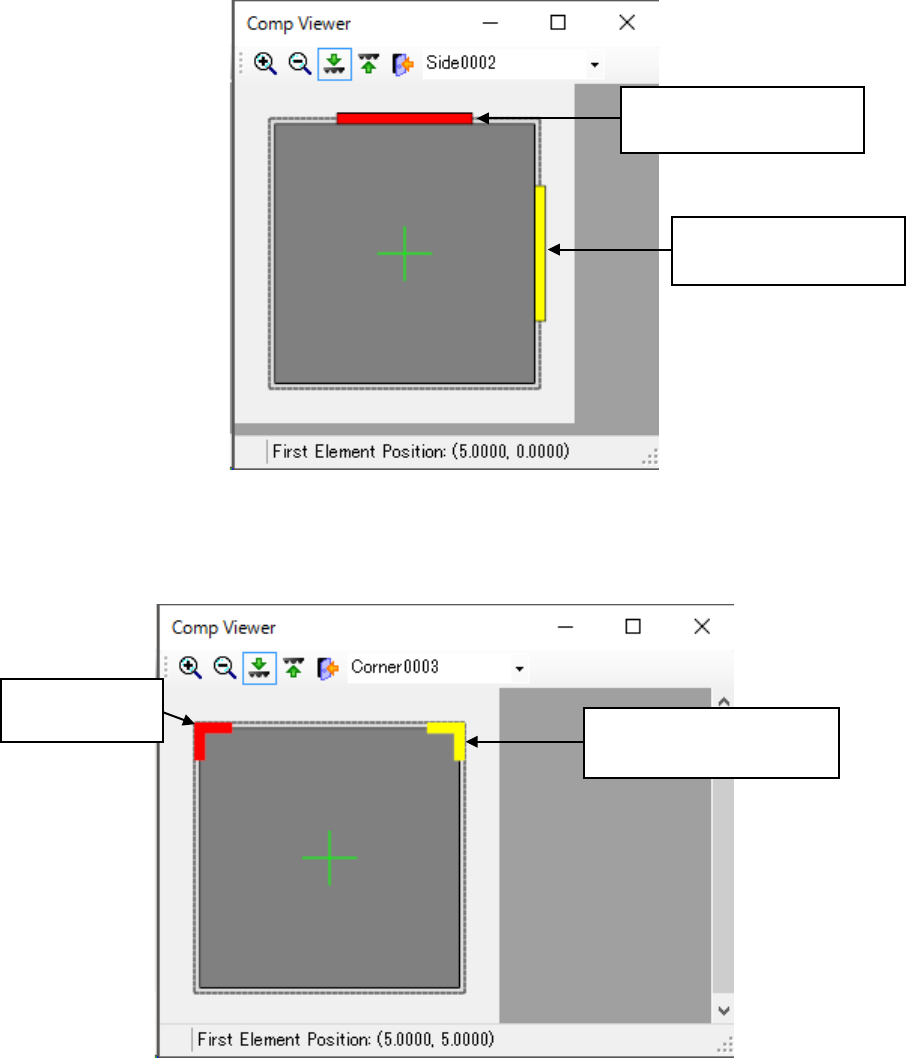
(4) Side element
This screen shows how a side element is assigned.
Figure 7.4-120 Screen for displaying a side element
(5) Corner element
This screen shows how a corner element is assigned.
Figure 7.4-121 Screen for displaying a corner element
Selected side element:
shown with a yellow line.
Side element not selected:
shown with a red line.
Corner element
not selected:
Selected corner element:
shown in yellow.