JANETS_INM.pdf - 第304页
JaNets In structio n Manual 7. Program Editor 7- 97 ◆ B owl rotation 1) Clic k [Bo wl]. 2) In the combo bo x of [Bow l No.], select the bow l No. of the bow l to be rotat ed. 3) In [T ool box], click the bow l rotating b…
JaNets Instruction Manual 7. Program Editor
7-96
6) To delete a bowl that is already arranged, click the bowl deleting button in [Tool box].
7) Click the light blue marker of the bowl arranging position with the mouse, and the arrange-
ment of the bowl in the position will be cleared.
◆ Bowl diameter/pitch editing
1) Click [Bowl].
2) In the combo box of [Bowl No.], select the bowl No. of the bowl to be edited.
3) In [Tool box], click the bowl size button .
4) To change the diameter of the bowl, click the orange marker in the reference bowl position
with the mouse and drag it as it is.
5) The diameter of the bowl varies depending on the mouse button position. After the end of
the adjustment, release the mouse button.
6) To change the pitch of the bowl, click the white marker in the reference bowl position with the
mouse and drag it as it is.
7) The pitch of the bowl varies depending on the mouse pointer position. After the end of the
adjustment, release the mouse button.
◆ Bowl moment
1) Click [Bowl].
2) In the combo box of [Bowl no.], select the bowl No. of the bowl to be moved.
3) In [Tool box], click the bowl moving button .
4) Click the blue marker in the reference position of the bowl to be moved with the mouse, and
drag it as it is.
5) The bowl positions in all directions vary depending on the mouse pointer position. After the
end of the movement, release the mouse button.

JaNets Instruction Manual 7. Program Editor
7-97
◆ Bowl rotation
1) Click [Bowl].
2) In the combo box of [Bowl No.], select the bowl No. of the bowl to be rotated.
3) In [Tool box], click the bowl rotating button .
4) Click the yellow marker on the right side of the bowl with the mouse and drag it as it is. The
bowl pattern will be rotated around the gray marker in the reference bowl position. After the
end of the bowl rotation, release the mouse button.
◆ Bowl deletion
1) Click [Bowl].
2) In [Tool box] click the bowl deleting button .
3) In the combo box of [Bowl No.], select the bowl No. of the bowl to be deleted.
4) Click the blue marker in the reference bowl position with the mouse. (Or click an optional
position of [Editing window] with the right part of the mouse.)
5) The deletion confirmation message will be displayed. Click [Yes], and the specified bowl
information will be deleted.
JaNets Instruction Manual 7. Program Editor
7-98
Clinch
Clinch Screen is the screen to set Clinch Information against component data.
Clinch Screen becomes valid when JM-100 is existed on the line and [Other Component], [Inser-
tion Component] and [Electrolytic Capacitor] are selected.
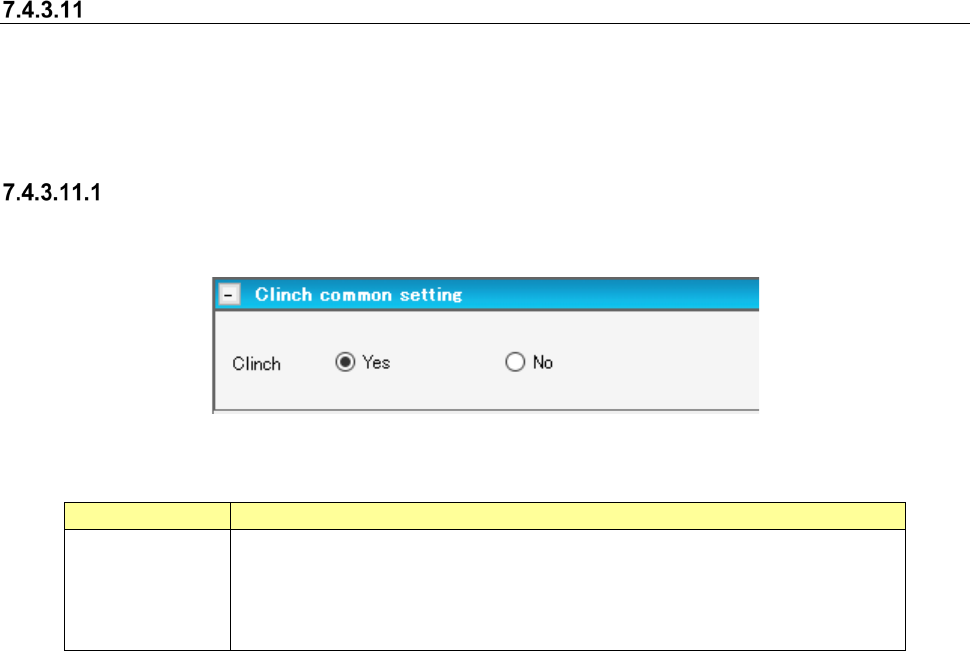
Clinch Common Setting
Clinch Common Setting Screen is the screen to set the clinch execution information at clinch.
Figure 7.4-135 Clinch Common Setting Screen
Table 7.4-68 Clinch Common Setting Items
Item name
Description
Clinch
Select whether to use clinch or not by the radio button.
The default value differs depending on component category.
The default when the component category is inserted component, INS electrolytic
capacitor and other components shall be [Yes].
The default for other component categories shall be [No].