JANETS_INM.pdf - 第307页
JaNets In structio n Manual 7. Program Editor 7- 100 Single Lead Setting Single Lead Set ting S creen is the scr een to sup port t he pair infor mation entr y at sing le lead. Entry beco mes capa ble when t he selecte d …
JaNets Instruction Manual 7. Program Editor
7-99
Clinch Pattern Setting
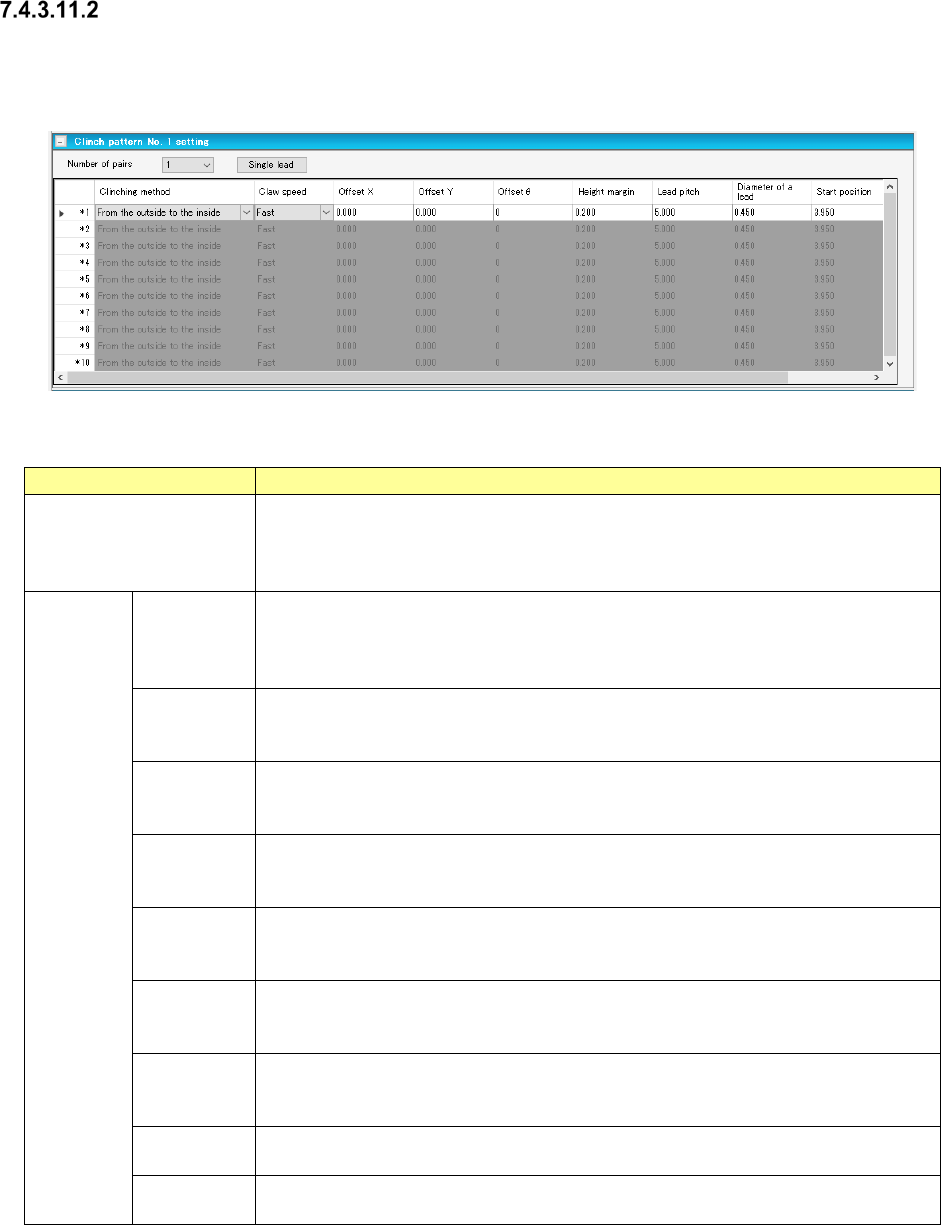
Clinch Pattern Setting Screen is the screen to set pair information for every clinch pattern.
There are Clinch Pattern Setting Screens, No. 1 through No. 4.
Figure 7.4-136 Clinch Pattern Setting Screen
Table 7.4-69 Clinch Pattern Setting Items
Item name
Description
Number of Pairs
Select the number of pairs used in pattern setting by the combo box.
Input Range: 1 ~ 10
Default Value: 1
The contents of pair information only for numbers assigned by the number of pairs.
Pair
Setting
Clinch
Method
Select Clinch Method by the combo box.
The default value is “from outside toward inside”.
Select from “from outside toward inside”, “from inside toward outside”, “CW” and
“CCW”.
Claw Speed
Select claw acceleration by the combo box.
The default value is “High Speed”.
Select from “High Speed”, “Med Speed” and “Low Speed”.
Offset X/Y
Enter the Offset X and Y of mounting point reference.
Input Range: -85.000 ~ 85.000mm
Default Value: 0.000mm
Offset Theta
Enter the angle offset of mounting point reference.
Input Range: 0 ~ 179
Default Value: 0
Height
Margin
Enter the margin after clinch.
Input Range: 0.000 ~ 10.000mm
Default Value: Depends on clinch method
Lead Pitch
Enter the lead pitch.
Input Range: 5.000 ~ 20.000mm
Default Value: 5.000mm
Lead
Diameter
Enter the lead diameter.
Input Range: 0.450 ~ 1.000mm
Default Value: 0.450mm
Starting
Position
Enter the starting position.
The default value and input range differ depending on the clinch method.
Moving
Amount
Enter the moving amount.
The default value and input range differ depending on the clinch method.
JaNets Instruction Manual 7. Program Editor
7-100
Single Lead Setting
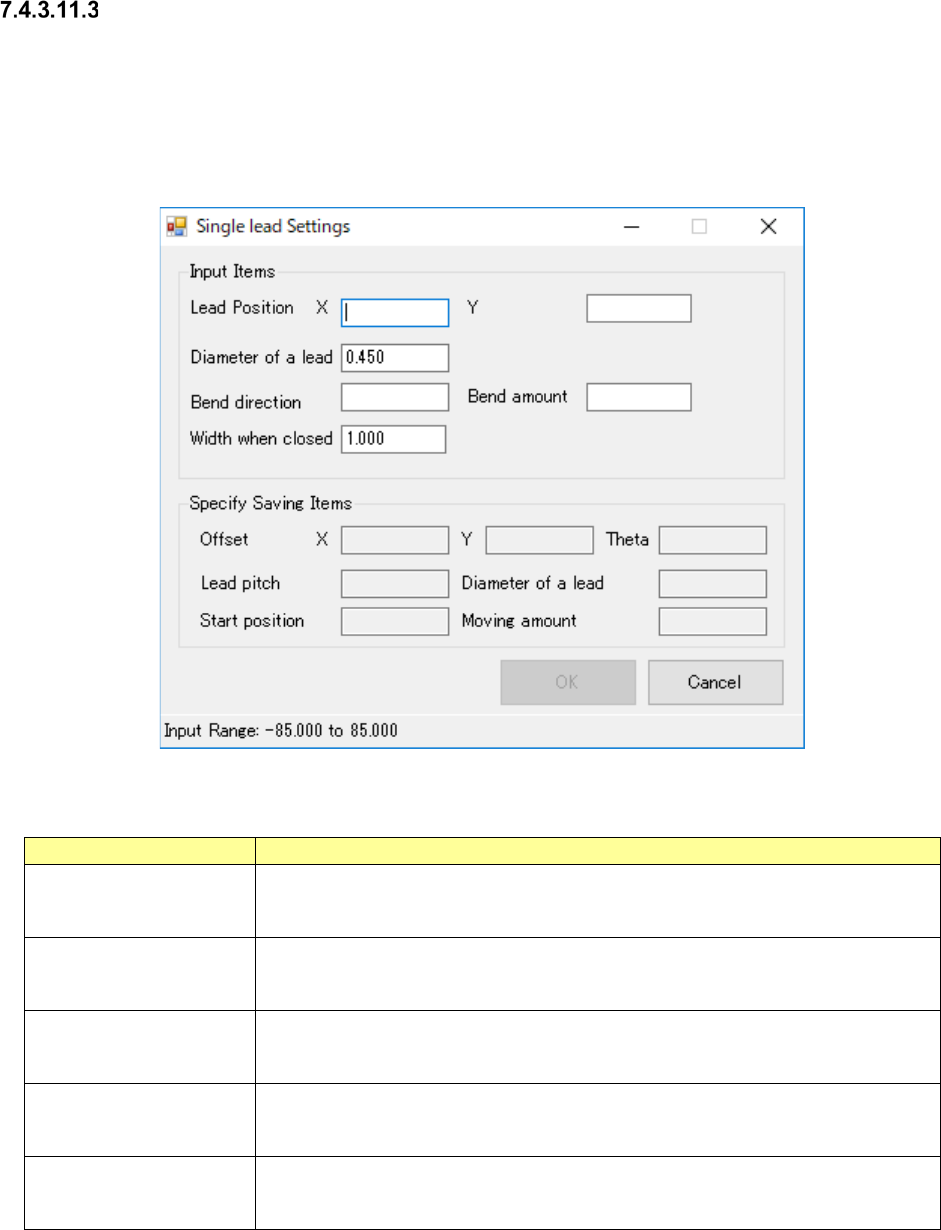
Single Lead Setting Screen is the screen to support the pair information entry at single lead.
Entry becomes capable when the selected pair clinch method is “from outside toward inside” or
“from inside toward outside”.
The contents of output item are reflected to the selected pair when all input items were set and
pressing OK button.
Figure 7.4-137 Single Lead Setting Screen
Table 7.4-70 Single Lead Setting Items
Item name
Description
Lead Position, X/Y
Enter the lead positions, X and Y, at mounting point reference.
Input Range: -85.000 ~ 85.000mm
Default Value: Blank
Lead Diameter
Enter the lead diameter.
Input Range: 0.450 ~ 1.000mm
Default Value: Pair lead diameter selected
Bending Direction
Enter the bending direction
Input Range: 0 ~ 359
Default Value: Blank
Bending Amount
Enter the bending amount
Input Range: 2.500 ~ 10.000mm
Default Value: Blank
Width at Closing
Enter the width at closing.
Input Range: 1.000 ~ 5.000mm
Default Value: 1.000mm
JaNets Instruction Manual 7. Program Editor
7-101
7.4.4 Editing adhesive data
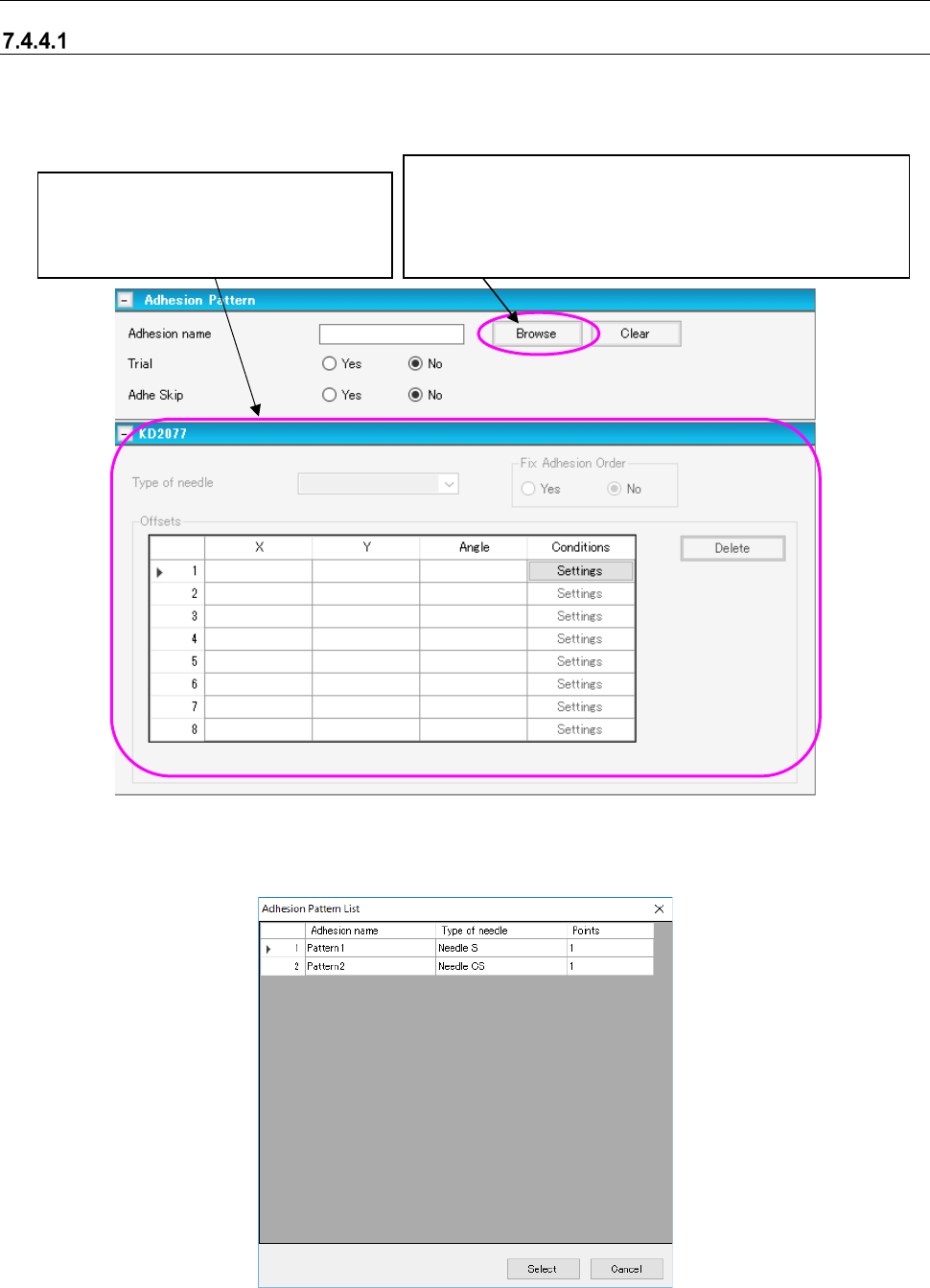
“Adhesive Pattern” screen
This screen allows you to set the adhesive information to be used for the corresponding compo-
nent. When you select “Component Data” from the tree view, and then the “Dispensing,” this
screen appears.
Figure 7.4-138 “Adhesive Pattern” screen
When you select the <Browse> button on the screen above, the “Adhesive Pattern List” appears
as shown below.
Figure 7.4-139 “Adhesive Pattern List”
This button displays the “Adhesive Pattern List,” which shows
the adhesive data created on the “Adhesive Data” screen. You
can select an adhesive pattern to be used to dispense adhe-
sive on the “Adhesive Pattern List.” When you select a pattern,
its name is displayed on the screen.
When you enter the “Adhesion name”
field, you can edit data displayed in this
area. See Section “
7.4.4.2
Adhesive data” for how to enter data.