JANETS_INM.pdf - 第31页
JaNets Instr ucti on Man ual 2. Install ation 2-3 (3) The “License Grant /Warra nty for Software” scr een a ppears. Sel ect the radio b utton “I accept the terms in t he license a gree ment,” and t hen cl ick the <Ne …
JaNets Instruction Manual 2. Installation
2-2
2.1.3.2 Installing the SafeNet Sentinel Protection Installer 7.6.6
If the protect module driver is not installed on the PC yet, install it here.
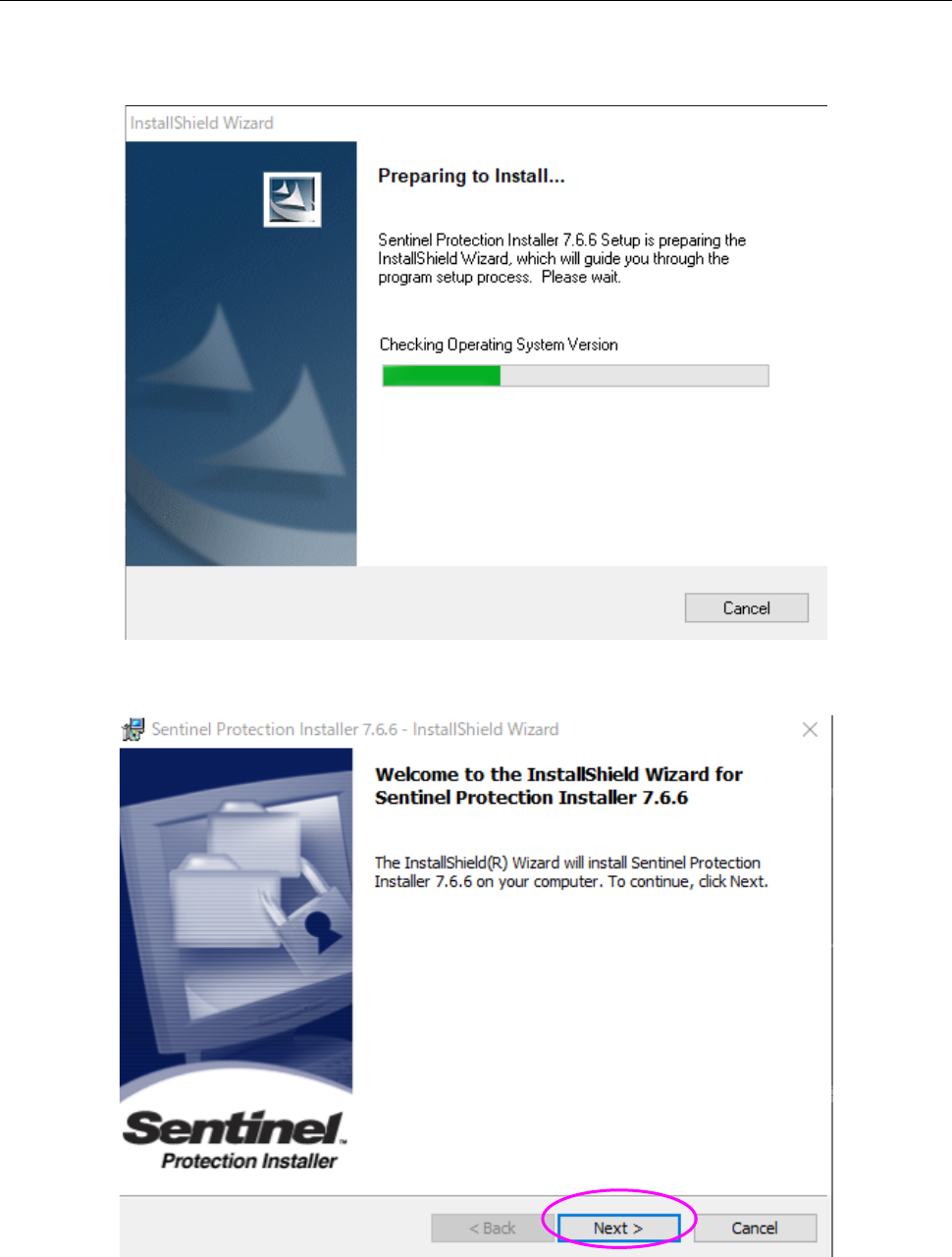
(1) The installer is being started up.
(2) When the initial screen for installation appears on the screen, click the <Next> button.
JaNets Instruction Manual 2. Installation
2-3
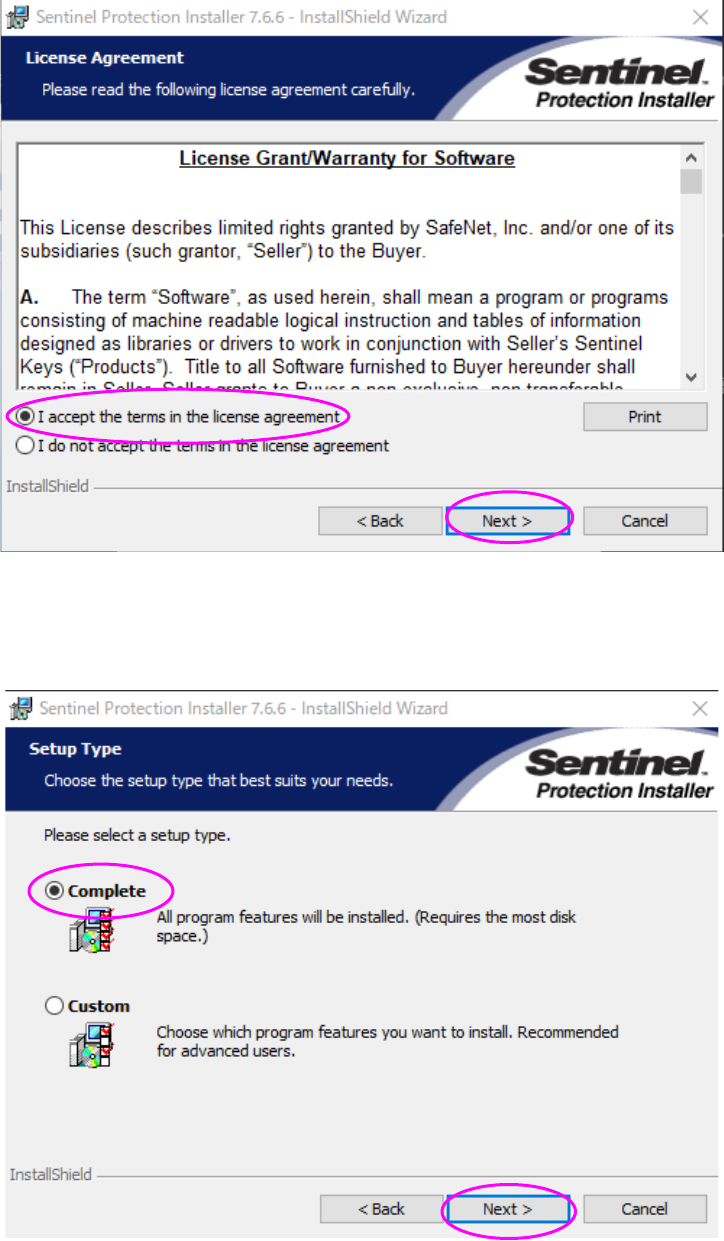
(3) The “License Grant/Warranty for Software” screen appears. Select the radio button “I accept
the terms in the license agreement,” and then click the <Next> button.
(4) Select the radio button “Complete,” and then click the <Next> button.
* When you select the radio button “Custom,” the current screen is switched to that for
selecting a driver to be installed. Be sure to select the radio button “Complete” here.
JaNets Instruction Manual 2. Installation
2-4
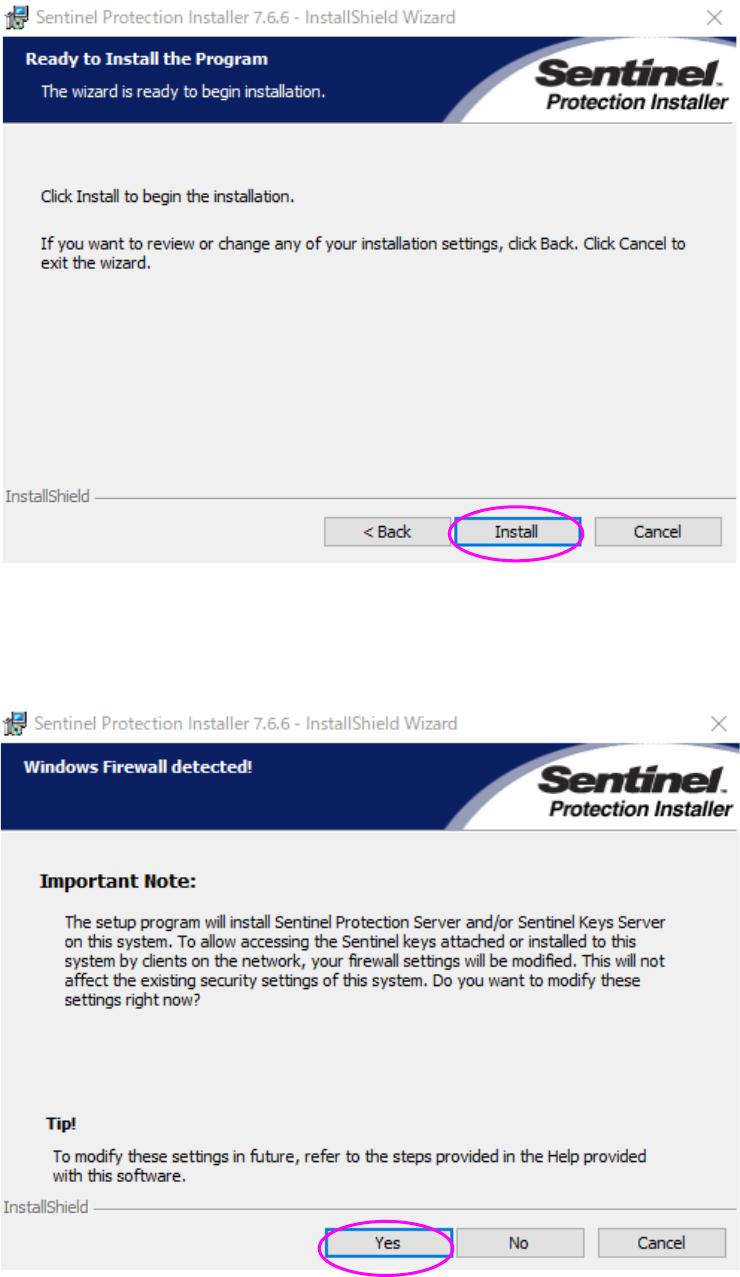
(5) Click the <Install> button.
(6) Click the <Yes> button. Installation starts.
* This is to modify the firewall settings for the driver of the protect module.
Be sure to click <Yes> on this window.