JANETS_INM.pdf - 第319页
JaNets In structio n Manual 7. Program Editor 7- 112 About the tabs displ ay ed on the view er d isp lay area Guidance: Displ ays the de scripti on of the ite m select ed at the prese nt. Coherenc e Check Results: Displa…
JaNets Instruction Manual 7. Program Editor
7-111
7.5 Description of Each Screen
7.5.1 Main screen
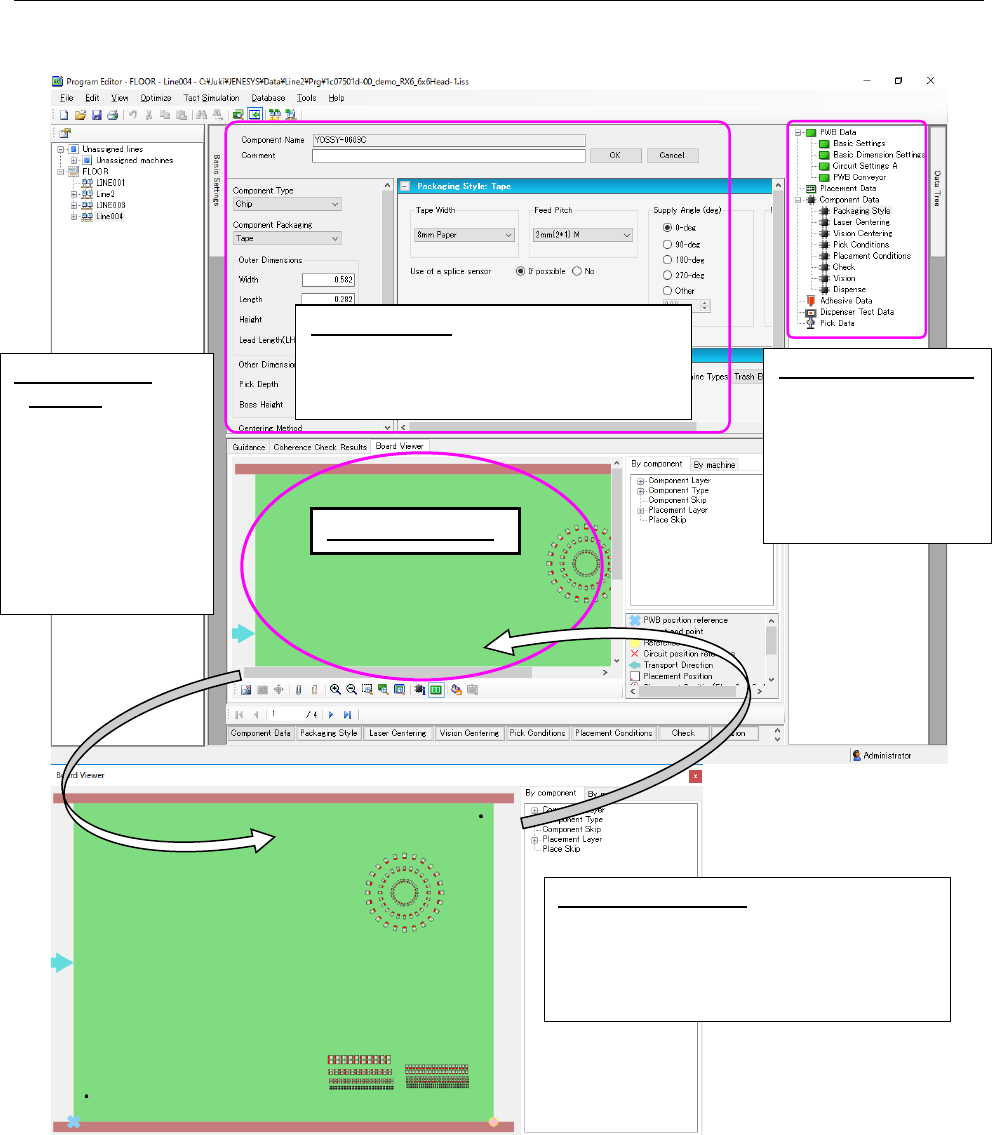
The entire screen of the Program Editor is shown below.
Figure 7.5-1 Main screen
When you drag and drop a production program onto the Board Viewer, the system displays the
corresponding production program.
Separate Board
Viewer: When you
click the right button
of a mouse on the
“Board Viewer,” the
pop-up menu ap-
pears. Select the
[Separate Board
Viewer] command on
this menu.
Viewer display area
Tree view display area:
When you select
each item, the cor-
responding input
screen is displayed
on the data input
area.
Data input area:
Allows you to check or set
items of a production program such as
PWB data, Placement data, Component
data and Pick data.
Return Board Viewer:
Click the right button of
a mouse on the “Board Viewer” to display
the pop-up menu. Select the [Return Board
Viewer] command on this menu to display
the Program Editor screen again.
JaNets Instruction Manual 7. Program Editor
7-112
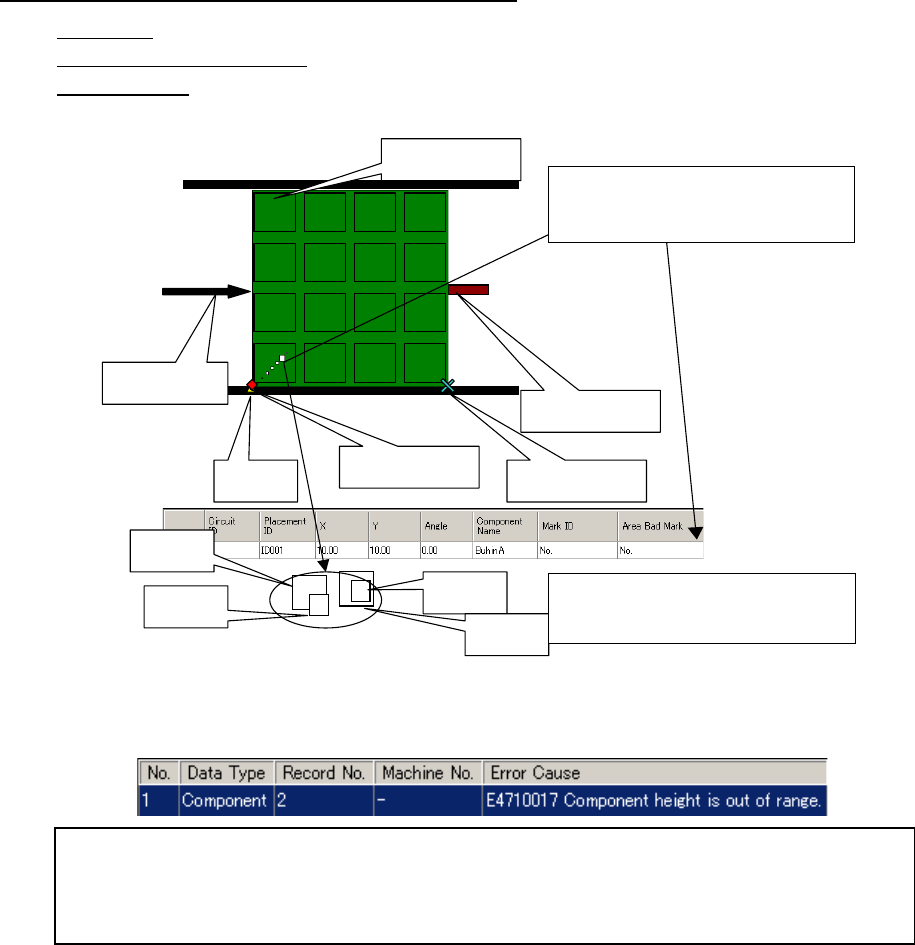
About the tabs displayed on the viewer display area
Guidance: Displays the description of the item selected at the present.
Coherence Check Results: Displays the results of the data coherence check.
Board Viewer: Allows you to check the board transport direction, board layout offset, positioning
hole position, component assignment and so on with showing the image of a board.
When you double-click the desired component, the system selects its Placement data and dis-
plays it on the screen.
Figure 7.5-2 Description of each item displayed on the Board Viewer
Circuit assignment
Board transport
direction
Hole
position
Component
A
Component
B
Component
C
Component
D
The system draws a component whose size is
smaller than those of others over them so that
you can understand how components are over-
lapped.
PWB reference posi-
tion
Layout end point
Stopper pin
When you double-click the displayed com-
ponent, its Placement data is displayed.
When you double-click the desired line, the cursor moves to the “Height” cell of the outer di-
mensions of the corresponding Component data. The system also displays the data coher-
ence error message.
When you double-click the error message, the cursor moves to the item that caused the error.
JaNets Instruction Manual 7. Program Editor
7-113
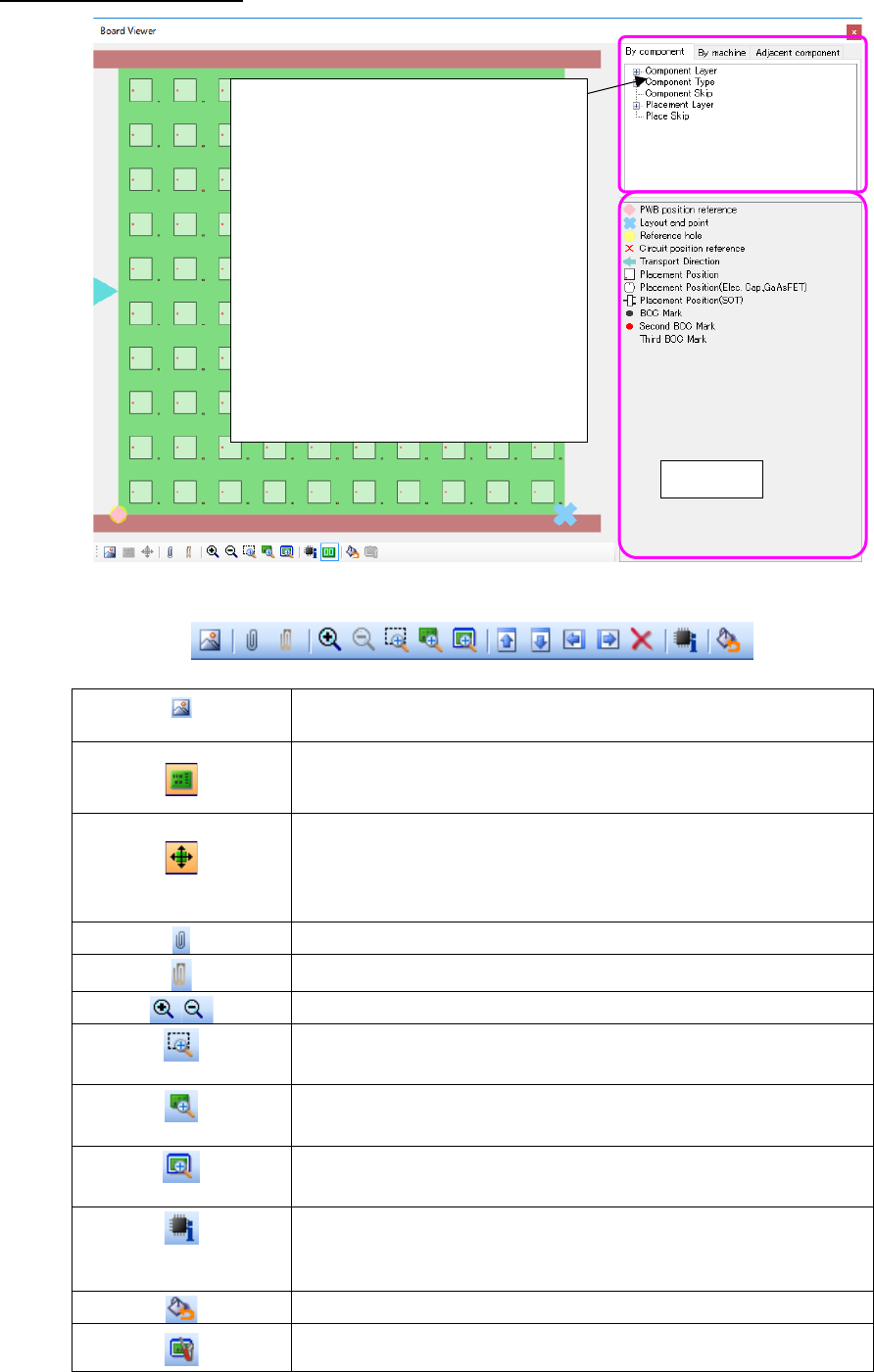
About the Board Viewer
Figure 7.5-3 “Board Viewer” screen
Figure 7.5-4 “Board Viewer” Toolbar
(display of the image)
You can check the PWB image obtained with a scanner with the
placement data.
Displays/hides a PWB image.
This button is enabled when you obtain a PWB image with the <Display
of the image> button above.
(Change of a PWB im-
age)
Changes the PWB image size, and/or moves/rotates a PWB image.
Displays the tool bar for changing a PWB image.
This button is enabled when you obtain a PWB image with the <display
of the image> button above.
Displays/hides the tree view.
Displays/hides the legends.
Enlargement/reduction
(Rectangular zoom)
Zooms the area specified with a mouse
(100% zoom)
Displays in the same size as a PWB size.
(Whole zoom)
Displays the whole PWB according to the size of the screen.
(ID information for
placement)
Displays in a pop-up window component ID, component name, com-
ment, component type, and component outside dimensions by clicking
component.
Returns the displayed color by machine to the default.
Adjusts a display size so that it may be displayed in the same size as the
outside dimension of board when it is displayed with 100% zoom.
Legends
The selected trees are distinguished in
colors.
Component:
it is distinguished in color by component.
Machine:
it is distinguished in color by machine to
be used.
(* optimized)
Adjacent components:
Two adjacent placed components are
displayed in the tree view in the follow-
ing order: Component type – Base
component – Adjacent component.