JANETS_INM.pdf - 第322页
JaNets In structio n Manual 7. Program Editor 7- 115 Com ponent s place d are displayed in dif ferent c olors with respect t o each machine used. If the mach ine is not opti miz ed, compo nents plac ed are not display ed…
JaNets Instruction Manual 7. Program Editor
7-114
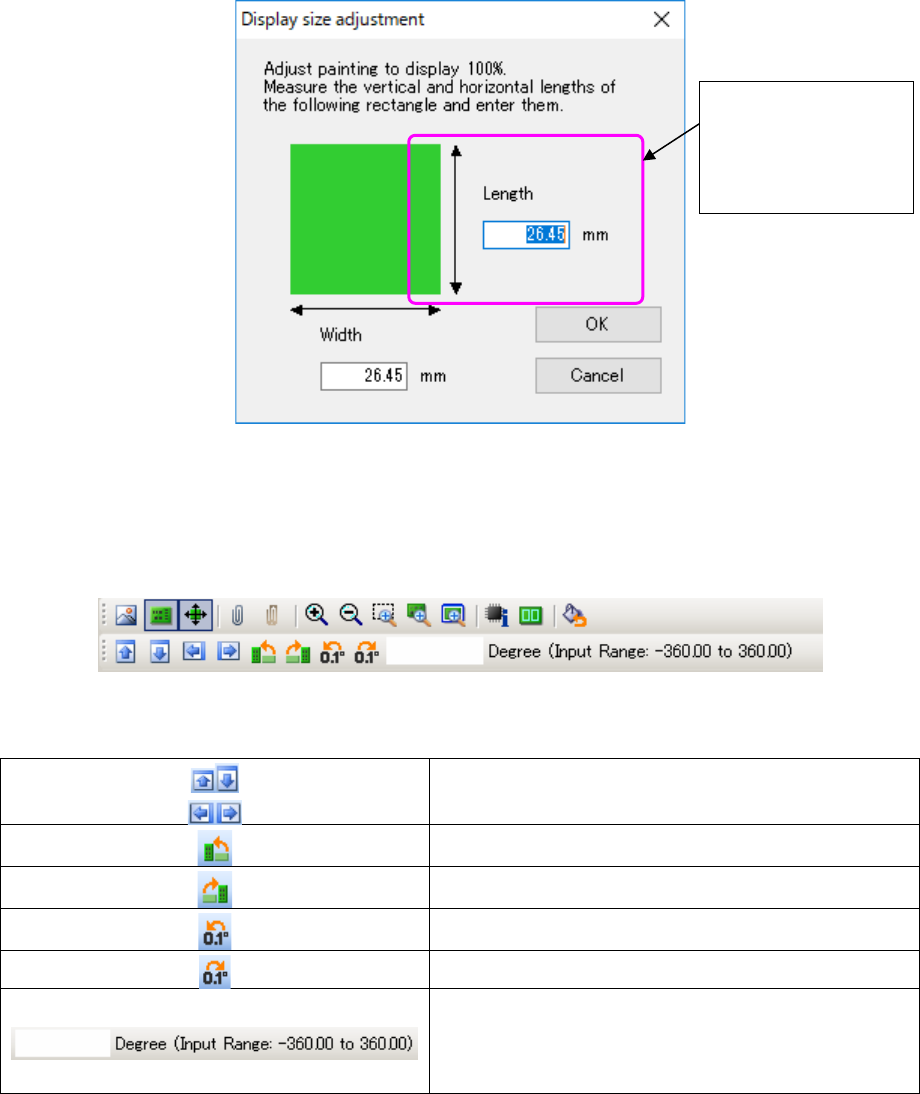
A board viewer is displayed with the same size as the set outside dimension of a board through
100 zoom.
However, depending on a display size and the graphic resolution of a display unit, it may be dis-
played with a different size from an outside dimension of a board. In this case, click the "display
size adjustment" button of a tool bar, and adjust a display size so that it may be displayed with an
actual outside dimension of a board.
(It is an effective button for a "100% zoom" display.)
Figure 7.5-5 Display size adjustment screen
When you select the <Change of the PWB image> button above, the various buttons for changing
a PWB image are displayed on the tool bar.
Figure 7.5-6 Tool bar displayed when you select the <Change of the PWB image> button
Moves an image up/down or to the right/left.
Rotates an image to the left by 90 degrees.
Rotates an image to the right by 90 degrees.
Rotates an image to the left by 0.1 degree.
Rotates an image to the right by 0.1 degree.
Allows you to enter the rotation angle of an image viewed
from a horizontal direction (0 degrees) of the image.
When you enter a positive angle, an image is rotated to the
left. When you enter a negative angle, it is rotated to the
right.
Measure the vertical
length of the rectan-
gle displayed on the
screen, and enter
the length.
JaNets Instruction Manual 7. Program Editor
7-115
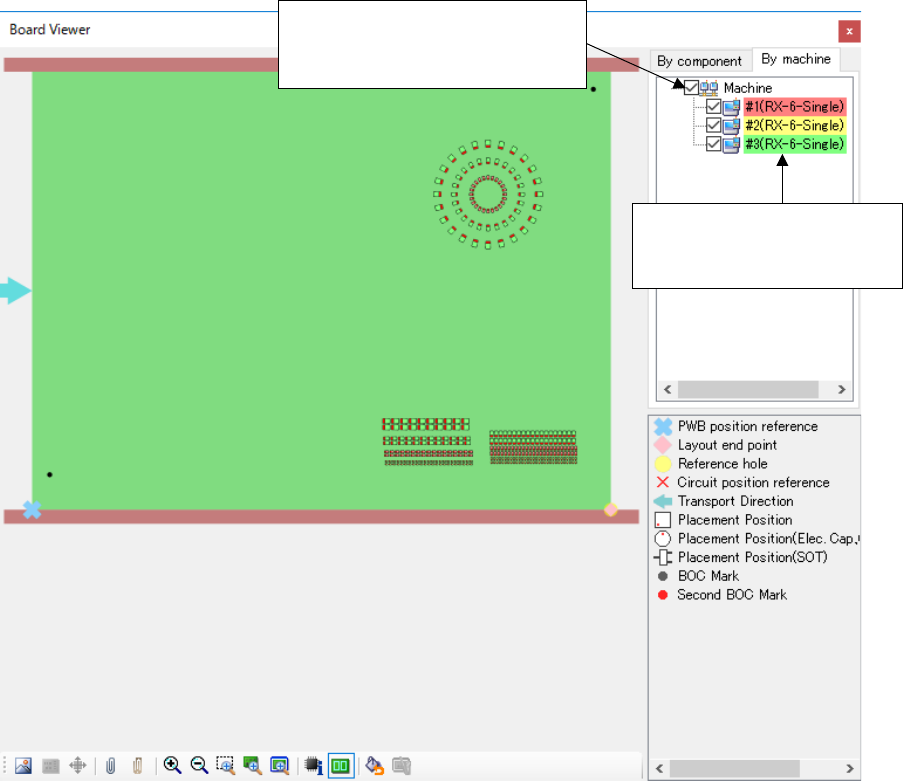
Components placed are displayed in different colors with respect to each machine used.
If the machine is not optimized, components placed are not displayed with respect to each ma-
chine.
* In the EPU mode, “For each machine” is not displayed.
Figure 7.5-7 Board viewer screen (A display by each machine)
When the check boxes are
checked, components placed are
displayed in the designated colors.
When the machine names are
double-clicked, the dialog for
setting colors is displayed.
JaNets Instruction Manual 7. Program Editor
7-116
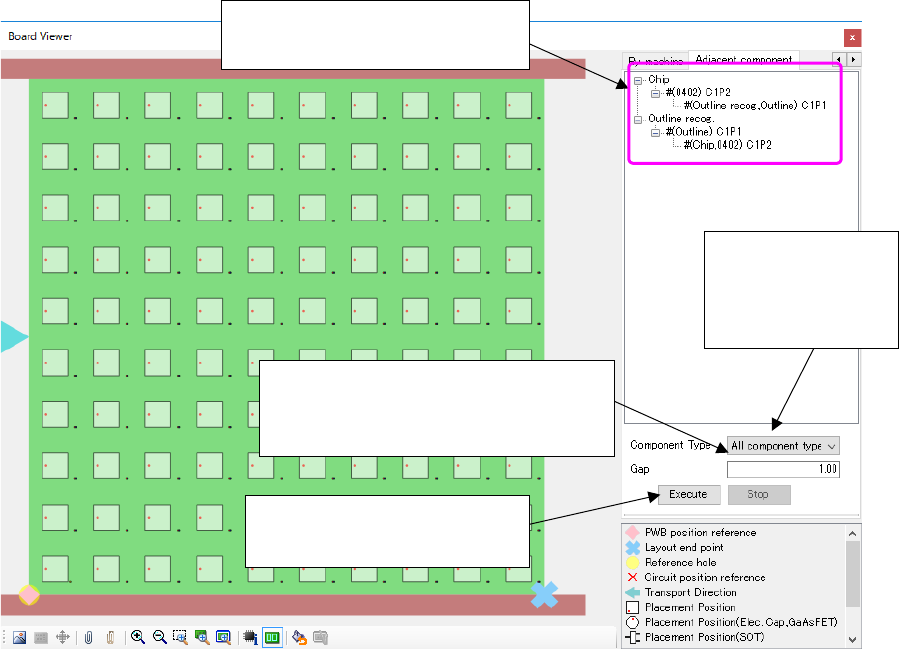
Two adjacent placed components are displayed in the tree view in the following order: Compo-
nent type – Base component – Adjacent component. When you click the base component or the
adjacent component, the component corresponding to the selected component is being selected
in the placement list or component list of the Program Editor.
Figure 7.5-8 “Board Viewer” screen (for displaying an adjacent component)
When the number of pairs of adjacent components exceeds one million, the system aborts the
operation.
In such a case, enter a smaller number in the “Gap” field.
The adjacent component search
result is displayed here.
Enter the gap between two components
to be used for searching for an adjacent
component.
Select a component
type of an adjacent
component to be
searched for.
This button starts searching for
an adjacent component.