JANETS_INM.pdf - 第323页
JaNets In structio n Manual 7. Program Editor 7- 116 T wo adjacent placed com pone nts are disp layed in t he tree v iew in the fol lowing order: Compo- nent ty pe – Base compo nent – Adjace nt comp onent. W hen y ou cli…
JaNets Instruction Manual 7. Program Editor
7-115
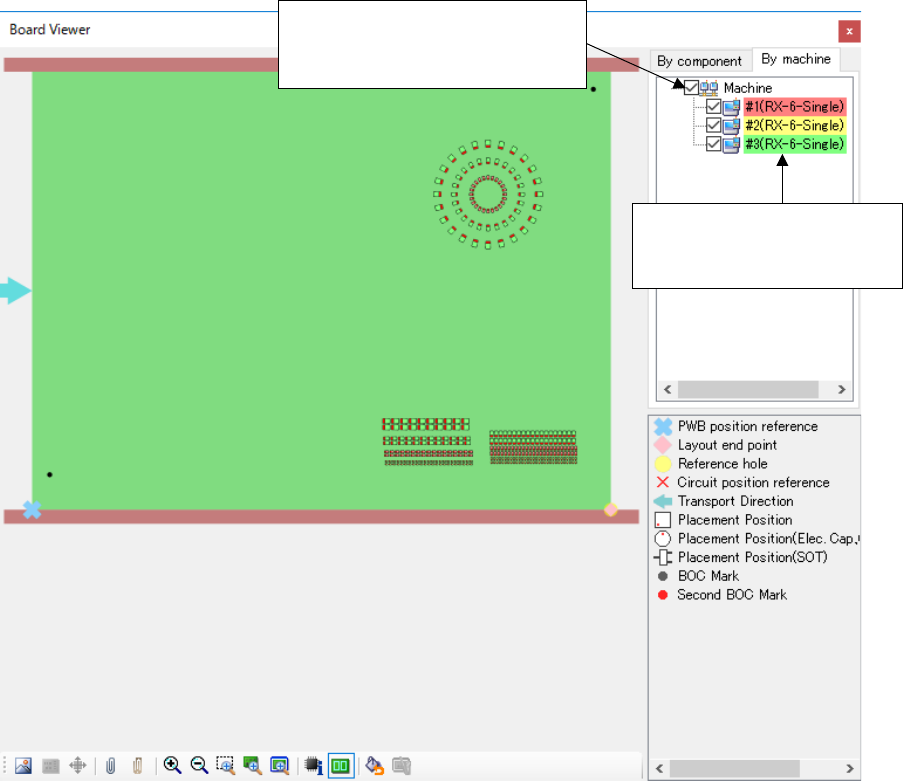
Components placed are displayed in different colors with respect to each machine used.
If the machine is not optimized, components placed are not displayed with respect to each ma-
chine.
* In the EPU mode, “For each machine” is not displayed.
Figure 7.5-7 Board viewer screen (A display by each machine)
When the check boxes are
checked, components placed are
displayed in the designated colors.
When the machine names are
double-clicked, the dialog for
setting colors is displayed.
JaNets Instruction Manual 7. Program Editor
7-116
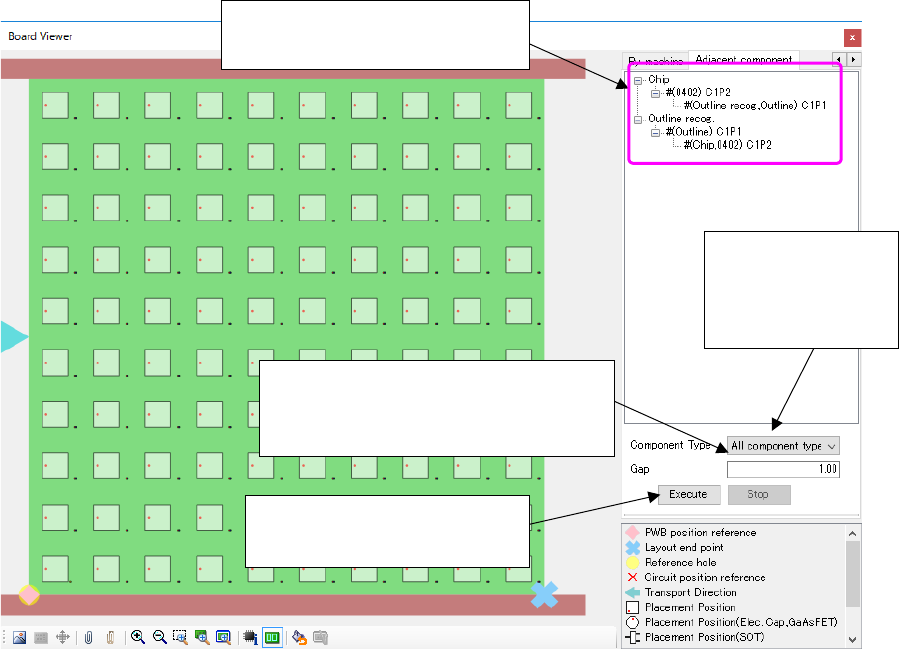
Two adjacent placed components are displayed in the tree view in the following order: Compo-
nent type – Base component – Adjacent component. When you click the base component or the
adjacent component, the component corresponding to the selected component is being selected
in the placement list or component list of the Program Editor.
Figure 7.5-8 “Board Viewer” screen (for displaying an adjacent component)
When the number of pairs of adjacent components exceeds one million, the system aborts the
operation.
In such a case, enter a smaller number in the “Gap” field.
The adjacent component search
result is displayed here.
Enter the gap between two components
to be used for searching for an adjacent
component.
Select a component
type of an adjacent
component to be
searched for.
This button starts searching for
an adjacent component.
JaNets Instruction Manual 7. Program Editor
7-117
7.6 Supplementary Information of Each Menu Item
7.6.1 “File” menu
Figure 7.6-1 “File” menu
“Save”
Saves a production program that is being edited.
When the program is “UNTITILED”, the “Save as…” dialog box appears automatically even if you
click "Save".
When a file created with another machine model is opened, it is saved in the “JaNets” format by
default. Therefore, the "Save as…” dialog box appears.
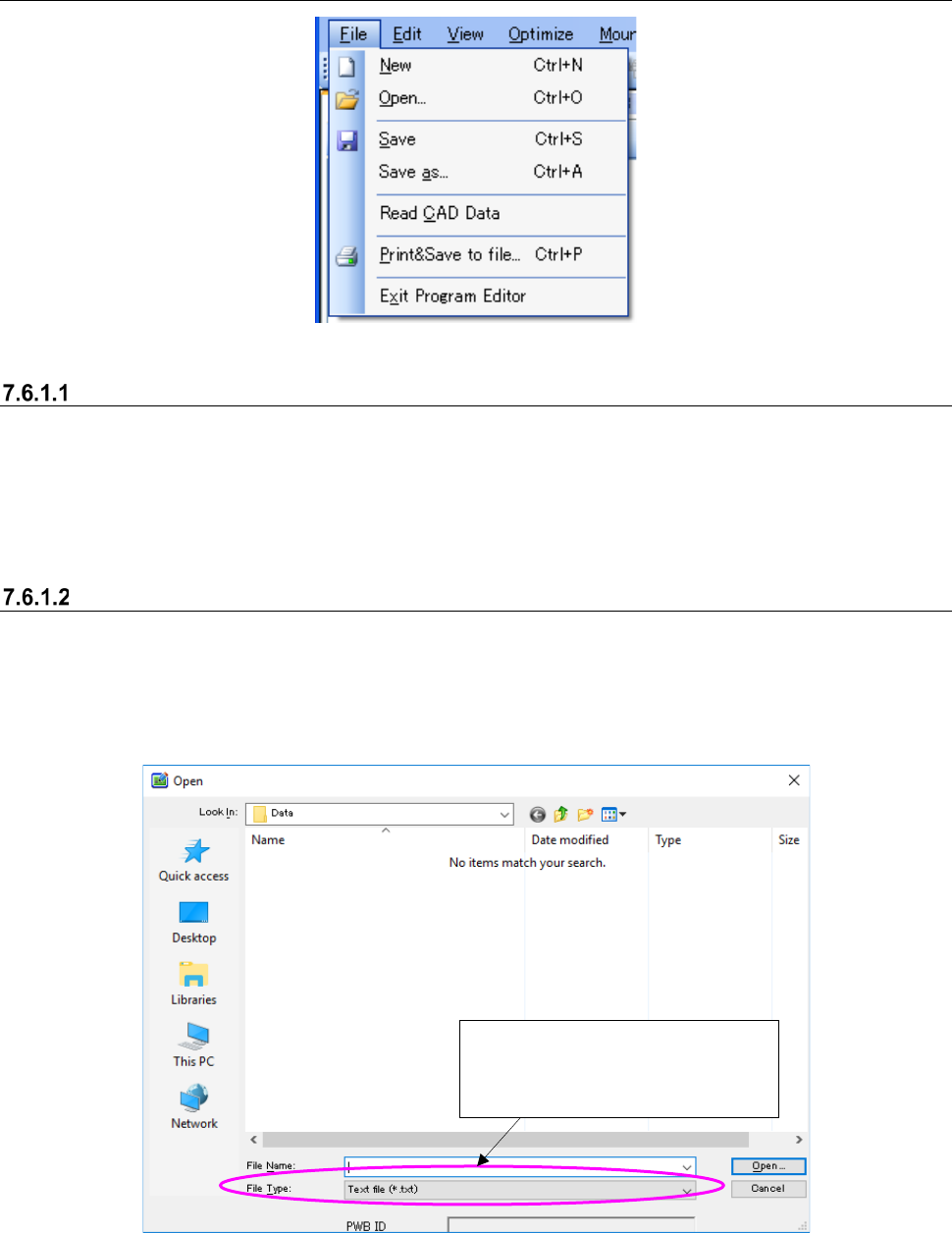
“Read CAD Data”
Reads CAD data and converts it into a production program in the “JaNets” format.
The system compares the component names of the production program with those of the com-
ponent database; if the name of a component is the same as the program, the component data is
imported from the database into the program.
Figure 7.6-2 “Read CAD Data” dialog box
You can choose a file type among
those specified as “Input Format” for
“CAD Conversion Setup,”which is a
menu of “Too ls . ”